
Version 2.6 brought AppleScript into the mix, along with new column views for Comments, Trashed, and Hidden files. These aren't bullet-point extras—they change how you can fold the app into a larger workflow or spot orphaned files you'd otherwise never see.
Features built around the hunt
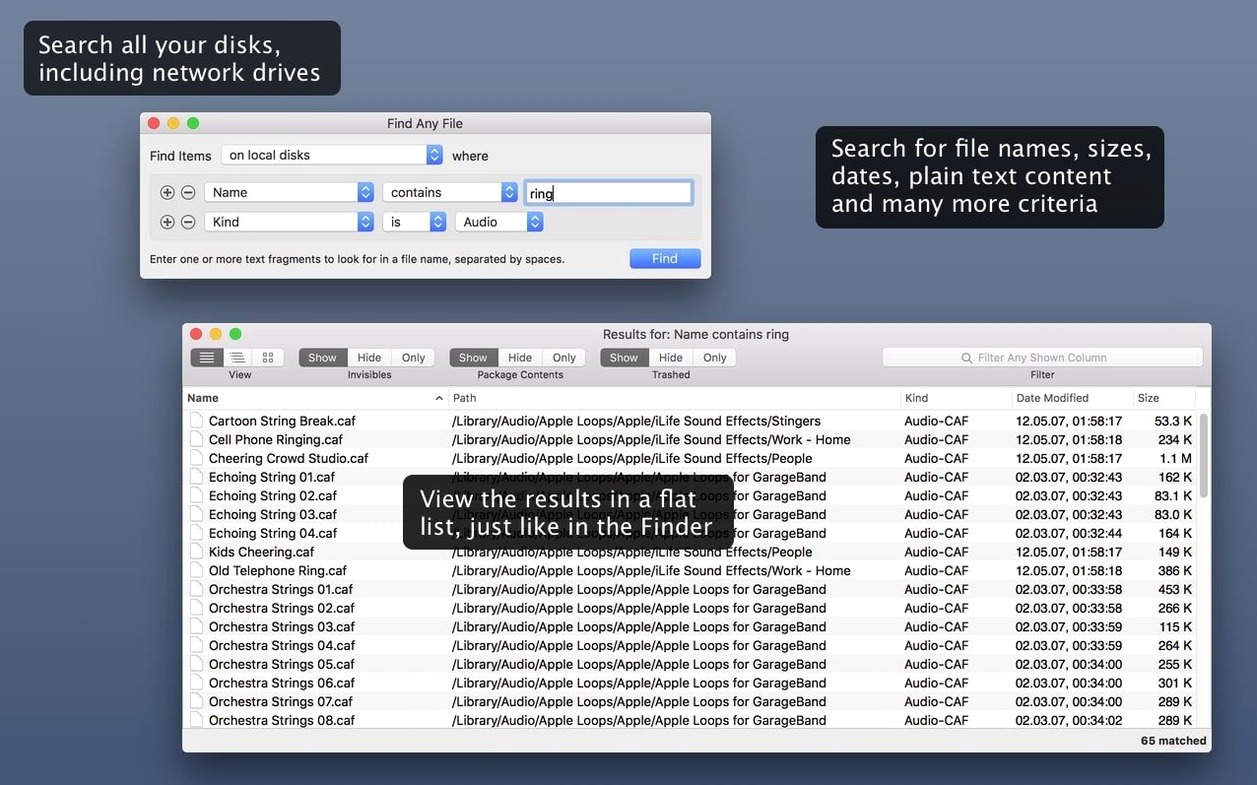
- Direct disk search. No database to rebuild or wait on. The app reads the directory structure as it exists right now, so results reflect what's actually on the drive.
- Spotlight-free zones. It searches server volumes, external drives, and folders you've told Spotlight to ignore—places a standard Finder search draws a blank.
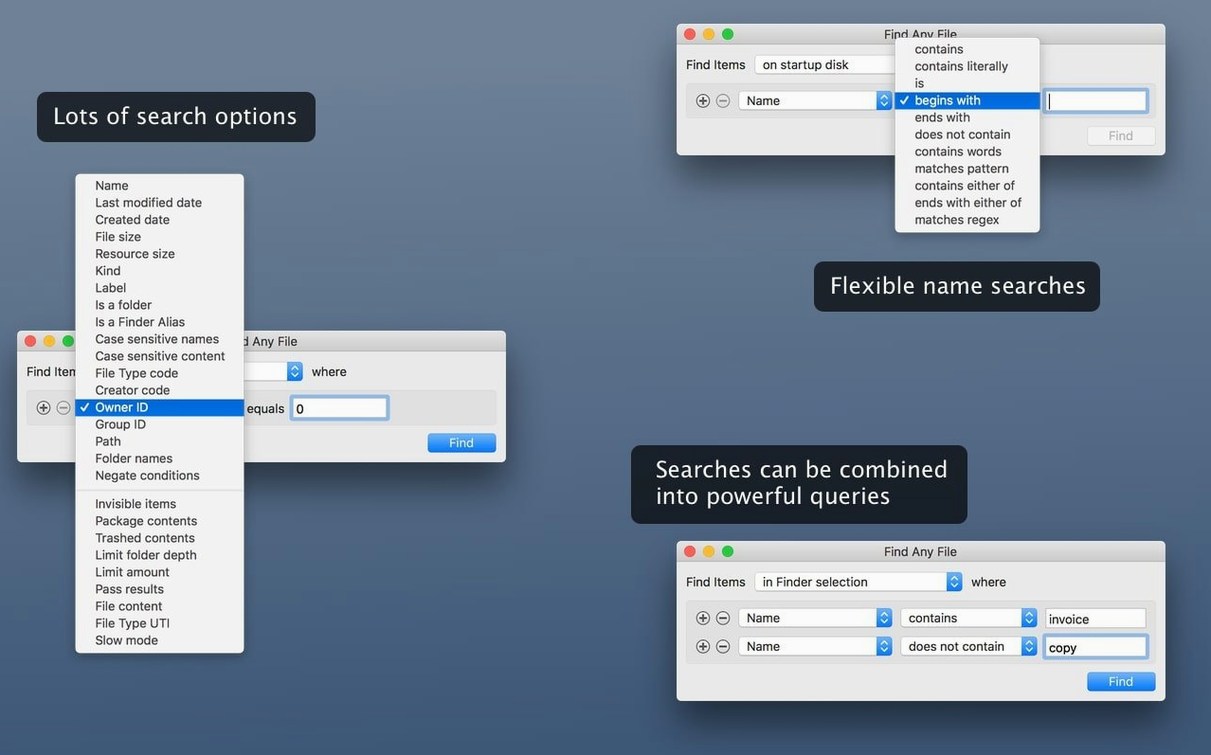
- Fine-grained filters. Narrow things down by file size, modification date, kind, or text content inside the file. The criteria stack together when you need to zero in on one specific document.
- Comments and hidden items. The 2.6 columns let you sort by Finder comments, trashed status, or whether a file is hidden, which turns the app into a tidy cleanup tool.
The Flashlight for Files Spotlight Won't Touch
Think of Find Any File as the mechanic's flashlight, not the owner's manual. It won't search inside emails, Word documents, or PDFs the way Spotlight does—Tembo handles that side better if you want to improve Spotlight results. What this app gives you is a direct line to every file on any attached disk, right now, without waiting for an index. It's shareware from developer Thomas Tempelmann, and it runs happily on anything from macOS 10.11 on up, Intel or Apple Silicon.
Narrow the Net in Advanced Preferences
Out of the box, Find Any File casts a wide net, and that's exactly what you want for a first pass. But a handful of preferences turn it from a blunt instrument into something far more precise.
Open the Advanced pane first. The option to include invisible files sits off by default, and leaving it that way keeps your results clear of system internals most days. Flip it on only when you're chasing a stray .plist or digging into Library folders that Spotlight won't touch. Right below it, the checkbox for searching inside bundles and packages is one you'll want enabled almost always—it's half the reason you reach for this app over a Finder search, particularly when you're pulling apart old installers or archived projects.
Over in Search preferences, bump the default time limit upward. The app ships with a cap that can cut a long scan short on slower external drives, and a spinner full of network volumes will hit it sooner than you'd expect. Setting it to 60 seconds or simply removing the limit gives the app room to finish what it started. While you're there, toggle on Show path in results window if you lean visual—having the full folder trail visible without clicking into each item saves a surprising number of trips to the Finder.
Photographers, Video Editors, and System Diggers
Not every Mac user needs to find any file on their disks, but a few groups practically live inside this app once they install it.
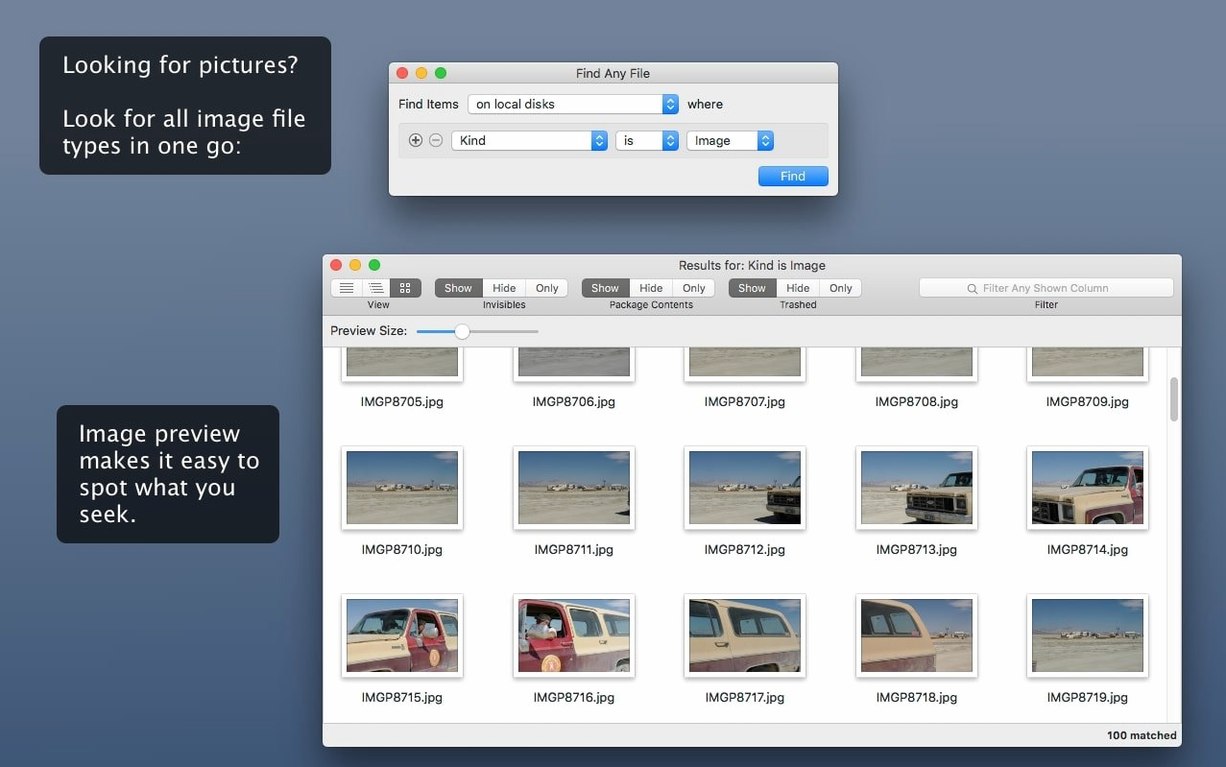
Photographers and video editors with sprawling external drives benefit from the size and date filters more than most. A quick search for all files above 2 GB modified in the last week pulls up fresh footage faster than digging through folder trees. When a client sends an obscure raw format that Spotlight ignores, a plain text content search inside the folder often surfaces the right sequence by file name fragment alone. The same logic applies to anyone who has ever stared at a drive full of camera card dumps and wondered where yesterday's shots actually landed.
Developers and tinkerers who routinely poke around inside .app bundles or hunt for configuration files tucked into system directories get immediate value from the bundle-search setting. Finding a specific .json or .xml buried three layers deep inside a package takes seconds, no command line needed. And if you maintain a home server or NAS, the ability to search network volumes directly—without asking macOS to index them first—makes the app a quiet workhorse. Spotlight won't help you there; Find Any File will.
Mac users with aging machines or carefully curated storage setups often disable Spotlight on certain volumes to keep performance snappy. That tradeoff stings less when you have a direct-disk search tool waiting. You give up indexed content searches across those drives, but you keep the ability to locate files by name, date, and size whenever you need them.
Filling Gaps Spotlight Leaves in System Folders
Find Any File doesn't compete with Spotlight so much as it fills the gaps Spotlight leaves on purpose. macOS keeps its built-in index fast by skipping system folders, ignoring certain file types, and refusing to touch volumes it doesn't own. That's sensible for everyday use. This app picks up the slack when sensible isn't enough.
In practice, many people run it side by side with a tool like Tembo, which improves what Spotlight shows, while Find Any File changes where you can look. Tembo makes the index more useful; Find Any File skips the index entirely. Together they cover more ground than either one alone.
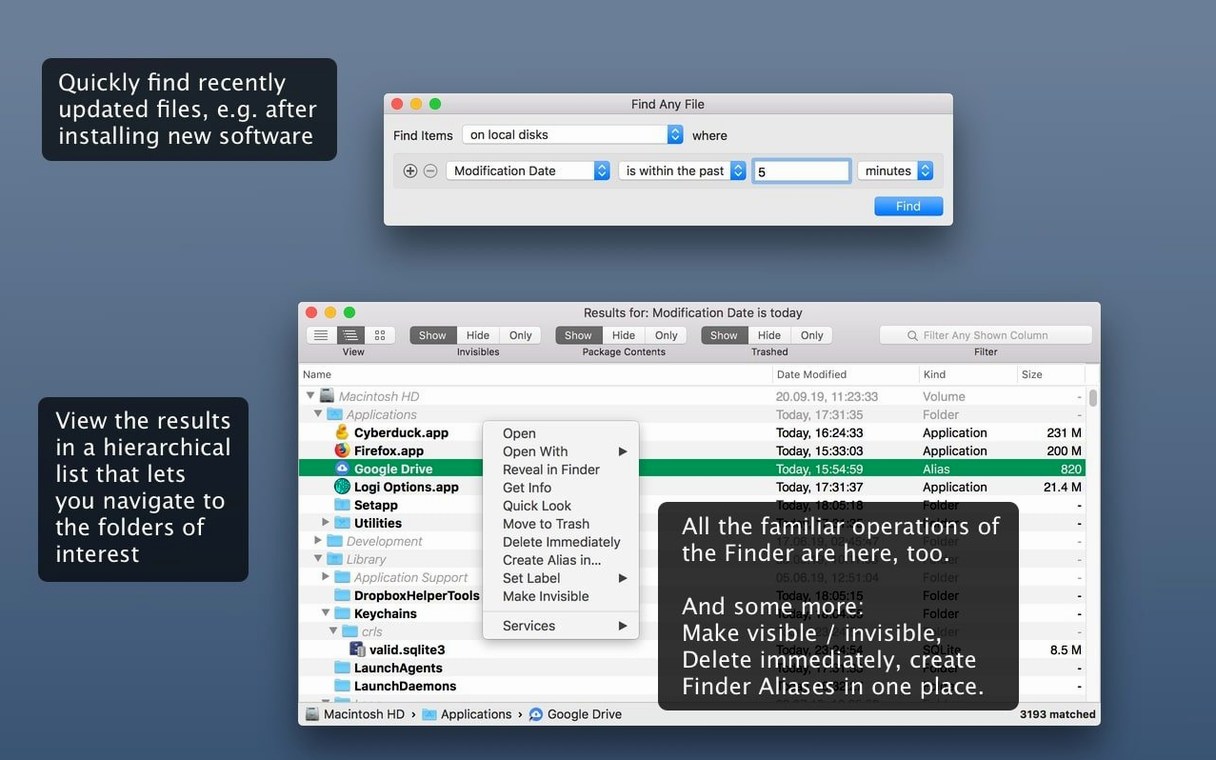
The app also pairs naturally with Finder tags and comments. The new Comments column from version 2.6 turns Spotlight comments into a sortable field, so if you've been adding notes to files for years, you can finally filter by them. Drag results straight from the hierarchical folder view into a Finder window or onto a dock icon, and macOS treats them like any other file. That means you can search, select, and then share, compress, or delete without switching tools mid-task.
For anyone who occasionally needs an any to iso mac workflow or grabs an any video converter torrent that arrives as a misnamed download, the name-and-date combo search becomes a quick way to locate the file you just saved, even when the browser put it somewhere unexpected. The same impulse applies on a smaller scale: the "any file" in the app's name is honest. It doesn't care what format the bytes represent, only that they exist where you told it to look.
AppleScript support arrived in 2.6, letting you trigger searches from scripts and automation workflows. The release also added sortable columns for Comments, Trashed, and Hidden files, and made finding Finder comments noticeably more reliable.
- macOS 10.11 or later, including macOS 27
- Runs on Intel and Apple Silicon Macs
Questions I actually get
Does Find Any File replace Spotlight?
No—it complements Spotlight by searching disks directly, including volumes Spotlight doesn't index, but it doesn't search inside emails, Word files, or PDFs.
Can it search network drives?
Yes, it searches server volumes and any locally mounted disk, even those you've excluded from Spotlight indexing.
Porch talk 0
Come in or pull up a chair to leave a comment.
Nobody has pulled up a chair yet. If you used it on a real Saturday, say what the hour was.