
Insert Embedding in Found Set is the kind of feature you don't notice until you're deep into a custom build. You're staring at a few hundred records and want the app to understand them in a way a simple sort never could. That's where this tool starts to earn its keep.
- Train the context. Use Configure AI Account to point FileMaker at a semantic model. You do this once, at the system level.
- Map the field. Choose a container field and let Insert Embedding generate vector data from text, images, or PDFs. The app does the heavy math.
- Work the found set. Select Insert Embedding in Found Set. This pushes embeddings through every record in your current query, not just the one you're viewing.
- Refine with a semantic find. Perform Semantic Find lets you search by meaning across those records. You get back conceptually similar items, even when the exact words don't match.
The real value shows in project hubs and content libraries. You build a Kanban view from an add-on, attach documents, then let the semantic tools surface connections between tasks and reference files. It turns a flat database into something closer to a research assistant. Experienced developers who already live inside the relationship graph will find the AI additions a natural next step.
When Airtable or Numbers Falls Short
People sometimes ask me whether they should just use Airtable, or maybe knock together something in Numbers, instead of learning FileMaker. The answer depends entirely on what you're building and who's going to use it. They're different tools with different assumptions baked in.
Airtable feels like a spreadsheet that grew up and got ambitious. You pick a template, tweak the columns, and you're off. For a team tracking editorial calendars or a small product inventory, it's fast and friendly. The trouble comes when you need real relational depth or a layout that doesn't look like a grid. FileMaker lets you design screens that match the task: a dashboard with charts in one corner, a Kanban board in another, a detail view with conditional formatting. Airtable's interface stays closer to its spreadsheet roots. And FileMaker runs locally on your Mac when you want it to, with no browser tab eating memory for breakfast.
Numbers, Apple's own spreadsheet app, is the lightweight alternative that's already on your machine. You can build a flat list with filters and some basic summary tables in an afternoon. It's fine for a personal book log or a simple invoice tracker. But Numbers doesn't do relationships the way a database does. The moment you need one client record tied to multiple projects, each with their own set of attachments, you're fighting the tool. FileMaker's relationship graph handles that out of the box, and the new semantic search features would be impossible to replicate in a spreadsheet.
There's also a quieter contender in the conversation: Ninox. Like FileMaker, it's a low-code database builder with a Mac-native client. Ninox leans harder into formula-driven logic and feels lighter on its feet for simple use cases. Where FileMaker pulls ahead is in the ecosystem: the add-ons for charts and Kanban boards, the deep scripting environment, and now the AI embedding tools that Ninox doesn't touch. If you're managing a modest contact list, either works. If you're building a project hub that needs to understand the contents of attached PDFs, FileMaker is the one with the engine for it.
Three-Second Launches on Apple Silicon
I've run version 21.0.1 on both an M1 MacBook Air and an older Intel iMac, and the experience is consistent without being flashy. The app opens in about three seconds on Apple Silicon, maybe six on the Intel machine with a mechanical drive. Layout switching feels immediate on either architecture, which matters when you're jumping between a form view and a Kanban board a dozen times an hour.
Memory use sits around 300 to 500 MB with a moderately complex file open. That's reasonable for a development environment that doubles as a runtime. It'll climb higher if you're running scripts against a large found set, and the new Insert Embedding in Found Set feature does push the CPU for a minute or two while it processes a batch of records. You'll hear the fans on an Intel Mac when that happens, but the app stays responsive. I've yet to see a beach ball during an embedding run.
Stability has been uneventful in the best way. Over a couple of weeks of daily use — editing layouts, tweaking scripts, running semantic finds against a library of about 2,000 records — I had one crash, and that was while switching between three different custom apps rapidly. The auto-save had my back. For a tool that's essentially a development environment, that's solid. The Claris engineering team has had years to sand down the rough edges, and it shows.
Resource-wise, the main thing to watch is container fields with external storage. If you're embedding large files and then running AI operations on them, the working set can balloon. Keep your external storage on a fast SSD, and the experience stays smooth. For most everyday business apps — an invoice tracker, a client portal, a content planner — you won't notice the app's footprint at all alongside your browser and email client.
Building Tables Before Defining Questions
New FileMaker users tend to trip over the same few stones. I've done most of them myself.
- Building the schema before the questions. It's tempting to create a dozen tables and link them up before you've written down what you actually need to know. Two weeks later you've got a beautiful relationship graph that answers questions nobody asked. Sketch the reports and views you want first, then work backward to the tables.
- Ignoring the anchor-buoy pattern. Beginners often create one big relationship graph with every table connected to every other table. It works until it doesn't — you get circular dependencies, ambiguous relationships, and scripts that break in ways that are hard to trace. The anchor-buoy approach, where each layout has a single anchor table and a clear path to related data, keeps things sane.
- Treating container fields like folders. Drag a hundred high-res photos into a container field and your file size explodes. Use external storage from the start, and be intentional about what gets embedded versus referenced.
- Sleeping on the AI configuration. In version 21.0.1, the Configure AI Account dialog sits there waiting, but a lot of users skip it because it sounds like an advanced feature. Then they wonder why Insert Embedding doesn't produce usable results. You need to set that account up once, at the file level, before the semantic tools do anything meaningful.
- Over-scripting simple tasks. FileMaker's scripting language is deep, and new users sometimes write a twenty-line script for something a single calculation field could handle. Before you reach for the script editor, ask whether a calculation, a hide condition, or a built-in add-on would do the job.
Surgical Additions That Preserve Muscle Memory
The move to version 21 didn't rewrite the interface or change where things live, and that's a relief for anyone with years of muscle memory. The additions are surgical, and they land in the places where developers and advanced users already spend their time.
Configure AI Account is a one-time setup step that lives in the File Options dialog. Once it's pointed at a semantic model, the new Insert Embedding function becomes available in the script workspace. In practice, that means you can now add a script step that reads a text field, generates vector data, and stores it in a container, all without leaving the app. The same step works on images and PDFs, which opens up possibilities for content libraries and asset managers that need to search by visual or conceptual similarity.
Insert Embedding in Found Set is the batch-processing sibling of that function. Instead of running on one record at a time, it iterates through the current found set. If you're maintaining a reference library with a thousand tagged documents, you can now generate embeddings for all of them in one go. It's a background operation that takes a few minutes, but the payoff comes in the next step: Perform Semantic Find. This new script step lets a user type something like "reports about soil composition" and get back records that contain related documents, even when the text itself never uses those words. It's the kind of feature that changes how people design their search interfaces.
Set AI Call Logging is the quieter addition that developers will appreciate during debugging. It captures what the AI endpoint returns, which helps you understand why a semantic find returned certain records and not others. Before this, you'd be guessing. Now you can log and review the responses, adjust your prompts or your embedding model, and iterate.
Everyday use hasn't been upended by these changes — the app still opens to the same familiar layout and the relationship graph hasn't moved — but the toolbox has expanded. Someone building a job tracker, for example, can now add a smart search that understands "update the cabinet maker quote" as a variant of "revise woodworking estimate." That's a meaningful step beyond exact-match filtering, and it's baked into the platform rather than bolted on through a plugin. Combined with the existing add-ons for charts and Kanban boards, version 21 feels less like a database manager and more like a workshop for building apps that understand content.
Version 21.0.1 brings a quiet but meaningful shift toward AI-assisted data work.
- Configure AI Account for connecting semantic models.
- Insert Embedding to generate vector data in container fields.
- Insert Embedding in Found Set for batch processing records.
- Perform Semantic Find to search by meaning instead of exact match.
- Set AI Call Logging for tracing what the AI tools are doing.
- macOS 10.14 or newer
- Works on both Intel and Apple Silicon Macs
Questions I actually get
What kind of apps can I build with FileMaker Pro?
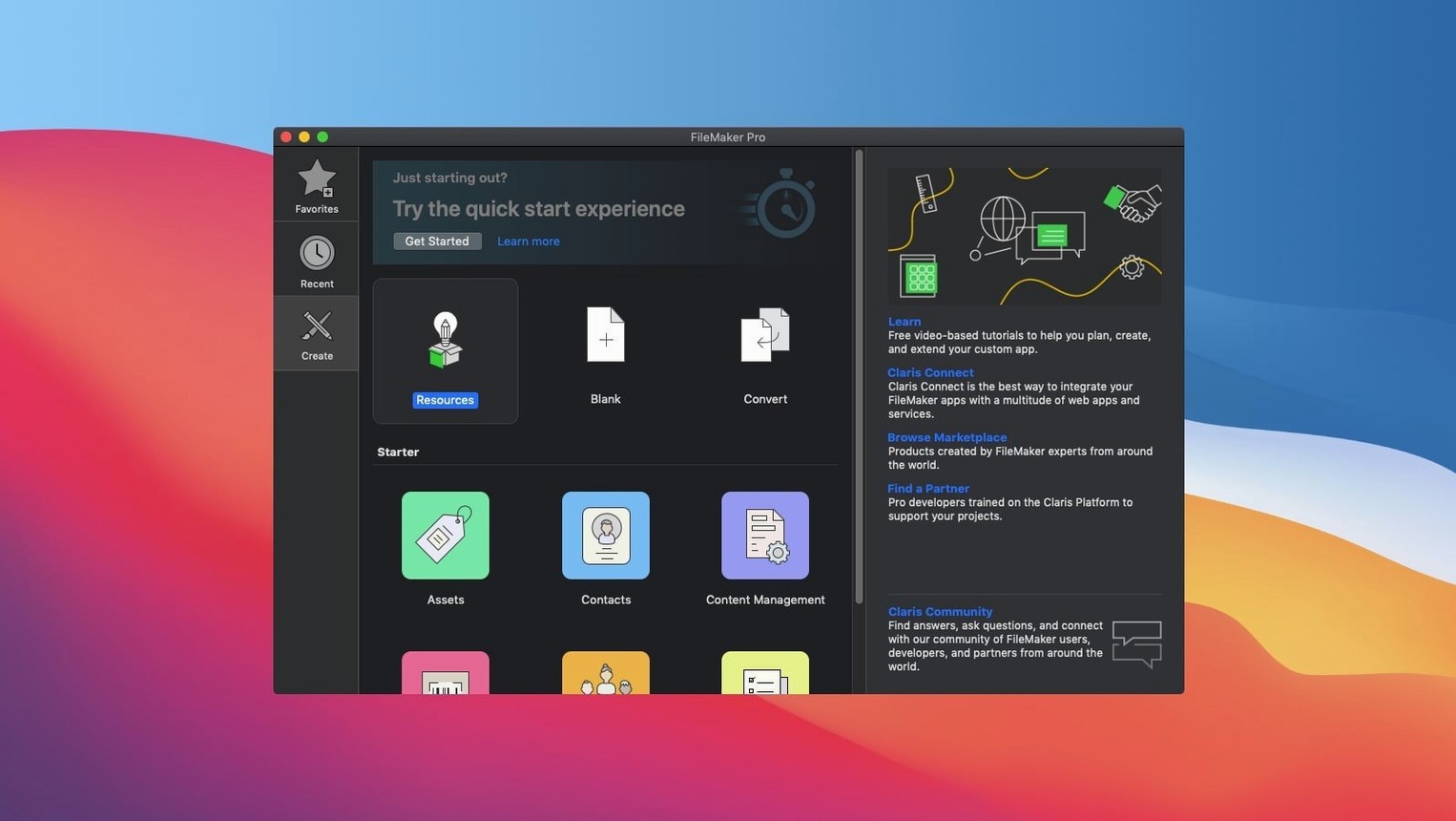
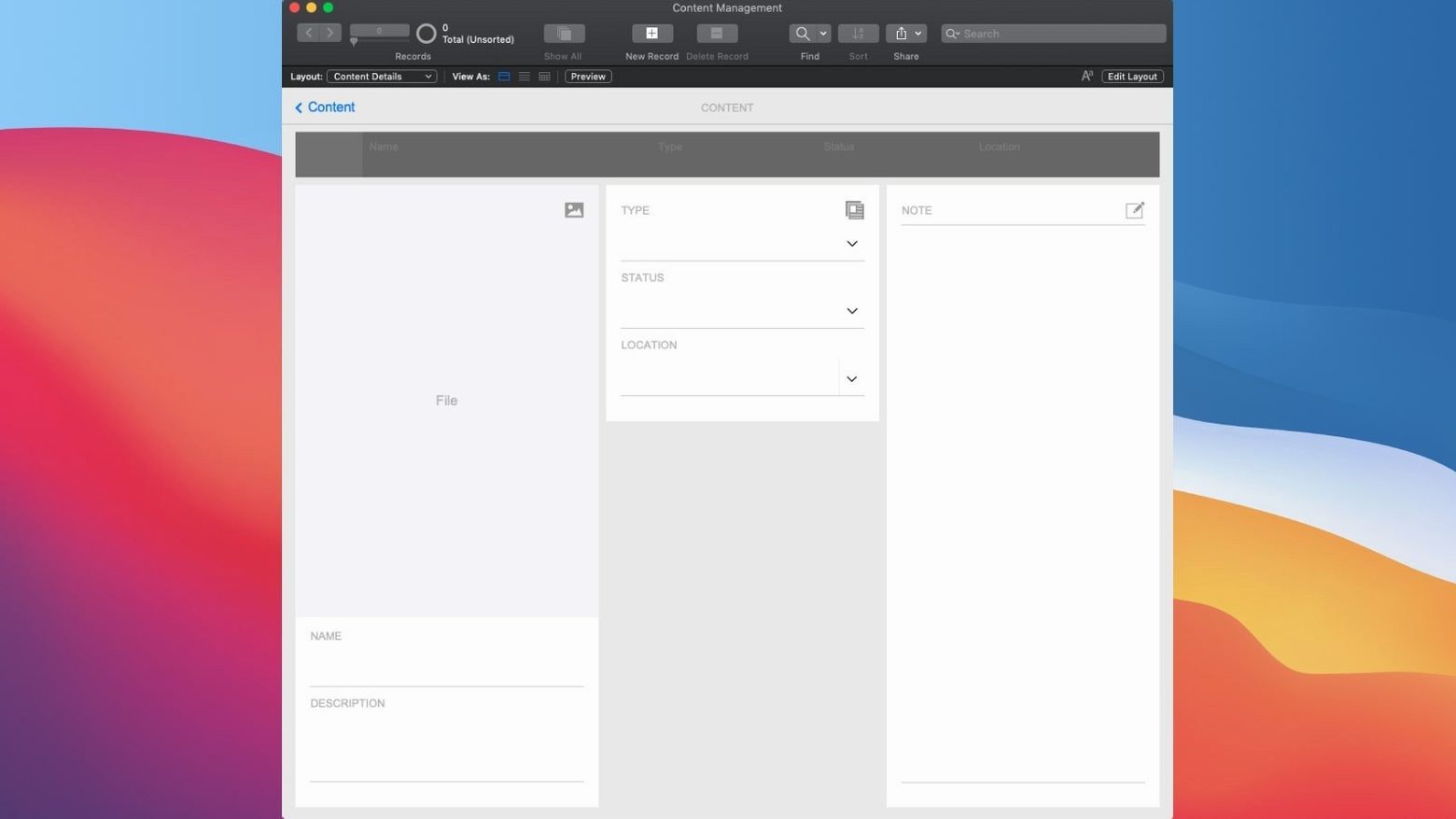
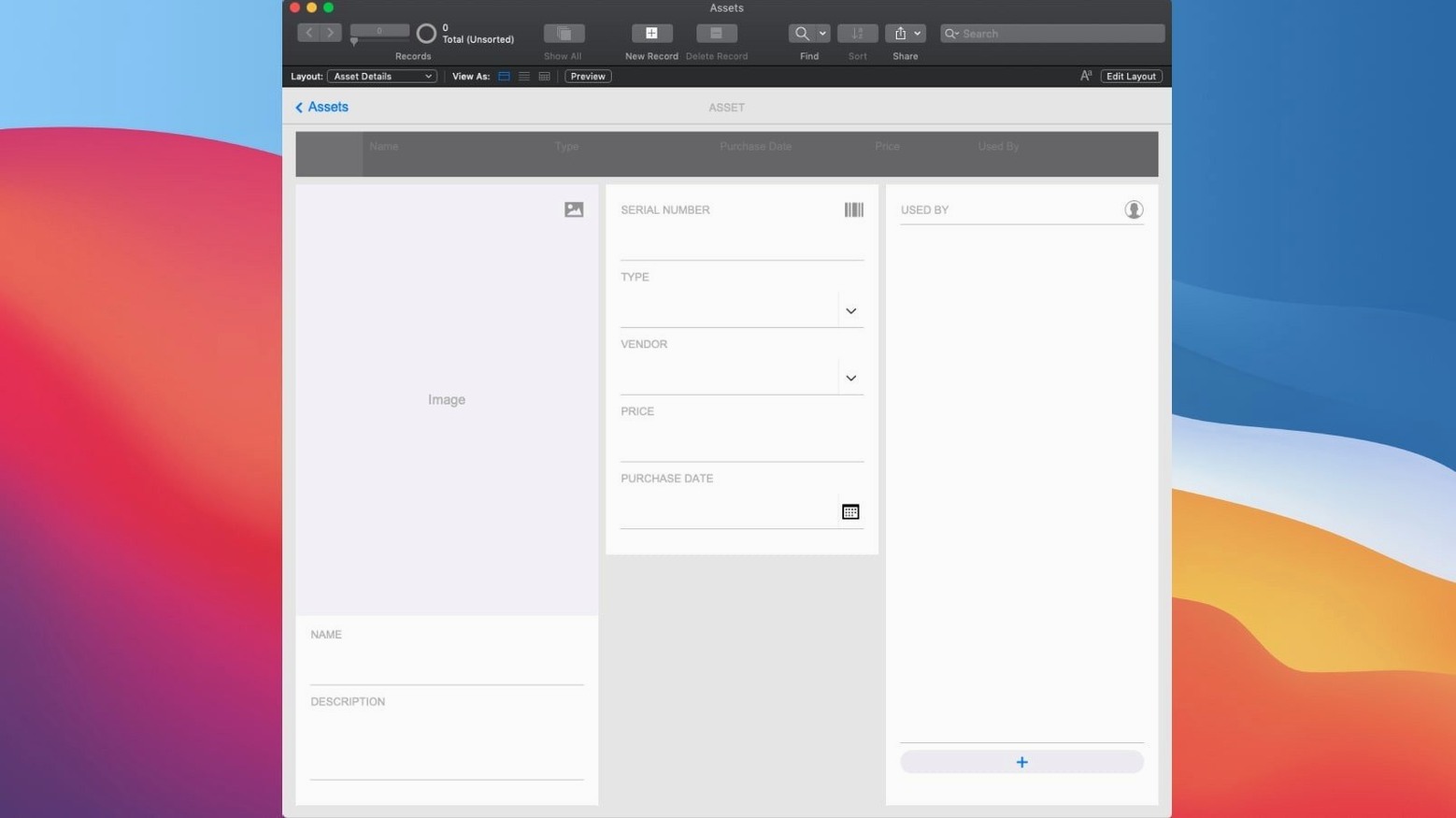
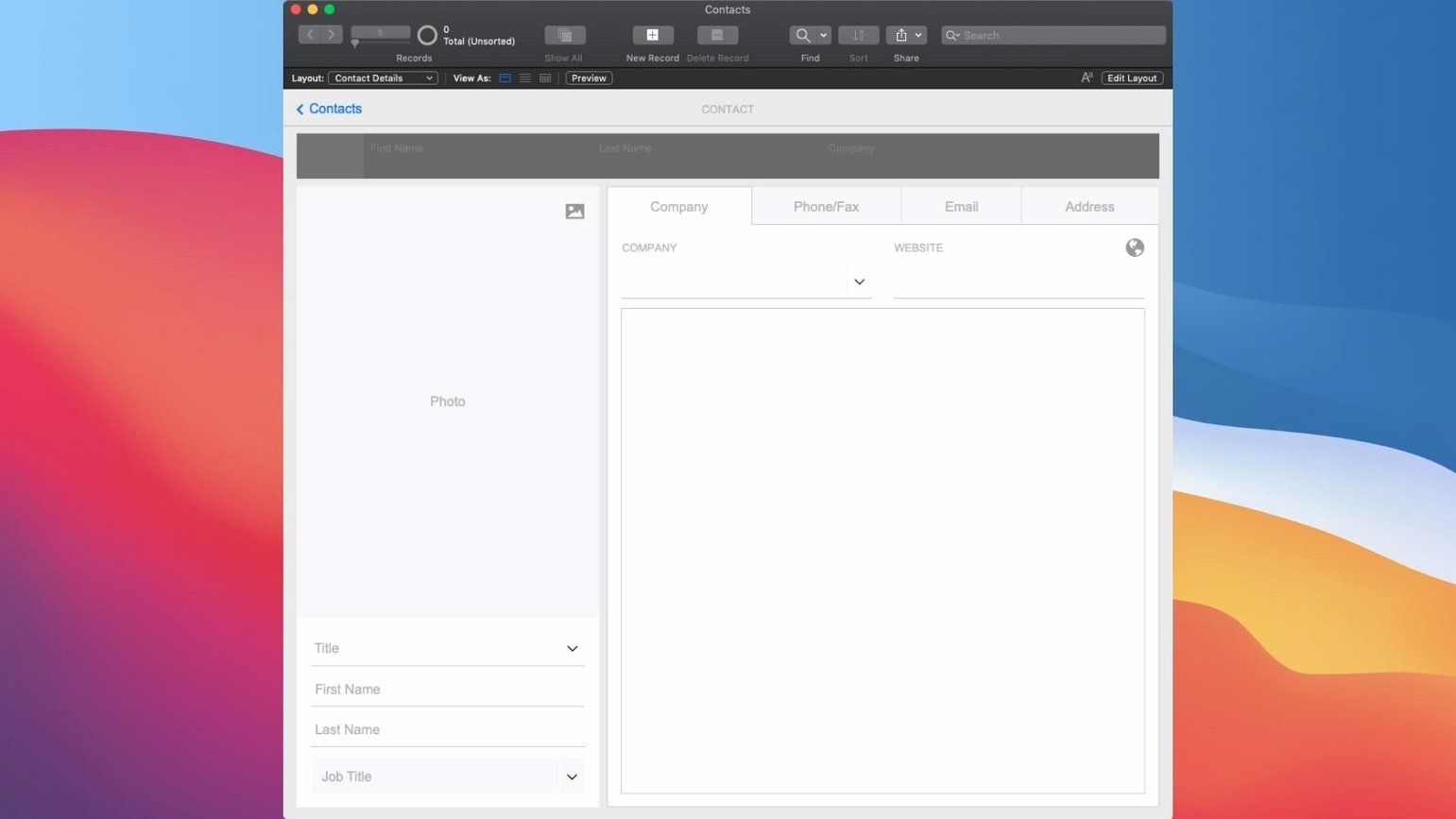
You can build custom apps for CRM, project management, content libraries, and asset management using built-in templates and a drag-and-drop design environment.
Does FileMaker Pro 2024 work with older databases?
Yes, it can open and use custom apps created with earlier versions of FileMaker Pro, so your existing work carries forward.
What are the ready-made add-ons included?
It includes add-ons for charts, calendars, Kanban boards, and activity graphs that you can drop into your custom app without building from scratch.
Porch talk 0
Come in or pull up a chair to leave a comment.
Nobody has pulled up a chair yet. If you used it on a real Saturday, say what the hour was.