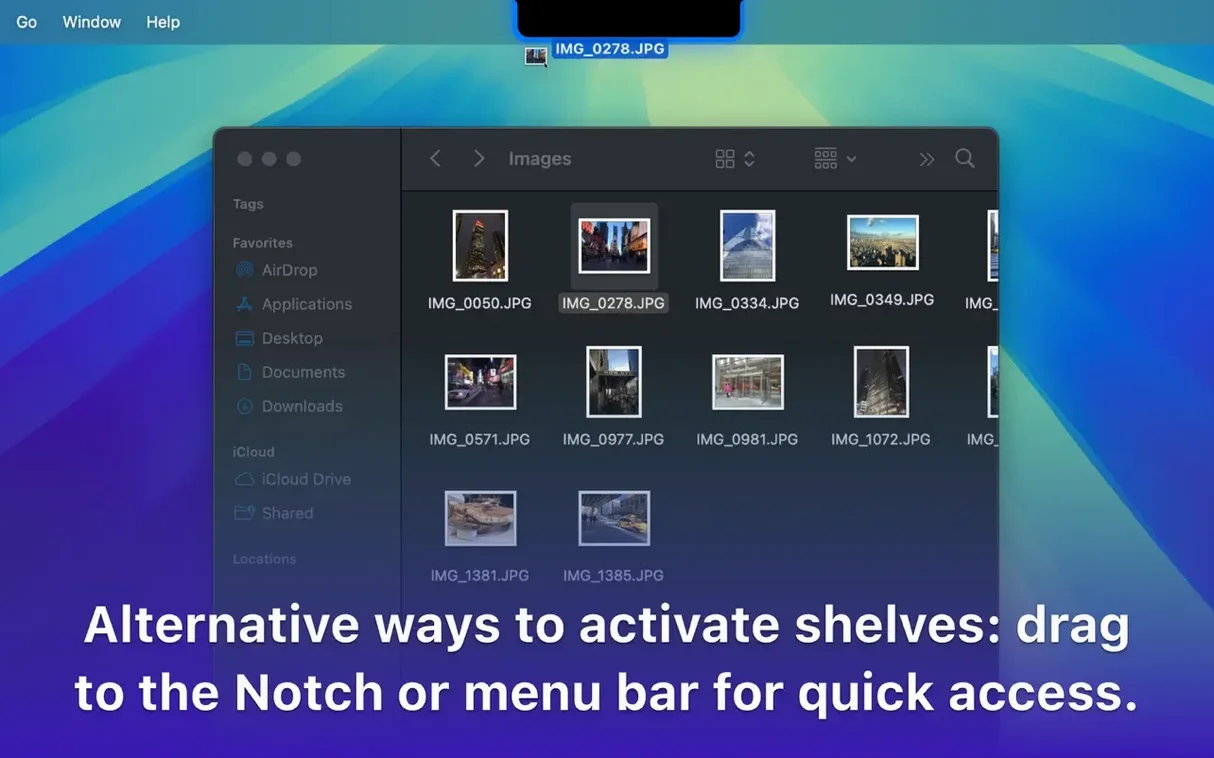
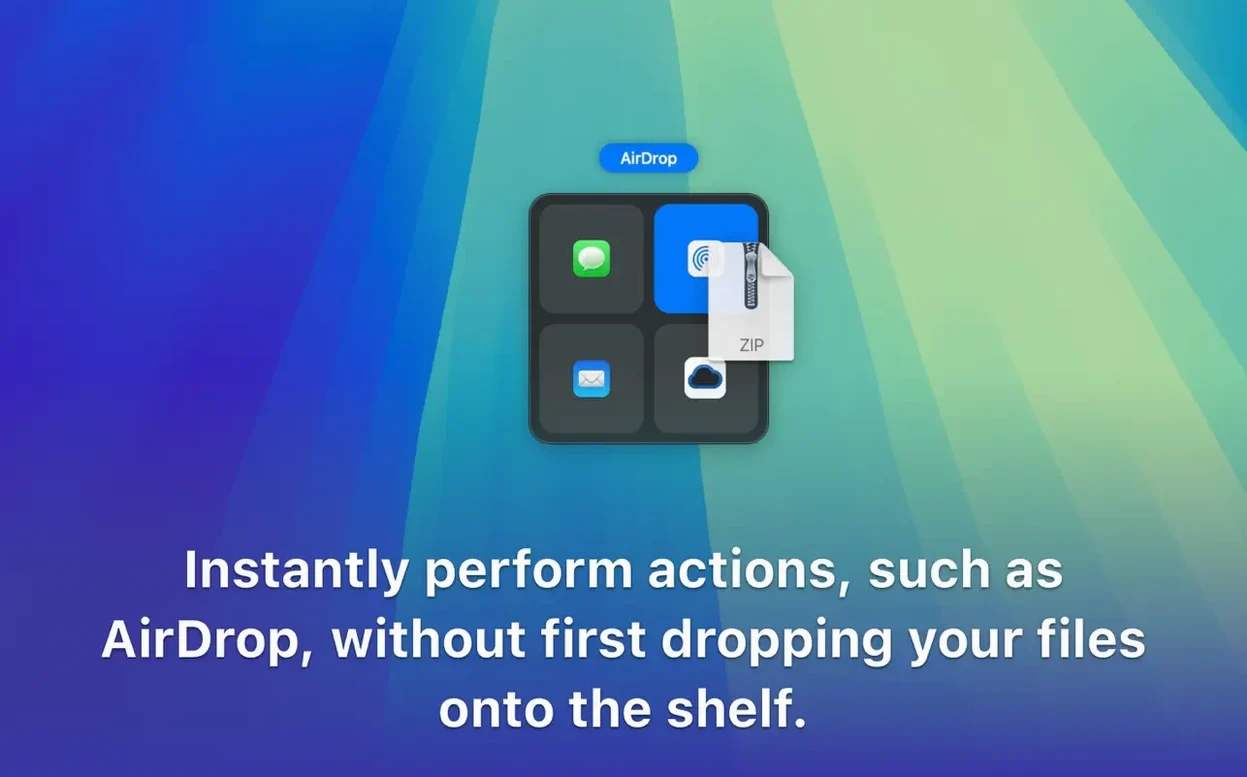
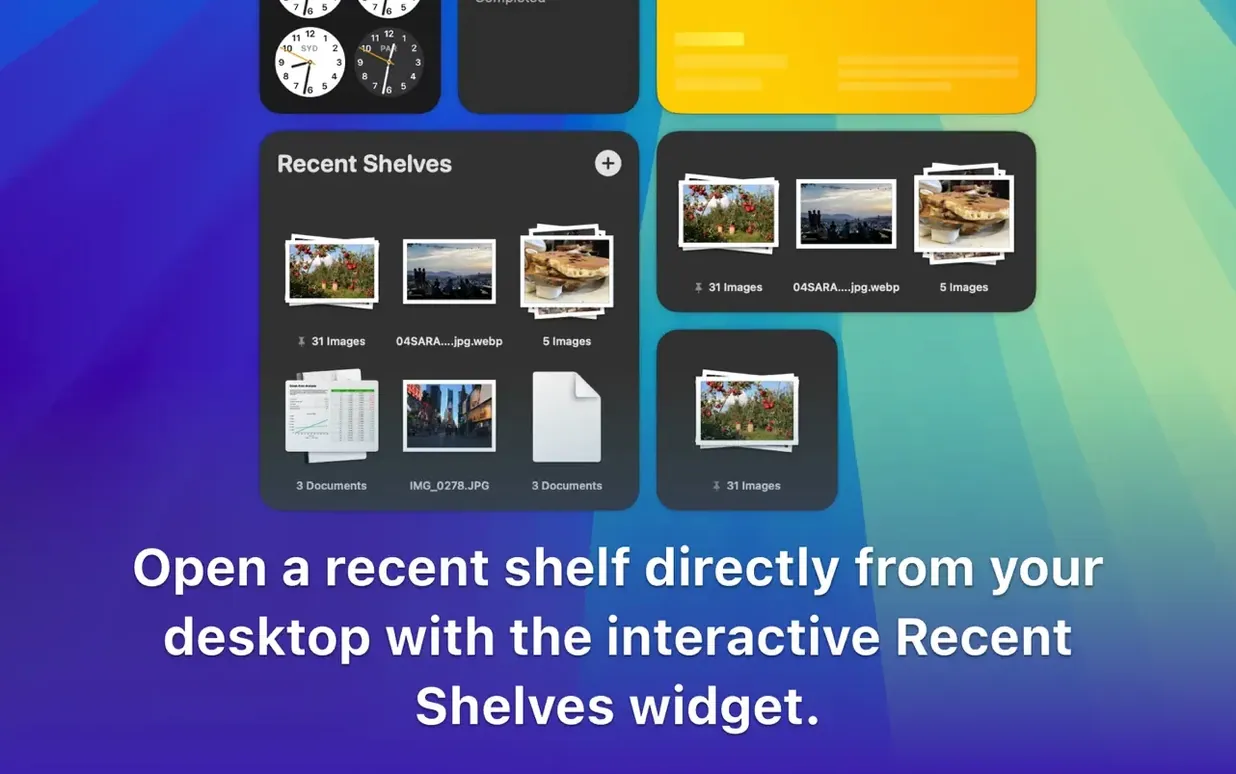
Dropover runs on any Mac that can handle macOS 12 Monterey or newer, whether it has an Intel processor or Apple Silicon inside. If your machine is from roughly 2015 onward, you're likely good to go. Once it's installed, the way it works follows a simple rhythm:
- Grab a file, a folder, a chunk of text, an image, or a link from any app.
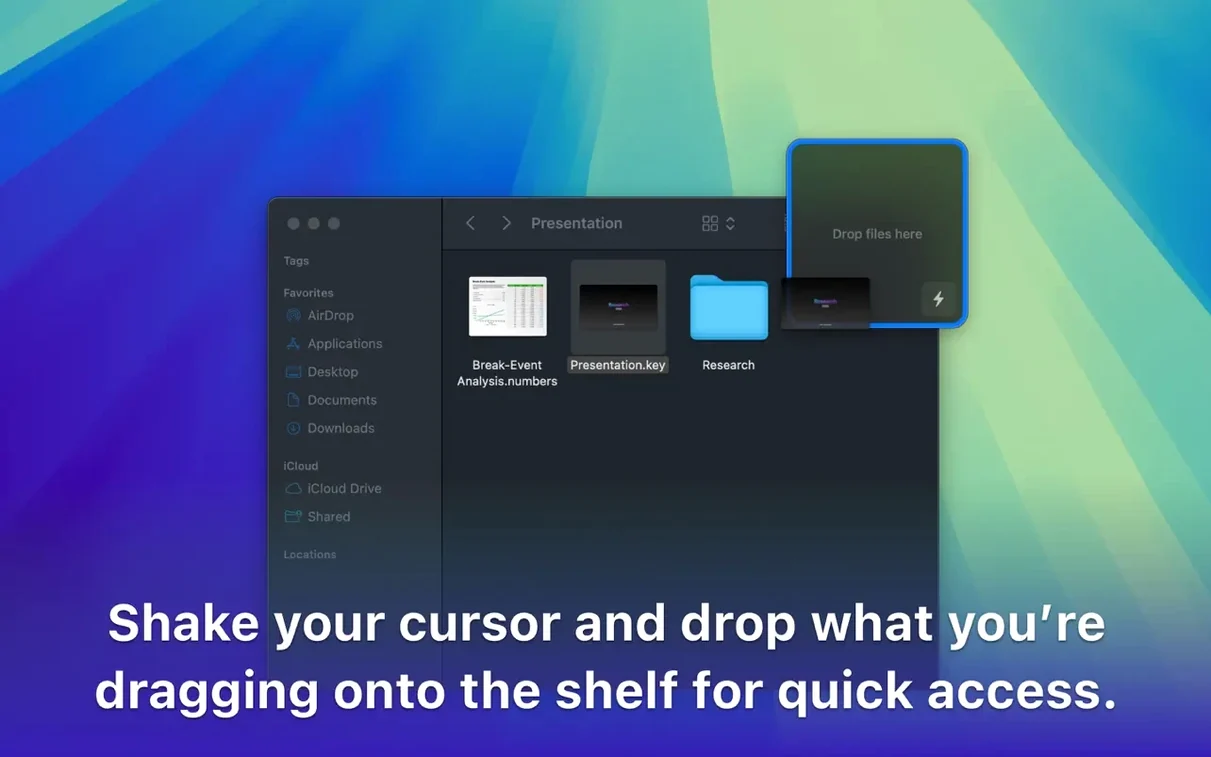
- Shake your cursor or give it a little wiggle — a floating shelf appears right where you are.
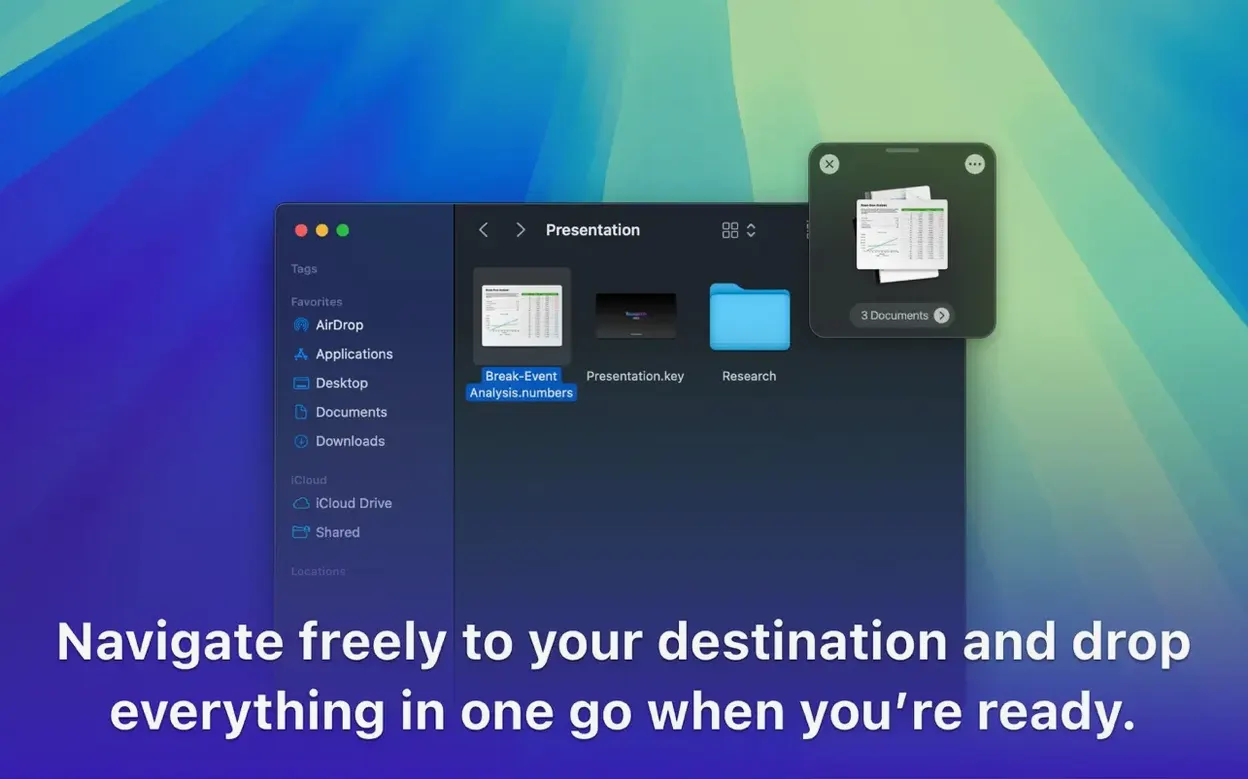
- Drop the item onto that shelf. It stays there, hovering above all your windows.
- Keep collecting. Switch to another folder, another app, even another Space, and toss more things onto the same shelf.
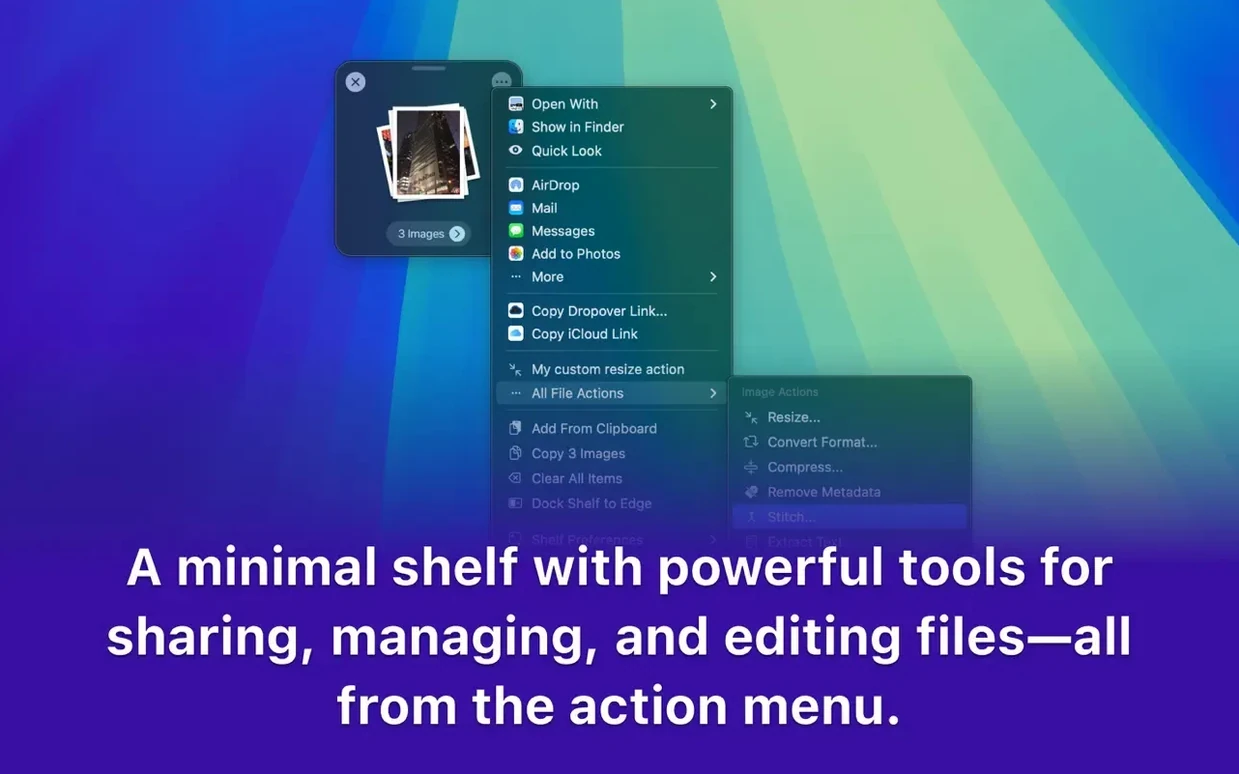
- When you're ready, drag the whole pile into a destination, or use the built-in actions to zip them up, rename them in a batch, or share them through the share sheet. A keyboard shortcut calls the shelf up whenever you need it, too.
You can tweak the shelf's size, how see-through it is, and where it tends to appear. It's a small, focused utility from Tappable Software that turns the simple act of dragging and dropping into a way to pause, gather your thoughts, and then move everything in one go.
Set a keyboard shortcut so the shelf feels native
Set a hotkey on day one. The default cursor shake works fine, but muscle memory for a keyboard shortcut — something like Shift-Command-D — will make the shelf feel like part of the operating system, not a separate app you have to remember. You'll call it up mid-thought without losing your flow.
Next, spend five minutes in the preferences pane. Decide whether you want the shelf centered, tucked near the side of the screen, or floating wherever you last left it. Dial down the transparency if you find the shelf getting lost against a busy desktop wallpaper. A slightly opaque shelf with a soft border tends to stay visible without shouting for attention.
On your first real project, try collecting items from three different places before you drop them anywhere. Come back to the shelf after switching Spaces, after navigating deep into a folder hierarchy, after copying a URL from Safari. The point is to trust that the shelf will hold everything steady. It will.
The shelf is temporary, not a clipboard archive
The biggest one: treating Dropover like a permanent clipboard manager. The shelf is temporary. Items vanish when you quit the app or restart your Mac, and that catches newcomers off guard. Use it as a staging area for a task in progress, not as long-term storage.
Another common stumble is forgetting that text and images dragged from web pages land on the shelf as rich content, not as files. You cannot rename a paragraph the way you rename a JPEG. If you need a file, save the item to your desktop first, then drag the file onto the shelf.
People also overlook the right-click menu. Select a handful of files in Finder, right-click, and send them straight to Dropover through the Services menu. No dragging required. The same works from the share sheet in apps like Photos and Notes. You don't always have to lift your finger off the trackpad to start gathering things.
One more: piling items onto the shelf and then trying to drag them into an app that cannot accept the mix. A folder, a PNG, and a web link dropped together into a Finder window work beautifully. Dropped into a messaging app, you might get only the link or a single file, depending on how that app handles pasteboard data. Know your target.
Yes, it runs in the menu bar nearly weightless
"Will I need to keep the app open all the time?" Yes, and it's designed for exactly that. It lives in your menu bar, drawing almost no resources. The Dropover DMG installs the helper component that handles shelf rendering, and once it's running, you forget it's there until you need it. Closing the app means no shelf, so let it sit quietly.
"Does it work with multiple monitors and Spaces?" It does — and that's where it earns its keep. The shelf stays put on the display where you summoned it, even as you swipe between desktops. If you move to a different monitor and call up a new shelf, you get a fresh one there. It respects the physical layout of your setup.
"Is the Dropover download safe to run alongside other drag-and-drop utilities?" It generally coexists without conflict. The shelf mechanism hooks into macOS drag events, and most clipboard managers and launchers don't interfere. On rare occasions, a third-party tool that remaps mouse gestures might clash with the shake-to-open gesture, but assigning a keyboard shortcut sidesteps that entirely.
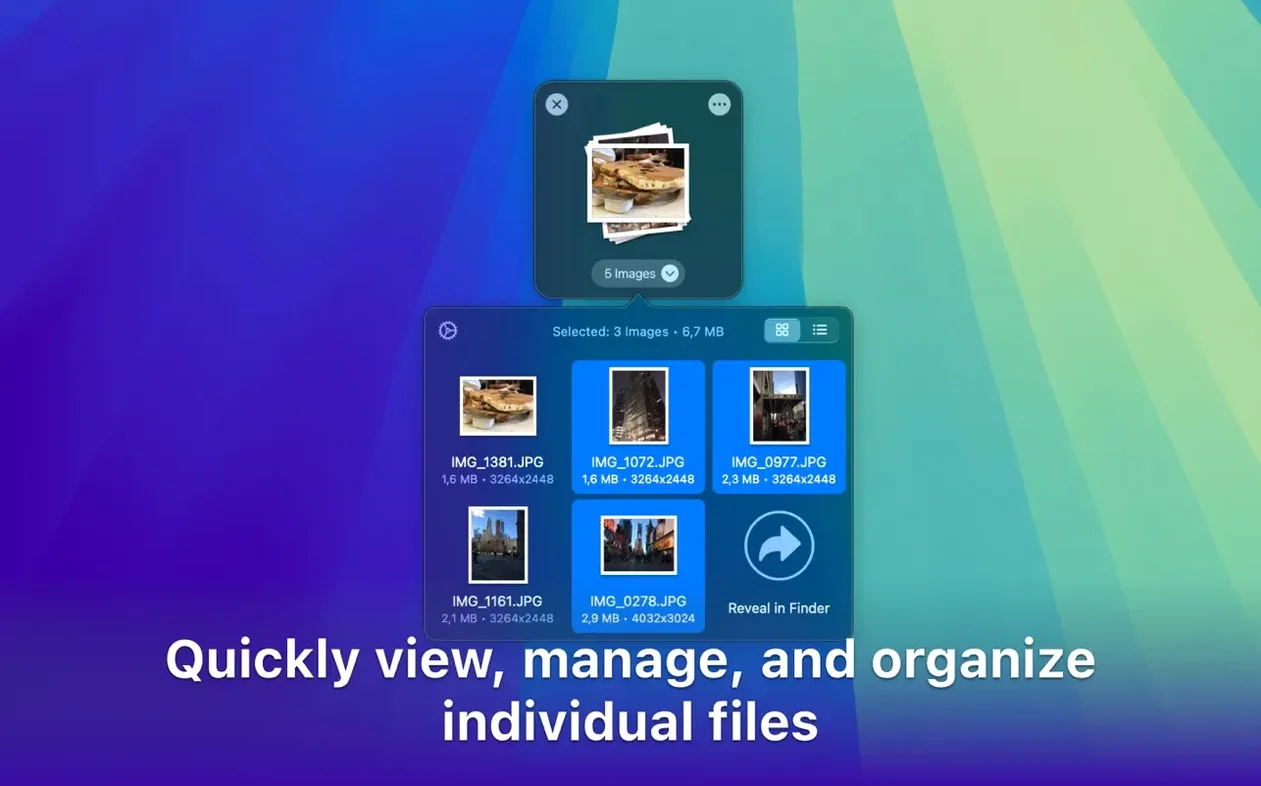
"How does it handle large files — a 4K video, a folder with hundreds of raw photos?" The shelf holds references, not copies. Drag a 20-gigabyte folder onto it and the shelf simply remembers where the folder lives. You'll see a brief progress spinner while the system resolves the file list, but your disk isn't being duplicated. Moving the whole collection into a new location happens as a standard Finder copy or move operation.
Gathering scattered vacation photos into a single staging spot
It's late afternoon and a folder of vacation photos needs sorting. The images are scattered — some on the desktop, some in a Downloads subfolder, a few still attached to an email in Mail. You start by selecting the first batch from the desktop, wiggle the trackpad, and the shelf materializes just above the files. You drop them in.
Command-Tab over to Mail. Three messages have photo attachments. You drag each attachment straight from the message body onto the shelf; they stack up next to the desktop files without protest. A quick right-click on a Safari window, where a shared album link is waiting — "Add to Dropover" from the context menu sends the link over. Now the shelf holds images and a web shortcut, all in one place.
You open the target folder where you want everything to live. A single drag from the shelf into that Finder window drops the whole collection. Before they land, you hold the Option key to copy rather than move — old habit. The shelf empties, but it stays open, ready for the next round. You tap the hotkey to dismiss it, then call it back thirty seconds later when you realize there's one more photo still sitting in Messages. The whole exchange took under two minutes, and not once did you open a cluttered desktop or thumb through Finder tabs trying to remember where things were.
If that rhythm sounds like the way you already work — pausing mid-task, collecting scattered pieces, then moving them in one deliberate motion — a Dropover Mac download slots right into the habit you've already built, just with fewer windows open and less backtracking.
- macOS 12 (Monterey) or newer
- Works natively on Intel and Apple Silicon Macs
Porch talk 0
Come in or pull up a chair to leave a comment.
Nobody has pulled up a chair yet. If you used it on a real Saturday, say what the hour was.