

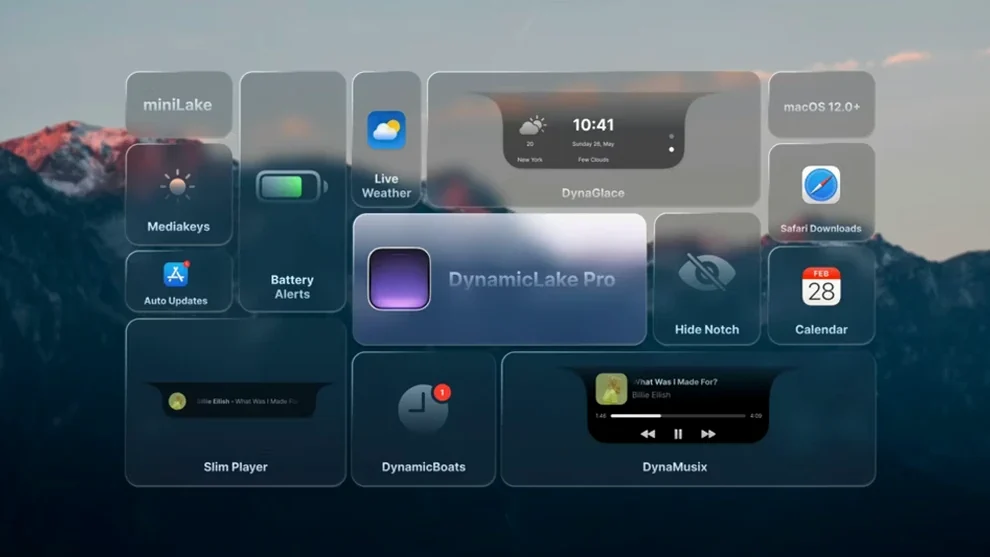
Airdrop transfers and battery alerts land with a familiar pill-shaped animation, no matter which Mac you're sitting at. DynamicLake leans into that iPhone-ready visual language and plants it right on your desktop, but the first question is always whether your machine can actually run it. The baseline is macOS 11, and the build is a universal binary that feels at home on ARM-based Apple Silicon as well as 64-bit Intel hardware. If you've kept your system even reasonably current, you're already in the door.
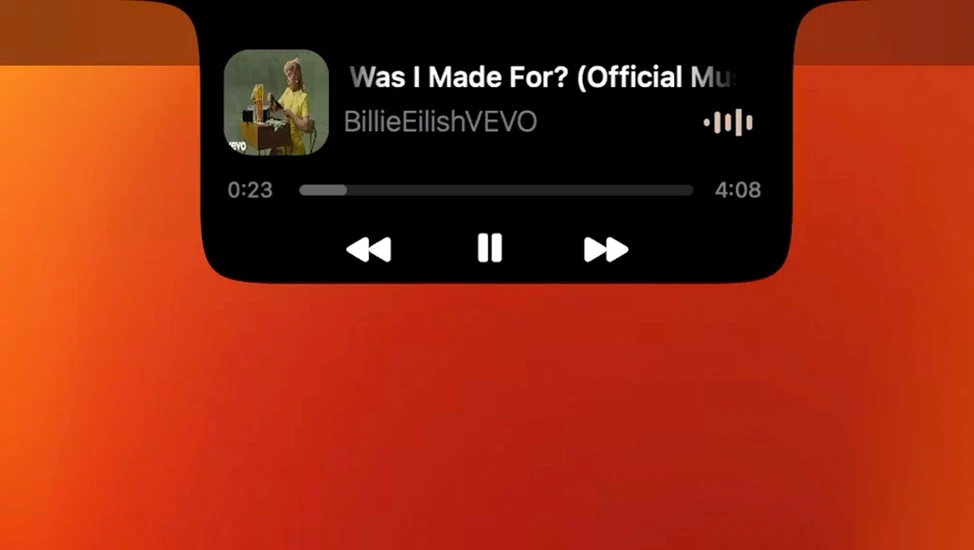
Once it's running, the app splits its tricks across a few named modules. DynaMusic handles playback controls with a reactive animation that mirrors what's playing. DynaGlance keeps a live feed of your calendar and local weather tucked into the pill. There's also DynaSwitcher, which ties into Option+Tab for flicking between open apps, and a compact miniLake mode that strips things back to the essentials without vanishing entirely. A recent addition worth knowing about: timers you set in the stock macOS Clock app now show up inside DynamicLake on their own—no extra pairing step needed.
What you're really getting is a gentle layer on top of the macOS notifications and shortcuts you already use. It doesn't replace Notification Center or rip out system controls; it just gives them a different shape and a more glanceable home. If you've ever missed a meeting alert because it faded into a stack of banners, that's the kind of friction this is built to smooth over.
Taming the Out-of-the-Box Notification Firehose
Out of the box, DynamicLake tries to do a lot at once. That's exciting for the first ten minutes and then a little much when every Bluetooth ping and app switch lights up the pill. Give yourself a quiet half hour to dial things back before you decide whether it fits your rhythm.
Start with the visibility rules. Head into preferences and decide which modules earn a permanent spot and which should only surface when they have something to say. DynaGlance works well as an always-on companion—weather and next appointment sit there without demanding attention. DynaConnect, on the other hand, is the one most people silence first. Knowing your keyboard reconnected is useful exactly once, and then it's noise.
Next, check the animation speed. The default transitions are smooth but unhurried; if you're switching apps dozens of times a day, a slightly faster animation under DynaSwitcher keeps the visual feedback without making you wait. You can also set a keyboard shortcut to temporarily dismiss the pill when you need a clean screen for color-sensitive work or full-screen reading.
Finally, let the timer integration from the macOS Clock app run for a day before you judge it. The handoff is automatic but not instant—there's a beat between setting a timer on your phone or Mac and seeing it appear in the pill. Once you're used to that rhythm, it becomes one of the more genuinely helpful pieces of the app.
Calendar-Led Users Who Transform the Pill into a Shortcut
This isn't a tool that rewards every Mac user equally. A few profiles stand out where the pill-shaped overlay stops being a novelty and starts pulling real weight.
People who live in calendar alerts. If your day is chopped into meetings, calls, and reminders that you regularly miss because macOS banners dissolve too quickly, DynaGlance gives those alerts a persistent, compact home. The pill stays visible in a way a stacked notification doesn't, so the 2:15 call doesn't vanish behind a Slack message.
Music listeners who switch sources often. DynaMusic shines when you're bouncing between Spotify, Apple Music, and something browser-based. Instead of hunting for the right player window, the pill gives you a consistent set of controls and a quick read on what's playing, regardless of source. The animated waveform is a small touch that makes glancing at it feel less like checking a dashboard.
Battery and Bluetooth watchers with multi-device setups. If your desk involves AirPods, a Magic Keyboard, and a trackpad that occasionally wander off, the connect and disconnect alerts save you from the mystery of "why isn't this working." The key is dialing DynaConnect down to just the devices you actually care about, which is covered in the first-days tweaks above.
Tinkerers who enjoy customizing their macOS layer. Some people just like shaping their desktop environment, and the miniLake mode plus the mix-and-match modules give enough knobs to turn without demanding scripting or configuration files. You can strip it to a tiny music widget or run the full suite—the choice sits entirely in a preference pane.
Workflow: Building a Glanceable Morning Dashboard
Here's a concrete setup that takes about twenty minutes and turns DynamicLake into a focused morning tool. The goal isn't to run every module; it's to surface three specific things before you even open a browser.
Step one: Open preferences and disable everything except DynaGlance, the timer integration, and miniLake. That gives you weather, your first calendar entry, and any timers you set the night before—nothing else.
Step two: Set miniLake to display only the date and the current temperature. This keeps the pill small and avoids pulling your eyes toward anything extra while you're still waking up.
Step three: Start your morning routine as usual. Make coffee, stretch, whatever it is. When you sit down at the Mac, glance at the pill. Weather first—do you need a jacket? Then the calendar—what's the first thing that requires your brain? If you set an overnight timer for something (laundry, a slow cooker, a reminder to call someone in a different time zone), it'll be right there too.
Step four: Once you're settled, enable DynaMusic if you work with background audio. The music controls slide into the pill without crowding out the morning info, and you can pause from anywhere without pulling up a player window.
This setup works precisely because it doesn't try to do everything. The pill becomes a three-second scan instead of a miniature command center, and for mornings, that's the right trade-off.
Mistakes Beginners Hit Early
Most frustrations with DynamicLake come from the same handful of early decisions. They're easy to fix once you spot them, but nobody tells you upfront.
Running every module at once. It's tempting to flip all the switches and watch the pill light up with alerts, music, Bluetooth pings, and app switching. The result is visual noise that makes you resent the tool. Pick two or three modules that solve actual problems for you and leave the rest off for the first week. You can always add more later, but you can't un-annoy yourself after a day of constant pill animations.
Ignoring the miniLake toggle. MiniLake isn't a downgrade—it's a different use case. When you're in deep-focus mode or presenting your screen, shrinking to the compact format keeps the core info visible without making the pill feel like a distraction. Some users run miniLake all day and only expand to the full pill for music sessions or meeting-heavy afternoons.
Not setting app-specific notification rules. DynamicLake can mirror push alerts from several apps, and if you let everything through, you've just rebuilt Notification Center inside a pill. Go through the list and allow only the apps where a quick glance or quick reply actually matters—messages from a partner, critical work pings, calendar reminders. Silence the rest.
Assuming it works identically to the iPhone Dynamic Island. There's a visual similarity, but the Mac version isn't a one-to-one port. It doesn't host Live Activities the same way, and it's not tied into system-level phone and FaceTime behaviors. Treat it as a desktop-native reinterpretation rather than a clone, and the differences stop feeling like omissions.
Forgetting the timer integration exists. This one's subtle because it requires zero setup. If you use the macOS Clock app to set timers—for cooking, for focus sprints, for remembering to stand up—those timers appear in DynamicLake on their own. It's one of the quietest features in version 1.8, and it's the one most people discover a month late.
If you've been searching around for how to get started with the app—whether you ended up here from a general curiosity about dynamiclake features or something more specific—the short version is this: start small, treat it like a layer rather than a replacement, and don't be afraid to turn things off until the pill earns its screen space.
- macOS 11 or later
- Apple Silicon or 64-bit Intel processor
Questions I actually get
Which macOS versions does DynamicLake support?
DynamicLake requires macOS 11 (Big Sur) or later and works natively on both Apple Silicon and 64-bit Intel Macs.
Porch talk 0
Come in or pull up a chair to leave a comment.
Nobody has pulled up a chair yet. If you used it on a real Saturday, say what the hour was.
More for the same hour
Everything in Mac Apps
 Eagle
4.0.0 build 11 20250627 Mac Apps
110 MB
Eagle
4.0.0 build 11 20250627 Mac Apps
110 MB

 DxO ViewPoint
5.15.0 Mac Apps
647 MB
DxO ViewPoint
5.15.0 Mac Apps
647 MB

 DxO PhotoLab
9.10.0 Mac Apps
2.3 GB
DxO PhotoLab
9.10.0 Mac Apps
2.3 GB

 DVDFab
12.0.8.2 Mac Apps
413 MB
DVDFab
12.0.8.2 Mac Apps
413 MB
 Duplicate File Finder Pro
9.2.1 Mac Apps
Updated 37 MB
Duplicate File Finder Pro
9.2.1 Mac Apps
Updated 37 MB
 Element 3D
2.2.3 Mac Apps
320 MB
Element 3D
2.2.3 Mac Apps
320 MB

 Elmedia Player Pro
8.24 Mac Apps
157 MB
Elmedia Player Pro
8.24 Mac Apps
157 MB

 Dropover
5.3.0 Mac Apps
33 MB
Dropover
5.3.0 Mac Apps
33 MB