
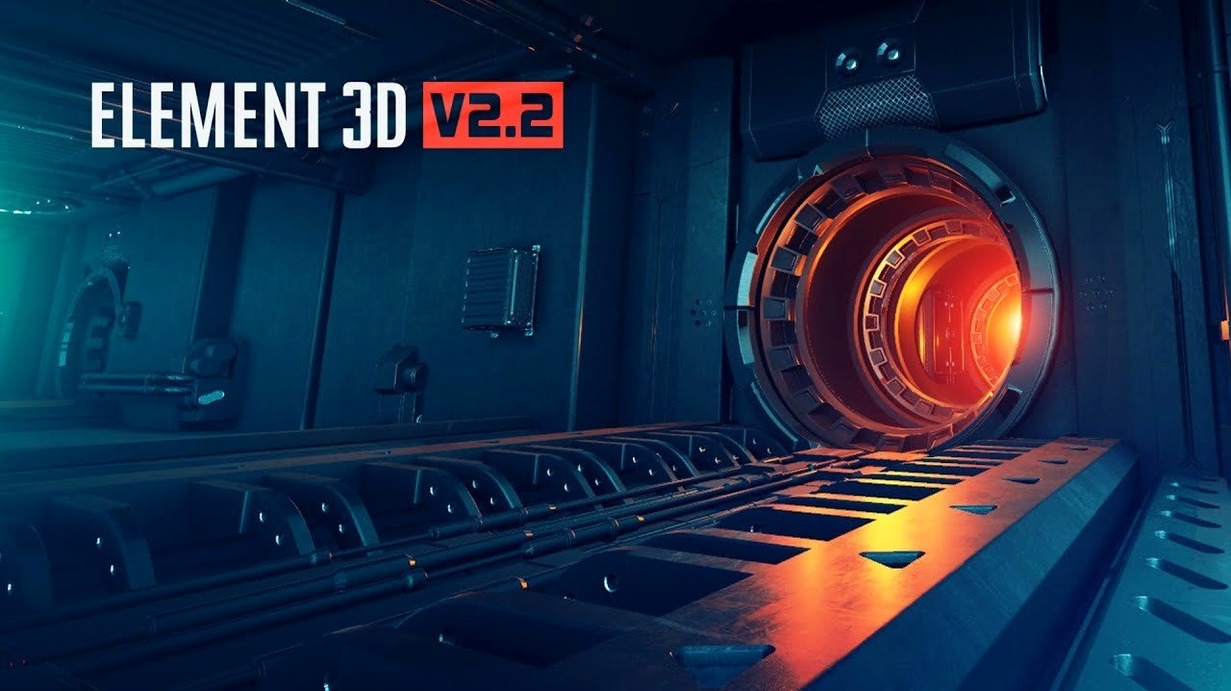
Motion designers who've spent long evenings nudging keyframes will recognize the moment. You have a flat vector layer and a picture in your head of something dense, dimensional, and alive — hundreds of objects moving with purpose. That's the crowd Element 3D was built to handle. It sits right inside After Effects as an object-based particle plug-in, swapping out the usual 2D thinking for a fast OpenGL 3D rendering engine.
Clone armies across surfaces without leaving AE
- Filling a scene with cloned, scaled, and rotated objects through a particle array system without leaving After Effects.
- Building complex shots from simple models by distributing them across surfaces, text, or custom paths.
- Keeping playback responsive — the OpenGL engine is tuned for speed, not overnight renders.
- Organizing a scene into 5 independent 3D groups, so foreground, midground, and background elements stay manageable.
Intel-only plug-in with dated help files
- It's an After Effects plug-in, not a standalone app — you need a working copy of AE open alongside it.
- The current version 2.2.3 runs on Intel Macs; Apple Silicon compatibility isn't listed.
- The help files are thorough, but the initial learning curve is real if you've never worked with object-based particle systems before.
- Complex scenes still lean on your GPU — a capable graphics card makes a difference.
Skip the blank-slate stare — load a sample project
You installed the plug-in, launched After Effects, and dropped Element onto a solid layer. The interface feels roomy — maybe a little too roomy. Don't let that stall you. The fastest way past the blank-slate feeling is to load one of the included models immediately and just start spinning it with the camera controls. Get your hands on the orbit tool before worrying about settings.
A few things worth doing early:
- Point Element to a folder of OBJ or C4D models you already own. Having your own library indexed saves the friction of hunting for files when an idea is half-formed.
- Create a two-group scene on day one — even if it's just a sphere group and a scattered cube group. The moment you see two independent 3D groups interacting in the same comp, the mental model clicks.
- Toggle the render mode between draft and final a few times while scrubbing the timeline. You'll learn exactly how much preview speed you're trading for visual fidelity, and that trade-off becomes instinctive later.
- Resist the urge to animate every parameter at once. Pick one — position, scale, or rotation — and keyframe just that across a few seconds. You'll internalize the timing of the particle array faster than if you throw everything at the timeline.
A start-to-finish workflow: scattered metallic debris
Say you need a slow-motion burst of metal fragments swirling behind a title card. The client wants it to feel industrial — not explosive, more like a controlled disintegration. Here's a repeatable way to get there.
Start with a new composition and drop Element on a solid. Open the Scene Setup and load a basic cube or shard model from the included library. Head to the Particle Look section and set the surface to something dark with a hint of reflection — scratched steel or worn iron works. Scale the particles down so no single fragment dominates the frame.
Now move to the Replicator controls inside the 3D Object Group. Switch the distribution shape to a sphere and set the count high enough to fill the background without turning into visual noise — somewhere between 120 and 200 particles often lands right. Crank the position randomness and rotation randomness until the arrangement stops looking like a perfect sphere and starts looking like chaos that knows what it's doing.
Add a second 3D group with the same model but a smaller scale and a tighter distribution. This one will sit closer to the camera, slightly out of focus. Drop a camera layer into the comp and push it slowly through the debris field — forward motion with a subtle drift to one side keeps the shot from feeling mechanical. Enable depth of field in the render settings and set the aperture wide enough to blur the near group. The whole thing comes together in the time it takes to render a short RAM preview.
How Element 3D sits alongside other Mac options
It's not the only way to get 3D objects into After Effects, and the choice depends on what kind of work you're doing.
Maxon Cinema 4D Lite ships with After Effects and gives you a full 3D application — modeling, animation, texturing, the works. The trade-off is that you're hopping between applications. Element keeps you inside AE, which matters when you're iterating fast on a motion design project and don't want to manage a C4D render pass every time you tweak a camera angle.
Trapcode Particular is a particle system at heart. It can emit 3D objects as particles now, and its physics engine outruns anything Element does on the dynamics side. But Particular doesn't give you the same direct control over individual 3D models, materials, or multi-group scene building. If your shot is about a swarm of glowing motes behaving like fluid, Particular wins. If it's about fifty distinct objects you positioned by hand and lit with an environment map, Element is the sharper tool.
Stardust from Superluminal is the closest cousin — a node-based 3D particle system inside After Effects with volumetric rendering and a modular workflow. It's deeper in some ways and more modern in its interface. Element counters with a simpler learning curve and a material system that gets good-looking results without as much node-wrangling. Stardust asks you to build a logic tree; Element hands you the controls and a library and says go.
Fix OpenGL stumbles in Project Settings
On an Intel Mac, the OpenGL engine can stumble if After Effects is set to a software-only renderer. Check your Project Settings — if the Video Rendering and Effects tab shows "Mercury Software Only," switch it to GPU acceleration. It's the single most common reason for sluggish previews with version 2.2.3.
The plug-in expecting models in a specific folder trips people up regularly. When you import an OBJ and Element reports a missing texture, the model and its MTL file and image maps need to share the same directory. A common fix: before importing, drop the whole model folder somewhere predictable — your Documents or a dedicated Assets drive — and point Element there once in the Scene Setup paths.
Some users hunting for an element 3d plugin free download mac find older copies floating around that don't include the 2.2.3 update package. Those versions often present an activation screen and then go silent. The included instructions in the current package walk through activation; skipping that step leaves the plug-in installed but unresponsive inside After Effects. Follow the activation sequence exactly — it's a short list, and each step matters.
Cracked distributions like an Element 3D torrent or an Element 3D Mac torrent occasionally carry a version where the plug-in loads but the model browser stays empty. That's usually a path issue: the presets and model libraries got separated from the plug-in file during the install. Re-copying everything into the correct After Effects Plug-ins folder — and keeping the folder structure intact — sorts it out. If someone handed you an Element 3D crack and the particle count slider locks up above a certain number, check that the OpenGL driver on your Mac isn't overriding the application settings. It's a rare conflict, but resetting the GPU preferences in After Effects clears it.
When the Scene Setup window opens but the viewport stays black, the likely culprit is an environment map that didn't load. Element needs some kind of environment to bounce light around — even a flat grey HDRI will do. Drop any spherical image into the Environment slot and the viewport should light up immediately.
Version 2.2.3 is a targeted update for Element 3D V2.2, keeping the focus on its 3D object-based particle plug-in and fast OpenGL rendering engine.
- macOS (Intel architecture)
- Adobe After Effects
- English interface
Porch talk 0
Come in or pull up a chair to leave a comment.
Nobody has pulled up a chair yet. If you used it on a real Saturday, say what the hour was.
More for the same hour
Everything in Mac Apps
 Elmedia Player Pro
8.24 Mac Apps
157 MB
Elmedia Player Pro
8.24 Mac Apps
157 MB

 Eagle
4.0.0 build 11 20250627 Mac Apps
110 MB
Eagle
4.0.0 build 11 20250627 Mac Apps
110 MB
 DynamicLake Pro
1.8 Mac Apps
115 MB
DynamicLake Pro
1.8 Mac Apps
115 MB

 DxO ViewPoint
5.15.0 Mac Apps
647 MB
DxO ViewPoint
5.15.0 Mac Apps
647 MB

 DxO PhotoLab
9.10.0 Mac Apps
2.3 GB
DxO PhotoLab
9.10.0 Mac Apps
2.3 GB

 DVDFab
12.0.8.2 Mac Apps
413 MB
DVDFab
12.0.8.2 Mac Apps
413 MB

 Duplicate File Finder Pro
9.2.1 Mac Apps
Updated 37 MB
Duplicate File Finder Pro
9.2.1 Mac Apps
Updated 37 MB

 Dropover
5.3.0 Mac Apps
33 MB
Dropover
5.3.0 Mac Apps
33 MB