

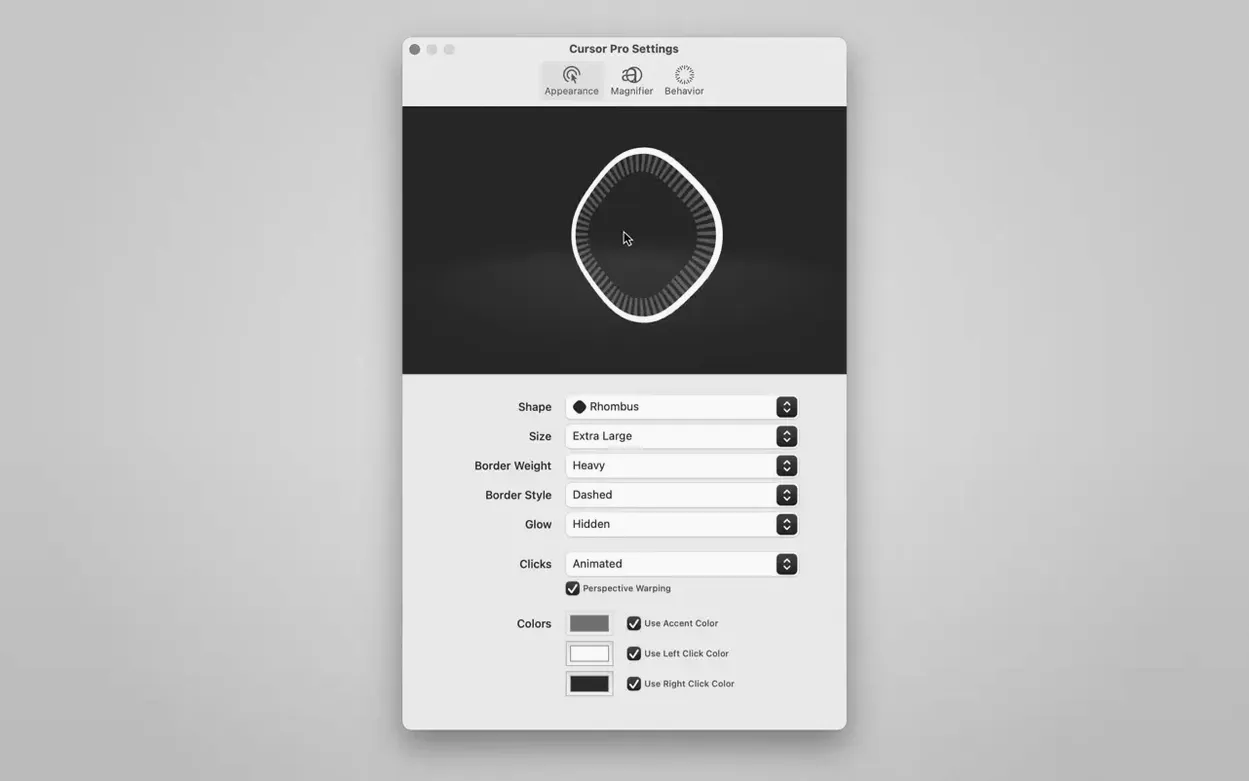
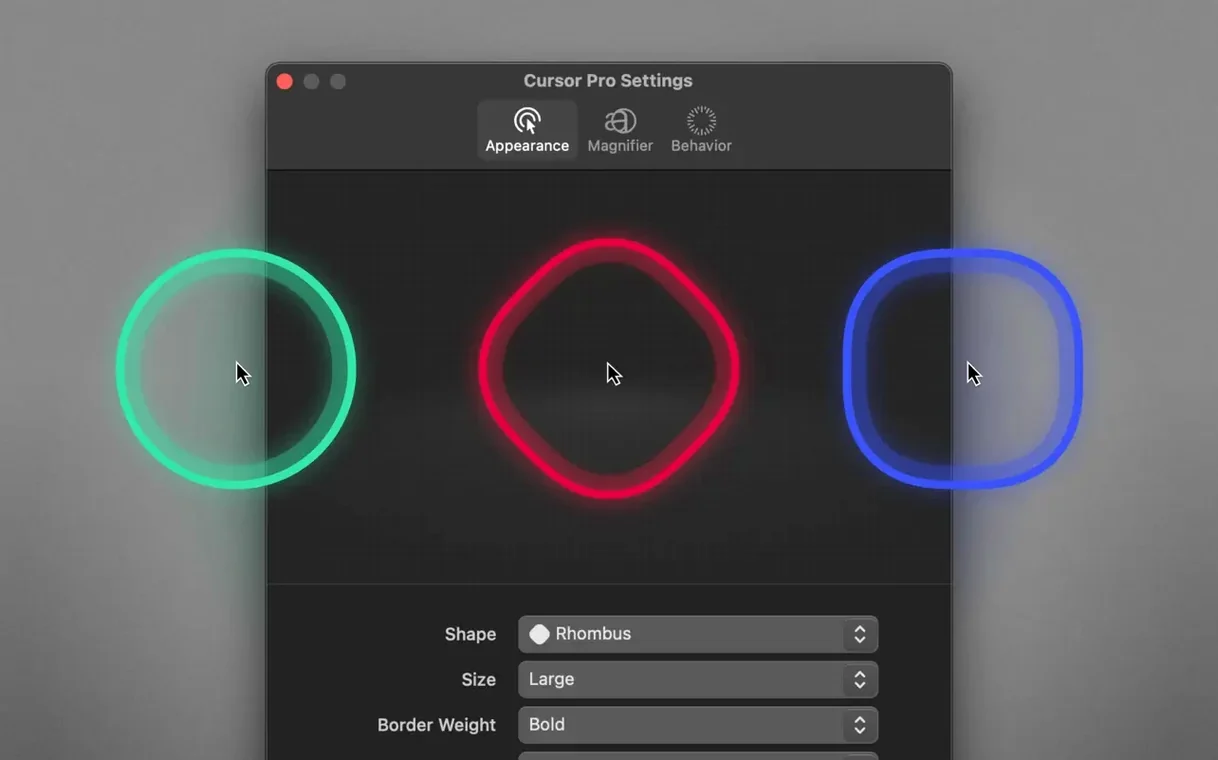
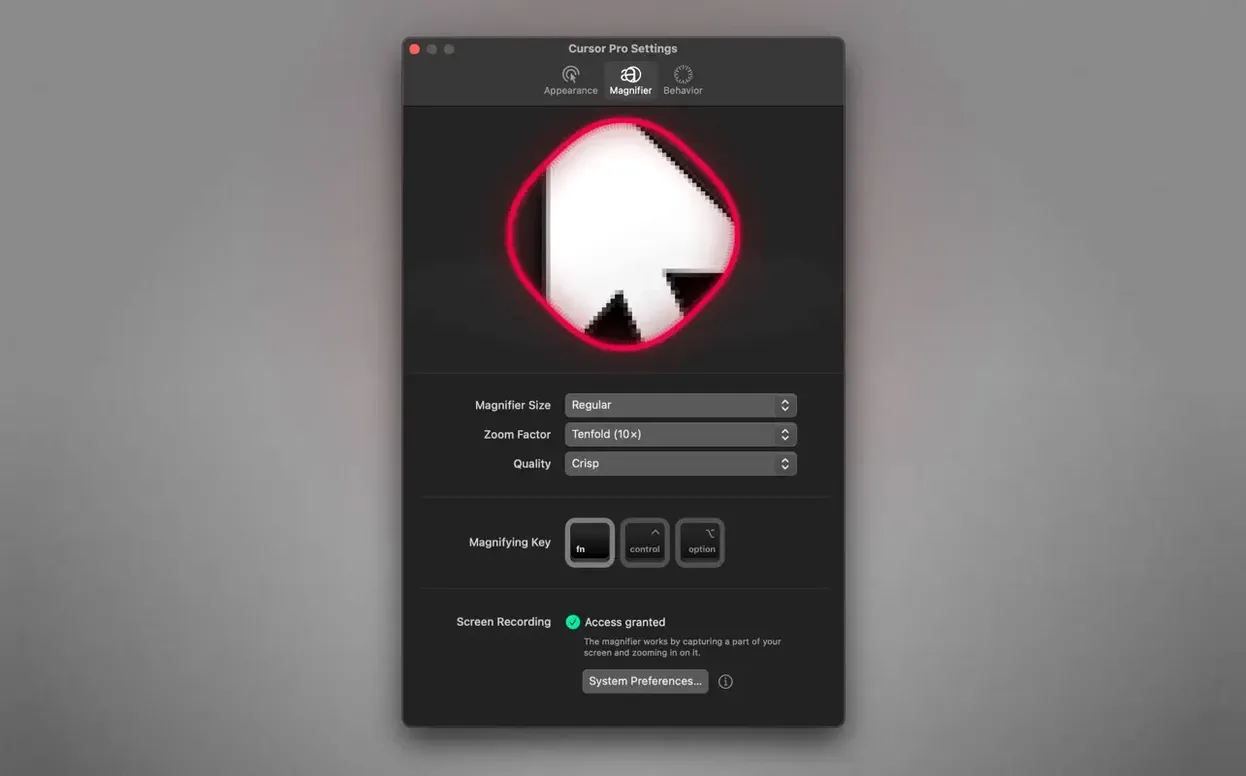
Cursor Pro is a menu bar utility that makes your Mac's pointer impossible to miss with a customizable highlight and a built-in screen magnifier.
Guiding an audience
When you're presenting or sharing your screen, the standard arrow all but disappears. Cursor Pro sits in your menu bar and wraps the pointer in a colored circle or diamond that you can set to pulse, so every viewer follows exactly where you're leading.
Magnifying details on the fly
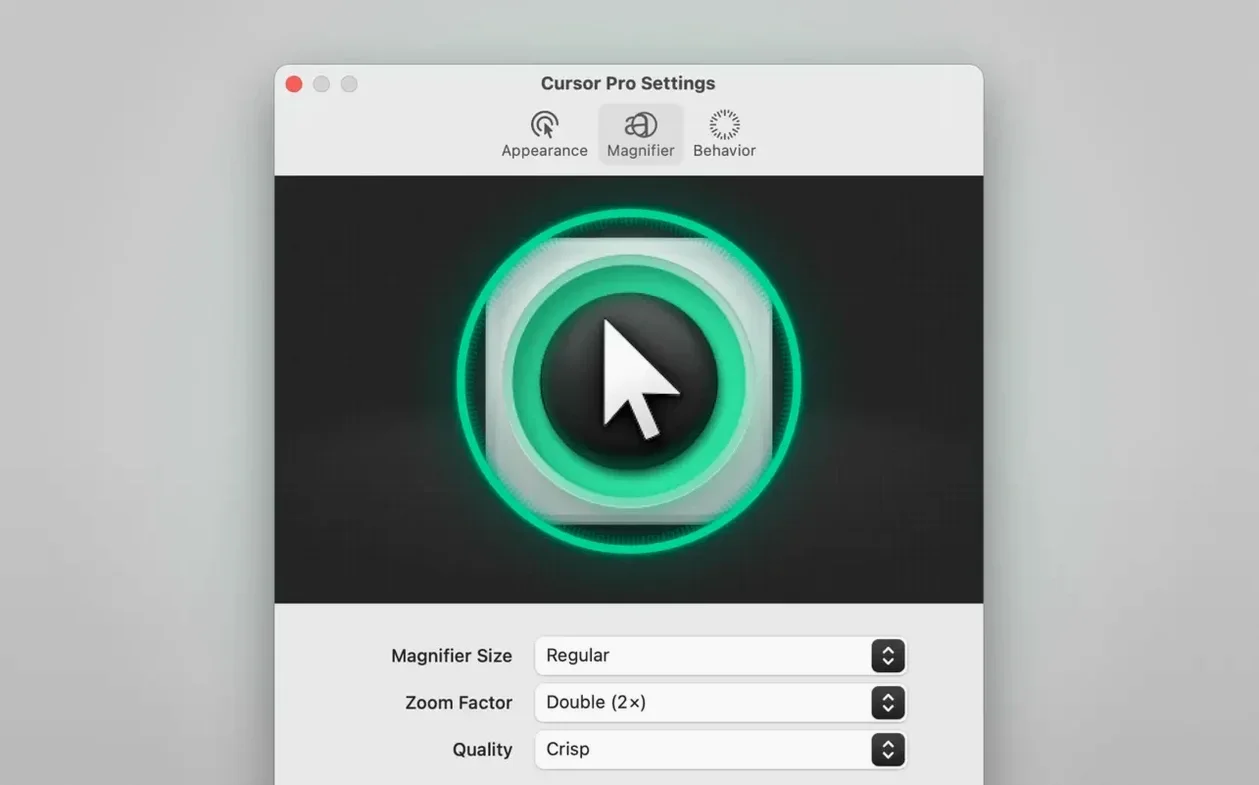
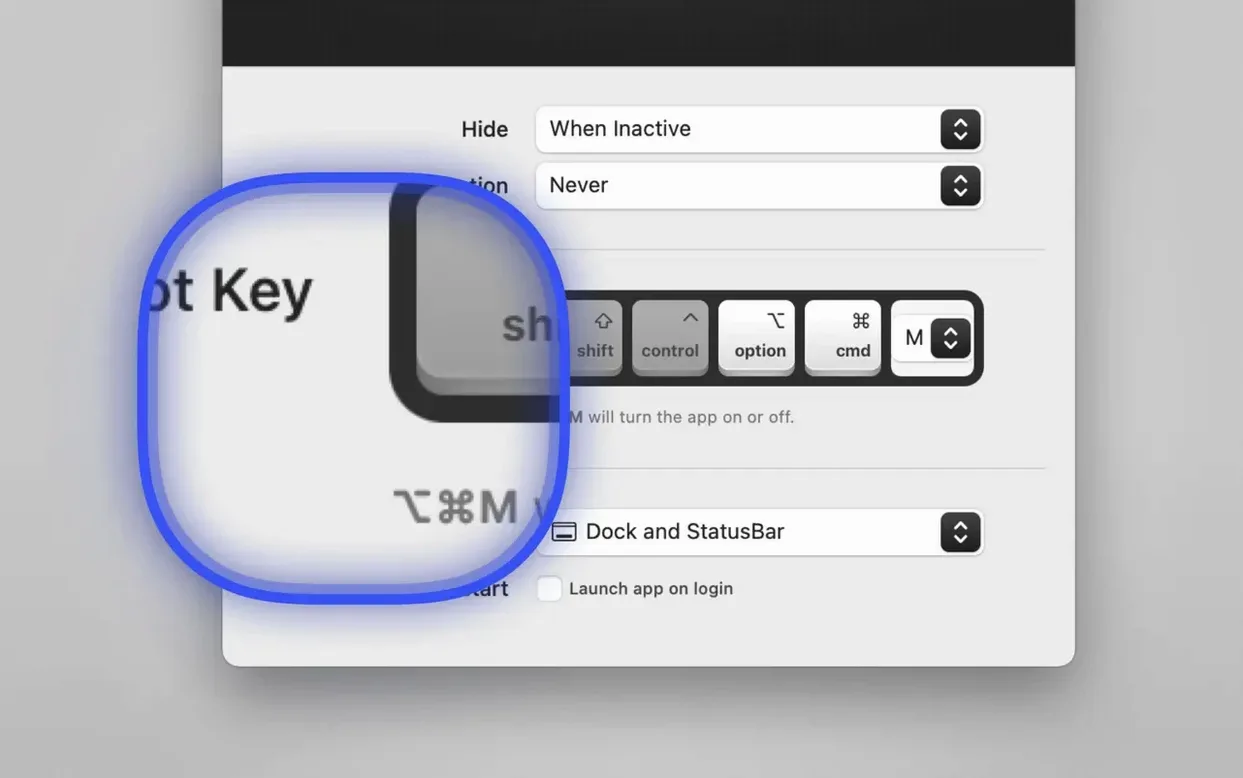
The app includes a magnifier that enlarges whatever sits under the pointer, no full-screen capture needed. It's a practical helper for demonstrating UI details or reading small text aloud during a walkthrough.
Blending into your daily setup
Set it to launch at login and it stays out of the way until you need it. The tool works alongside your existing screenshot and presentation apps without overlapping their jobs, running on both Apple Silicon and Intel Macs from macOS 11 onward.
Screen Sharing Without a Vanishing Cursor
Let's say you're about to walk a remote teammate through a new onboarding workflow. You open the screen-sharing panel, start the call, and notice the default arrow fades into the spreadsheet grid. Click the Cursor Pro icon in the menu bar — that's where it lives — and a small pane drops down.
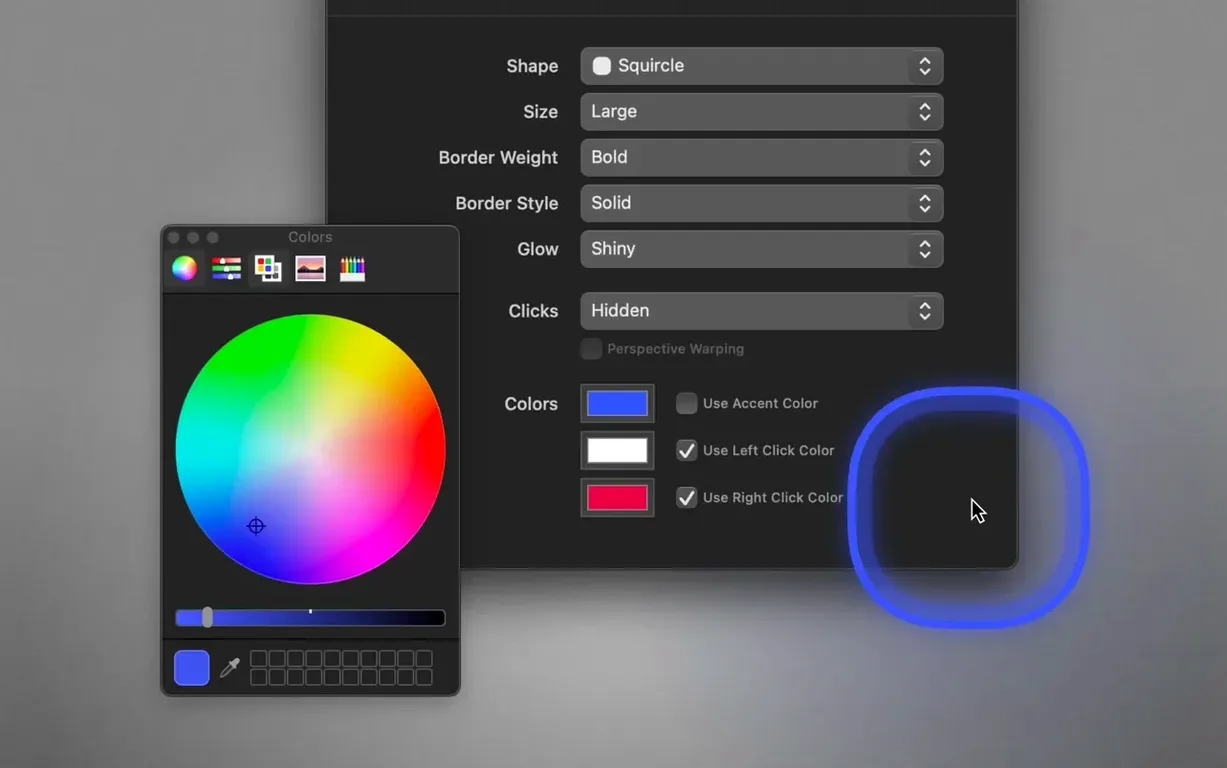
You tick Enable Highlight. The pointer immediately gains a soft yellow ring. Still too subtle? You drag the color picker toward a warm orange and bump the glow slider halfway. Now it pulls the eye without feeling like a laser show. The shape drop-down offers Circle by default, but you switch to Diamond because the sharp corners read better against a dense table of numbers.
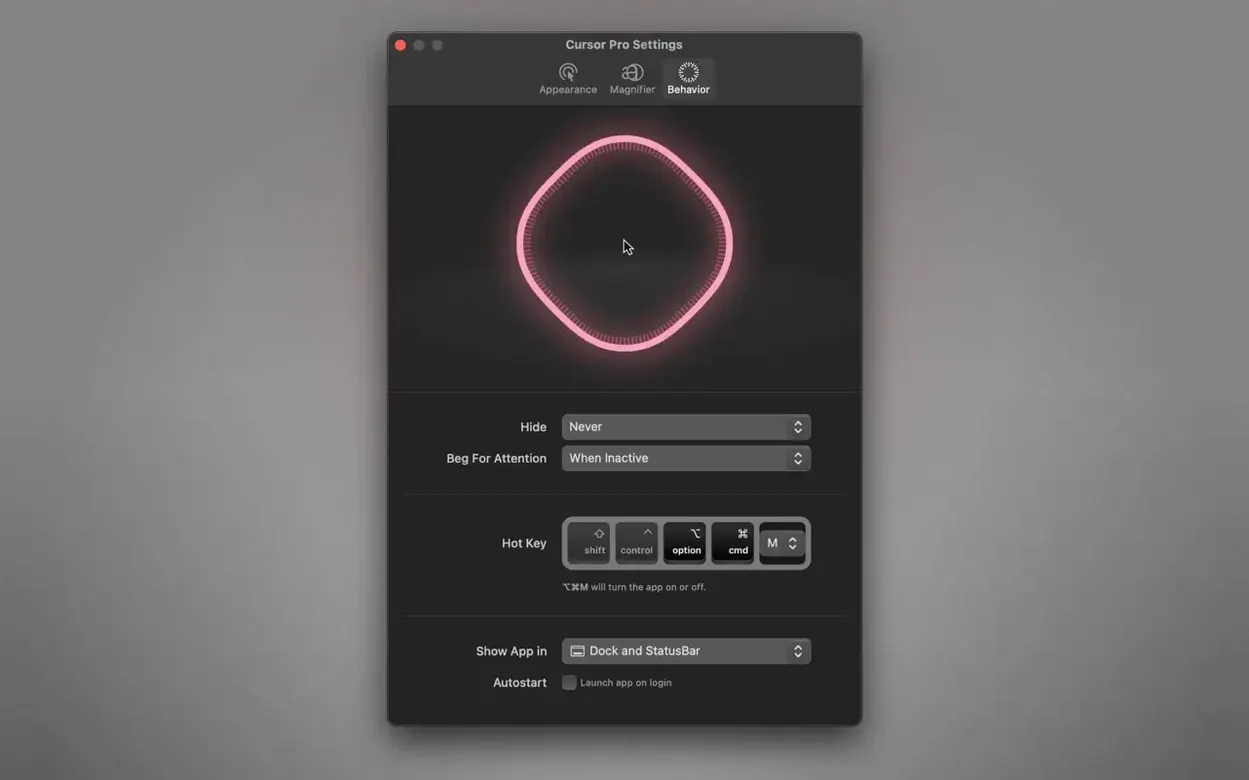
Next, you check Pulse. The ring breathes gently, about once a second. You don't need the magnifier right now, so that stays off. A quick tap of the assigned global hotkey — you've set it to Control-Option-P — toggles the highlight off while you explain a static slide, then back on when the mouse starts moving again. The whole setup takes maybe forty seconds, and from that point the call stays smooth because nobody has to ask "where's your cursor?"
Activating the Hidden Highlight After Install
A fresh install often leads to three small missteps. First, people open the app, see nothing change, and assume it's broken. Cursor Pro ships with the highlight off by default; you need to open the menu bar panel and enable it at least once.
Second, the magnifier. New users sometimes drag the zoom factor straight to 4× and then flutter the pointer around a dense desktop, which turns the experience into a nausea-inducing fish-eye lens. Start at 1.5× or 2× and only crank it higher when you're parked over a specific detail.
Third, the auto-hide timer. A few folks set it to two seconds, then wonder why the highlight disappears while they're still pointing at a button. Unless you're recording a fast-paced demo, five to eight seconds gives viewers enough time without the highlight overstaying its welcome.
Building a Training Library with Persistent Click Cues
Consider someone building a software-training library for a mid-size company. They spend mornings recording short walkthroughs — how to submit an expense report, how to reset a password in the internal portal. The recordings go out to dozens of new hires each month, and every second of confusion costs time.
They keep Cursor Pro set to a teal diamond with a light glow, pulsing on. Before each recording, they tap the hotkey to make sure the highlight is active, then move deliberately from one button to the next. The magnifier gets switched on only when they need to zoom in on a tiny dropdown arrow or a field validation message that would otherwise blur out in the compressed video.
Between sessions, the app sits in the menu bar, not the Dock, because they prefer a clean desktop for screenshots. Cursor Pro becomes one of those utilities they don't think about until they have to record without it — at which point the raw footage suddenly feels like a game of "find the pointer" they'd rather not play.
- macOS 11 or later
- Works natively on Apple Silicon and Intel 64-bit Macs
Questions I actually get
Can I change the shape of the cursor highlight?
Yes, you can choose between a circle or a diamond shape for the pointer highlight.
Does the magnifier capture my whole screen?
No, it enlarges only the area directly under the pointer, so it's not a full-screen capture tool.
Which languages does the interface support?
The interface is available in English, German, Spanish, Italian, Simplified Chinese, Korean, French, and Japanese.
Porch talk 0
Come in or pull up a chair to leave a comment.
Nobody has pulled up a chair yet. If you used it on a real Saturday, say what the hour was.
More for the same hour
Everything in Mac Apps
 CrossOver
26.3.0 Mac Apps
285 MB
CrossOver
26.3.0 Mac Apps
285 MB
 DaisyDisk
4.34.2 admin Mac Apps
9 MB
DaisyDisk
4.34.2 admin Mac Apps
9 MB

 DataGrip
2026.2.6 Mac Apps
Updated 1 GB
DataGrip
2026.2.6 Mac Apps
Updated 1 GB
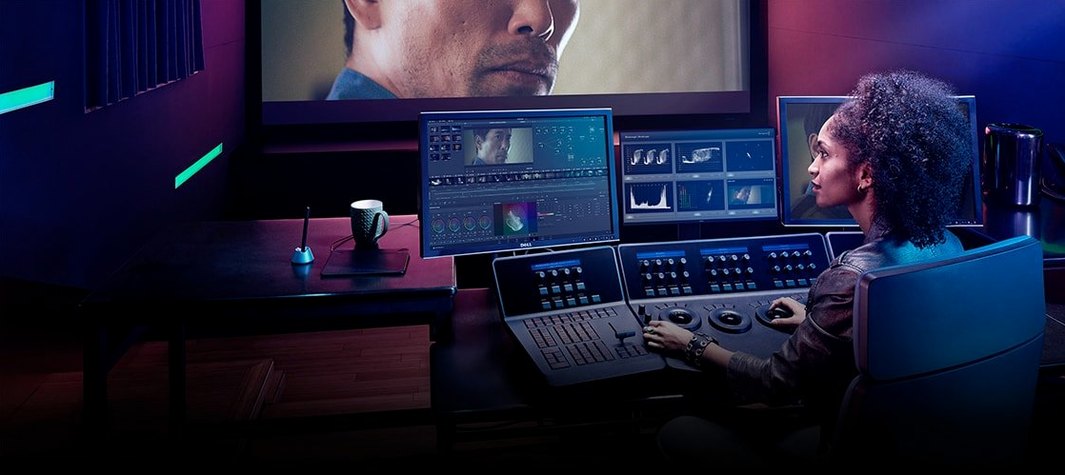
 DaVinci Resolve Studio
21.1.1 Mac Apps
7.9 GB
DaVinci Resolve Studio
21.1.1 Mac Apps
7.9 GB

 CorelDRAW
27.2.0.135 Mac Apps
2.1 GB
CorelDRAW
27.2.0.135 Mac Apps
2.1 GB
 dBpoweramp Music Converter
2026.09.13 Mac Apps
31 MB
dBpoweramp Music Converter
2026.09.13 Mac Apps
31 MB

 CorelCAD
2022.5 Build 22.3.1.4090 Mac Apps
293 MB
CorelCAD
2022.5 Build 22.3.1.4090 Mac Apps
293 MB
 Cookie
8.6.5 Mac Apps
Updated 8 MB
Cookie
8.6.5 Mac Apps
Updated 8 MB