DaisyDisk runs on any Mac with a 64-bit Intel processor or Apple Silicon, as long as it's on macOS 10.13 or newer. It doesn't need much to get started—just a mounted drive and a little curiosity about where your free space went.
| What it does | Key detail |
|---|---|
| Disk analysis | Builds an interactive visual map of any mounted disk |
| Hidden space | Reveals what's inside the mysterious "Other" category |
| Architecture | Runs natively on both Apple Silicon and Intel Macs |
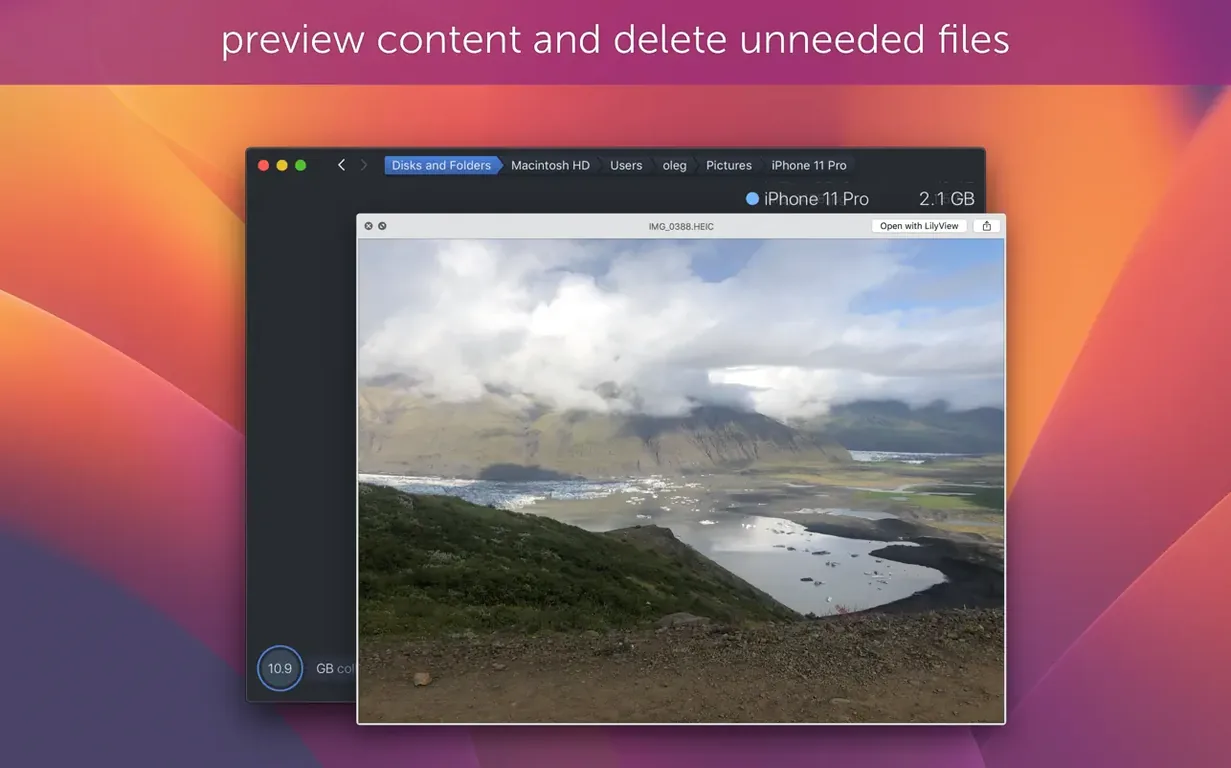
| File preview | Integrates with Quick Look so you can peek inside files before deleting |
| APFS clones | Counts only the first occurrence of each clone for accurate space totals |
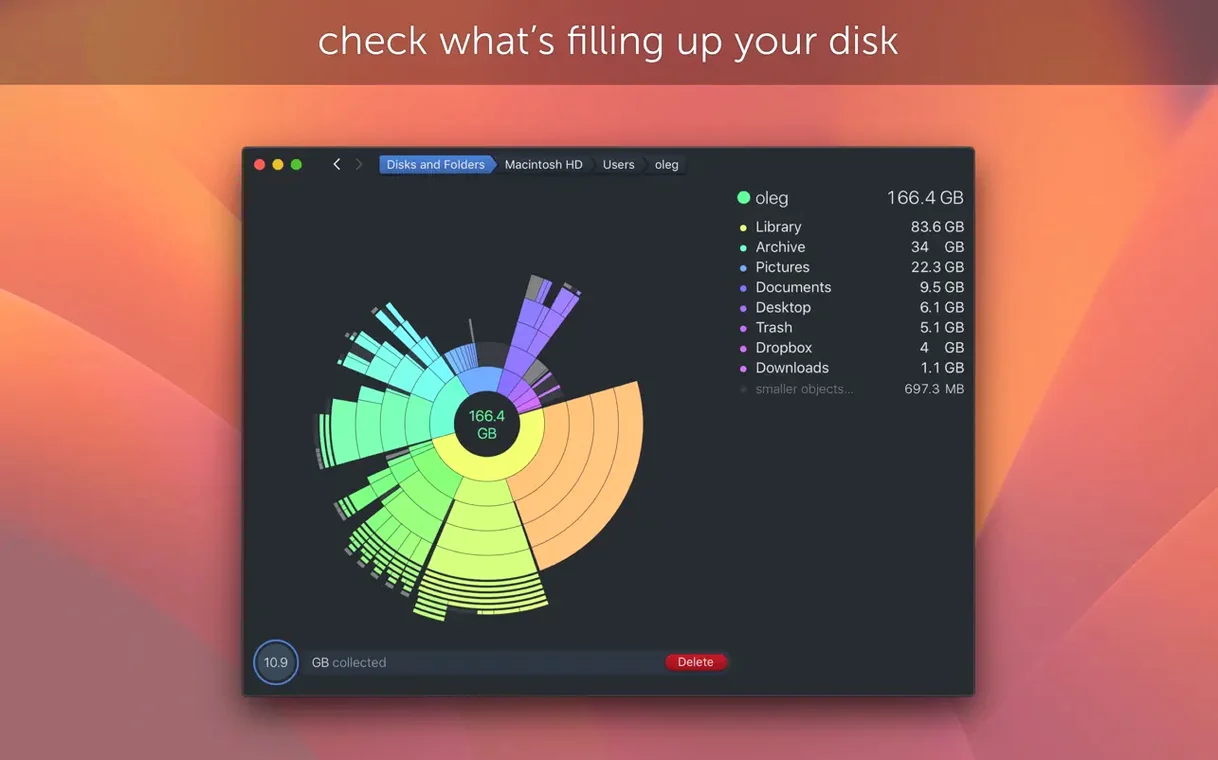
The app scans your drive and draws a sunburst map—a series of concentric arcs, each representing a folder. You can click through the layers, diving from your home folder into a forgotten Downloads pile, and watch the segments grow and shrink in real time. The map feels almost physical, like peeling back layers of an onion. Version 4.34 brought a welcome fix for APFS clones, so duplicate file references no longer inflate the reported usage. An earlier update also tightened estimates for hidden space, which helps when the system's storage breakdown in About This Mac doesn't add up. If you've ever stared at a nearly full SSD with no idea which folder is the culprit, DaisyDisk gives you a clear, zoomable answer in about ten seconds.
Cleaning Up a Bloated Lightroom Catalog, Start to Finish
A photographer friend asked me to look at her MacBook Air last week. She had 14 GB free and couldn't import another card. Her Lightroom folder alone showed 180 GB in Finder, but she didn't know where the bloat was hiding—old catalogs, smart previews she forgot about, or duplicate raw files from two years ago. Here's how DaisyDisk turned an afternoon of guesswork into twenty minutes of decisive cleanup.
First, I opened the app and hit Command-N to start a fresh scan on her home folder. While the sunburst populated, I moved to the sidebar and selected her external photo archive too. DaisyDisk scans mounted drives in parallel, so both maps built at the same time. The main drive finished first—the map showed a massive arc labeled "Pictures," and inside it, a Lightroom folder consuming nearly a third of the whole disk.
I clicked into the Lightroom segment. The map expanded, splitting into sub-arcs for each catalog folder. One catalog from 2023 sat untouched since she migrated to a new version; it alone weighed 62 GB. I hovered over the arc and pressed the spacebar. Quick Look popped up a preview of the catalog file—definitely the old one. I dragged the entire folder from the DaisyDisk map onto the "Collector" button in the lower-left corner, which held it in a deletion queue. Then I moved on to the smart previews folder. DaisyDisk showed it as 28 GB of small proxy files, all with creation dates from 2024. She confirmed she had full-resolution copies on the external drive. Into the Collector it went. When I clicked "Delete" and confirmed, 90 GB disappeared. The sunburst refreshed, and the remaining free space arc grew visibly wider.
On the external drive map, I spotted duplicate raw files the exact same trick couldn't catch: they lived in two separate backup folders, so size alone didn't flag them. But clicking each arc showed the file count, and with Quick Look I verified identical filenames and dates. Dragged one set to the Collector, deleted, done. The whole process—scanning two drives, verifying files, deleting safely—took under half an hour.
Hidden Right-Click Shortcuts You Stumble Into
After a few years of using DaisyDisk, I still stumble on little touches that aren't shouted about in the interface. They're the kind of things that make a cleanup session smoother once you know they exist.
- Right-click a segment to reveal it in Finder. This is the bridge between the map and the filesystem. When you're not ready to delete but want to move or archive something, a quick right-click gets you to the actual folder without hunting through Finder's column view.
- The scan-as-admin button. In the bottom-left corner of the scan window, there's a tiny button labeled "Scan as Administrator." Click it before scanning your main drive, and DaisyDisk gains access to folders that normally throw permission errors. That's how you finally see what's inside
/private/varor a stubborn system cache. - Holding
Optionwhile hovering. Normally the tooltip shows folder name and size. Hold Option, and it adds the full path. Small thing, but when you're comparing two folders with the same name on different volumes, it prevents mistakes. - Re-scan a single folder. After you delete something, you don't have to scan the whole drive again. Click the folder's arc, then click the circular arrow that appears in the map center. It rescans just that branch, which takes seconds instead of minutes.
A Video Editor's Night-Before-Delivery Panic
Miles edits wedding videos from his Mac Studio. He keeps active projects on the internal SSD and archives to a NAS, but deadlines have a way of filling local storage without warning. On a Tuesday evening, Final Cut refused to render because the disk had 2 GB free. He needed 40 GB of breathing room, and he needed it before the overnight export.
Miles launched DaisyDisk and scanned his internal drive. The sunburst immediately called out a 96 GB "Final Cut Backups" folder he'd never noticed—FCP's automatic library backups, going back eighteen months. He clicked through the arc, verified with Quick Look that each backup was a duplicate of his current library, and sent the whole folder to the Collector. That freed 96 GB in one move. But the map also revealed a surprise: a "Render Files" folder for a project he delivered in March, still sitting at 34 GB inside a library package. Because DaisyDisk can peer into .fcpbundle packages like regular folders, he spotted it instantly. He deleted it, rescanned just the Movies folder to confirm, and had 132 GB free. Final Cut rendered without a hiccup. Total time from launch to cleanup: eight minutes.
Miles told me he now keeps DaisyDisk in his Dock during project weeks. Not because he uses it daily, but because when the disk-full warning appears at 11 PM, he doesn't want to think—he wants to see.
Scanning a Sluggish Mac on a Saturday Morning
Let me walk you through a typical session, the way I'd sit down with it on a lazy Saturday morning when my Mac feels sluggish and I suspect storage creep.
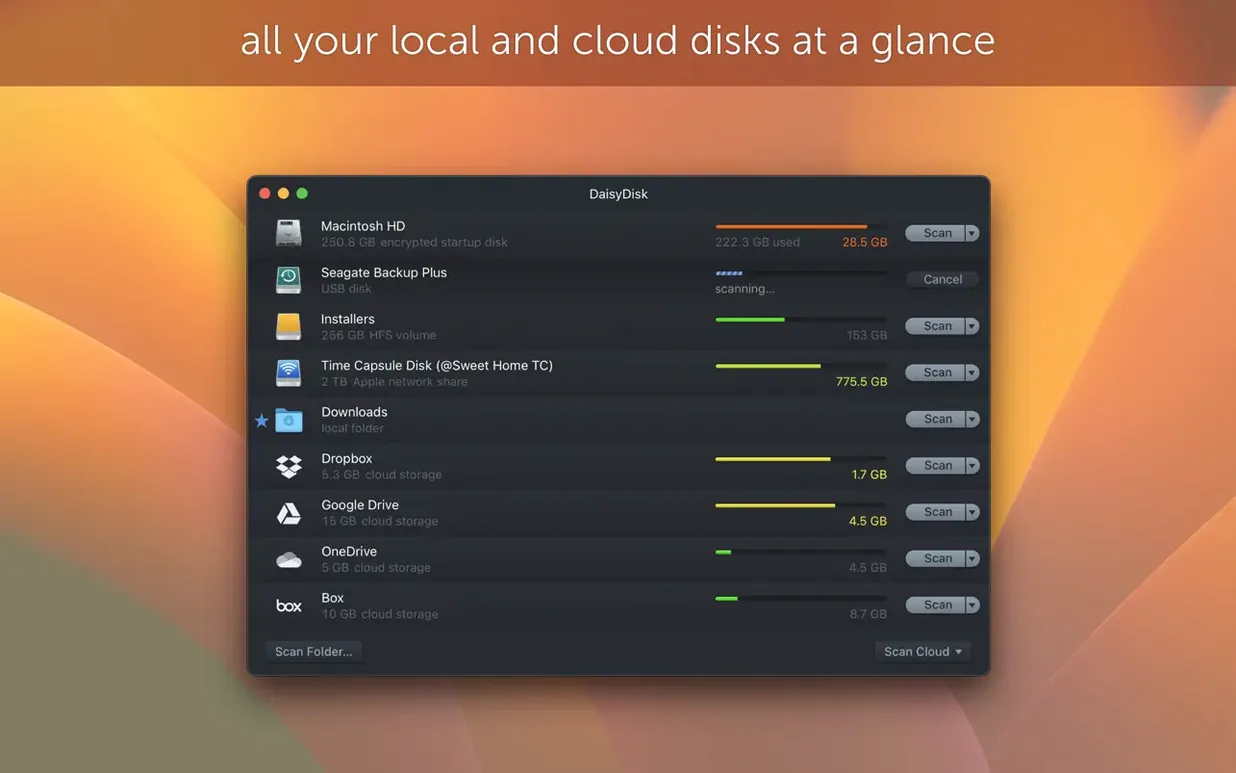
I open DaisyDisk, and it shows me all mounted volumes in a clean sidebar—my internal SSD, a Time Machine drive, and a USB stick I forgot to eject. I click my main drive and press the scan button. While the scanning bar moves, I watch the drive info in the sidebar update in real time: total capacity, used space, free space, all changing as temp files come and go. The scan finishes in about fifteen seconds on my M1 machine.
The sunburst fills the window. I usually start wide—I look for arcs that feel disproportionately large compared to what I expect. The Applications folder is 38 GB, reasonable. System is opaque but not huge. But there's an arc labeled "Users/darnell/Library" that's 64 GB, and that's where I dive in. I click it, and the map zooms. Inside Library, "Application Support" blooms into sub-arcs. An iOS simulator cache I haven't used since last summer is holding 11 GB. I hover, spacebar to preview—yep, old device images—and drag it to the Collector.
Next, I notice "Mail" is 18 GB. I click through and find an "Attachments" folder full of files from 2022. Quick Look confirms they're all downloaded email attachments I've long since archived. Into the Collector. I keep going, clicking arcs that look suspicious, previewing with the spacebar, and collecting candidates. The Collector sits in the corner like a shopping cart, accumulating my selections without committing. When I've gathered five or six folders, I review the list one more time—DaisyDisk shows the path and size for each—and click Delete. The map refreshes. The free space arc at the center of the sunburst has widened, and my Mac already feels lighter, even if the only thing that changed is a number I can trust.
Version 4.34.2 is a small maintenance release. The main change from 4.34 is a bug fix, but the update to 4.34 itself brought a smarter way of handling APFS clones—only the first occurrence of a cloned file counts toward used space, giving you a truer picture of what's actually eating your disk.
- macOS 10.13 or later
- Apple Silicon or 64-bit Intel processor
Porch talk 0
Come in or pull up a chair to leave a comment.
Nobody has pulled up a chair yet. If you used it on a real Saturday, say what the hour was.