

Finder gets the simple jobs done, but the moment you need to sort through hundreds of photos while keeping an eye on a remote backup, its single-window design starts to feel like a bottleneck. You end up juggling tabs, losing your place, and wishing for a clearer view of where everything is headed.
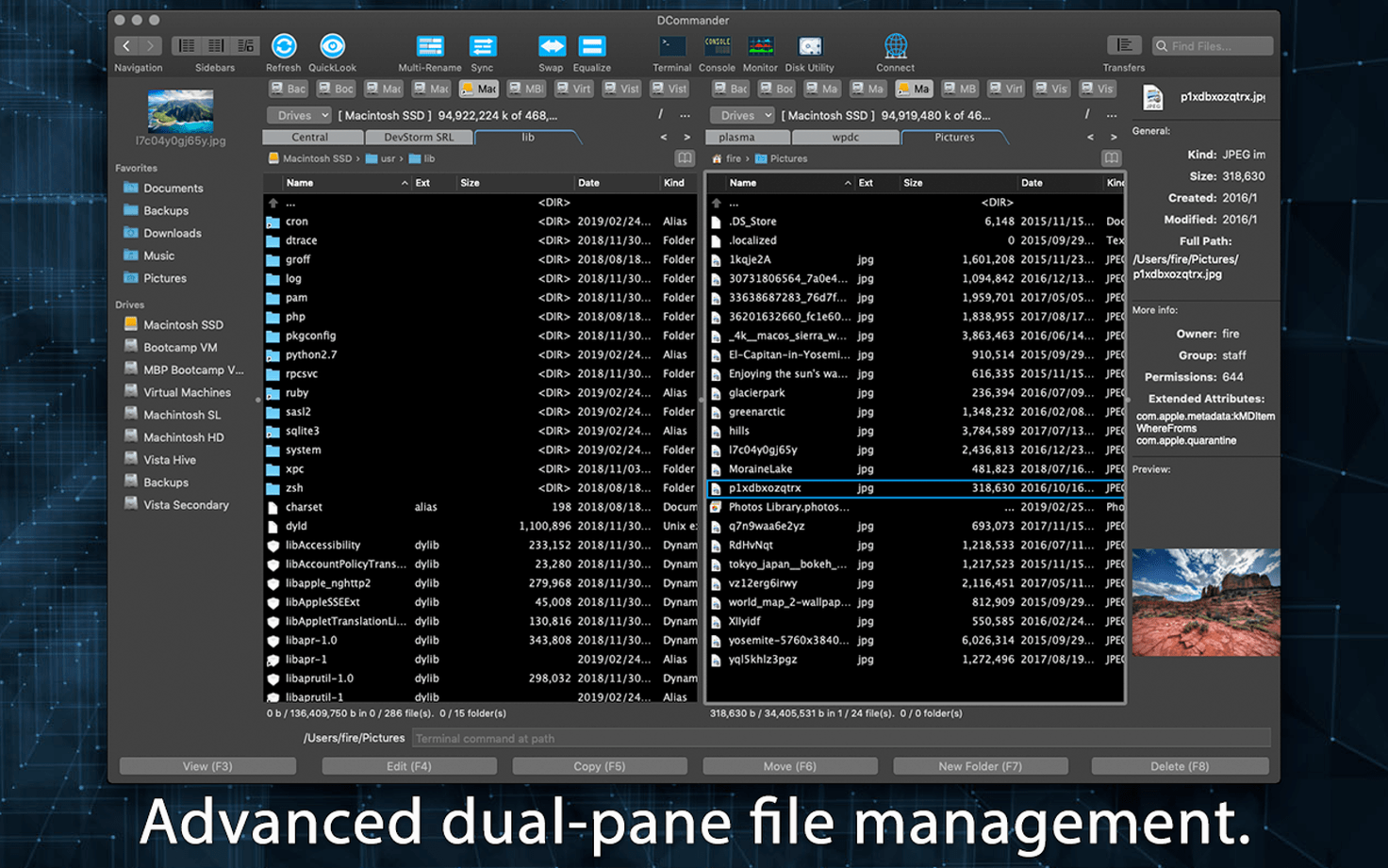
DCommander steps in as an orthodox-style, two-pane file manager that puts source and destination side by side. Version 3.10.0 runs on macOS 11.5 and later.
Batch Folder Moves in a Dual-Pane View
- Copying, moving, and archiving files with a clear dual-pane layout
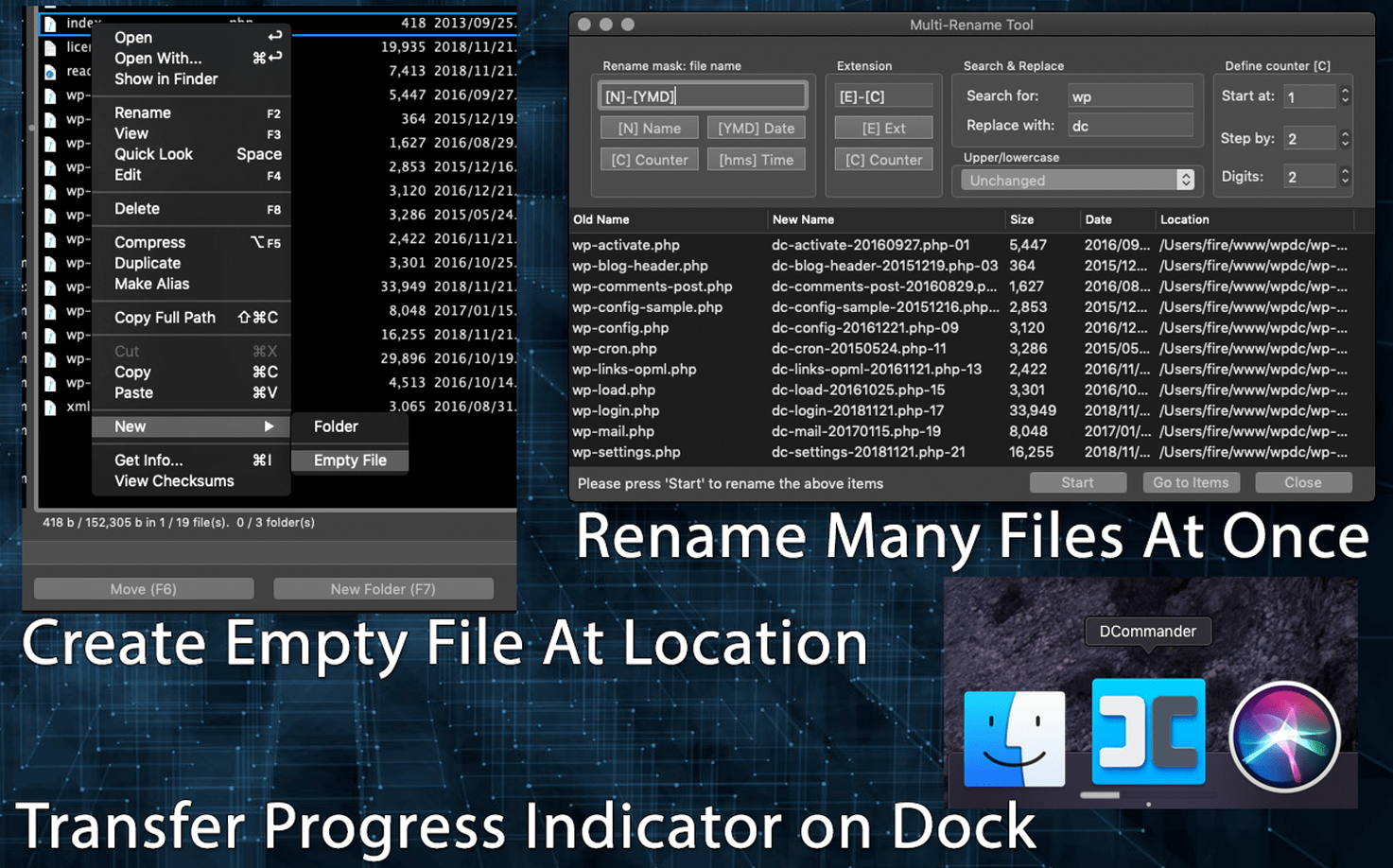
- Batch file operations that tackle whole folders in one go
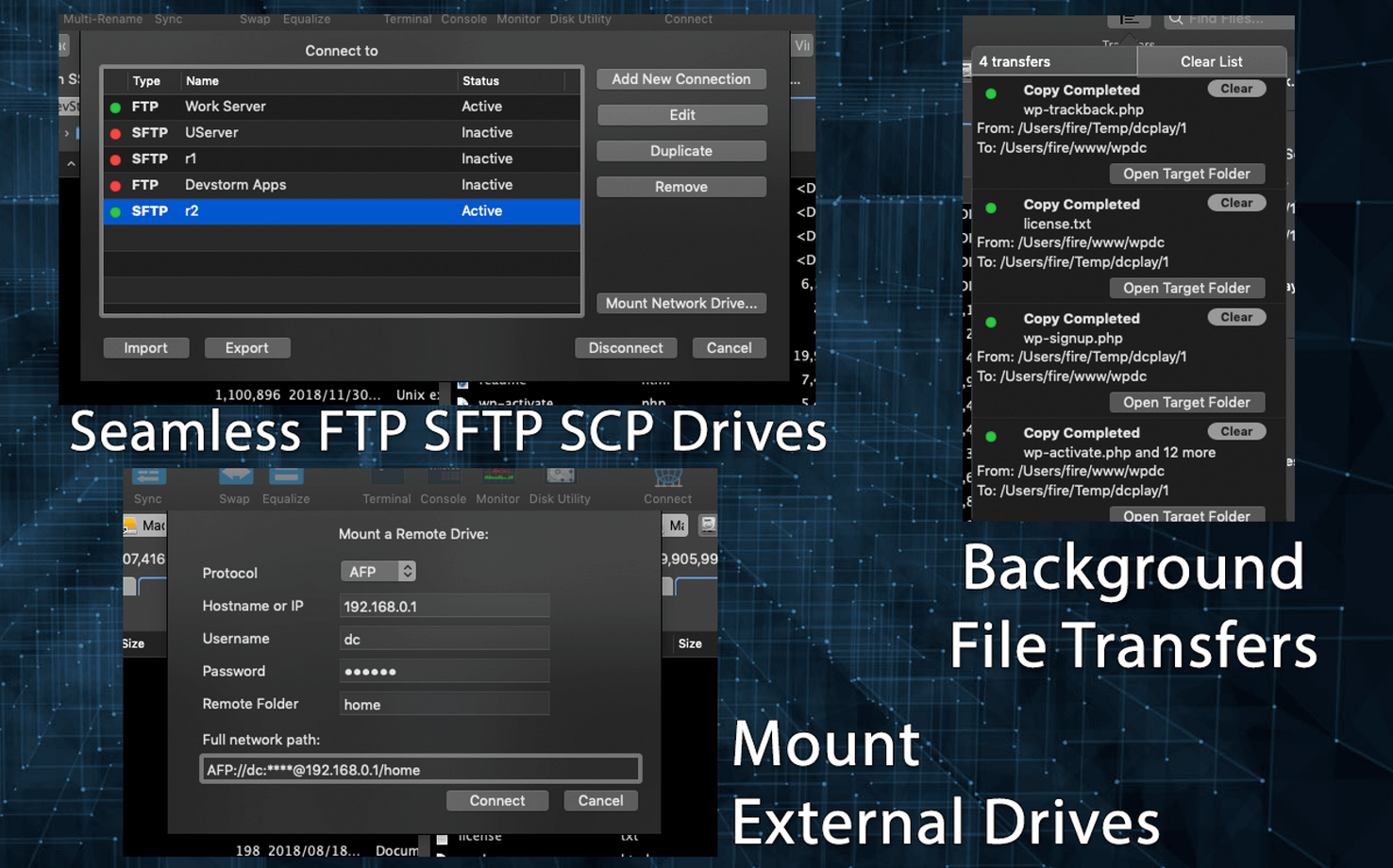
- Synchronizing local folders with remote locations over FTP, SFTP, or SCP
- Background transfers that let you queue up jobs and keep working
- Browsing ZIP archives and remote connections right inside the main window
Dense Functional Interface, Not a Finder Redesign
- The interface is functional and dense, not a minimal rebuild of Finder
- Two-pane navigation has a short learning curve if you're used to single-window browsing
- Requires macOS 11.5 or newer on either Intel or Apple Silicon hardware
Dual-Pane DNA: DCommander vs. Commander One
Placing DCommander next to a few familiar names helps you figure out where it fits before you invest the time to learn its shortcuts.
Commander One shares the same dual-pane DNA and also supports FTP, SFTP, and archive browsing. The difference shows up in the extras. Commander One bundles a process viewer and a built-in terminal emulator, while DCommander keeps its toolset tighter — a HEX editor, checksum tools, and a background transfer manager that feels more like a dedicated queue than an afterthought. If you live inside terminal panes, Commander One pulls ahead; if you want a file manager that stays focused on files, DCommander feels less cluttered.
ForkLift leans toward a modern single-pane design with a second pane you toggle on when needed. It offers remote file editing and a favorites sidebar that mimics Finder’s. DCommander stays firmly orthodox — both panes always visible, no collapsing. ForkLift’s remote editing is smoother for quick text changes on a server, but DCommander’s SCP and SFTP browsing feels more direct, with less window dressing between you and the directory tree.
Marta is a free, keyboard-driven two-pane manager that prioritizes speed over features. It has no FTP or SCP support, no HEX editor, and no transfer queue. DCommander covers all that ground. If your needs stop at local file shuffling, Marta’s lightness is hard to beat. Once remote servers or batch checksum verification enter the picture, DCommander earns its place.
A real-world workflow: cleaning up a photo library and syncing to a remote server
Imagine a Saturday morning. Your Mac holds a sprawling photo folder — thousands of shots from the last two years, mixed with duplicates and loose RAW files. You also have a backup server you reach over SFTP. Here’s how DCommander turns a half-day chore into a focused session.
Open the app and press Command+T to create two tabs in the left pane and one in the right. The left pane tabs point to your local Photos folder and a comparison folder where you keep culled selects. The right pane connects to your server via SFTP — enter host, username, and key, and the remote directory tree appears just like a local drive.
Start with the checksum tool. Select the local folder, choose Checksum from the Tools menu, and generate MD5 hashes for every file. Export the list. Now run a batch rename on RAW duplicates — highlight them, open the batch rename dialog, and strip the camera’s auto-generated prefixes. The two-pane layout lets you drag renamed files into the culled folder on the left while watching the original folder shrink, so you always know what moved.
With the culling done, queue a sync job. Select the local culled folder and the remote backup directory, then choose Synchronize. DCommander compares both sides and shows which files need uploading. Hit start and the transfer moves to the background manager, where you can pause, reorder, or retry individual items. While the sync runs, you switch to the HEX editor to peek at a corrupted JPEG header you noticed earlier — no need to open a separate app.
Watch Which Pane Has That Colored Focus
Even experienced Mac users trip over a few things when they first launch a two-pane file manager. Here are the ones worth knowing about before they bite you.
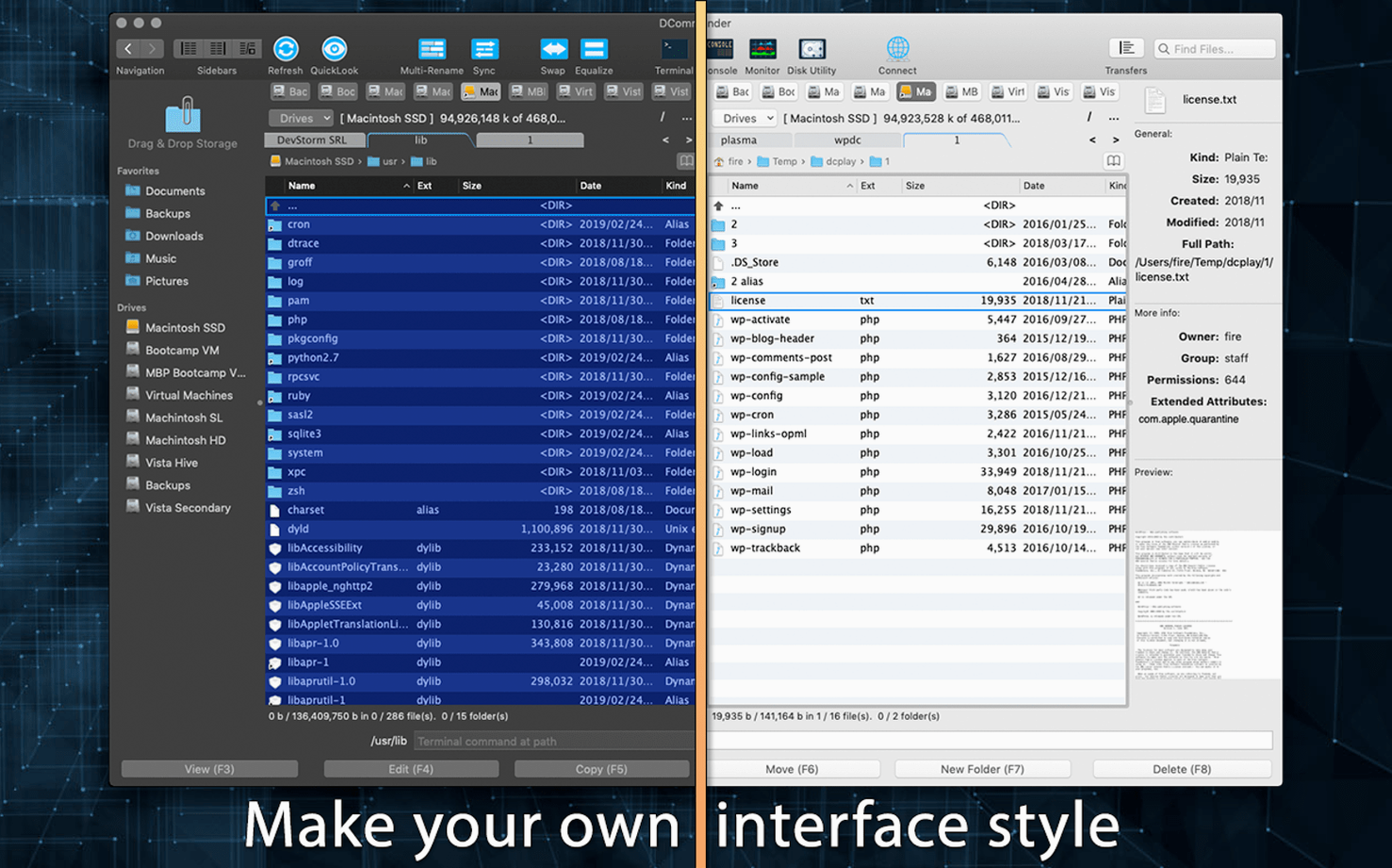
- Forgetting which pane has focus. The active pane shows a colored border, but it’s easy to miss when you’re moving fast. Pressing Delete or starting a batch operation affects the focused pane, not necessarily the one your eyes are on. Get in the habit of clicking the pane you want before acting.
- Overlooking the background transfer manager. New users often queue a large copy and then stare at the progress bar, waiting. DCommander sends long operations to the background manager automatically, but if you dismiss it without looking, you might think the job stalled. Keep the transfer manager visible — it’s where you reorder, cancel, or retry individual items.
- Assuming remote servers work like local folders. Browsing an SFTP share feels snappy, but file previews and external editor launches depend on network speed. Opening a large PSD across a slow connection will hang the pane. Stick to quick previews on remote files, and copy locally before editing.
- Ignoring the tab system. Beginners often open new windows instead of tabs, cluttering the workspace. Tabs preserve pane pairs, so each tab remembers its own left-right folder combination. Use them to jump between projects without rebuilding your layout.
- macOS 11.5 or later
- Runs natively on both Intel and Apple Silicon Macs
Porch talk 0
Come in or pull up a chair to leave a comment.
Nobody has pulled up a chair yet. If you used it on a real Saturday, say what the hour was.
More for the same hour
Everything in Mac Apps
 dBpoweramp Music Converter
2026.09.13 Mac Apps
31 MB
dBpoweramp Music Converter
2026.09.13 Mac Apps
31 MB
 DaVinci Resolve Studio
21.1.1 Mac Apps
7.9 GB
DaVinci Resolve Studio
21.1.1 Mac Apps
7.9 GB
 DataGrip
2026.2.6 Mac Apps
Updated 1 GB
DataGrip
2026.2.6 Mac Apps
Updated 1 GB
 Deep Glow
1.6 Mac Apps
3 MB
Deep Glow
1.6 Mac Apps
3 MB
 DaisyDisk
4.34.2 admin Mac Apps
9 MB
DaisyDisk
4.34.2 admin Mac Apps
9 MB
 Dehancer Pro
7.3.4 Mac Apps
382 MB
Dehancer Pro
7.3.4 Mac Apps
382 MB
 Depth Scanner
1.15.6 Mac Apps
2 MB
Depth Scanner
1.15.6 Mac Apps
2 MB

 Cursor Pro
2.4 Mac Apps
30 MB
Cursor Pro
2.4 Mac Apps
30 MB