

Version 3.10 landed with macOS Tahoe 26 compatibility in its pocket, plus new Accessibility and Remote Keyboard menu items that make remote control feel a little closer to the real thing. If you’ve been waiting on that update to keep your lab consistent, it’s here.
Watch, Deploy, and Control Mac Fleets From One Screen
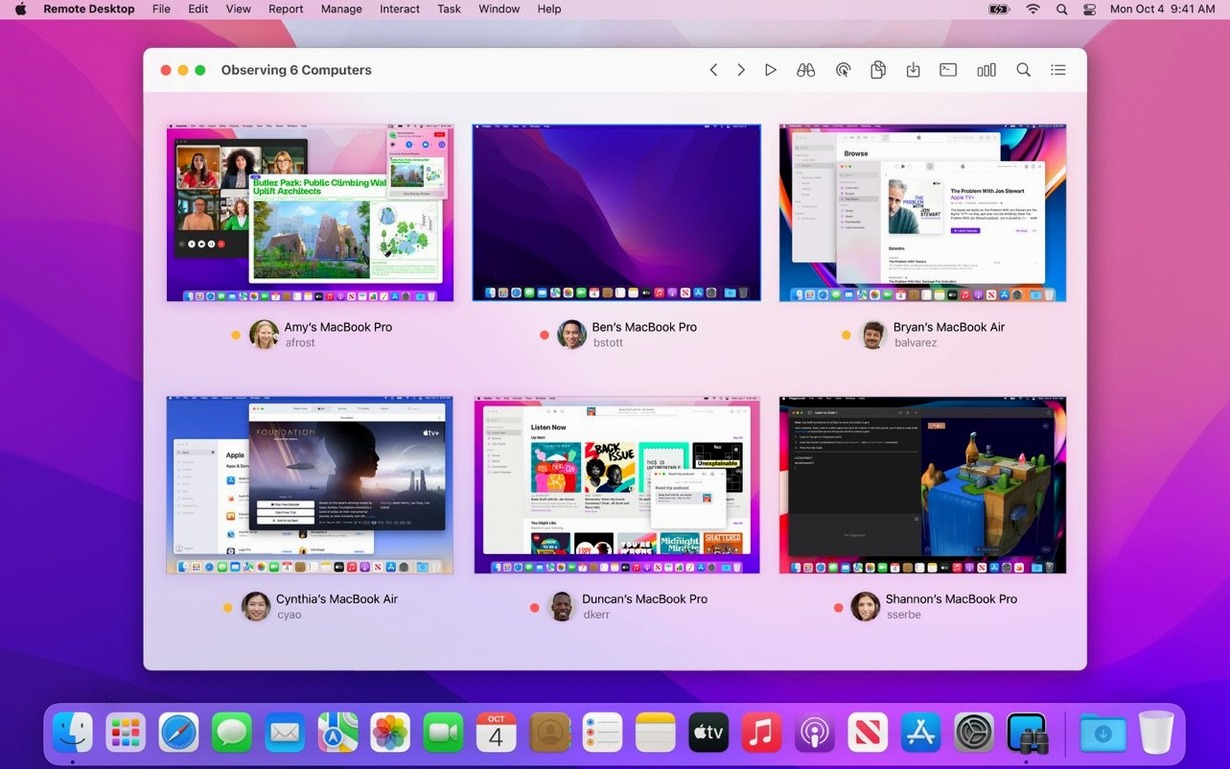
Apple Remote Desktop is Apple’s own tool for watching over a fleet of Macs from one screen. You can install software, gather system reports, copy files, and help a colleague by taking control of their desktop—all across the network without leaving your chair.
Basic VNC Control for Windows and Linux Boxes
It’s built for Mac management, but its VNC support means you can observe and control Windows, Linux, and UNIX machines as well. It won’t give you the full suite of reporting and automation on those systems, but the basics are there.
Who is this for?
Think of a school computer lab, a small office without a dedicated IT person, or a developer juggling test machines on a rack. If you need to push a printer driver or run a quick Spotlight search on a distant Mac, this fits the bill without reaching for a third-party service.
Pushing a printer driver across the lab
The bell rings in twenty minutes and three iMacs in the art room need the same driver update before first period. Walking around with a USB stick isn't practical, but Apple Remote Desktop handles this in one pass.
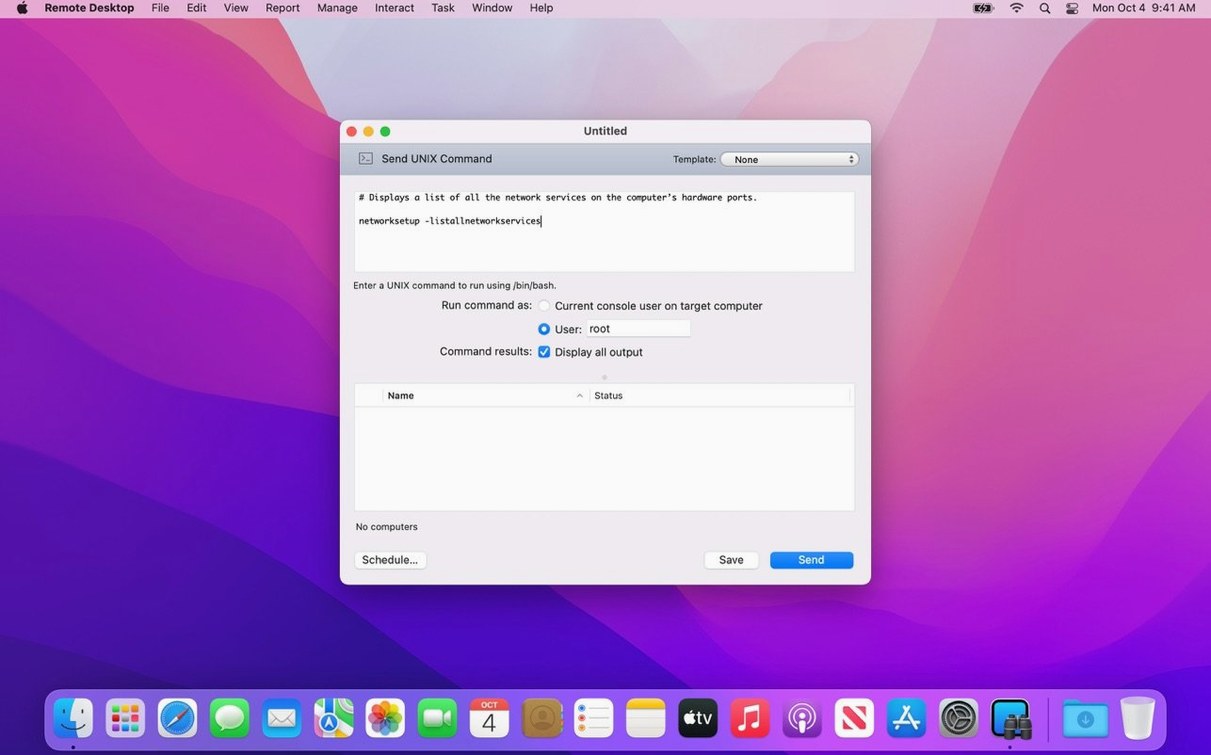
Start by gathering the target Macs. In the main window, a quick Cmd-click selects the three machines from the computer list. The sidebar shows them grouped under Scanner, but dragging them into a temporary folder keeps things tidy. With the group selected, hit Install Packages from the Manage menu. A sheet drops down — drop the driver package onto it. The app copies the file to each machine over an encrypted connection, then pipes the installer command. A progress bar fills for all three simultaneously. One of them is asleep; the task queues and waits. When it wakes, the install resumes without a second thought.
Once the status column reads "Succeeded," run a quick report to confirm the driver version stuck. Choose System Overview from the Reports menu, check the Printers category, and generate. The same three machines return their current driver list in under a minute. The whole job — selection, distribution, verification — takes about the length of a coffee pour.
Your Monday Scan of Green and Yellow Dots
Monday morning. You open Apple Remote Desktop and the scanner has already refreshed the computer list overnight. The sidebar shows twelve Macs, three of them flagged with a yellow dot — offline since Friday. The rest glow green.
You start with a blanket Spotlight search across all online machines for a file name a teacher mentioned: "syllabus_fall26.key." Two Macs in the English department light up with results. Instead of messaging both teachers, you right-click one result, choose Copy to This Mac, and the file lands on your desktop.
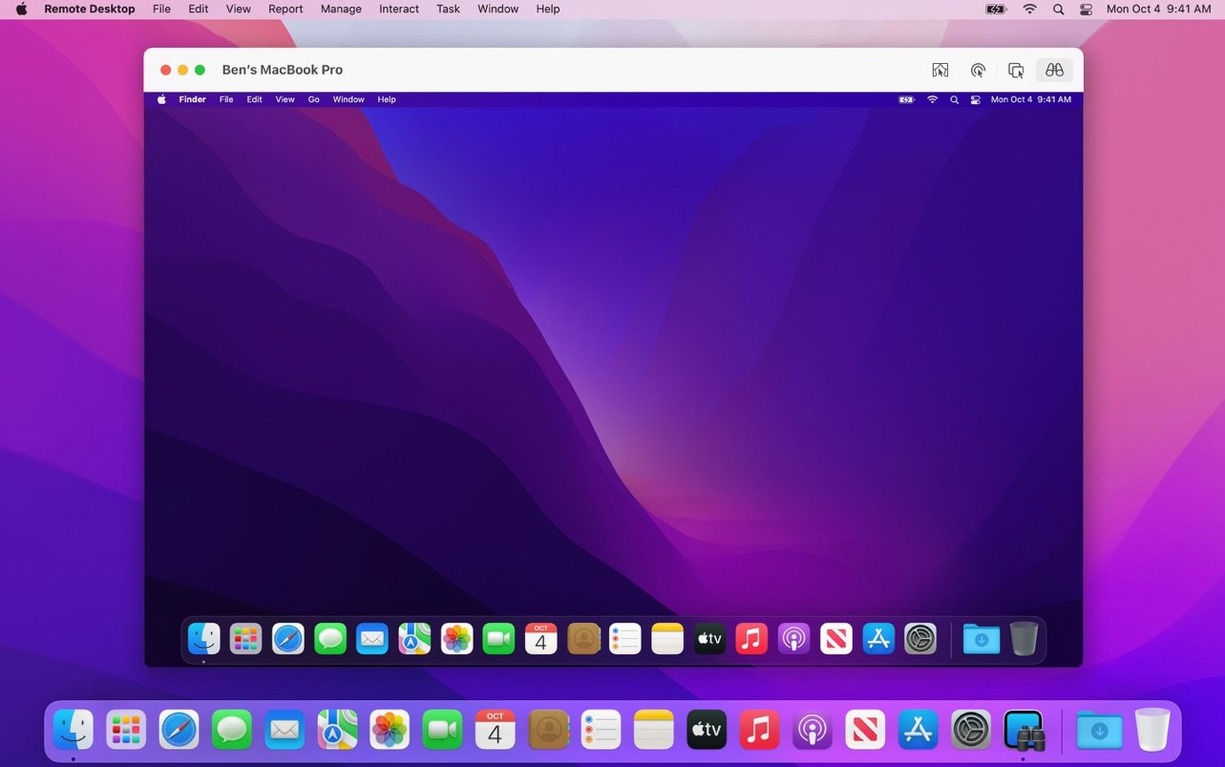
Next, a help request pops up in Messages. A staff machine is beachballing. You select it from the list, click Control, and the remote screen fills your display. You can see the spinning wheel and a stuck print queue. Without interrupting the user, you enable Curtain Mode to hide their screen from prying eyes, then quietly clear the queue from System Settings. A restart finishes the job. You type a quick note into the remote machine's text field using the new Remote Keyboard menu item, letting the user know it's safe to log back in.
Before lunch, you schedule a package install — a security update — for two machines currently offline. You drag the package onto the task scheduler, set it for 2 p.m., and check "Attempt when available." The window closes and the task sits in the queue, patient. When those Macs come back online, the update rolls out without a reminder.
Enabling the Built-In Remote Management Service
Does this mean I have to open ports on every Mac? Not individually. Apple Remote Desktop uses the built-in Remote Management service. If you can enable that on client Macs — which you can do with a configuration profile — no port-forwarding gymnastics are required on the local network. For off-site machines, a VPN does the heavy lifting.
Will it bog down a busy network? Apple built file copies and package installs to use TCP with encryption, but you can throttle bandwidth from the Preferences pane. In a switched gigabit environment, you won't notice it. Over Wi-Fi with twenty simultaneous transfers, drop the throttle to 2 Mbps and let it hum in the background.
Can I use it on my personal Mac without an IT background? If you've got two Macs at home and want to grab a file from the one downstairs, it works. The scanner finds local Macs automatically. But the real value shows up when you manage five or more machines and need reporting, automation, or scheduled tasks. For a one-off screen share, the built-in Screen Sharing app is lighter. For a fleet, Remote Desktop earns its place.
What happens if the remote Mac is on an older version of macOS? Version 3.10 requires macOS 15.5 on the admin machine, but the client software on managed Macs can be several versions behind. You'll lose newer features like the Remote Keyboard menu item, but screen control, file copy, and package install still work across the gap.
Turning On Sharing Preferences Before You Scan
Skipping the client setup step. People install the admin app, scan the network, and wonder why half the Macs show "Unable to authenticate." The Remote Desktop Client needs to be turned on in each target machine's Sharing preferences, and the admin machine needs a user account on each client with the right privileges. It's not a discovery glitch; it's a permissions gap.
Dragging a 2 GB package to ten machines over Wi-Fi at once. The app will do it, but the network will feel it. New users often select every machine and fire off a large installer without checking the bandwidth settings. Start with a test group, set a reasonable throttle, and work up.
Ignoring the Curtain Mode switch. When you take control of a user's screen, they can see everything you do by default. In a classroom or office, that's awkward. Curtain Mode locks the remote display to a privacy screen. Find it under the Interact menu before you start clicking around someone else's desktop.
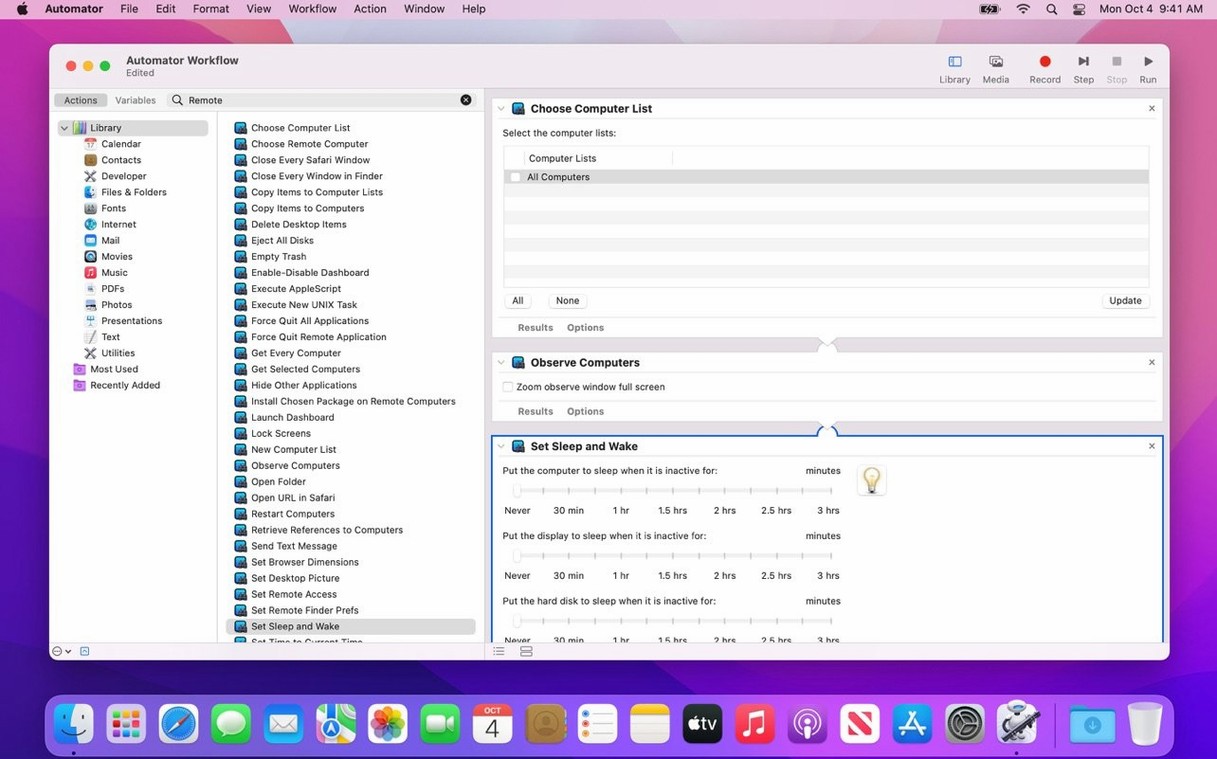
Forgetting that Automator is part of the tool. People treat Remote Desktop as a point-and-click utility and overlook the forty-plus Automator actions bundled with it. If you find yourself repeating the same sequence — say, locking screens at 6 p.m. or clearing user caches on Fridays — wire it into an Automator workflow once and save it as a calendar alarm or a menu bar droplet. The app does the repetitive stuff so you don't have to.
Assuming reports pull live data instantly. Report generation takes a moment because each client machine runs its own system profiler and returns results. Selected fifteen machines and clicked "Generate" on a full hardware report? Go refill your mug. It completes, but it's not a database query.
A maintenance release that catches up with Apple’s latest operating system and adds a few quality-of-life improvements.
- Works with macOS Tahoe 26.
- New Accessibility and Remote Keyboard menu and toolbar items on macOS Tahoe 26 or later.
- VoiceOver support for a remote Mac on macOS Tahoe 26 or later.
- Bug fixes and performance tweaks across the board.
- macOS 15.5 or later
- Apple Silicon or Intel 64-bit Mac
Questions I actually get
Can I schedule tasks for a Mac that’s offline?
Yes. Apple Remote Desktop can queue software installations and other tasks for offline computers, and the work starts as soon as they appear back on the network.
Porch talk 0
Come in or pull up a chair to leave a comment.
Nobody has pulled up a chair yet. If you used it on a real Saturday, say what the hour was.
More for the same hour
Everything in Mac Apps
 Apple Keynote
15.3.1 Mac Apps
356 MB
Apple Keynote
15.3.1 Mac Apps
356 MB

 AppKiller
4.4.0 Mac Apps
Updated 7 MB
AppKiller
4.4.0 Mac Apps
Updated 7 MB

 ArchiCAD
29.2.1 Mac Apps
5.1 GB
ArchiCAD
29.2.1 Mac Apps
5.1 GB

 Art Text 4
4.5.10 Mac Apps
750 MB
Art Text 4
4.5.10 Mac Apps
750 MB
 AnyTrans for iOS
8.9.14 Mac Apps
398 MB
AnyTrans for iOS
8.9.14 Mac Apps
398 MB

 Artlantis
9.5.2.32853 Mac Apps
370 MB
Artlantis
9.5.2.32853 Mac Apps
370 MB

 Antivirus Zap - Virus Scanner
3.25.1 Mac Apps
Updated 49 MB
Antivirus Zap - Virus Scanner
3.25.1 Mac Apps
Updated 49 MB
 AmpliTube
5.8.2 Mac Apps
3.1 GB
AmpliTube
5.8.2 Mac Apps
3.1 GB