


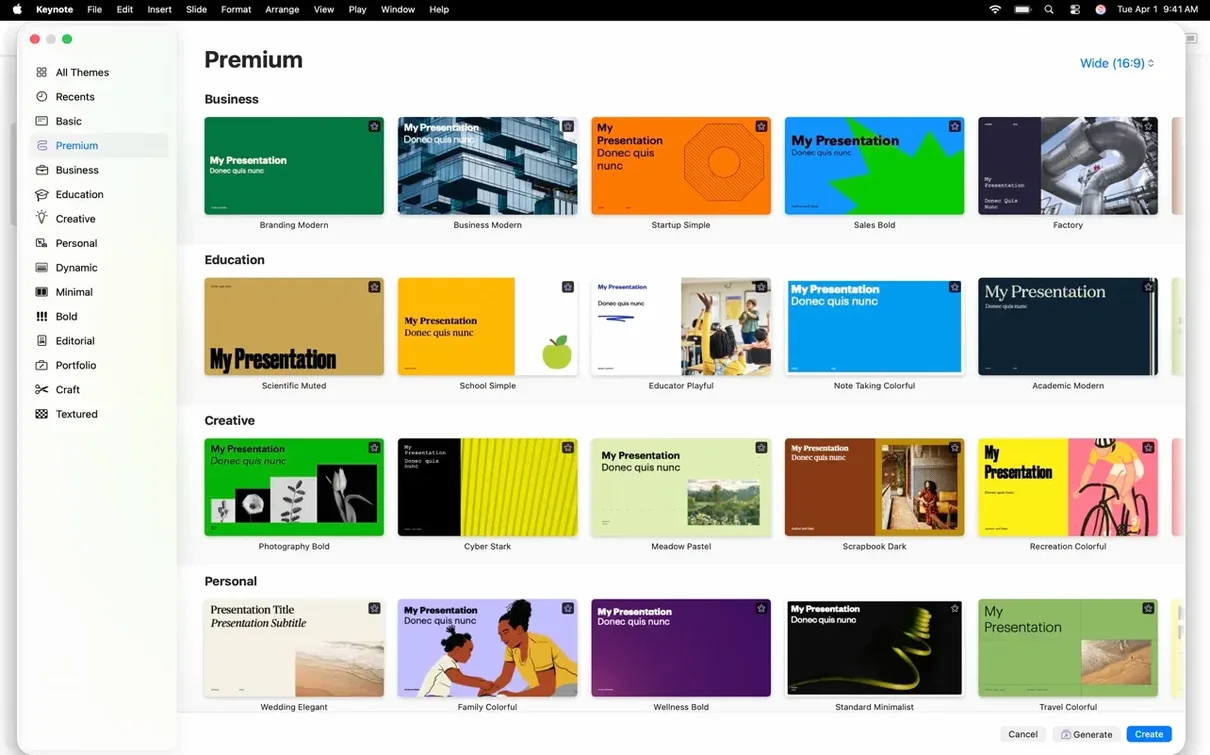
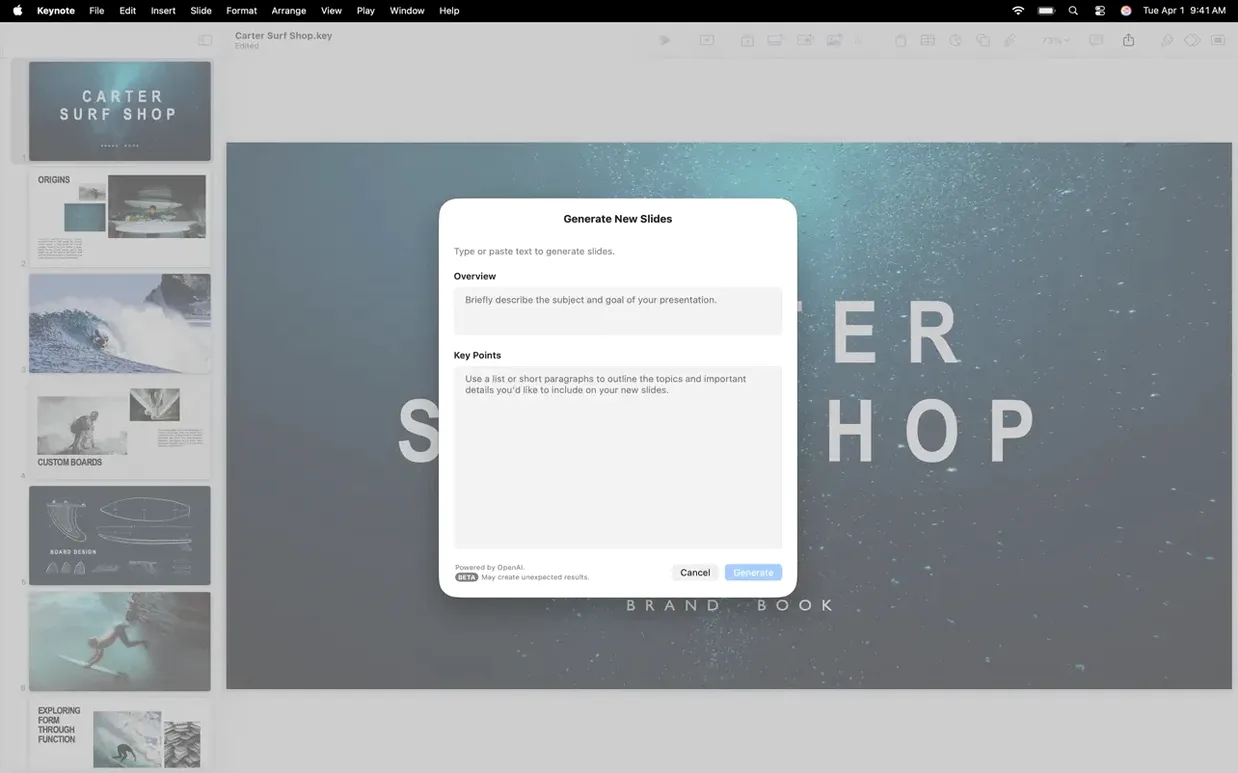
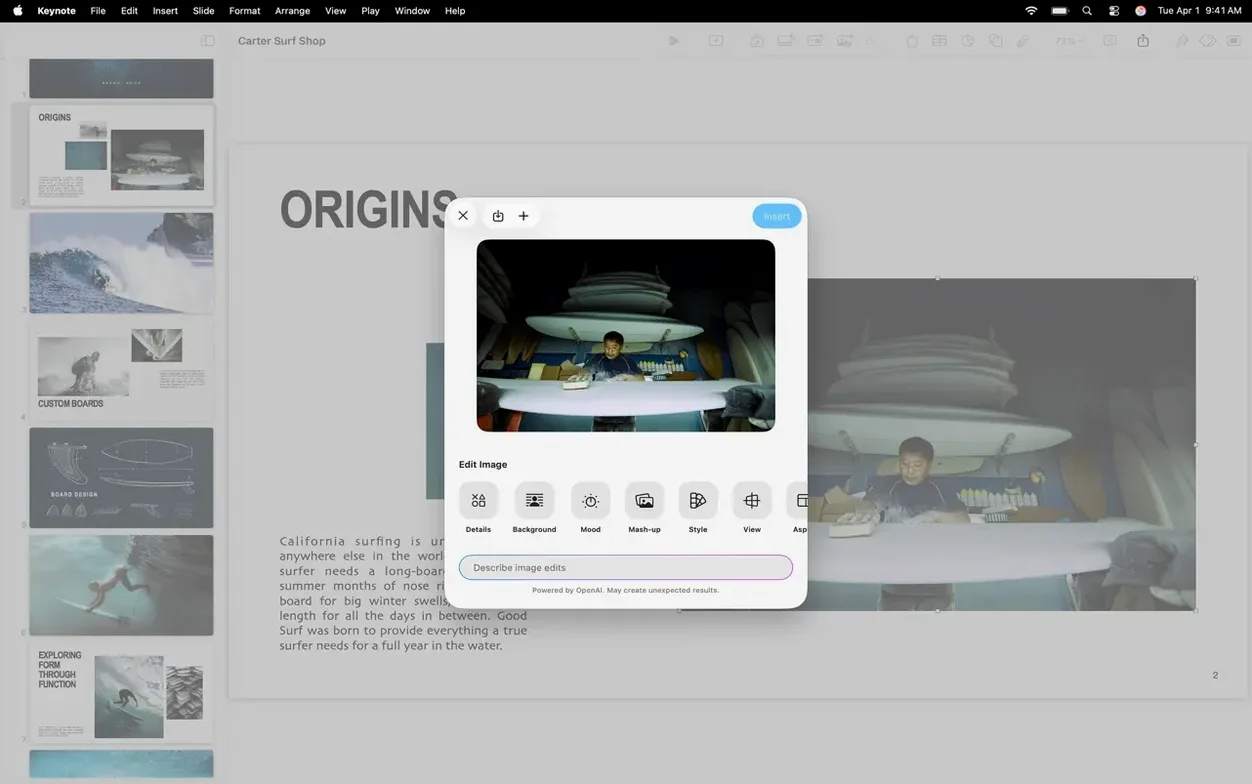
Keynote is Apple's presentation app for building and giving slides that feel as carefully considered as the ideas behind them. You start with a blank canvas or a theme, then layer text, photos, charts, and video onto slides that respond with cinematic transitions and builds. The current version 15.3.1 freshens that motion with new shift, radial wipe, and character blur effects, small moves that keep a viewer's attention right where you want it.
Building a deck that holds the room
- Start with what you have. Open a Microsoft PowerPoint file and edit it directly. Keynote handles the import without mangling fonts or layouts, so you can pick up a deck someone else started.
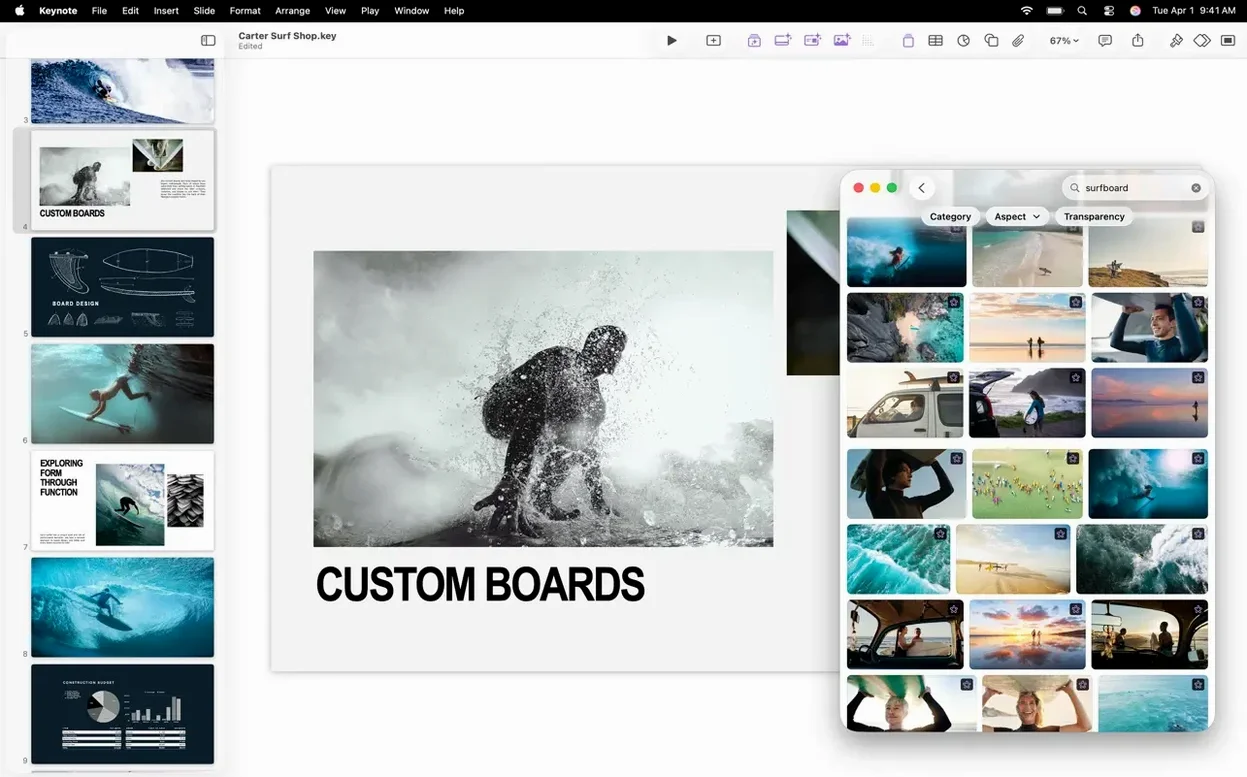
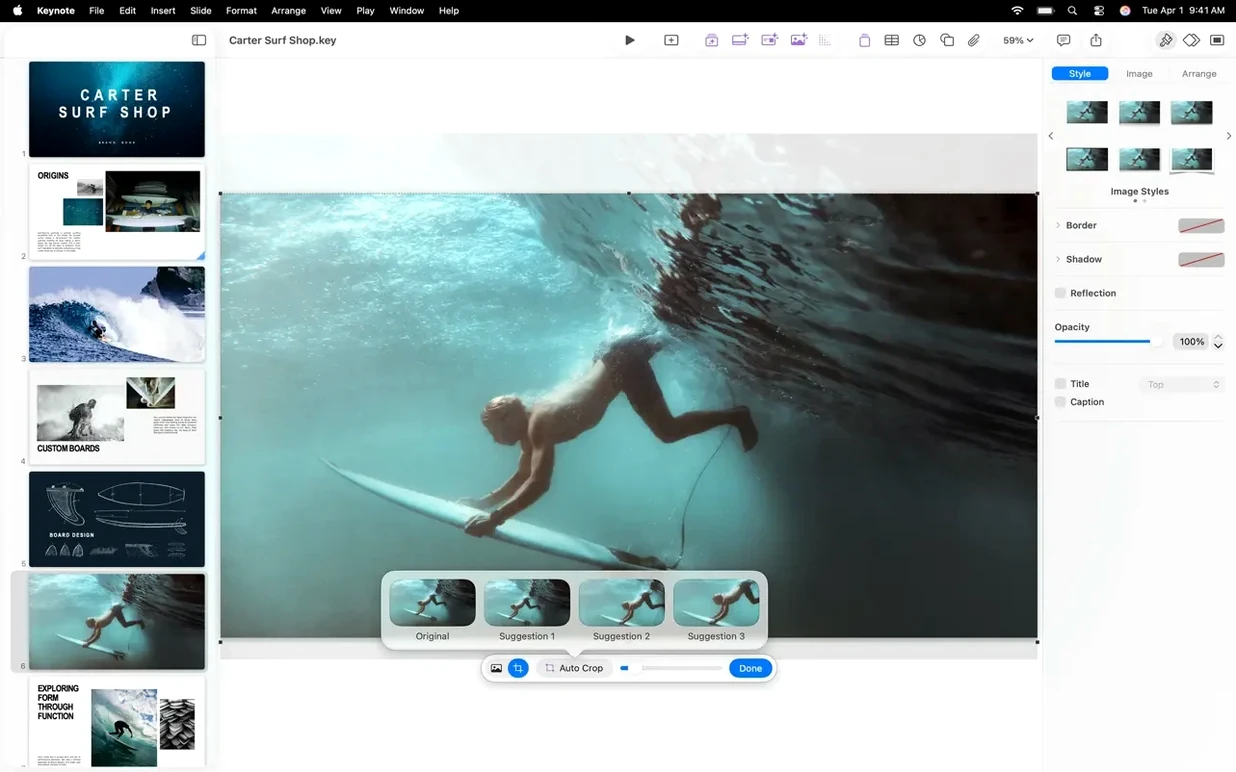
- Swap and refine imagery. The Content Hub lets you replace images across slides in a couple of clicks—helpful when a client sends updated product shots the night before.
- Layer motion with purpose. Apply builds like a radial wipe to reveal a chart bar by bar, or use the shift transition between sections. Every animation supports the pacing, not the other way around.
- Rehearse wherever you are. On Apple Vision Pro, you can practice in the Conference Room or Cinema immersive spaces to get a feel for scale and timing before you face a real audience.
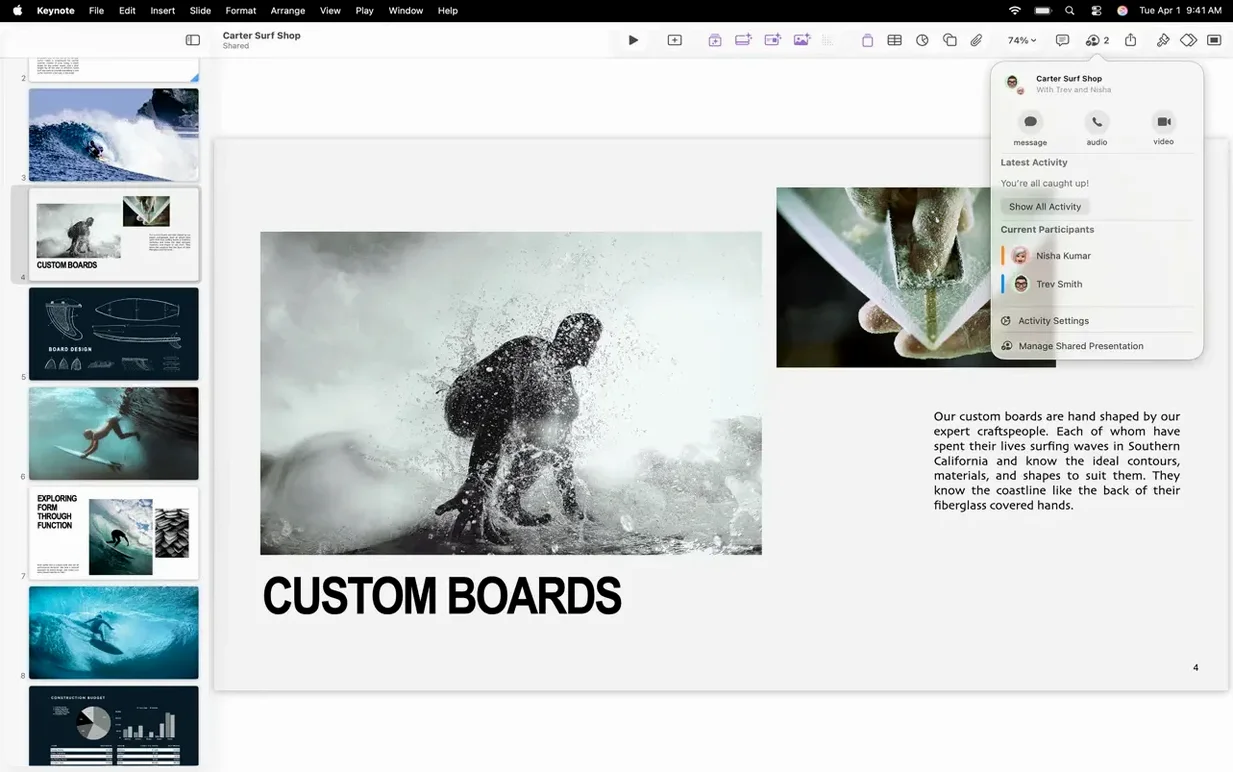
- Share the finished file. Export to PowerPoint, PDF, HTML, a movie, or image files. Or publish via iCloud or Box and invite specific people to view or edit, with changes tracked in real time across any device.
Keynote fits into the iWork family alongside Pages and Numbers, so the toolbar and sharing logic already feel familiar. If you present regularly and want slides that move like the thoughts behind them, it does the job with restraint and polish.
How Keynote fits into your Mac workflow
Keynote doesn't live in a silo. It talks to Finder, Photos, and every other app that understands drag-and-drop. Need a chart that updates itself? Build it in Numbers, copy it, and paste it into a slide. The chart stays linked—edit the Numbers file later and Keynote picks up the change without a fuss. Photos you've organized in the Apple Photos library appear right in the Content Hub, so you never have to export a JPEG just to drop it onto a slide.
The iCloud piece matters more than most people expect. Start a deck on your Mac, tweak it on an iPad during a train ride, then present from an iPhone plugged into a projector. Handoff between devices is nearly instant, and the real-time collaboration means a colleague can fix a typo while you're still rehearsing on the same file. It also plays nicely with Box if your workplace leans that way—share a link, set permissions, and skip the email attachment dance.
On the export side, the PowerPoint round-trip is smoother than it has any right to be. Fonts, slide masters, and even most builds survive the journey to .pptx. And if you're moving slides into a video project, exporting a movie file with all your timings baked in drops a ready-to-edit clip right into Final Cut Pro or iMovie.
Let One Build Per Idea Carry the Slide
- Overloading a slide with builds. A paragraph that swoops in word by word loses the audience by the third bullet. Use one build per idea, and let the quiet moments do some of the work.
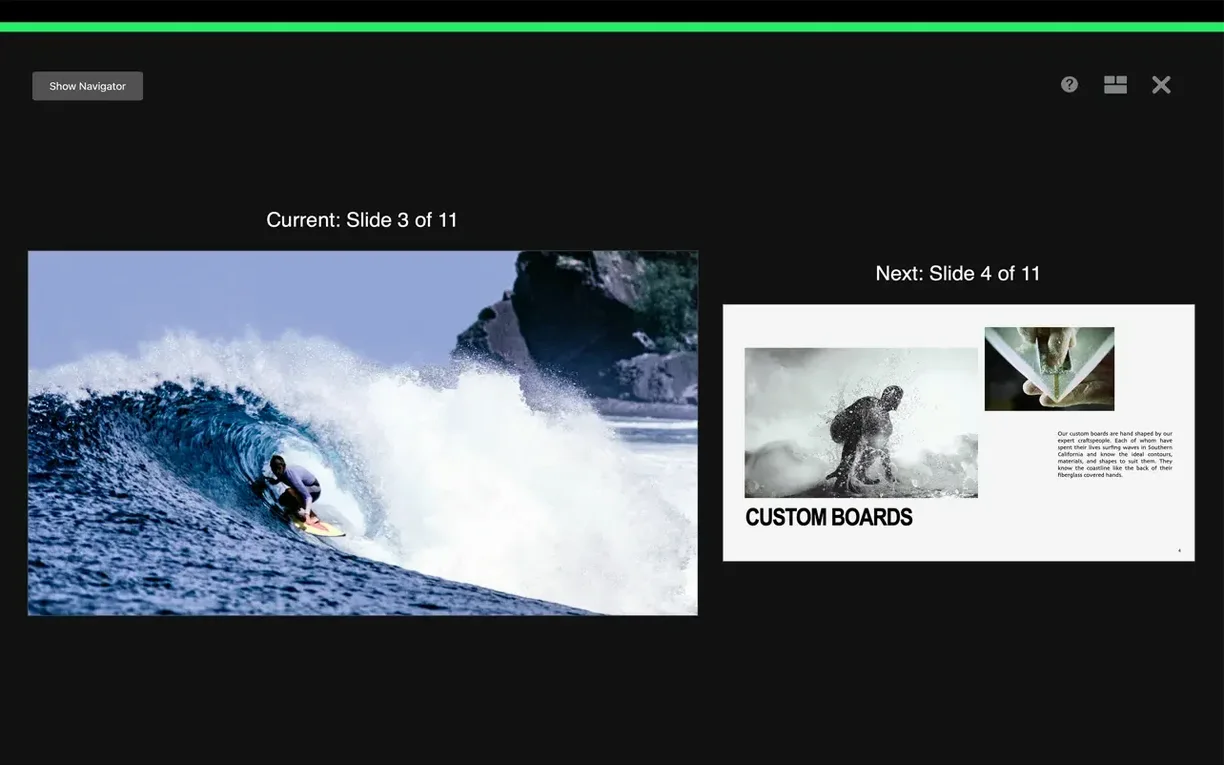
- Ignoring the presenter display. First-time users often mirror their screen and wonder why they can't see notes. Turn on the customizable presenter display—it gives you a timer, the next slide, and your speaker notes while the audience only sees the current slide.
- Skipping the slide navigator's light table view. When you're buried in slide 17 and need to restructure the whole deck, the light table shows everything at once. Drag slides to reorder them, group them, or skip them without scrolling endlessly.
- Forgetting to check fonts on another Mac. That hand-picked typeface looks stunning on your machine, but if it isn't installed on the presentation laptop, Keynote substitutes something generic. Embed fonts by exporting as a PDF, or stick to system fonts when you're traveling.
- Treating Magic Move like a toy. It's tempting to sprinkle it everywhere, but Magic Move shines when it clarifies a change—a before-and-after diagram, a map zooming into a neighborhood. Use it to connect two related slides, not to jazz up unrelated ones.
Strip a Logo Background in One Drag
- Instant alpha. Drop a logo on a slide, click the Instant Alpha button in the toolbar, and drag across the background color. It removes the background in one motion—no tracing, no external editor.
- Slide-specific skipping during rehearsal. Right-click a slide in the navigator and choose "Skip Slide." It stays in your file but doesn't appear during the presentation. Perfect for backup slides you might not need.
- Pencil annotation on iPad. Connect an iPad as a remote, and you can draw directly on slides with Apple Pencil while presenting. Underline a number, circle a word—the marks feel immediate and human.
- Aligning with a guide. Drag an object near the center or edge of a slide, and yellow alignment guides appear automatically. Hold
Shiftwhile dragging to lock movement to horizontal, vertical, or 45-degree angles. - Recording slides with narration. From the Play menu, choose "Record Slideshow." You can record your voice slide by slide, then export the whole thing as a movie. It turns a deck into a standalone explainer without touching a video editor.
- Keyboard shortcut for the Content Hub.
Shift-Command-Copens it from anywhere in Keynote. Once you learn that, you stop hunting through menus for the image replacement tools that version 15.3.1 made faster.
Version 15.3.1 brings a handful of welcome additions along with the usual bug fixes. New transitions and builds—shift, radial wipe, and character blur—give you more control over how elements appear on screen. And swapping images across a presentation is now quicker from the Content Hub.
- macOS 15.6 or later
- Works on both Intel and Apple Silicon Macs
Questions I actually get
Can I open and edit PowerPoint files in Keynote?
Yes. Keynote imports Microsoft PowerPoint presentations and lets you edit them directly without losing the original look.
What file formats can I export a finished presentation to?
You can export your slides to Microsoft PowerPoint, PDF, HTML, a movie file, or individual image files.
Porch talk 0
Come in or pull up a chair to leave a comment.
Nobody has pulled up a chair yet. If you used it on a real Saturday, say what the hour was.
More for the same hour
Everything in Mac Apps
 AppKiller
4.4.0 Mac Apps
Updated 7 MB
AppKiller
4.4.0 Mac Apps
Updated 7 MB

 Apple Remote Desktop
3.10 Mac Apps
16 MB
Apple Remote Desktop
3.10 Mac Apps
16 MB

 AnyTrans for iOS
8.9.14 Mac Apps
398 MB
AnyTrans for iOS
8.9.14 Mac Apps
398 MB

 ArchiCAD
29.2.1 Mac Apps
5.1 GB
ArchiCAD
29.2.1 Mac Apps
5.1 GB

 Antivirus Zap - Virus Scanner
3.25.1 Mac Apps
Updated 49 MB
Antivirus Zap - Virus Scanner
3.25.1 Mac Apps
Updated 49 MB

 Art Text 4
4.5.10 Mac Apps
750 MB
Art Text 4
4.5.10 Mac Apps
750 MB

 Artlantis
9.5.2.32853 Mac Apps
370 MB
Artlantis
9.5.2.32853 Mac Apps
370 MB

 AmpliTube
5.8.2 Mac Apps
3.1 GB
AmpliTube
5.8.2 Mac Apps
3.1 GB