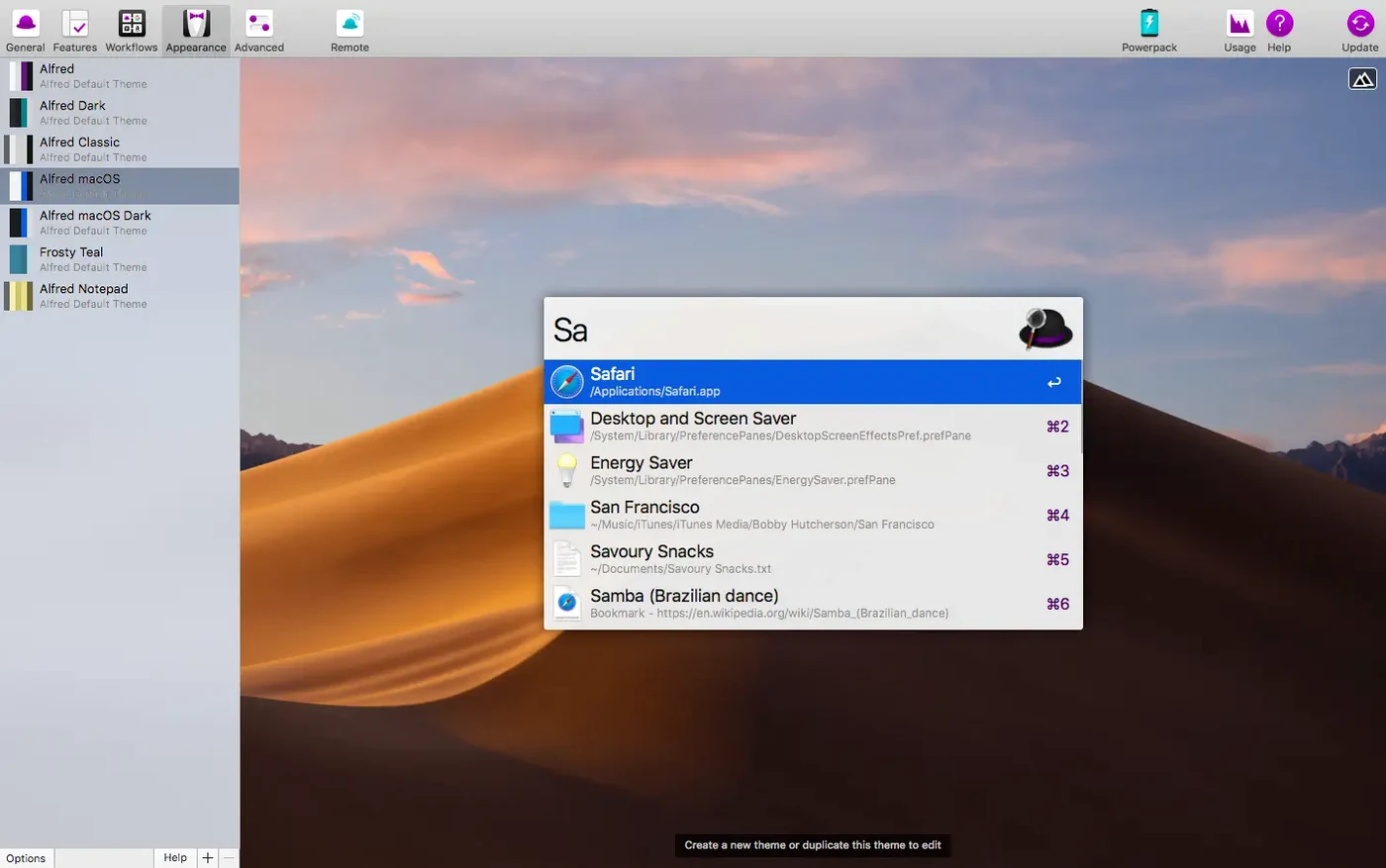
Alfred’s free search box handles around a dozen core Mac actions before you ever touch a modifier key. The Powerpack pushes that number into the hundreds by letting you chain actions yourself. Here is one realistic workflow I rely on, built entirely with the tools inside version 5.8.1.
- Trigger: I press my Alfred hotkey and type a keyword — say
cleanurl— followed by a link I copied from a marketing email. - Input: A Clipboard History object grabs the URL from the system clipboard. Alfred stores this history automatically, so the link is already waiting.
- Transform: I drop in a Replace utility that strips the UTM tracking parameters from the URL. No regex knowledge needed — the workflow editor shows a plain text field for what to find and what to leave in its place.
- Output: A Copy to Clipboard object pushes the clean link back, and a large-type notification confirms the job is done. I paste without ever leaving the keyboard.
This tiny chain saves me a trip to a text editor, a find-and-replace dialog, and a second copy step. The workflow editor is a visual canvas where you drag objects into a sequence, so you can start with something just as small — maybe resizing an image or opening a project folder and its related Slack channel in one keystroke — and tweak it later. If you already use Alfred for fast file search and prefer keeping your hands on the keyboard, the Powerpack turns those quick searches into multi-step automations you barely notice running.
A Typical Session Around Midday
It's half past noon and I'm back from a walk. Four files need renaming, a screenshot needs a quick annotation, and I want to pull up yesterday's notes without clicking through a folder tree. I hit my Alfred hotkey, type rn and a space, then drag the files from the Finder into Alfred's window. The Rename action in my workflow strips the date prefix and replaces underscores with spaces — all four files tidy in about three seconds.
Next I grab the screenshot. I press the hotkey, type annotate, and the image opens in Preview's markup tools without a single Finder window in between. A Clipboard History object had already saved the file path the moment I captured it, so the workflow just reads that path and hands it off. Once I'm done marking it up, I type notes y — my shorthand for "yesterday's meeting notes" — and a File Filter opens the markdown file based on its creation date and a tag I added last week. No remembering where I stashed it, no scrolling the recent items list. The whole loop runs inside thirty seconds and my mouse is still in my bag.
Clipboard History Before Custom Workflows
Don't try to build a dozen workflows on day one. Let Alfred watch how you already work, then add shortcuts where you feel the drag.
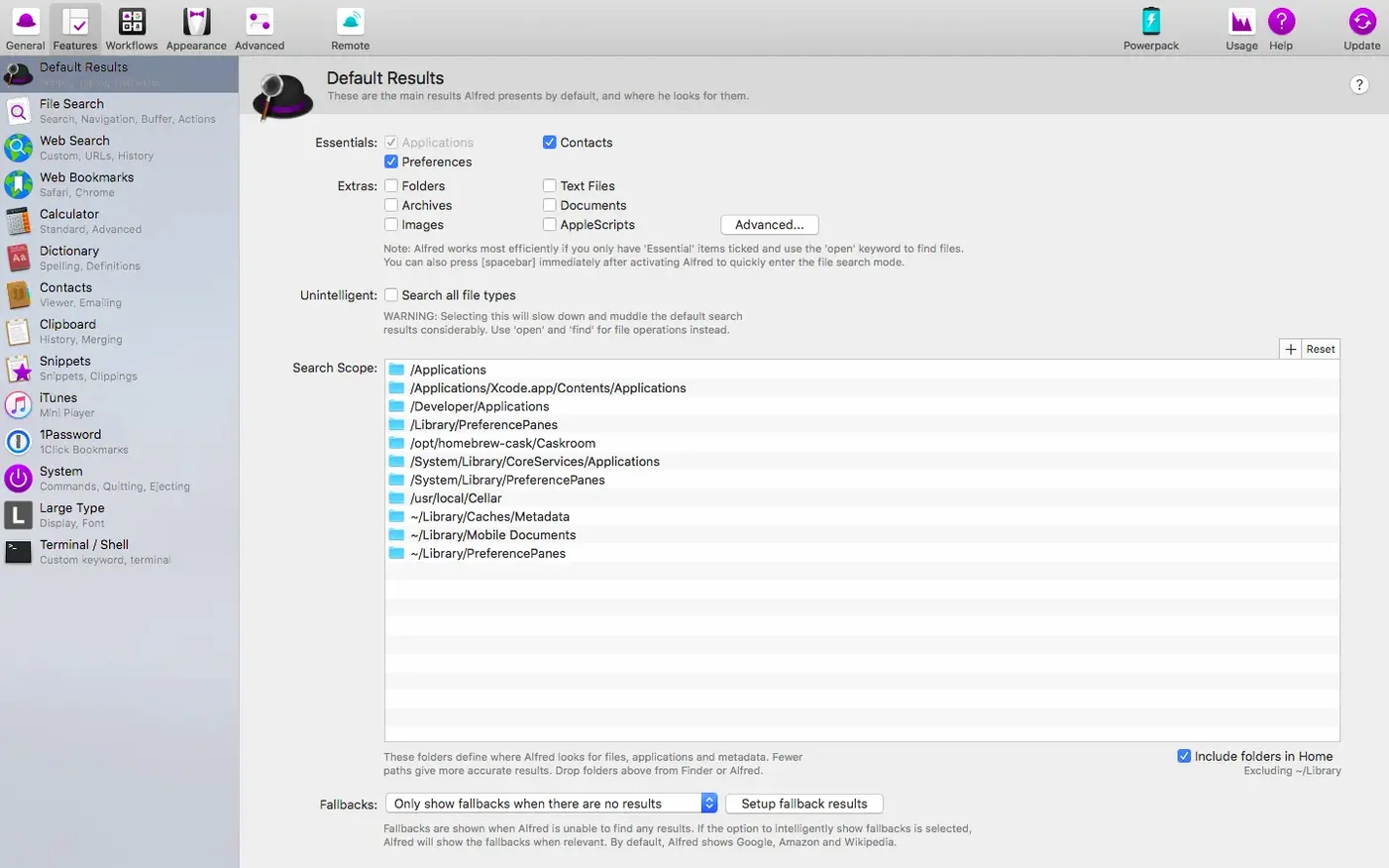
- Turn on Clipboard History early. Open Alfred Preferences, head to Features, and check Clipboard History. Set a hotkey you'll remember. For the first few days, just use the viewer — press the shortcut and scroll through your last fifty copies. You'll start noticing which text snippets, codes, or links you grab repeatedly, and those are natural candidates for Snippet triggers later.
- Browse the built-in example workflows. The Powerpack ships with a handful you can inspect without writing anything. Open the Workflows tab, click the plus button, and pick an example. Seeing how objects connect — a hotkey leads to a Run Script, which feeds a Post Notification — gives you a template you can duplicate and modify with your own apps.
- Make one hotkey that opens a group of things. Pick a small daily ritual: the project folder, the Slack thread, and the notes file you open every morning. Drag them into a single Launch Apps / Files group, assign a hotkey, and use it for a week. That muscle memory alone sells the Powerpack better than any feature list.
- Keep the Snippets tab open for a few days. Whenever you type the same phrase twice — an email greeting, a code stub, a boilerplate response — select it, press your Snippet hotkey, and save it. Collections fill up fast when you catch them in the moment instead of trying to brainstorm them all at once.
- Peek at the community gallery. Alfred's forum and a few independent sites share workflows others have built. Snag a simple one — a color picker or a unit converter — and dissect how it's wired. You'll pick up object types like Conditional or Filter that you might not stumble on alone.
If you're hunting for an Alfred 5 Powerpack license free setup, the TNT release floating around the usual spots will get the Powerpack features unlocked without a serial, and the activation method is straightforward enough that you'll be inside the workflow editor in under two minutes. Some folks also share an Alfred 5 Powerpack license code free on forums, and the pre-patched version tends to be the simpler route.
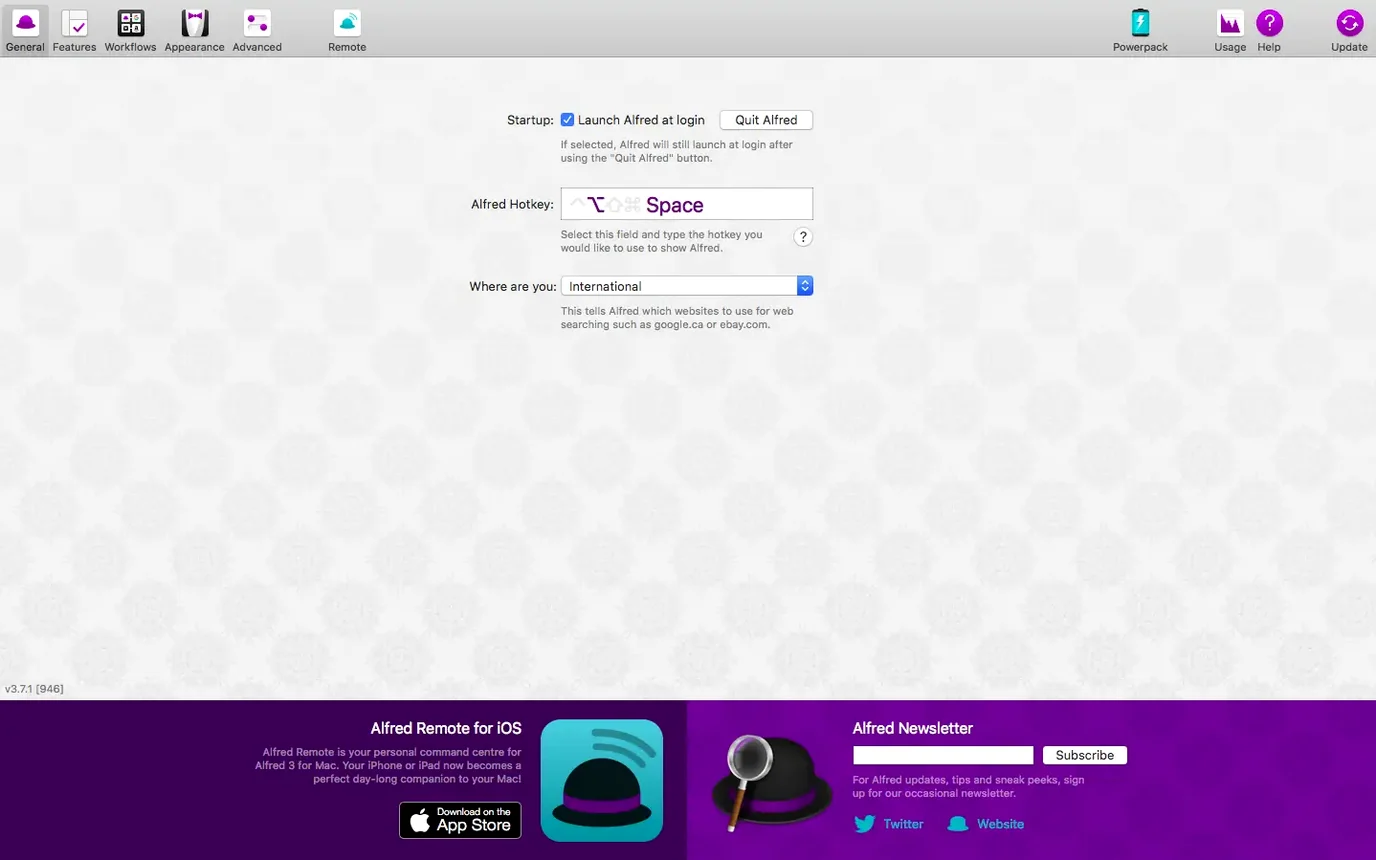
The 5.8.1 update sharpens a few interface details. Light Mode support is improved in the refreshed General preferences, and the Google Chrome bookmarks search now correctly pulls in every bookmark. On macOS 27, the System Settings search also got a fix so iCloud and General results appear as expected.
- macOS 10.14 or later
- Apple Silicon or 64-bit Intel processor
- English interface
Questions I actually get
Does the Powerpack work on Apple Silicon Macs?
Yes, Alfred 5 Powerpack runs natively on both ARM (Apple Silicon) and 64-bit Intel Macs, requiring macOS 10.14 or later.
Is the Powerpack a separate app from the free version?
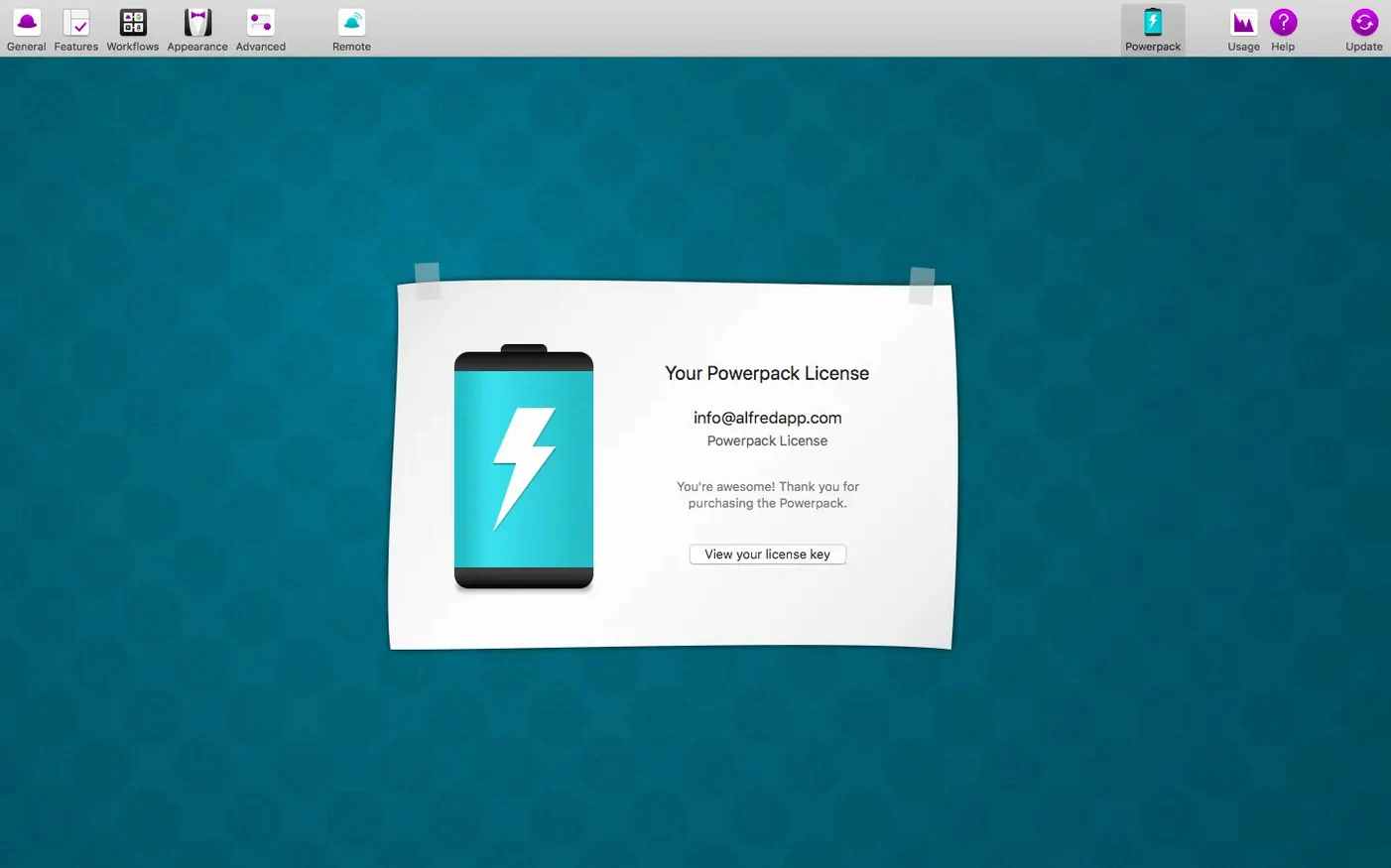
No. The Powerpack unlocks advanced features like workflows and clipboard history inside the same Alfred 5 application you already use for search.
Porch talk 0
Come in or pull up a chair to leave a comment.
Nobody has pulled up a chair yet. If you used it on a real Saturday, say what the hour was.