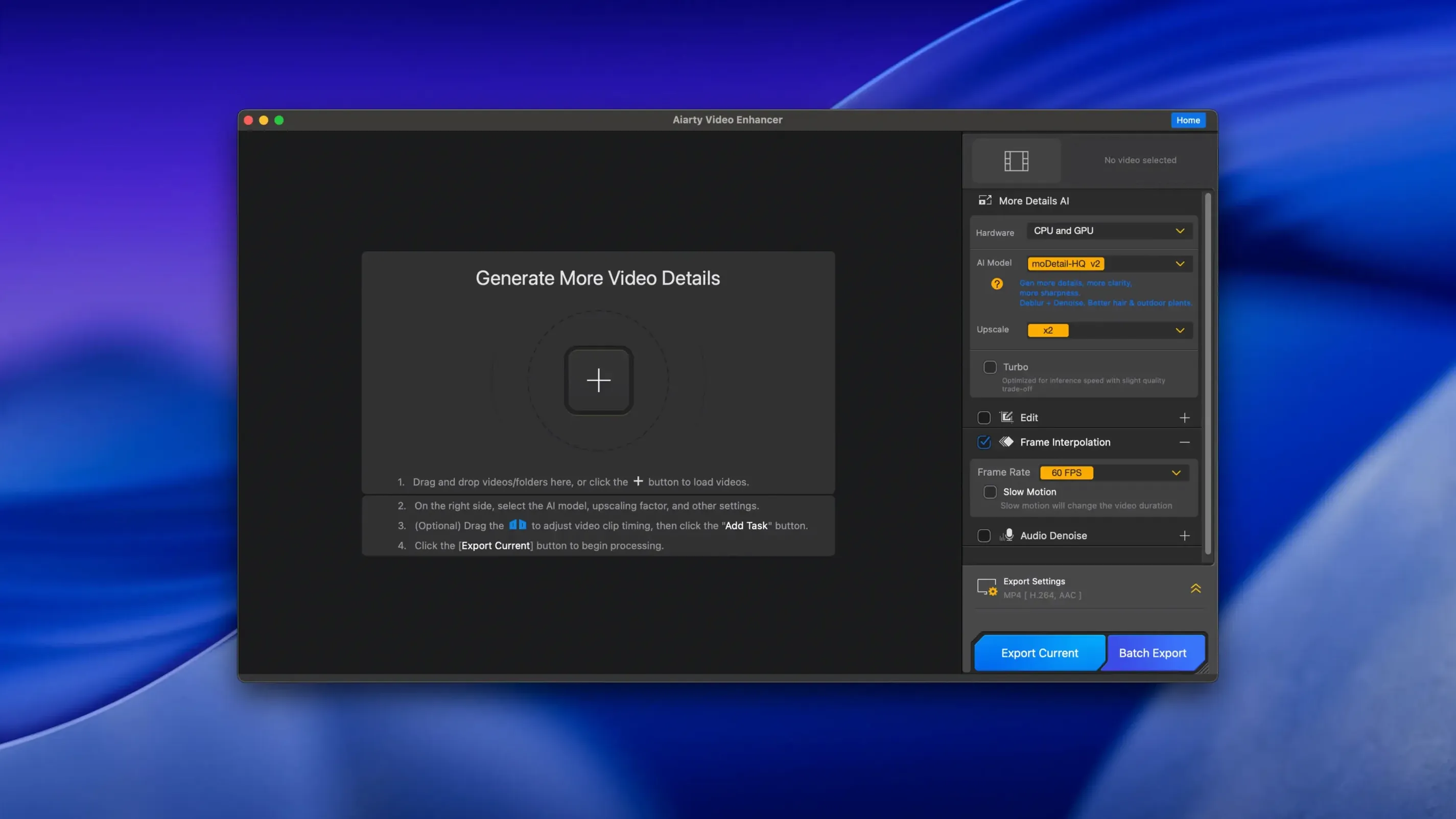
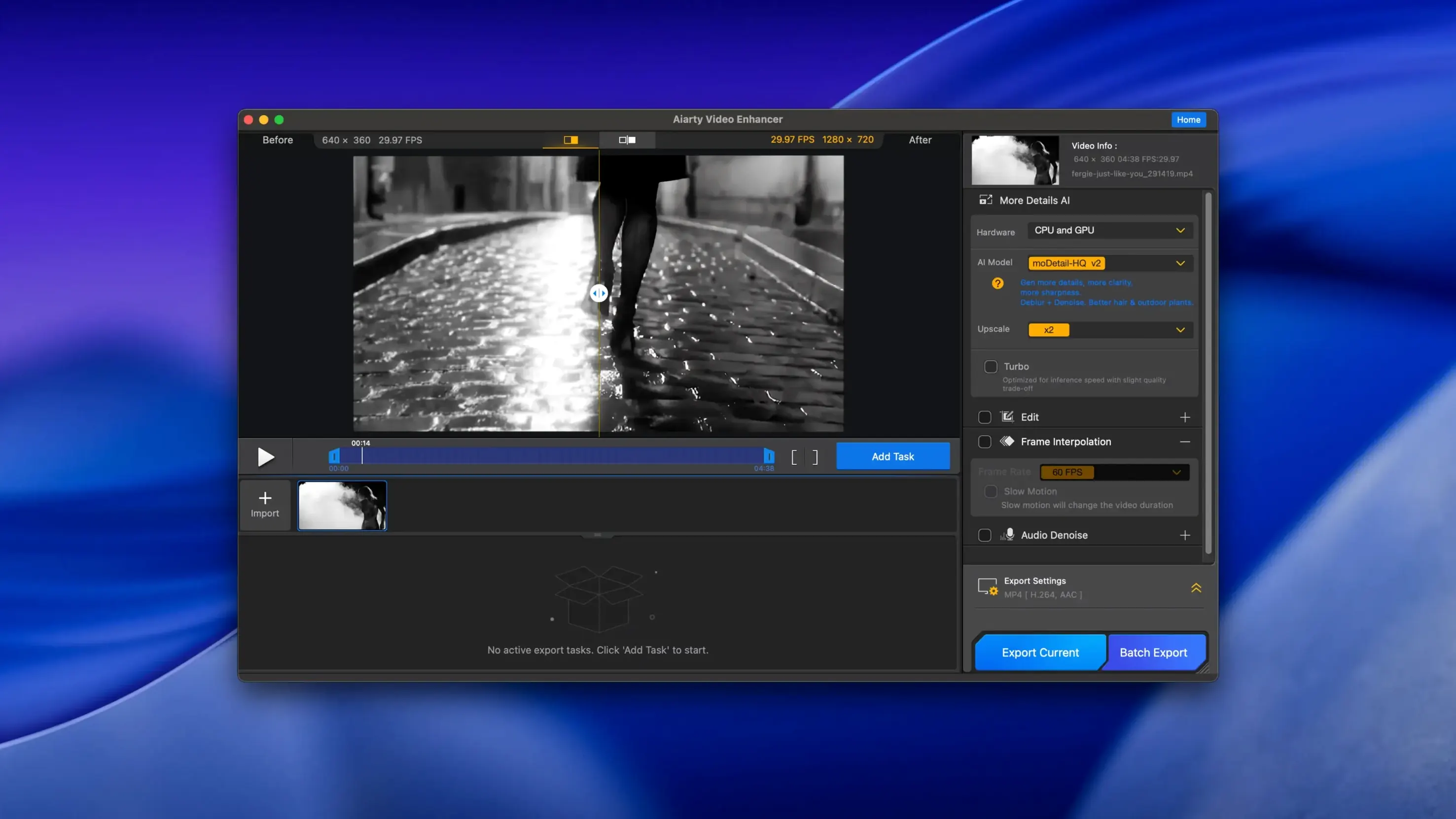
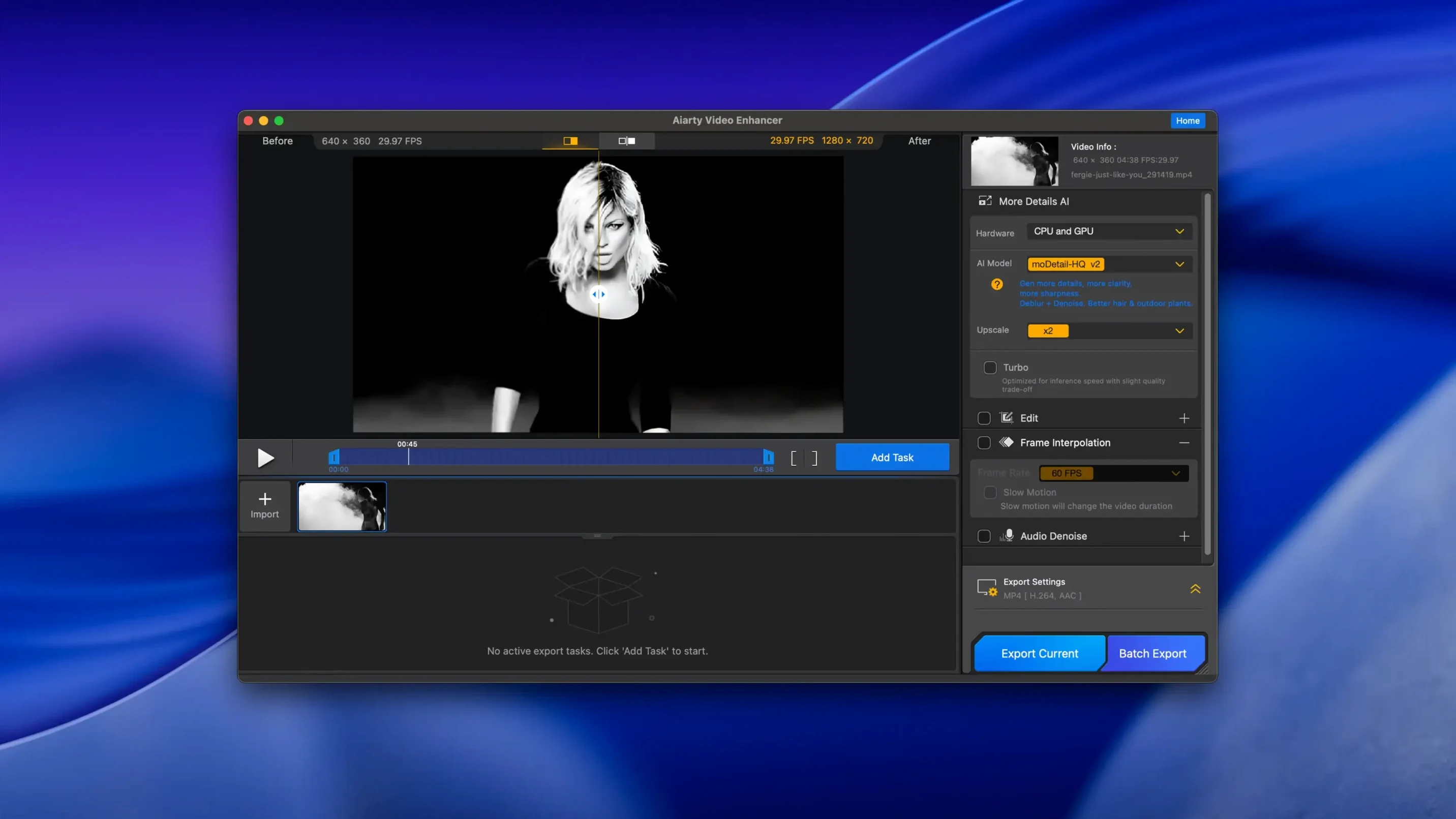
Aiarty Video Enhancer is a desktop app that uses AI models to clean up, sharpen, and upscale video footage while also fixing its audio track.
- AI upscaling and restoration — Adds detail, removes noise and blur, and brings damaged or low-quality footage up to 4K clarity. Handles blurry, stuttering, and low-light video.
- Frame interpolation — Generates new frames between existing ones for smooth 8X and 16X slow motion.
- Audio Denoise — A one-click module that pulls background noise out of the track and lifts voice clarity. No separate audio editor needed.
- Apple Silicon native — Runs on Apple Silicon Macs without translation. Intel Macs need a dedicated GPU with 4 GB VRAM or more.
- Resumable exports — If an export stops, you can pick it back up rather than start over. Version 3.8 also added MKV support and CUDA memory optimizations for NVIDIA users.
If you work with old family clips, drone footage that didn't quite land, or anything shot in rough light, this is the kind of tool that meets you there.
When you first fire up Aiarty and drop a clip in, the results can feel immediate — but a few sticking points trip people up regularly. One of the most common is a clip that looks over-sharpened or waxy. That usually comes from leaving the default enhancement strength too high on footage that already has decent detail. Dial the Enhancement Level slider back to Low or Medium and preview a ten-second chunk before committing to a full export. The AI model is aggressive by design, and softer source material often needs a lighter touch.
Another snag: the app seemingly refusing to start processing. Nine times out of ten, it is a VRAM bottleneck on Intel Macs. Aiarty wants a dedicated GPU with 4 GB of VRAM, and if your Mac is leaning on integrated graphics, the queue just sits there. Closing other GPU-hungry apps — browsers with dozens of tabs, Lightroom, anything touching Metal — can free enough headroom. On Apple Silicon, the same stall usually means the Neural Engine is tied up; a quick reboot clears it.
People also occasionally hit an export that stops partway through, which is exactly why the resumable export feature landed in version 3.8. If a long upscale job gets interrupted, you do not lose the progress — just reopen the app, and it offers to continue where it left off. Worth knowing: resumable exports write temporary frames to disk aggressively, so keep at least 100 GB free on your destination drive or the pause-and-resume logic can get tangled.
Breadth of Topaz vs. Aiarty’s tight upscale focus
Put Aiarty next to Topaz Video AI, and the biggest difference is breadth versus focus. Topaz covers more ground — deinterlacing, frame rate conversion, stabilization — and its model library is enormous. Aiarty keeps the scope tighter: upscale, denoise, deblur, fix audio, interpolate frames. If you spend most of your time rescuing old 480p or 720p footage and you appreciate not wading through twenty model choices, Aiarty’s narrower path can feel refreshing. Topaz rewards deep tweaking, while Aiarty leans toward getting a solid result with fewer decisions.
HitPaw Video Enhancer aims at a similar audience but bundles more creative models — face restoration, colorization, animation-specific upscaling. HitPaw’s interface is a little friendlier for total beginners, though Aiarty’s Audio Denoise module gives it an edge when the source clip has muddy sound. HitPaw currently lacks a dedicated audio cleanup step, so you are doing that work in another app. Aiarty keeping video and audio enhancement under one roof saves a round-trip.
Then there is Video2X, the open-source upscaler that leans on waifu2x, SRMD, and RealSR. Video2X is free and surprisingly capable with anime and line art, but it expects comfort with Terminal and Python environments. Aiarty trades that tinkering for a native Mac app with a GUI that does not require reading a wiki to configure. For live-action footage, Aiarty’s commercial AI models consistently pull more natural skin textures and fabric detail than what the open-source stack manages without hours of parameter hunting.
Swap MP4 default before a long render
A few defaults deserve a nudge before you trust the app with a long render:
- Output format — Aiarty ships set to MP4, which is fine for most, but if you work with archival footage or want to preserve alpha channels later, switch to MOV (ProRes). The file sizes balloon, yet you avoid a generation of compression before editing. For anything headed straight to YouTube or Plex, MP4 with the Quality slider at 90% keeps things clean.
- Frame interpolation mode — It defaults to 2X, which is sensible, but the 8X and 16X slow-motion modes are not something you want to discover after a four-hour render. Preview a short segment with your chosen multiplier first. Fast-moving water or foliage can confuse the interpolation engine, and stepping down to 4X often fixes the weird warping artifacts.
- Audio Denoise strength — The one-click module works well out of the box, but the default strength can thin out voices recorded in already-quiet rooms. If your clip has only mild background hum, drop the strength to 30-40% and listen to the preview. Save the full 100% for genuinely noisy environments like windy outdoor shoots or crowded event halls.
- CUDA memory optimization — If you are on an Intel Mac with an NVIDIA eGPU, this toggle is new in 3.8 and off by default. Turn it on before queuing multiple clips; it forces the app to release VRAM between jobs, which prevents the third or fourth upscale from crawling to a halt.
The app meets you where the footage actually is — noisy, soft, poorly lit — and the first fifteen minutes of dialing things in pay off across every clip you run after that.
Version 3.8 brings a few quality-of-life improvements to the export pipeline:
- Resumable exports so a stopped render doesn't mean lost work
- MKV file support for both input and output
- CUDA memory optimizations for smoother processing on NVIDIA hardware
- macOS 11 or later
- 8 GB RAM or more
- Apple Silicon or Intel with dedicated GPU (4 GB VRAM minimum on Intel)
- 512 GB disk space
Questions I actually get
Does Aiarty Video Enhancer work on Apple Silicon Macs?
Yes, it has native support for Apple Silicon processors. Intel Macs require a dedicated GPU with 4 GB of VRAM or more.
Porch talk 0
Come in or pull up a chair to leave a comment.
Nobody has pulled up a chair yet. If you used it on a real Saturday, say what the hour was.