
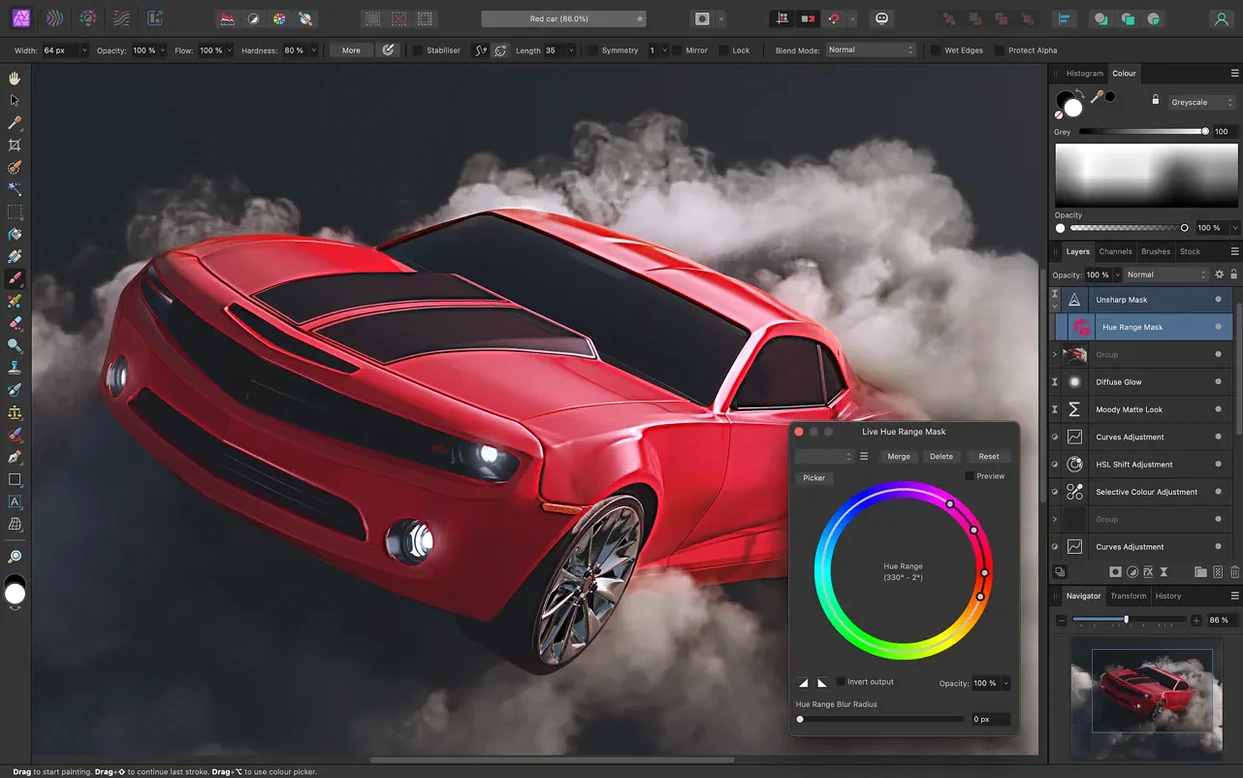
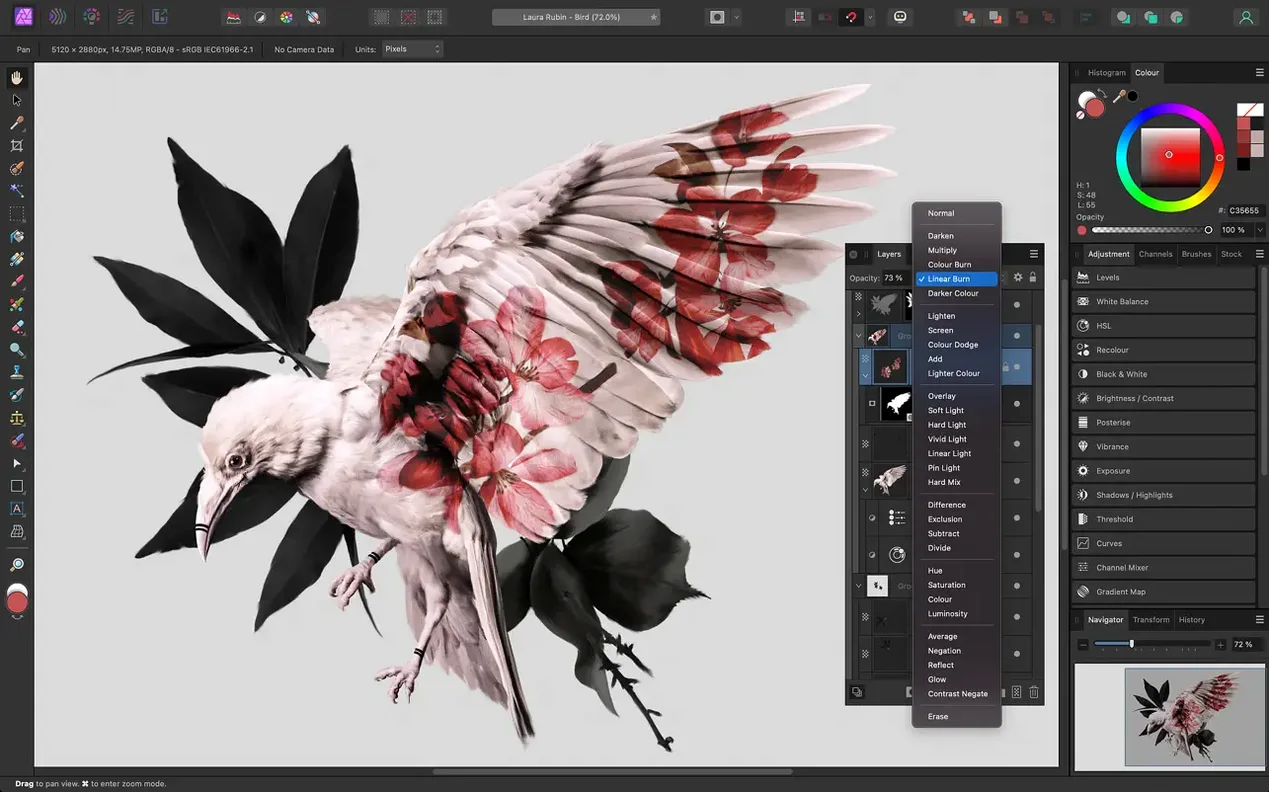
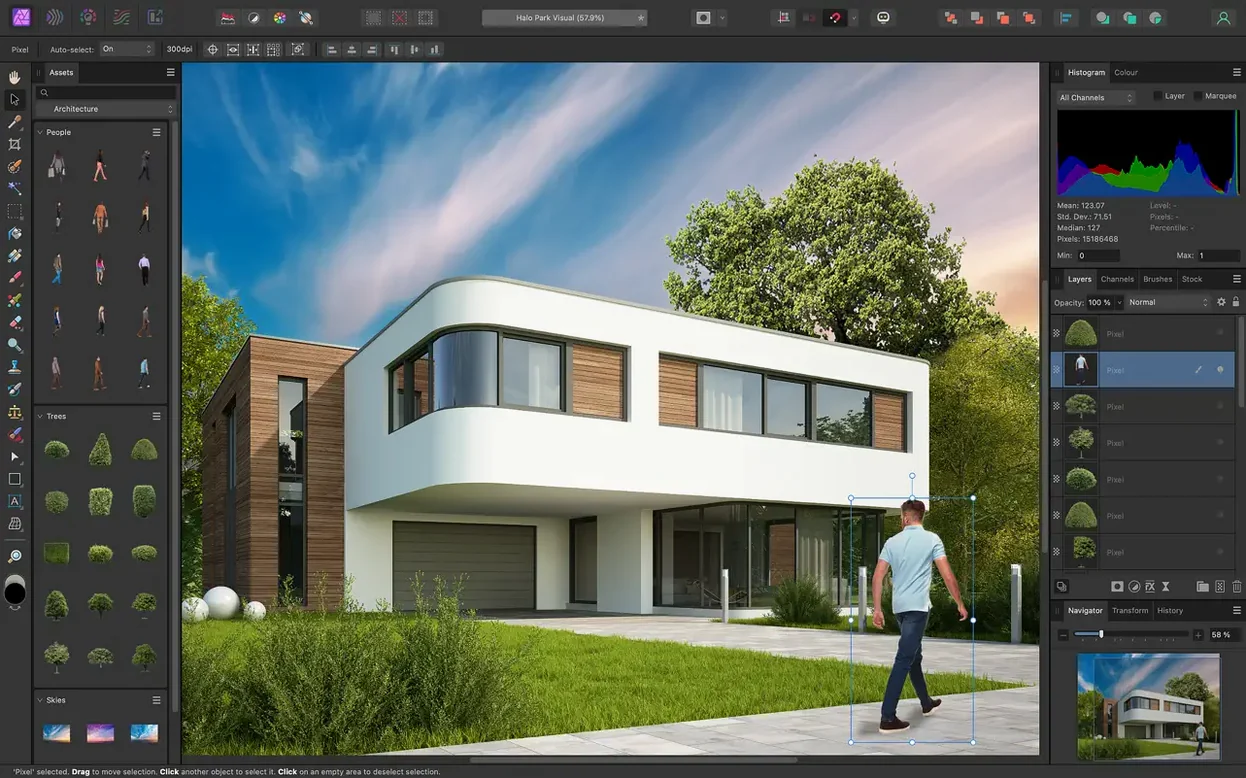
If you’ve spent any time in Photoshop, Affinity Photo’s layout won’t feel alien. The toolbar, layers panel, and adjustment icons sit in places your muscle memory already expects. What’s different is that everything lives in a single, nondestructive workflow from the moment you open a file.
How do I open a RAW file the right way?
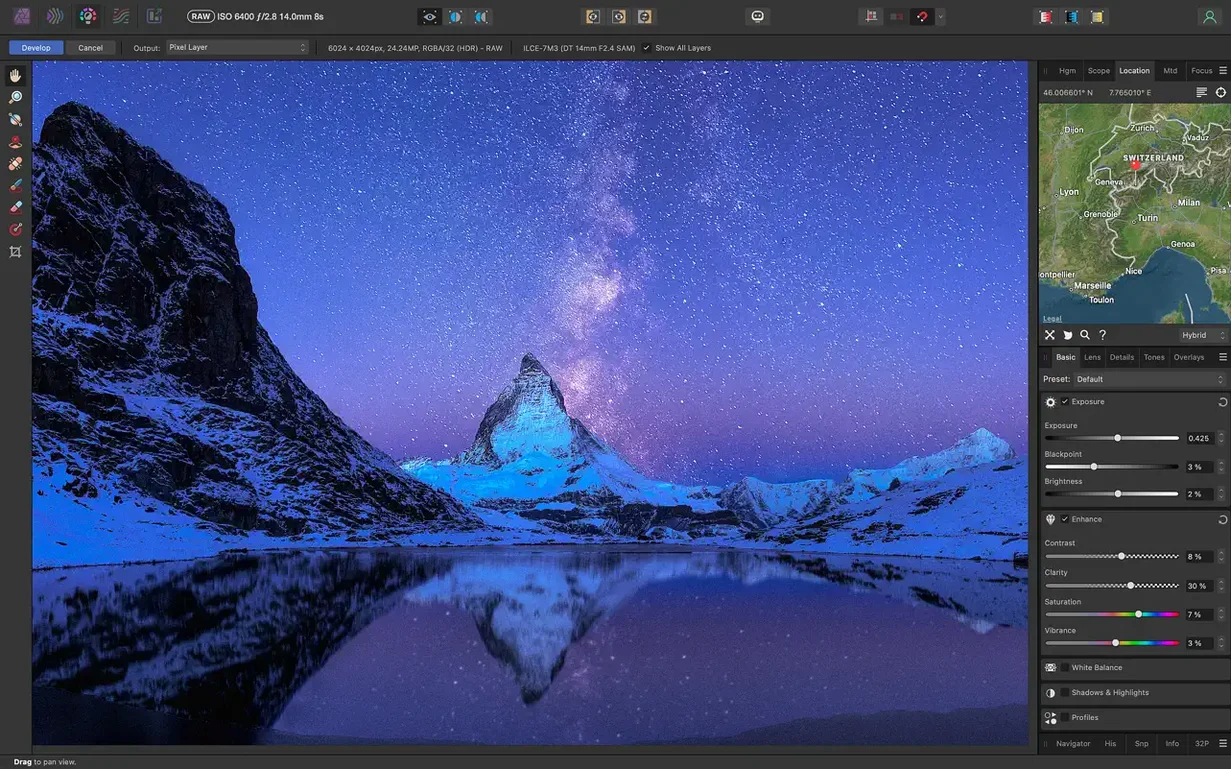
Don’t just double-click. Drag a RAW onto the app and it opens in the dedicated Develop Persona—a pre-processing workspace with its own set of exposure, lens correction, and detail tools. Make your global adjustments there, then click Develop to move into the standard photo-editing space with all your edits intact and reversible.
Stack Live Liquify Over HDR Without Baking Pixels
It’s not just about having unlimited layers—it’s that filter layers, adjustment layers, and masks can be stacked and reordered without ever baking in changes. You can throw a live Liquify filter on top of a 32-bit HDR merge, group it with a curves adjustment, and still drag the whole stack around later. The edit history can even be saved inside the document.
Where do I find the fun, practical effects?
Under the Layer menu, the New Live Filter Layer list is where the tilt-shift, lighting, and glow effects live. They’re real-time and non-destructive. The blur gallery includes a real-time brush tip preview so you can paint exactly where the softness goes, which is especially handy for quick depth-of-field tricks.
Pass Layered PSD Files Back to Adobe Users
Affinity Photo sits comfortably on a Mac where other creative apps already live. It reads and writes PSD files, so passing a layered composition back and forth with someone who still works in Adobe's world is rarely a headache. You can open a PSD, keep the layer names and groups intact, make your changes, and save it back without flattening anything you don't want flattened.
The app also plays well with the rest of the Affinity family. If you lay out a brochure in Affinity Publisher or sketch something in Affinity Designer, you can jump into Affinity Photo from either one without exporting a flattened file first. The documents move between the three apps with layers, masks, and adjustments still alive. For a photographer who occasionally designs a poster or a designer who retouches a product shot, that shared format removes a lot of friction.
Beyond the Affinity ecosystem, macOS features like Quick Look and the Finder's tags work as you'd expect. Files you save as PNG, TIFF, JPG, or PSD behave like any other image on your desktop. The app supports both Apple silicon and Intel Macs, so an older iMac or a newer MacBook Air gets the same editing experience without a compatibility asterisk. The interface languages include English, German, Spanish, Italian, Simplified Chinese, Portuguese, French, and Japanese, which makes it easier to recommend when you're helping someone who doesn't work in English.
Drag Sliders Without a Separate Preview Mode
One question that comes up often is whether the app feels sluggish compared to what people are used to. The real-time editing engine keeps filters, adjustment layers, and blend modes responsive as you drag sliders. There's no separate preview mode to toggle. What you see is what the final export will look like, which matters when you're working on a 16-bit or 32-bit file with a dozen live filters stacked on top of each other.
Another common worry is about tablet support. If you use a Wacom or another graphics tablet, the pressure, tilt, and shortcut buttons work in the brush tools. The real-time brush tip preview shows the size, hardness, and rotation as you paint, which makes frequency separation and detail work feel more controlled. Tablets aren't an afterthought here—the tools respond the way you'd expect from an app built for retouching.
People also ask about range of file formats. Beyond the usual PNG, JPG, and TIFF, the app opens and exports SVG, EPS, EXR, HDR, and PDF. The RAW pre-processing workspace handles the most common camera formats, with controls for exposure, white balance, shadows, highlights, clarity, and vibrance before you ever enter the main editing persona. If you shoot RAW but don't want to manage a separate converter, that built-in Develop workspace simplifies the first step.
Full Toolset in a One-Time Install
Against Photoshop, the most obvious difference is that Affinity Photo is a one-time install that doesn't tie itself to a subscription. Beyond that, both apps cover layers, masks, RAW processing, and retouching tools. Affinity Photo tends to present these tools in a more unified way: the Develop Persona for RAW, the Liquify Persona for distortion, and the Export Persona for output all live inside the same window. Photoshop spreads similar features across separate interfaces and panels. Some people prefer that separation; Affinity Photo's approach keeps the toolbar consistent from import to export.
Pixelmator Pro is the other Mac editor people often compare. Pixelmator is built specifically for macOS and leans into Core ML and iCloud integration. Affinity Photo goes deeper in several areas: 32-bit per channel editing, CMYK and LAB color spaces, focus stacking, HDR merging, and macro recording. If your work involves print production, high-bit-depth compositing, or complex layer stacks, Affinity Photo covers more of that ground. Pixelmator is quicker to pick up for casual edits; Affinity Photo rewards those who want the extra depth.
GraphicConverter is a different kind of tool—more of a batch converter and viewer than a full retouching environment. It's useful for resizing, renaming, and converting hundreds of files at once. Affinity Photo's batch abilities come through macros, which you can record and play back across a folder. GraphicConverter still handles the simple chores faster, but for serious pixel work on individual images, there's no real comparison. Affinity Photo's selection tools for hair and fine details, the inpainting brush for object removal, and dodge, burn, clone, and patch tools put it in a different class.
Filters Render Instantly on Apple Silicon
Version 2.6.5 didn't radically rearrange the interface, and that's good news for people mid-project. The most noticeable improvements are in stability and speed on both Apple silicon and Intel Macs. Filters that previously took a beat to render now update with less interruption when you're scrubbing through a layer stack or dragging a mask's feather slider.
For retouchers, the frequency separation workflow remains one of the app's quiet strengths. You can split an image into color and texture layers with a live filter, then smooth skin or remove blemishes without flattening anything. Combined with the blemish removal brush and red-eye correction, the toolset handles portrait work that used to require several passes through different menus.
Macro recording also continues to be a time-saver. If you find yourself applying the same lens distortion correction, chromatic aberration removal, and export settings to a batch of images, record it once and play it back. The edit history saved inside the document means you can revisit a file weeks later and see exactly which adjustments got you to the final look—handy when a client asks for a slightly different version of an old edit.
- macOS 10.15 Catalina or newer
- Apple silicon and Intel Macs supported
- Available in English, German, Spanish, Italian, Simplified Chinese, Portuguese, French, and Japanese
Questions I actually get
Can Affinity Photo open my old PSD files?
Yes, it opens, edits, and saves Photoshop PSD files, including layer structures, so you can keep working with a project that started in another app.
Does it handle high-bit-depth editing?
It edits 16-bit and 32-bit images per channel, which is useful when you’re pushing tones hard in a high-contrast scene or merging exposures.
Is there a way to automate repetitive tasks?
There’s a macro recorder in the library panel. You can record a sequence of adjustments and filters, then play it back on a batch of images to save time on routine edits.
Porch talk 0
Come in or pull up a chair to leave a comment.
Nobody has pulled up a chair yet. If you used it on a real Saturday, say what the hour was.
More for the same hour
Everything in Mac Apps
 Affinity Designer
2.6.5 Mac Apps
779 MB
Affinity Designer
2.6.5 Mac Apps
779 MB
 Affinity Publisher
2.6.5 Mac Apps
783 MB
Affinity Publisher
2.6.5 Mac Apps
783 MB
 AfterCodecs
1.12.1 Mac Apps
78 MB
AfterCodecs
1.12.1 Mac Apps
78 MB
 Adobe XD
59.0.12 Mac Apps
2.6 GB
Adobe XD
59.0.12 Mac Apps
2.6 GB
 Adobe Substance 3D Painter
12.1.5 Mac Apps
3 GB
Adobe Substance 3D Painter
12.1.5 Mac Apps
3 GB

 AI Transcription
2.16 Mac Apps
5.1 GB
AI Transcription
2.16 Mac Apps
5.1 GB
 Adobe Premiere Rush
1.5.62 Mac Apps
1.6 GB
Adobe Premiere Rush
1.5.62 Mac Apps
1.6 GB

 Aiarty Image Enhancer
3.14 Mac Apps
129 MB
Aiarty Image Enhancer
3.14 Mac Apps
129 MB