
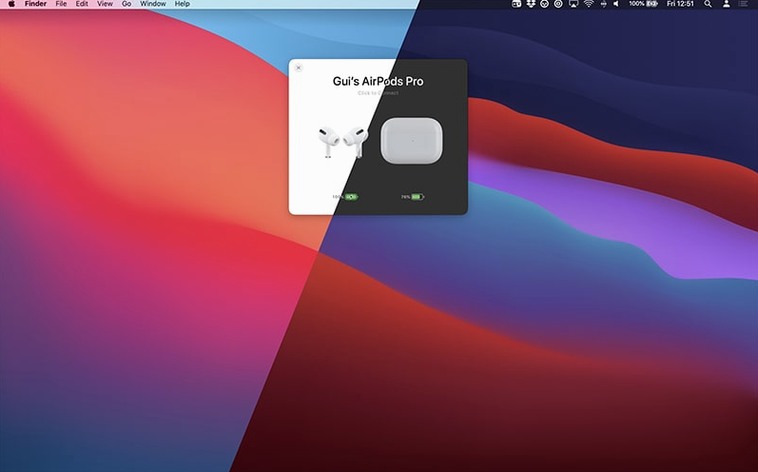
Proximity detection is the heart of AirBuddy 3. Flip open your AirPods case near your Mac, and a compact status window slides into view, showing the battery charge for each earbud and the case itself — no menu-diving required.
Checking battery drain
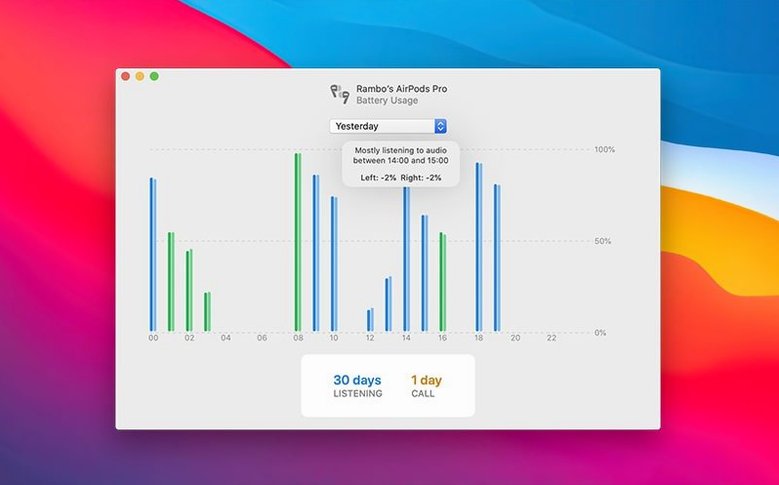
AirBuddy’s display goes beyond a simple percentage. It can show whether the left or right AirPod is draining faster, a helpful detail when you’re trying to stretch a single earbud through a long call.
Picking your menu bar style
The beta lets you choose how AirBuddy lives in the menu bar. Pick the full app icon, a compact battery indicator, or hide the icon entirely while keeping the status window available with a shortcut.
Switching playback with one click
When your Beats headphones or AirPods Pro are nearby, you can connect them and take control of playback without opening the Bluetooth pane. The app also helps move peripherals between Macs on the same desk.
When you use AirBuddy alongside something like the airbuddy mac approach to quick device switching, it starts to feel less like a standalone utility and more like the connective tissue between your Apple gear. The real power shows when you pair its status window with macOS Control Center, Shortcuts, and your go-to audio apps. For instance, you can set a keyboard shortcut in AirBuddy to connect your AirPods Pro and switch to Transparency mode, then bind that same shortcut to a Stream Deck profile or a BetterTouchTool trigger — suddenly your whole desk responds to one press. The battery widget plays nicely with third‑party menu bar organizers like Bartender too, so you can keep the compact indicator visible while clearing out other clutter.
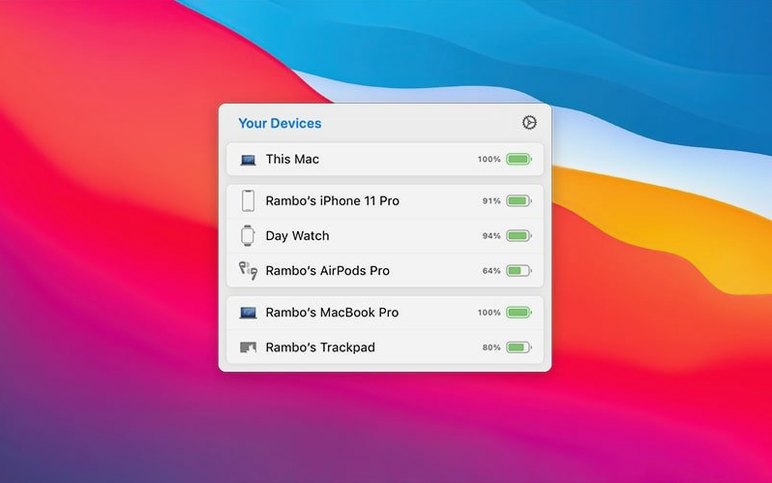
Magic Handoff is another piece that makes more sense when you think about how it fits with Universal Control. Apple’s built‑in feature lets you drag a cursor across Macs and iPads, but it doesn’t move your peripherals when you want to dedicate them to a different machine entirely. That is where AirBuddy steps in: a quick click moves your Magic Keyboard and trackpad from the MacBook on the left to the Mac mini under the display, and you are not unpairing or repairing anything. If you keep an iPhone or iPad on a stand during the workday, the device status view becomes a passive charging monitor — you glance at the menu bar and see whether your phone is topped up without picking it up.
A podcast editor’s late‑night workflow
Picture someone who edits interview audio well past midnight. The house is quiet, the kids are asleep, and they need to move between a Mac Studio for heavy rendering and a MacBook Air for note‑taking at the couch. With AirBuddy, they tap a shortcut to hand off the Magic Keyboard to the laptop, grab the AirPods Max hanging on a stand, and see the battery status pop up before they even sit down. The connection mode they set earlier — Transparency, volume at 40%, microphone muted — kicks in automatically, so they can hear if someone stirs without blasting a raw timeline into their ears. Later, they check the 12‑hour usage history to see how many hours were spent in active listening versus on a call, a small sanity check that helps them plan the next day’s focus blocks.
Swap the giant pop-up for a compact alert
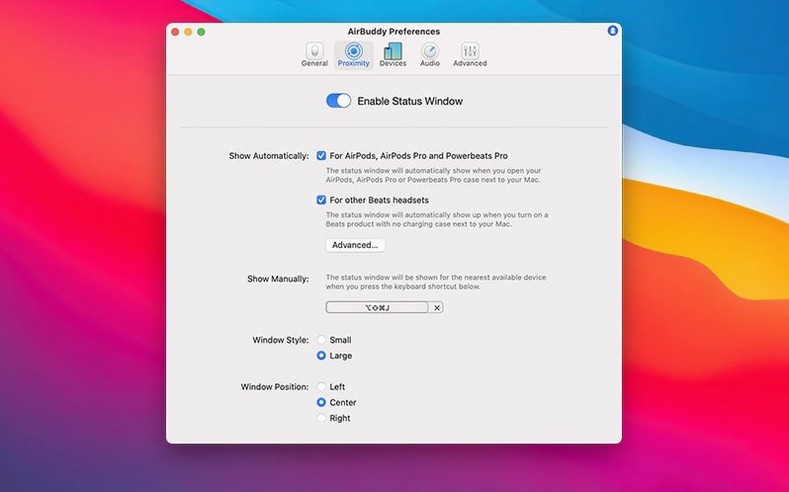
Out of the box, AirBuddy is eager to show the large status window whenever a nearby device wakes up. If you find that distracting, head into the preferences and switch to the small window design — it is less obtrusive while still surfacing the battery rings. Next, decide how you want the menu bar to behave. The beta includes a battery‑indicator‑only option that works well if you are already staring at a crowded bar; you can always summon the full panel with a hotkey. Speaking of hotkeys, assign one to each listening mode you actually use. Noise Cancellation and Transparency are the obvious candidates, but Adaptive mode on the AirPods Pro 2 is worth its own shortcut if you move between noisy and quiet rooms throughout the day.
Take a minute to set up a connection mode for each pair of headphones you own. The idea is simple: when you connect AirPods Pro, you might want Noise Cancellation on and the volume set to a moderate level; when you connect Beats Fit Pro for a run, you might want Transparency and a higher starting volume. AirBuddy remembers these preferences per device, so you only configure them once. If you share a Magic Mouse between two Macs, enable Magic Handoff and test it before you need it — the first time you move a peripheral, macOS throws a confirmation dialog, and you want that out of the way during setup, not during a deadline.
Bumps you might hit and how to smooth them out
One common snag: the status window does not appear when you open the AirPods case. That usually means AirBuddy’s Bluetooth permission has been reset after a macOS update. Open System Settings > Privacy & Security > Bluetooth and make sure the toggle next to AirBuddy is on; if it is missing, a quick restart of the app usually prompts the permission request again. Another hiccup happens when you try Magic Handoff and the cursor freezes for a few seconds. That is often iCloud syncing Handoff state in the background — wait five seconds, and it resolves. If it does not, toggle Bluetooth off and on again on the Mac that lost the peripheral.
Some users who try an airbuddy beta release notice that battery percentages for Beats devices update more slowly than for AirPods. That is normal: Beats headphones use a different chipset, and the polling interval is a bit longer. There is no setting to force faster updates, but waking the headphones by putting them on your head usually pushes fresh numbers through. Finally, if you run an adobe beta generative fill session in Photoshop while AirBuddy’s large status overlay is animating, you might see a brief stutter on older Intel machines. Switching to the small window or disabling the animation in preferences lightens the GPU load and keeps everything fluid.
AirBuddy 3 now puts battery and connection controls for nearby Apple and Beats devices in one place. The beta adds a menu bar icon option — choose between the app icon, a battery indicator, or no icon at all — and builds in playback controls plus support for moving peripherals between Macs.
- macOS 14 or later
- Works on both Intel and Apple silicon Macs
Porch talk 0
Come in or pull up a chair to leave a comment.
Nobody has pulled up a chair yet. If you used it on a real Saturday, say what the hour was.