
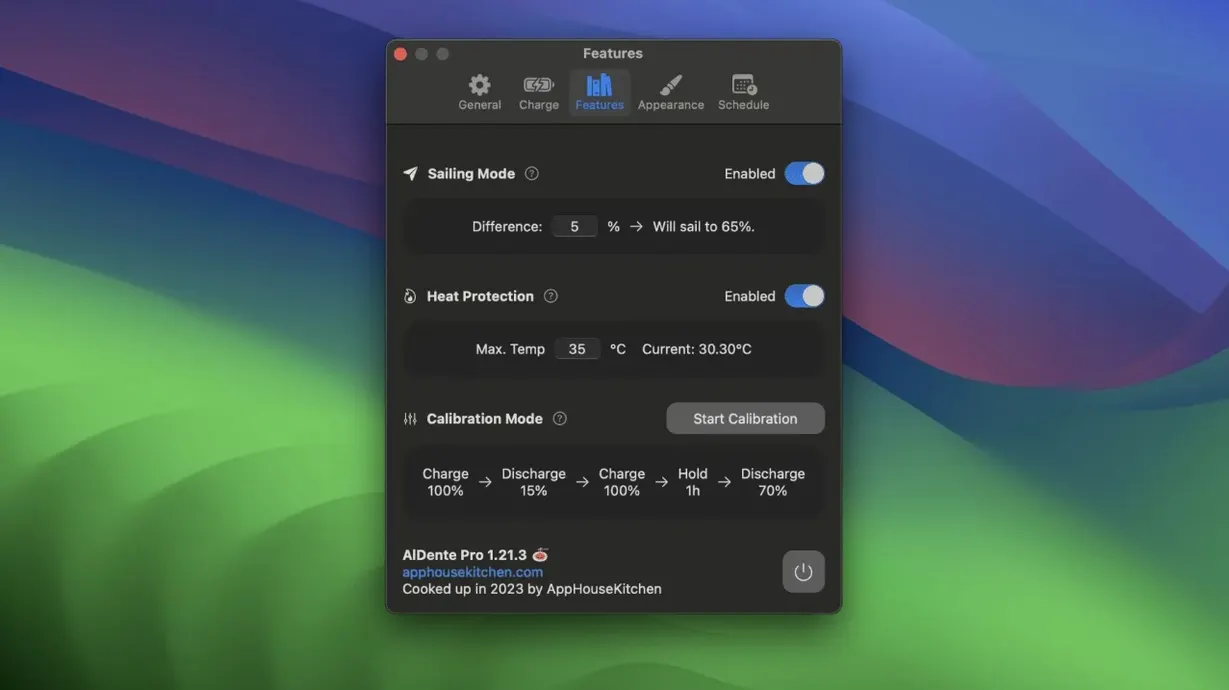
Sailing Mode is the kind of thoughtful touch that makes you wonder why it isn't built into every laptop. Instead of keeping your MacBook pinned at a single percentage while plugged in, it lets the charge drift gently between a high and low point — more like the natural rhythm a battery prefers.
Stop overcharging without thinking about it
Set a charge limit once, and AlDente holds it there. Your MacBook runs directly off the adapter while the battery sits at 80% (or whatever ceiling you choose), avoiding the slow wear that comes from sitting at 100% all day on a desk.
Keep the percentage reading honest
Calibration Mode steps in when macOS and the actual cell voltages drift apart. You run it occasionally, and the app guides the battery through a full discharge-recharge cycle so the percentage you see on screen means something again.
Catch a problem before it gets expensive
The monitoring panel surfaces temperature, charge cycles, and raw milliamp-hour capacity over time. A gradual drop in full capacity is normal; a steep one is a signal worth paying attention to.
Desk-bound users feel the battery relief first
AlDente isn't one of those apps that tries to be everything to everyone, and that's precisely why it works. Three groups tend to notice the benefit within the first couple of weeks.
Desk-bound MacBook users — the folks whose laptops spend eight hours a day plugged into a USB-C monitor or a CalDigit dock. Apple's own optimized charging tries to learn your routine, but if your routine is unpredictable or you simply want certainty, a hard 75% limit removes the guesswork. These users often report that after a year, their cycle count is half what it would have been otherwise.
Students and café regulars — the ones who bounce between library outlets, coffee shop tables, and lecture halls. They rarely stay plugged in long enough for macOS to build a charging pattern, so the built-in smarts never kick in. A fixed ceiling gives them a quiet guardrail without any effort.
Second-hand MacBook buyers — someone picking up a used M1 Air with 400 cycles already on the clock. The battery isn't shot, but it deserves careful treatment from that point forward. Limiting charge to 80% and occasionally running a calibration cycle can stretch a few more years out of aging cells.
Running a photo-editing rig plugged in all day
Maya edits real-estate photos from a desk in her converted garage. Her 16-inch MacBook Pro stays plugged into a Dell 4K display from nine in the morning until four in the afternoon, then gets tossed into a messenger bag for on-site shoots at dusk.
Before AlDente, she'd unplug around four o'clock only to find the battery at 100% and already warm from sitting there for hours. By seven in the evening, editing in Lightroom on location, she'd watch the percentage tick down faster than expected — not because the battery was failing, but because those daily hours at full charge were quietly eating away at its peak capacity.
After installing, she set a 70% ceiling for desk days. Now when she grabs the laptop for an evening shoot, it's sitting at 70% and cool to the touch. She still has plenty for a couple of hours of tethered shooting, and the battery health percentage in System Settings hasn't budged in six months. She runs Calibration Mode once a season, usually on a rainy Sunday when she's catching up on invoices.
A coffee-and-plug-in morning with the battery heart icon
Picture a Tuesday morning. You pour coffee, sit down at the desk, and plug in your MacBook Air. The menu bar icon — a little battery with a heart — shows 61% and climbing. You click it.
The popover slides down with a clean set of controls. The charge limit slider is already at 75% from the last time you touched it. Below that, a live readout: current wattage, battery temperature at 31°C, and a quiet note that the machine is running on external power, not the battery. You leave it alone and open your email.
Around lunch, you glance again. The battery hit 75% twenty minutes ago and has been sitting there ever since. The MacBook is drawing exactly what it needs from the wall adapter. The battery itself is idle — not charging, not discharging, just resting. Temperature has dropped to 28°C.
Later that week, you notice the percentage reading seems a little jumpy — dropping from 40% to 34% in a few minutes. That's the cue for Calibration Mode. You click the button, confirm the prompt, and let the laptop drain to zero while you work. The screen stays on, the fans stay quiet, and the app handles the slow discharge. Once it hits empty, you plug back in and let it charge uninterrupted to 100%. By morning, the percentage reading is steady again.
If Sailing Mode is active instead — say you set it to drift between 65% and 80% — the afternoon looks slightly different. The battery trickles up to 80%, then the app lets it float back down toward 65% on its own before topping up again. It's a gentle cycle that keeps the cells moving without ever pinning them at a single voltage for hours. You don't have to think about it; the icon just shows a small sailboat when the mode is engaged, and the percentage drifts lazily throughout the day.
Lock in a 75% ceiling and let it ride
A handful of settings make the first week smoother. Here's what tends to stick.
- Pick a ceiling and commit for a week. 75% is a good starting point if you're mostly desk-bound. If you're on battery half the day, 85% still cuts the top-off stress without leaving you short. Resist the urge to tweak it daily — let your routine tell you whether the number works.
- Turn on the temperature monitor and just watch. You don't need to do anything about it yet, but noticing what's normal helps you spot when something's off. A battery idling at 30°C on the charger is fine; one creeping past 40°C while doing nothing deserves a look at what else is running.
- Run Calibration Mode in the first week. You have no idea when the last full discharge happened, and macOS might be working with a fuzzy picture of the cells. Doing it early gives you a clean baseline, and the process takes a few hours where you can keep using the machine normally.
- Try Sailing Mode on a weekend. Set the range wide — say 50% to 80% — on a Saturday when you're around the house. Watch how the icon drifts. It's a good way to understand the rhythm before trusting it on a workday.
- If you grabbed an aldente download from a less official corner of the web — maybe you searched for AlDente Pro crack or ended up with an AlDente cracked build — you'll want to verify a few things to get the smoothest experience. The AlDente Pro cracked versions floating around can work well once you confirm the heat protection logic is active and responding, since battery management is exactly the kind of thing that rewards a careful setup. A AlDente crack can be a solid starting point when you know what to check before trusting it with your charge limits.
After about four days, you'll stop checking the menu bar compulsively. That's the real sign it's working — you set it, and then you forget about it, which is exactly how battery care should feel.
- macOS 12 Monterey or newer
- Apple Silicon or Intel MacBook
Questions I actually get
Does AlDente work with Apple Silicon and Intel MacBooks?
Yes, it supports both Apple Silicon and Intel-based MacBooks running macOS 12 Monterey or later.
What languages is the app available in?
The interface is translated into sixteen languages, including English, German, Japanese, Korean, Russian, and Spanish.
Porch talk 0
Come in or pull up a chair to leave a comment.
Nobody has pulled up a chair yet. If you used it on a real Saturday, say what the hour was.