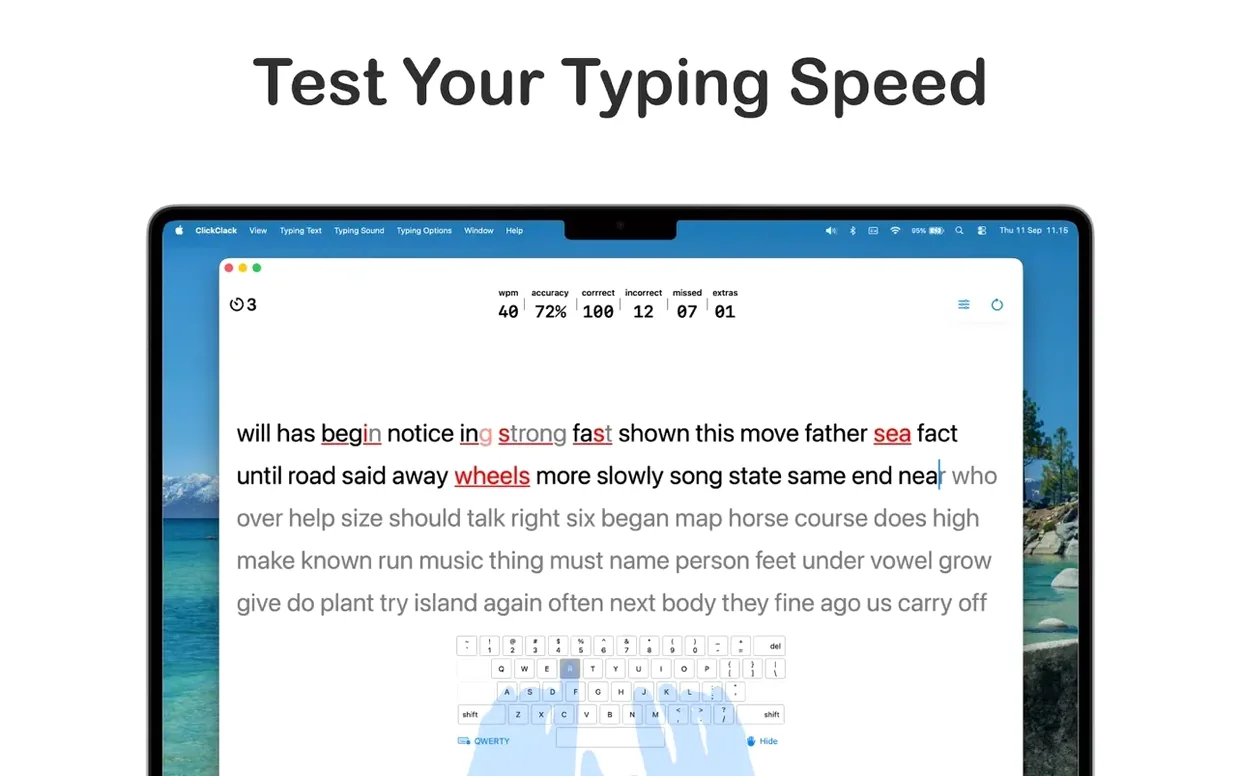
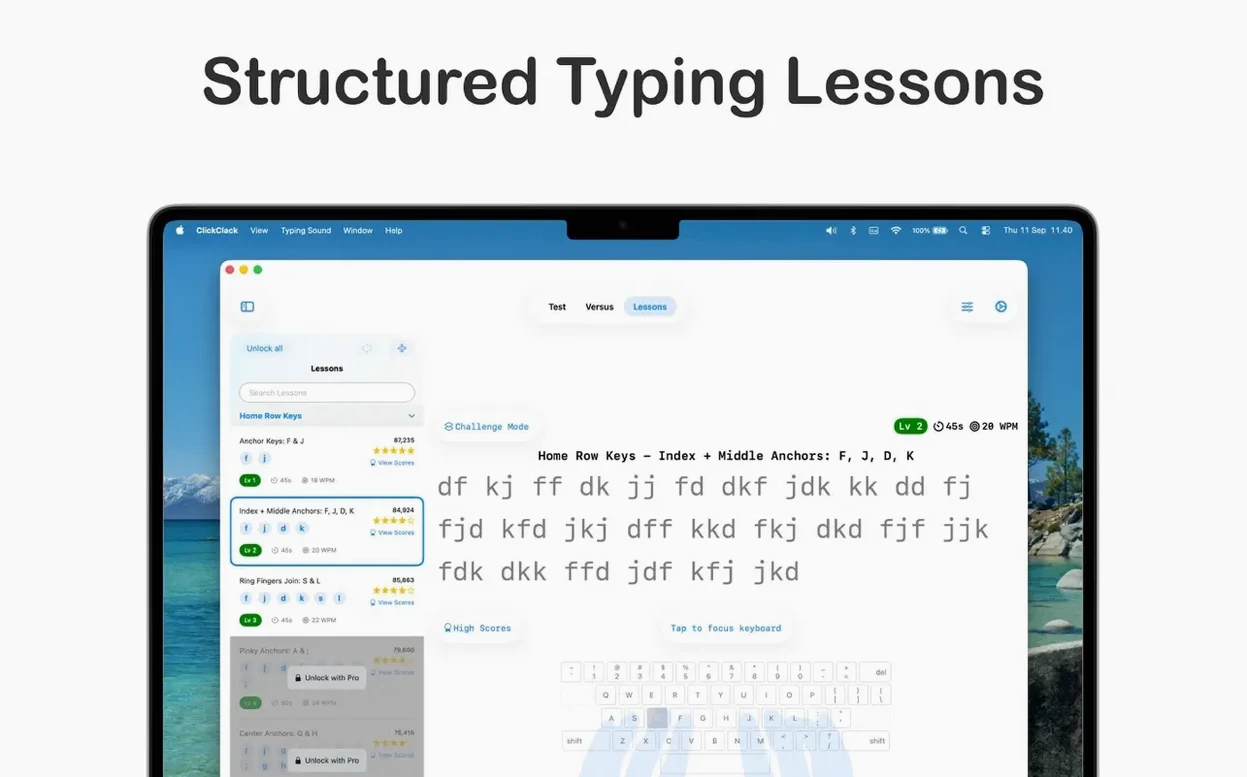
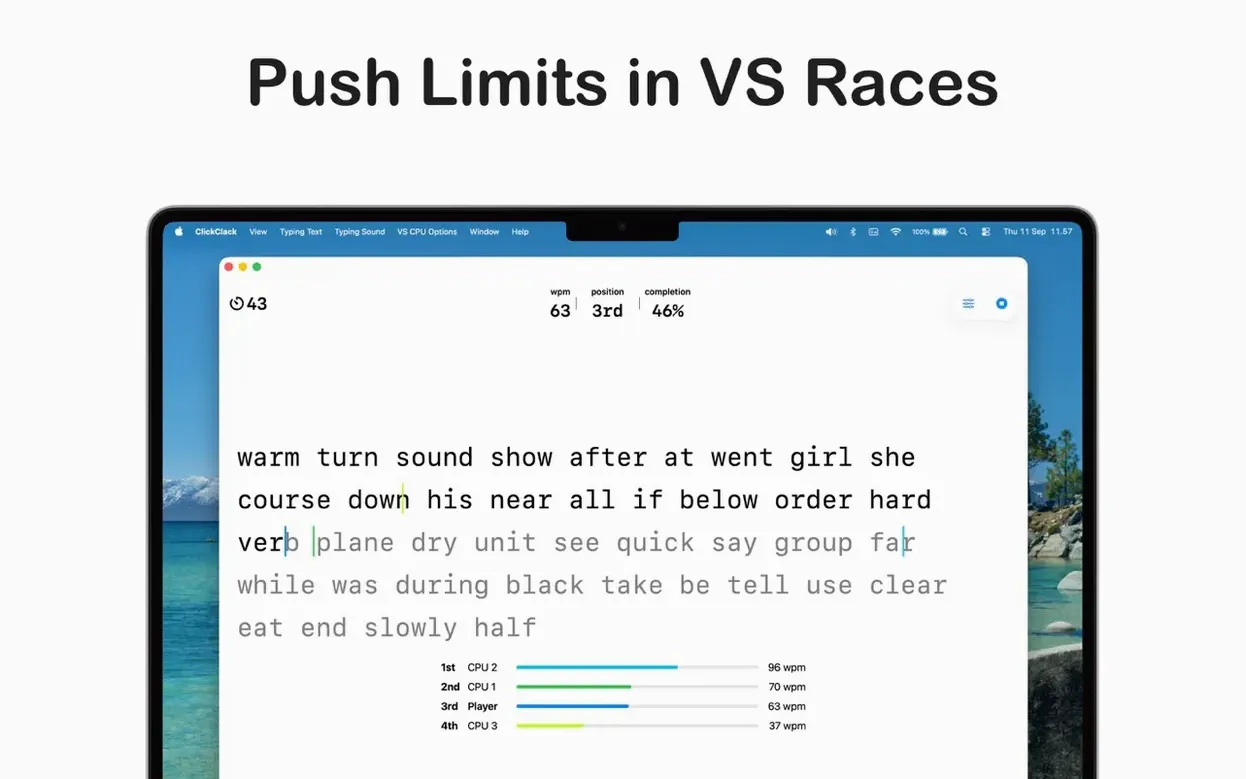
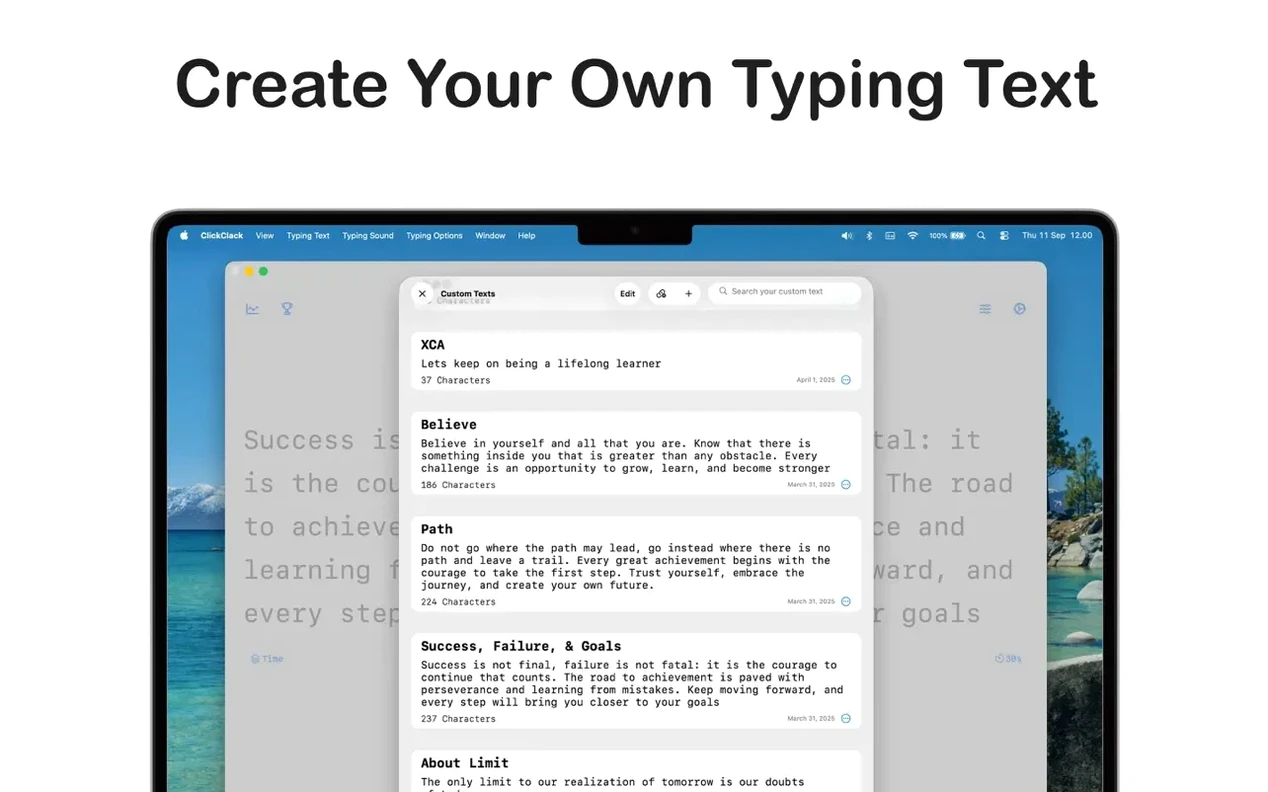
Error color indicators catch your eye the moment a finger slips. That immediate visual feedback, along with key highlighting and a subtle press animation, turns ClickClack from a static lesson list into something that feels more like a live tutor watching your hands. It's a typing trainer built around practice tests and step-by-step lessons, straight from developer Alfian Losari.
Before you clear space on the drive, the compatibility sheet is short. You'll need macOS 14.5 or newer, and the app runs natively on both Intel and Apple Silicon machines—no Rosetta translation required. Version 5.0.2 landed September 17, 2026, and tidied up the interface while squashing a few bugs.
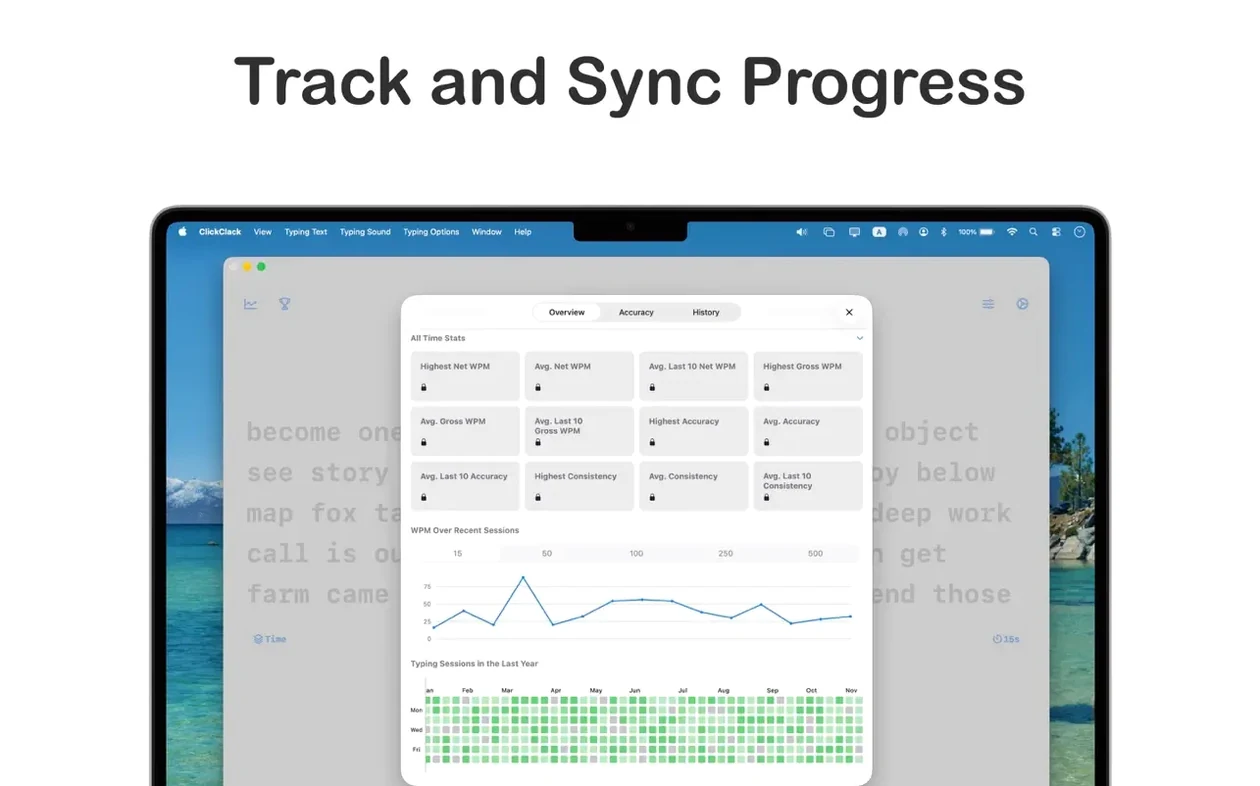
Once it's running, you're met with timed practice rounds and interactive lessons that move from basic key reaches all the way to full sentences. If you tend to stumble on the same letter pairs, the app adapts future exercises based on your errors and overall pace. A statistics panel tracks speed, accuracy, and progress trends, and the error map is particularly handy for seeing exactly where your fingers lose their way. Real-world texts—news snippets and short fiction—keep the drills from feeling too isolated.
With support for 18 languages including Arabic, Korean, Hindi, and Vietnamese, it's not locked to a QWERTY-centric mindset. If you're on a recent Mac and want a trainer that pays attention to where you actually go wrong, it's worth a look.
When the Error Map Blames the Wrong Key
One of the first things people notice is that the error map shows persistent trouble on keys they swear they're hitting correctly. Nine times out of ten, it's not a bug—it's a timing issue. ClickClack registers the keypress the moment the switch actuates, and if you're slightly early on a two-key combo, the second character can flag as incorrect even though your finger landed on the right cap. Slowing down by half a beat on those transitions usually clears it up.
Another hiccup shows up when switching between languages. The app supports 18 of them, but it doesn't automatically remap your macOS keyboard layout. If you jump from English drills to a Vietnamese or Arabic lesson and the on-screen prompts look scrambled, check that you've switched the system input source first. ClickClack reads whatever layout is active, so mismatches between the app's language setting and the system keyboard produce nonsense scores.
On older Intel machines, some folks report that the keypress animation stutters when Chrome or Xcode is chewing through memory in the background. The highlighter and error color indicators are lightweight, but the combined overlay can dip a frame or two under heavy load. Closing a few browser tabs before a timed practice round tends to smooth things right out.
If the statistics panel looks like it reset overnight, you probably ran a macOS disk cleanup utility that wiped the app's local cache. ClickClack stores progress locally, and tools like CleanMyMac or Onyx sometimes flag those files as disposable. Excluding the app's container folder from automated cleanups keeps your long-term trend data intact.
Offline Lessons and Local Statistics
Does it require an internet connection? Not for lessons, practice tests, or statistics. Everything runs locally once the app is on your drive. The real-text exercises—news and fiction excerpts—are bundled, not streamed. You can be completely offline and still work through the full curriculum.
Can you skip ahead if the early lessons feel too slow? Yes. The step-by-step progression isn't locked. You can jump straight into timed practice or advanced key combinations without completing the basics. That said, the adaptive engine works best when it has data to learn from, so running a few beginner rounds helps it tune the difficulty for later sessions.
Will it recognize a mechanical keyboard with non-standard keycaps? The error map tracks logical key positions, not printed legends. As long as macOS reads the switch correctly, ClickClack follows suit. Blank keycap sets, Dvorak layouts, and ortholinear boards all behave the same way—the trainer cares about which signal arrives, not what's printed on top.
No Clashes With Text Replacements or Clipboards
ClickClack plays nicely with system-wide text replacements and doesn't conflict with clipboard managers like Maccy or Paste. Because it captures keyboard input directly within its own window, tools that modify text in other apps—spell checkers, grammar assistants, snippet expanders—stay quiet while a lesson is active. You won't get pop-up corrections fighting the trainer mid-word.
If you use a window manager like Rectangle or Magnet, the app's fixed-size lesson window remembers its position between sessions. Some clickclack typing trainer mac torrent searches lead people here expecting a different kind of download, but the app itself is a straightforward native build—no background daemons, no login items, and no menu bar icon unless you choose to keep it in the Dock.
For anyone juggling multiple input methods, the app coexists with macOS keyboard switching without stepping on shortcuts. You can flip between Japanese, Hebrew, and English from the system menu bar while a lesson is paused, and the trainer picks up the new layout as soon as you resume. The visual key highlighting redraws instantly, so the on-screen indicators match whatever layout you've selected.
Version 5.2.0 sharpens the drills that matter most. If your fingers trip over the same letter combinations lesson after lesson, this one is for you.
- Dynamic N-Gram Word Focus Lab Lesson. The app now builds drills around the exact character sequences that give you trouble. Three strategies let you control the approach: Targeted (PRO) and Smart Mix (PRO) zero in on your weak spots, while Expansion logic broadens the challenge as you improve. PRO users can run up to 12 concurrent sequences in a single high-intensity session.
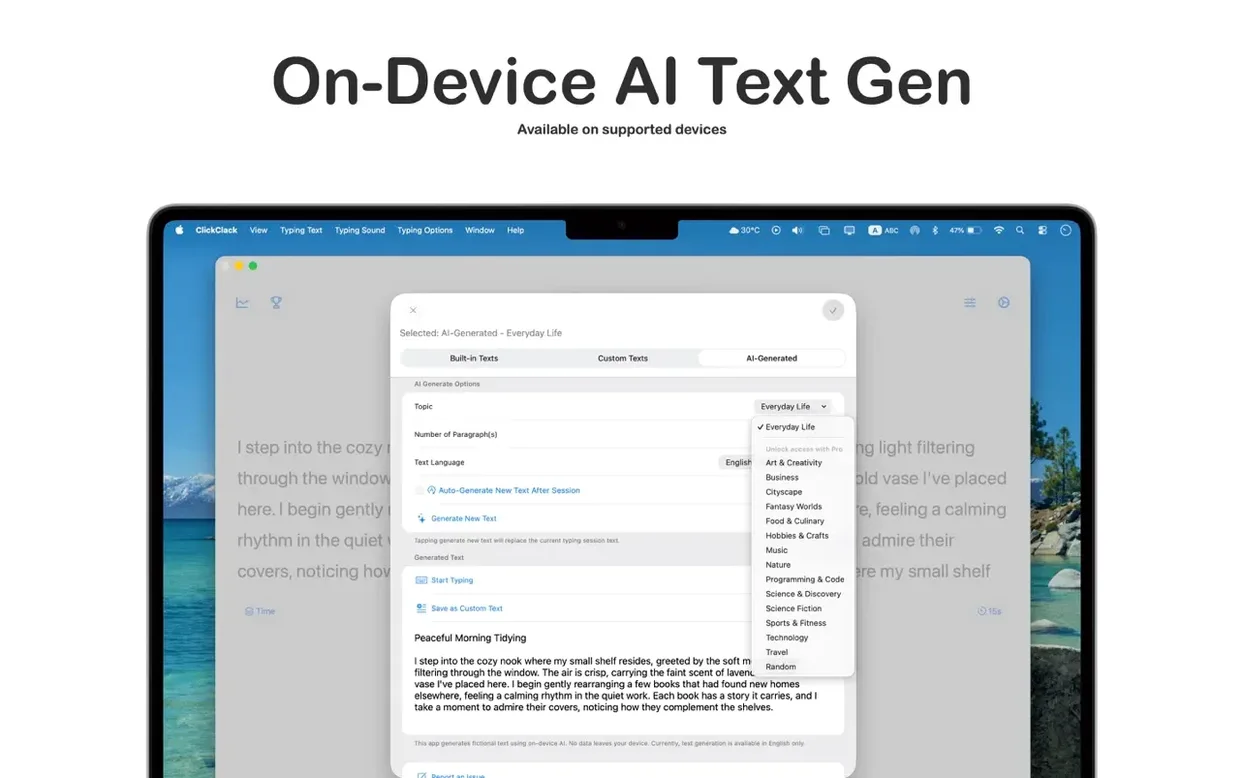
- On-device AI typing text generation. Create fresh practice material right on your Mac with Apple Intelligence (requires macOS 26). No prompts leave your machine.
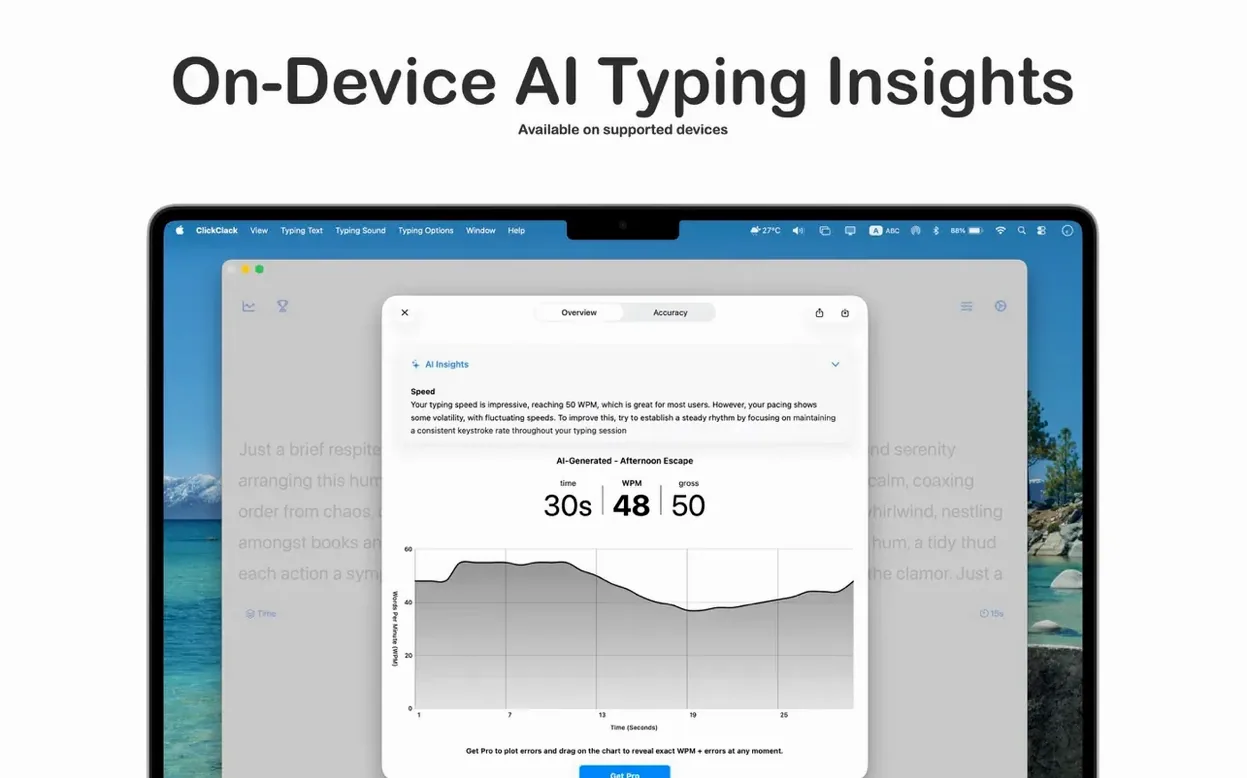
- On-device AI result insights. Private analysis of your speed, consistency, and accuracy — all processed locally.
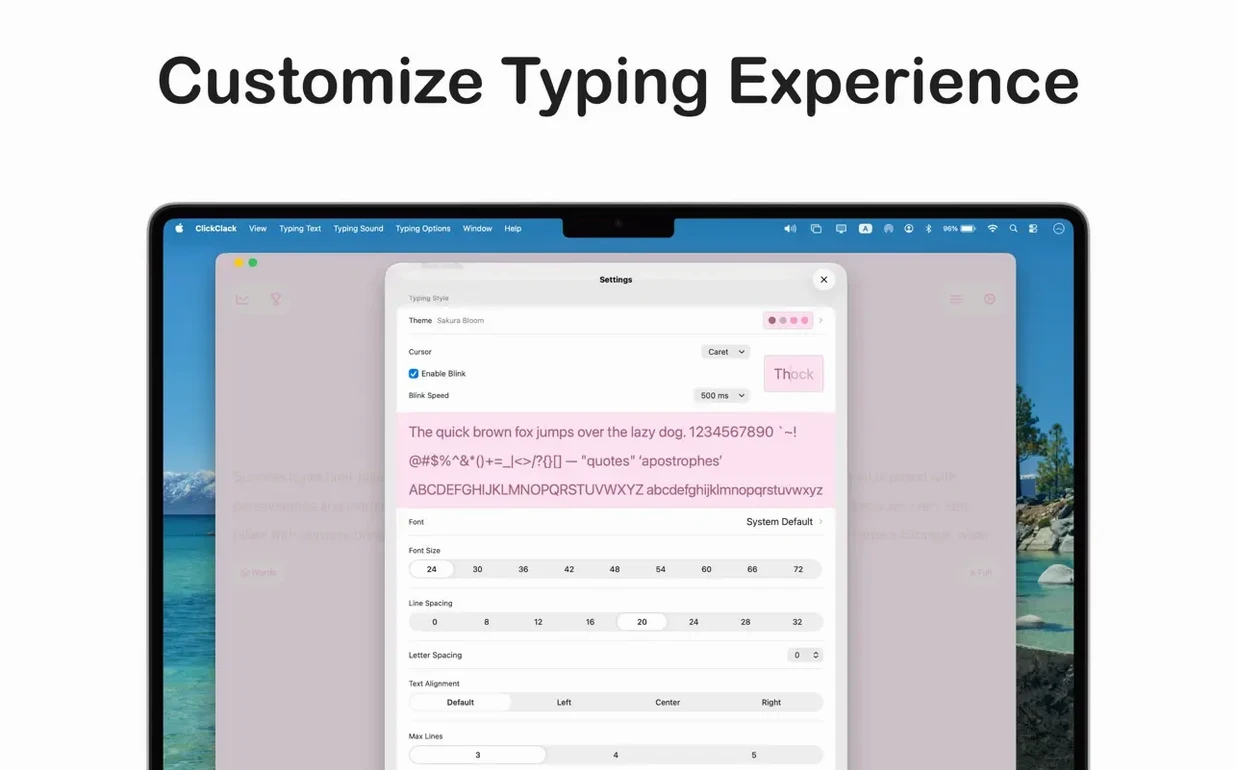
- Custom typing sound packs. Load your own high-fidelity audio and get the "thock" of your favorite mechanical switches without leaving the app. All sound files stay on-device, same as everything else.
- General bug fixes and interface polish round out the update.
- macOS 14.5 or later
- Apple Silicon or Intel 64-bit Mac
Porch talk 0
Come in or pull up a chair to leave a comment.
Nobody has pulled up a chair yet. If you used it on a real Saturday, say what the hour was.