

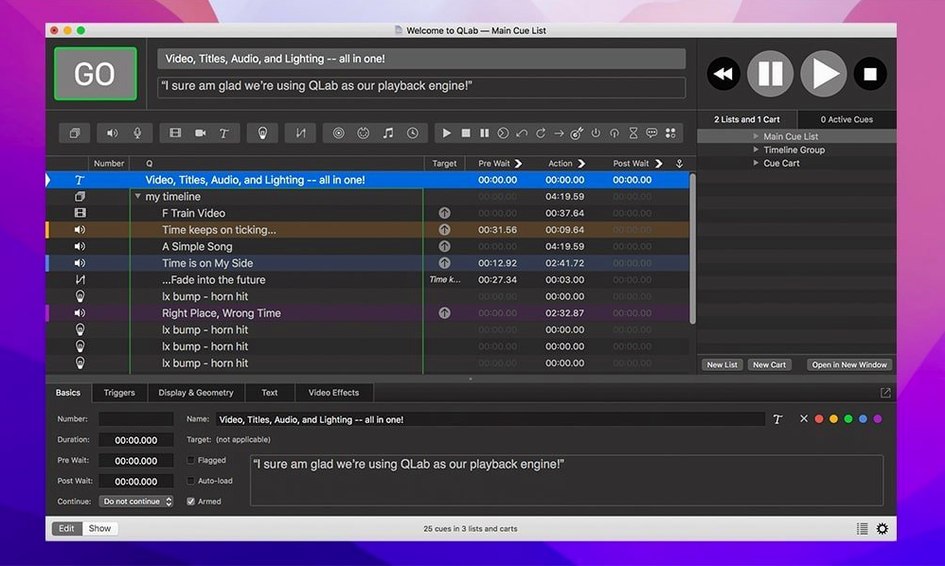
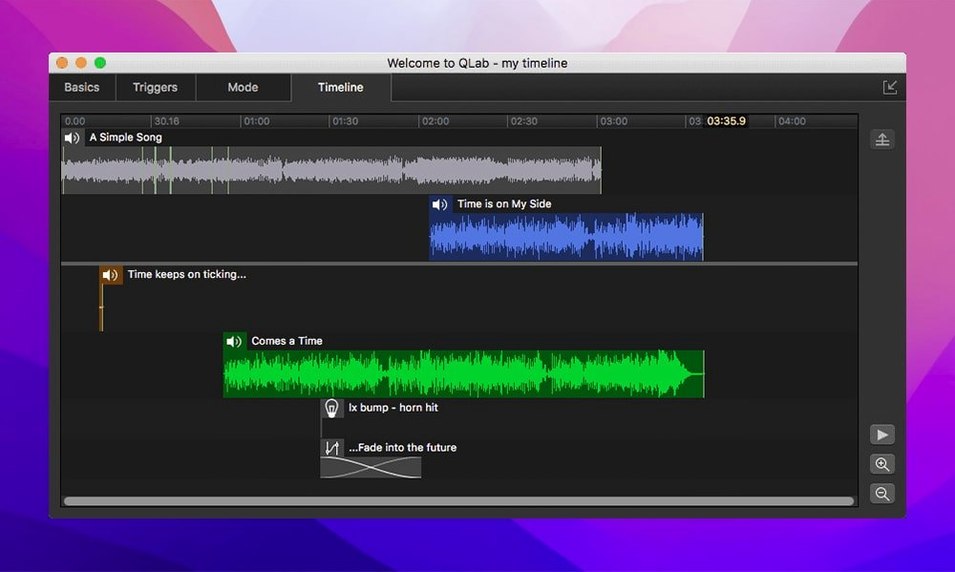
Running a live show means juggling sound, video, and lighting changes that all have to hit at the exact same moment. QLab puts those cues on a single timeline so your finger isn't hovering over three different play buttons. If you've just opened the workspace for the first time, a few small experiments will show you how it holds everything together.
How do I clean up an audio file without leaving the app?
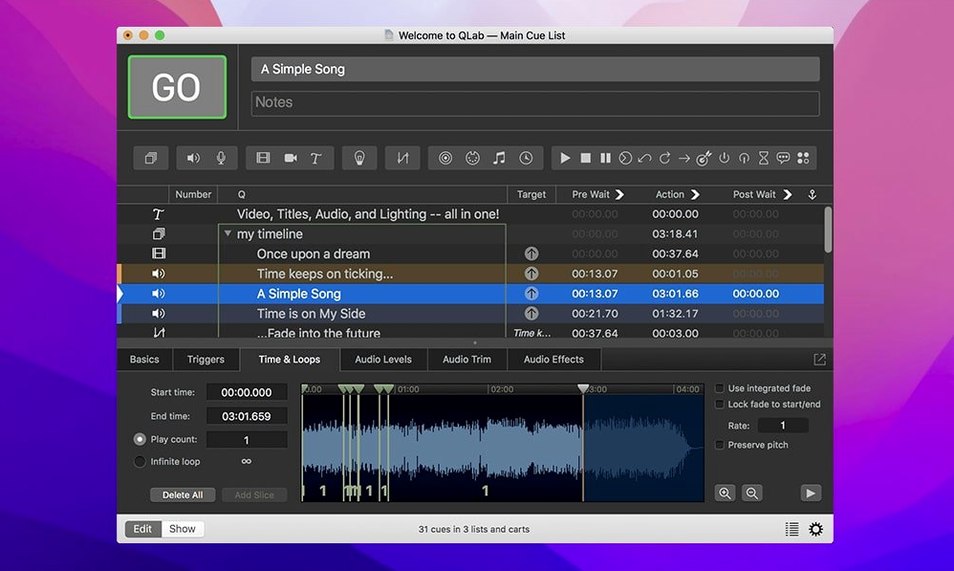
Double-click any audio cue and look for the integrated waveform editor. You can drag the start and end points to trim silence or a false take right on the timeline, no external editor needed.
Corner-pin a skewed projector in seconds
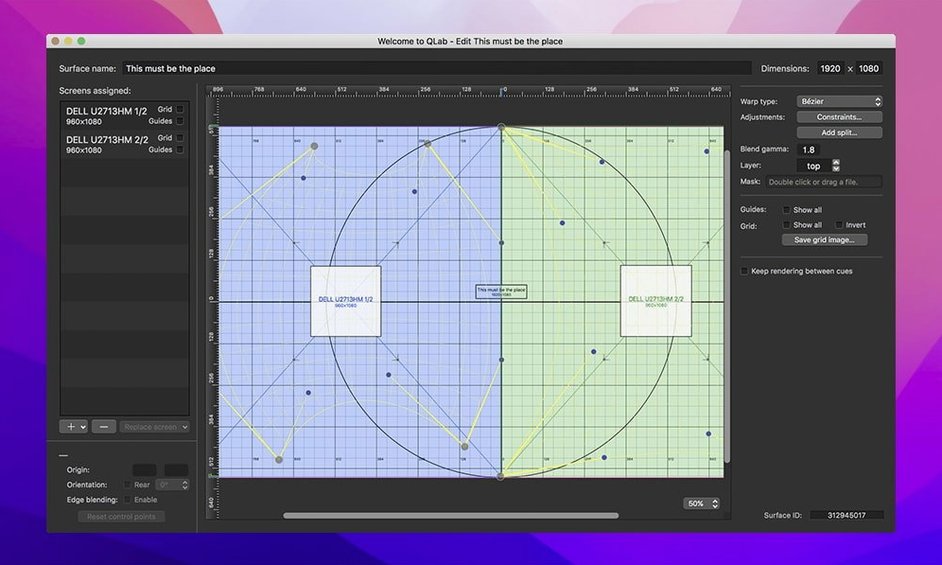
Select a video cue, head to the video stage, and turn on corner pinning. Drag the corners of the preview to match a screen that isn't perfectly square, or use the keystone controls to square up an off-axis projector.
Can I preview a cue without running the whole sequence?
Click the audition button (it looks like a small play icon with a vertical line) next to any cue. You'll hear the audio or see the video through your assigned output without advancing the main cue list, perfect for checking a level or a fade during rehearsal.
Where QLab sits in a working show ecosystem
Most shows don't run on a single piece of software. QLab talks to the rest of your rig through a few well-worn paths, and knowing those paths saves you from wiring things twice.
MIDI is the oldest handshake in the room. Send a MIDI cue from QLab to a lighting console running ETC Eos or a sound desk like a Yamaha CL series, and the console fires its own cue stack in lockstep. The reverse works too: a stage manager can tap a MIDI button on a physical controller, and QLab advances to the next cue group. If you've ever watched a musical where the band hits a downbeat and every light changes at once, MIDI show control over a five-pin DIN cable or USB is probably underneath it.
OSC is the newer, more flexible sibling. Network cues let QLab ping devices over Wi‑Fi or Ethernet with human-readable commands like /cue/start or /dca/fade. This is how people tie QLab into Max/MSP patches, TouchOSC layouts on an iPad, or custom Raspberry Pi show controllers. Because OSC runs over UDP, it's fast enough for real-time fader moves — something MIDI's serial baud rate can feel mushy about.
On the video side, Syphon sends frames between apps on the same Mac without touching the GPU's copy buffer. You can route QLab's video output into MadMapper for projection mapping, or into Isadora for live camera processing, and the pixels stay sharp because they never leave the graphics pipeline. Blackmagic capture devices show up as live camera inputs inside QLab's video cues, so a stage camera feed can be crossfaded just like a pre‑recorded clip.
macOS itself does a few favors. Aggregate Audio Devices in Audio MIDI Setup let you combine multiple interfaces into one logical output — QLab sees it as a single 48-channel destination. AppleScript cues can trigger system events, launch companion apps, or toggle Wi‑Fi off before a show. The workspace file format is plain XML, so a bash script can swap venue-specific device patches before you even open the file.
Three tribes that thrive inside QLab
The software doesn't pretend to be for everyone, and that's its strength. Three groups tend to settle into it the fastest.
Community theatre technicians stretch what a small budget can do. One MacBook Air running QLab replaces a CD player, a DVD deck, and a manual light board trigger. The rental license model means a high school can use the full feature set for a two‑weekend run without a permanent install. These users lean hardest on the fade curves and the group cues: a single GO button can start a backing track, bring up the house lights to half, and send a projector title card, all timed to the director's blocking.
Installation artists and museum designers live in the timeline's loop and wait modes. A video loop that plays silently for three minutes, then triggers a lighting change and an audio narration cue when a motion sensor sends OSC — that's a Tuesday. The 48 audio output channels matter here because a twelve‑speaker surround array in a gallery corridor needs discrete routing per speaker. These users spend more time in the cue inspector's trigger tab than in the main workspace.
Dance and opera companies need runaway stability under pressure. A full‑length ballet runs hundreds of cues; a crash during the pas de deux is not an option. These crews keep workspaces lean — flattened audio files, no live sampling, video rendered to ProRes — and they map a MIDI foot pedal to the GO command so the stage manager's hands are free for a headset. The audition button gets worn out during tech week, letting the sound designer check a cue's tail without disturbing the lighting programmer's focus.
Swap safe defaults for rehearsal-ready prefs
QLab's defaults are safe, but safe isn't always practical. A few quick stops in the preferences pane make the workspace feel less like a demo and more like your rig.
- Auto‑save and backups. Head to Workspace Preferences and set auto‑save to every five minutes, then bump the backup count to 20 or more. Disk space is cheap; losing four hours of programming to a brownout isn't. QLab keeps backups inside the workspace bundle, so you can right‑click and dig one out if a cue list gets corrupted.
- Default fade curve. The default audio fade is linear, which sounds mechanical on a long crossfade. Switch it to an S‑curve or a custom curve that eases in gently and drops faster at the tail. Your ears will thank you during a slow scene change.
- Panic duration. The panic button (ESC by default) stops all playback instantly. In the Controls preferences, you can add a half‑second or one‑second fade on panic so the house doesn't hear an abrupt digital silence when someone hits it accidentally. Tiny change, big professionalism bump.
- MIDI and OSC shortcuts. Open Workspace Settings → Controls and assign the GO command to a MIDI note, a key on the keyboard, and an OSC address simultaneously. Redundancy costs nothing. If the MIDI interface loses power mid‑show, the space bar still works.
- Video stage default. If your projector is permanently off‑center, set the default video stage to include a slight keystone correction so every new video cue inherits it. One less thing to fix per cue.
Everyday changes in the 5.6.x cycle
The jump through the 5.6 releases didn't add flashy new modules, but it sanded down rough edges that veteran users had been working around for years. The 5.6.3 update in particular focused on making mistakes visible before they become show‑stoppers.
Rows in the Light Library and Light Definition editor now change color when an instrument definition is misconfigured — no more scrolling through a hundred identical rows hoping to spot the one with a bad DMX footprint. The Light Patch editor goes further and displays a Broken status outright, so a patching error during a late‑night programming session doesn't survive until doors open.
One quiet improvement: workspaces created in 5.6.2 or earlier now migrate automatically to the built‑in network device definition for Right On Cue Services Stage|Tracks. Before this, integrators using Stage|Tracks for multi‑machine synchronized playback had to manually rebuild the network device entry after an update. The migration happens silently when you open an old workspace in 5.6.3, and the show file just works.
Video stability got a targeted fix too. A rare crash during video playback stop — the kind that might happen when a cue list rapidly stops and restarts a clip during a hectic cueing session — is patched. That's the sort of fix you never notice unless you were the one person in a thousand pulling your hair out over it.
Three-second launch, 120 MB idle on Apple Silicon
On an Apple Silicon Mac, QLab 5.6.3 launches in about three seconds and idles at roughly 120 MB of RAM with an empty workspace. Load a moderately complex show — say, sixty audio cues, a dozen video cues with ProRes 1080p files, and a few MIDI triggers — and the memory footprint climbs toward 400–600 MB. That's comfortable territory on any Mac with 8 GB of RAM or more, leaving headroom for other apps.
CPU usage stays low during playback because audio decoding and video rendering happen on dedicated hardware pipelines. The integrated waveform editor redraws instantly even on 90‑minute stereo files; the app doesn't bog down recalculating peaks. Video crossfades between two 4K clips can spike the GPU briefly, but Apple Silicon's media encoders handle the heavy lifting, and dropped frames are rare on anything from an M1 onward.
Stability across long sessions holds up well. A show file opened for eight hours of tech rehearsal doesn't develop the creeping memory bloat that plagued earlier major versions. Undo history stays responsive across hundreds of edits, and the auto‑save backups write without interrupting playback — the file I/O happens on a background thread, so a cue firing at the exact moment of a save doesn't stutter. The 48‑output ceiling means you can run a Dante network to a live sound console and QLab treats it as one big audio device, no aggregate device trickery required, and the clock sync stays solid over hours of continuous output.
For anyone still running an older workspace, or looking for a QLab setup that matches the demands of a real venue, version 5.6.3 is a quiet, stable place to land. And if you're curious about the broader ecosystem — maybe a QLab crack discussion that compares performance across versions — what matters in daily use is that the build doesn't fight you. This one doesn't.
Version 5.6.3 smooths out a couple of rough edges. Rows in the Light Library and Light Definition editor now change color when an instrument definition is misconfigured, making it easier to spot a broken fixture at a glance. Workspaces from 5.6.2 and earlier also migrate to the built-in network device definition for Right On Cue Services Stage|Tracks without extra fuss. A rare crash that could happen when stopping video playback has been fixed as well.
- macOS 11 or later
- Compatible with Intel and Apple Silicon Macs
Questions I actually get
Does QLab include an undo feature?
Yes, the app supports undo for changes made inside the workspace, so you can safely experiment with trims, fades, and effect chains.
Can I change playback speed without making voices sound chipmunk-like?
You can. The adjustable playback speed control includes pitch correction, letting you slow a cue down to learn a part without altering the tone.
What if the video I'm projecting needs to play backward?
Video cues support reversing playback. You can also center the image on the projector right from the video geometry controls.
Porch talk 0
Come in or pull up a chair to leave a comment.
Nobody has pulled up a chair yet. If you used it on a real Saturday, say what the hour was.
More for the same hour
Everything in Audio
 Plugin Alliance Brainworx bx_mastering studio
1.0.0 Audio
24 MB
Plugin Alliance Brainworx bx_mastering studio
1.0.0 Audio
24 MB
 Serato DJ Pro
5.0.0 Audio
Updated 1 GB
Serato DJ Pro
5.0.0 Audio
Updated 1 GB
 Serato Studio
2.5.0 Audio
540 MB
Serato Studio
2.5.0 Audio
540 MB

 SoundSource
6.1.5 Audio
46 MB
SoundSource
6.1.5 Audio
46 MB

 Steinberg Nuendo
15.0.30 Audio
1.6 GB
Steinberg Nuendo
15.0.30 Audio
1.6 GB

 Studio One
7.0.0 Audio
334 MB
Studio One
7.0.0 Audio
334 MB
 Native Instruments Reaktor
6.5.0 Rev2 Audio
144 MB
Native Instruments Reaktor
6.5.0 Rev2 Audio
144 MB
 Swinsian
3.0.8 Audio
24 MB
Swinsian
3.0.8 Audio
24 MB