Working composers and arrangers—the ones with deadlines, odd percussion parts, and chord charts that need to look right—are the kind of people who ask pointed questions before they install a notation program. They want to know if it will engrave cleanly and play back what they wrote without a fight.
"Will it handle my weird notation?"
That's usually the first worry, and it's where Dorico Pro earns its keep. Complex chord symbols, percussion notation that goes beyond a standard drum map, and instruments that don't live on a piano staff are all part of the deal. This isn't a program that balks at uncommon requests. The current version, 6.2.30, arrived with more than 40 fixes and enhancements, several of them aimed at making data exchange less brittle—MusicXML import and export got specific attention, alongside new support for exporting sustain and sostenuto pedal lines so your markings don't vanish when the file travels.
"What about the sounds?"
Under the hood, there are almost 1,500 built-in sounds and 30 VST 3 effects processors. You can route independent voice playback to Cantai from the Track Inspector in Play mode, which gives you more control over how individual lines speak. The VST 3 architecture means the effects aren't an afterthought; they're part of the playback engine. Small touches like a line style property that overrides the look of a single glissando line tell you this is software for people who care about the page as much as the sound. If you spend your time between a MIDI keyboard and a score, these are the details that matter.
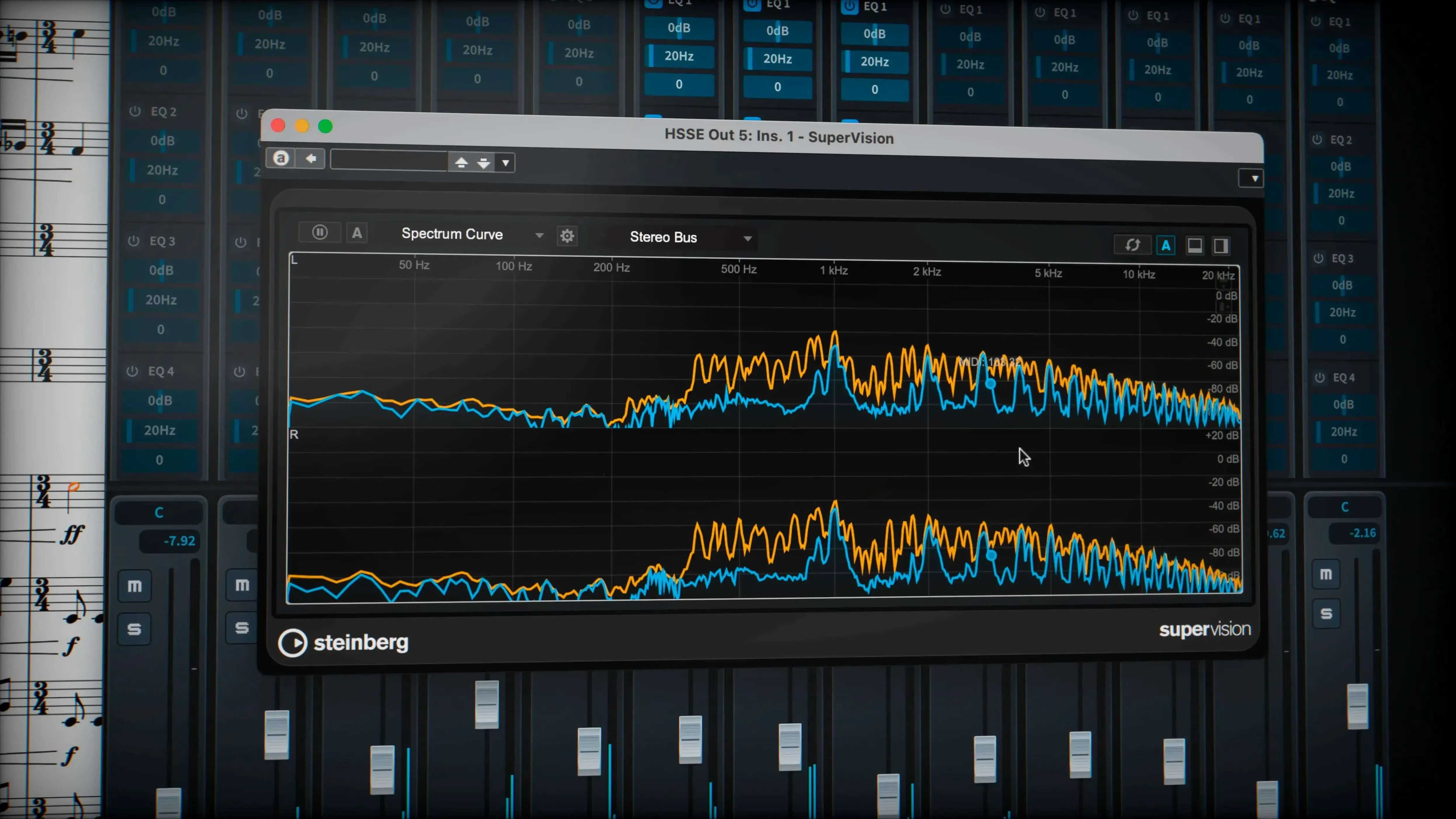
When you first open a big orchestral project and hit play, the default playback can feel a little polite—everything is there, but the balance doesn't quite match what's in your head. The first place to look is Play mode, and specifically the Track Inspector. This panel controls per-instrument routing, and with version 6.2.30 you can now enable independent voice playback for instruments sent to Cantai right from here. If your second violins are buried under the brass, pull them up in the mixer and save that as part of your playback template so you don't have to rebalance every time you start a new cue.
Hidden Notes and Tuplet Brackets That Stick
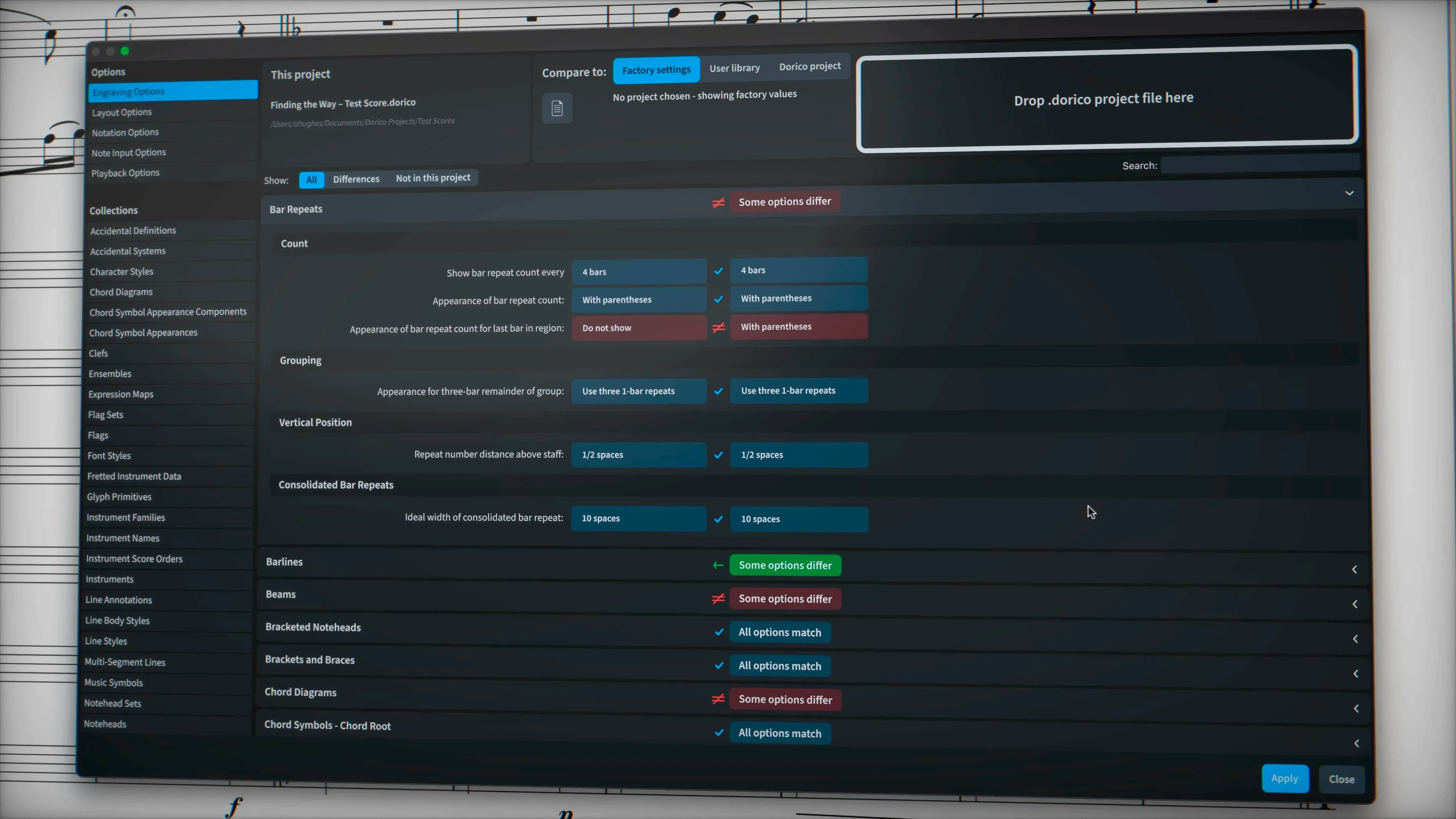
One frustration that trips up new users is hidden notes refusing to stay hidden, or tuplet brackets disappearing from the printed page when you export. The 6.2.30 maintenance update tightened both of these: hidden notes now behave more predictably, and tuplet brackets and numbers that you've tucked away via engraving options export correctly instead of reappearing in the PDF. If you're still seeing a rogue bracket, check your Engraving Options panel—sometimes a local property override in the score overrules the global setting.
Another head-scratcher comes from glissando lines that look wrong. By default, a wiggly glissando uses the traditional trill wiggle glyph, but you might prefer a cleaner line style that matches your house style. In the Properties panel, look for the line style property assigned to the glissando. You can swap a single glissando to any line style from your project without affecting the rest of the score. That's one of those quiet power moves that saves you from drawing it in as a graphic later.
MusicXML import and export issues were specifically addressed in this release, and if you're moving scores between Dorico and another program, a few habits will keep things clean. Before you export, consolidate your percussion maps—if you've used a custom kit, make sure it's assigned clearly in the setup. On import, check your tuplet groupings in bars with complex rhythms; the engine handles tuplets across beats natively, but a file coming from older software might interpret a nested triplet as a series of tied notes until you re-engrave it.
First settings that earn their keep
Head into Layout Options and find the page setup for your default score. Dorico's automatic page layout with collision avoidance is smart, but it works on assumptions about staff size and margins that might not match your printer or screen. Set your preferred staff size—most working engravers I know land somewhere between 6.0 and 7.5 mm depending on the ensemble size—and the software will recalculate everything downstream. While you're there, decide whether you want bar numbers at the start of every system or only at key structural points; the default is generous, and for dense chamber scores it can feel cluttered.
The sequencer-style MIDI editor in the lower zone, with its piano-roll view, is worth pulling up early. If you're a composer who enters notes with a keyboard and then tweaks velocities and timings by hand, dock this view where you can see it alongside the score. It turns Dorico into something closer to a DAW for the moments when notation alone doesn't capture the phrasing you want.
A quiet afternoon with a copyist
A music copyist preparing parts for a recording session might start the day with a conductor's handwritten score and a tight turnaround. She opens the scanned draft, enters the notes into a fresh Dorico project, and immediately checks the percussion staves—this session has a vibraphone with pedal markings that absolutely must carry through to the parts. With the 6.2.30 update's new export support for sustain and sostenuto pedal lines, she can send a MusicXML file to the orchestrator knowing those pedal marks won't evaporate. She overrides the glissando style on a harp part using the line style property, prints a clean PDF, and still has time to grab coffee before the downbeat. That's the kind of flow Dorico is built around—not flashy, just functional when the clock is ticking.
- macOS 12 or newer
- Apple Silicon or Intel Mac
Porch talk 0
Come in or pull up a chair to leave a comment.
Nobody has pulled up a chair yet. If you used it on a real Saturday, say what the hour was.