

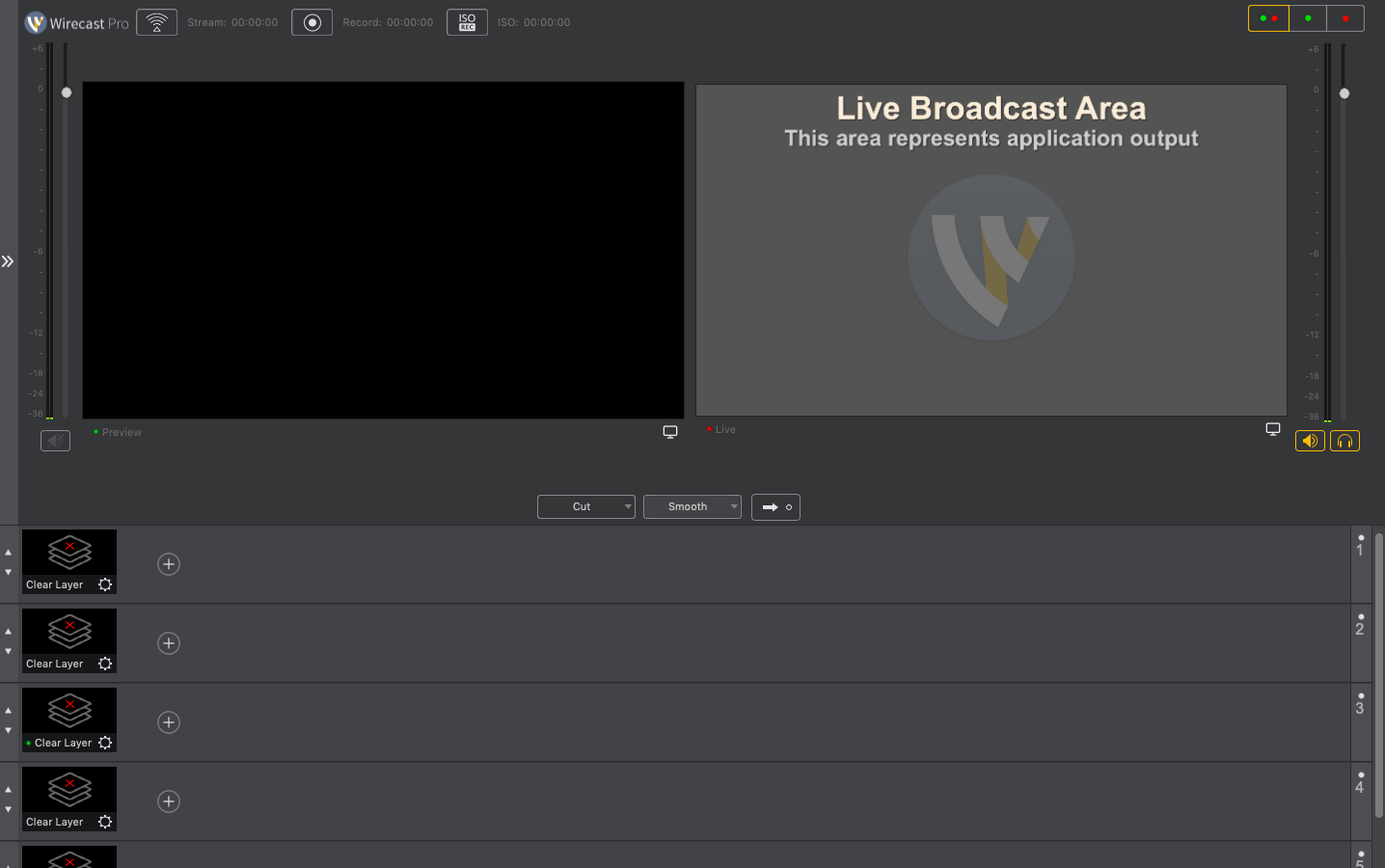
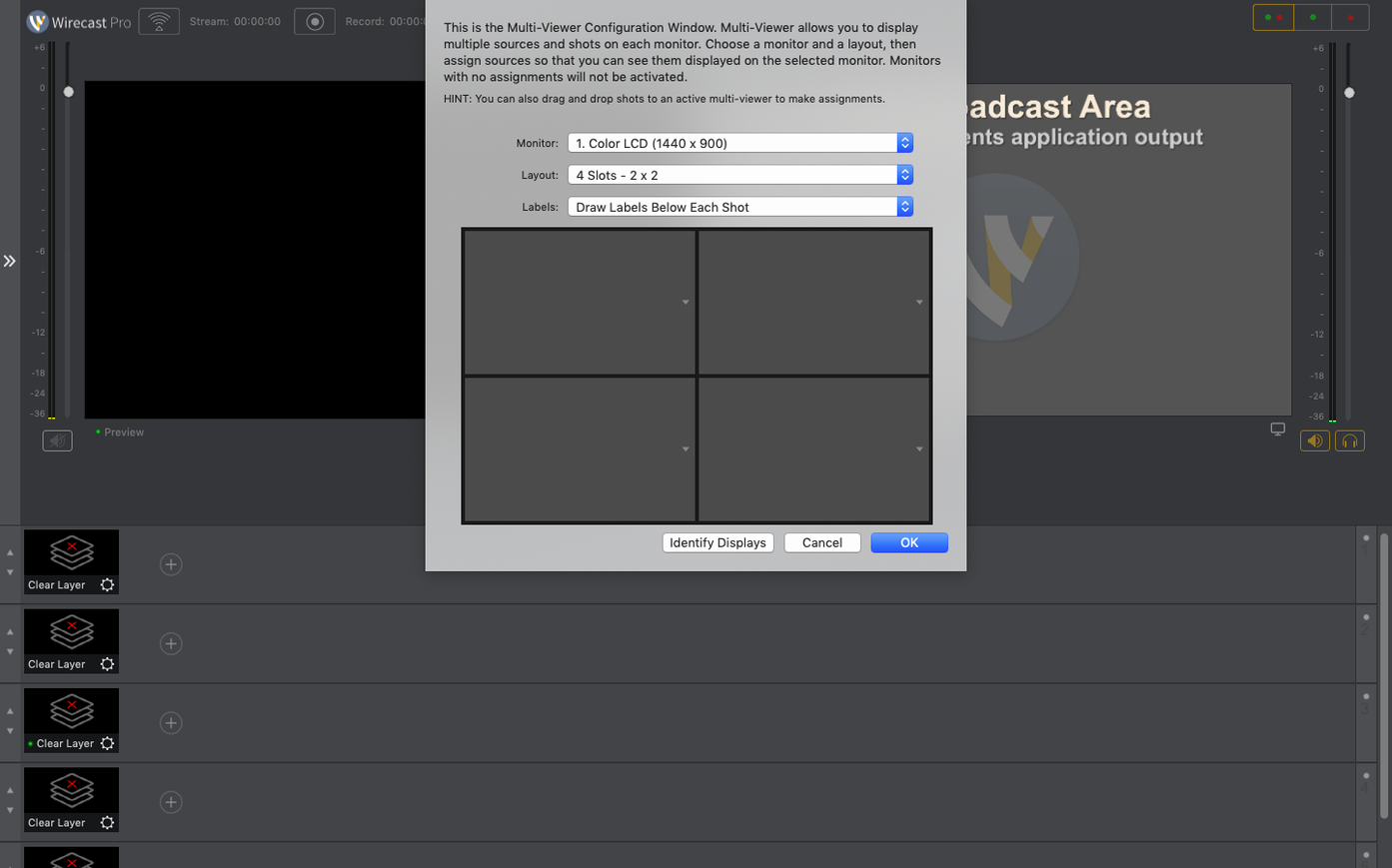
Version 16.5.4 lands with a handful of fixes that matter in a control room. The PTZ NDI camera detection on macOS got tighter, and the virtual camera no longer stumbles if corporate IT has the virtual mic driver locked down. A new discontinuous-frame flag for NDI sources also helps keep your feeds in check.
For anyone who has moved past the basics, the live text editing is where Wirecast Pro earns its keep. You can tweak lower-third names or correct a title mid-stream without cutting away. The built-in library of 30 title and caption styles gives you a running start, but the real power is in changing those words while the world is watching.
Graphics handling stays flexible under pressure. You can pin a station logo to the outgoing signal, pull up sports score templates, or layer multiple overlays during a conference. Small production teams build entire shows around these elements, treating Wirecast Pro less like a streaming app and more like a portable studio rack.
If you are running a multi-camera sports event, a concert, or a ceremony where the program feed needs to look polished as it happens, this is the territory where the Pro feature set makes sense.
Will Your Three-Year-Old Mac Handle Multi-Camera Streaming
People usually wonder whether a machine bought three years ago can handle a multi-camera setup without dropping frames. The honest answer is that Wirecast Pro leans on the GPU more than the CPU for encoding, so a Mac with a decent discrete graphics card or a strong Apple Silicon chip will cope fine with two or three 1080p sources. Where things get tight is NDI feeds over Wi‑Fi — plug in Ethernet before you push the Go Live button and you will avoid most stuttering complaints.
Another question that keeps popping up on forums is whether the virtual camera output works with Zoom and Teams when IT policies are involved. The 16.5.4 release specifically addressed the case where the virtual microphone driver gets blocked by corporate security tools. If your workplace machine still refuses to show the Wirecast virtual cam after the update, a quick trip into System Settings > Privacy & Security > Camera — and a quiet word with your IT admin — usually sorts it out.
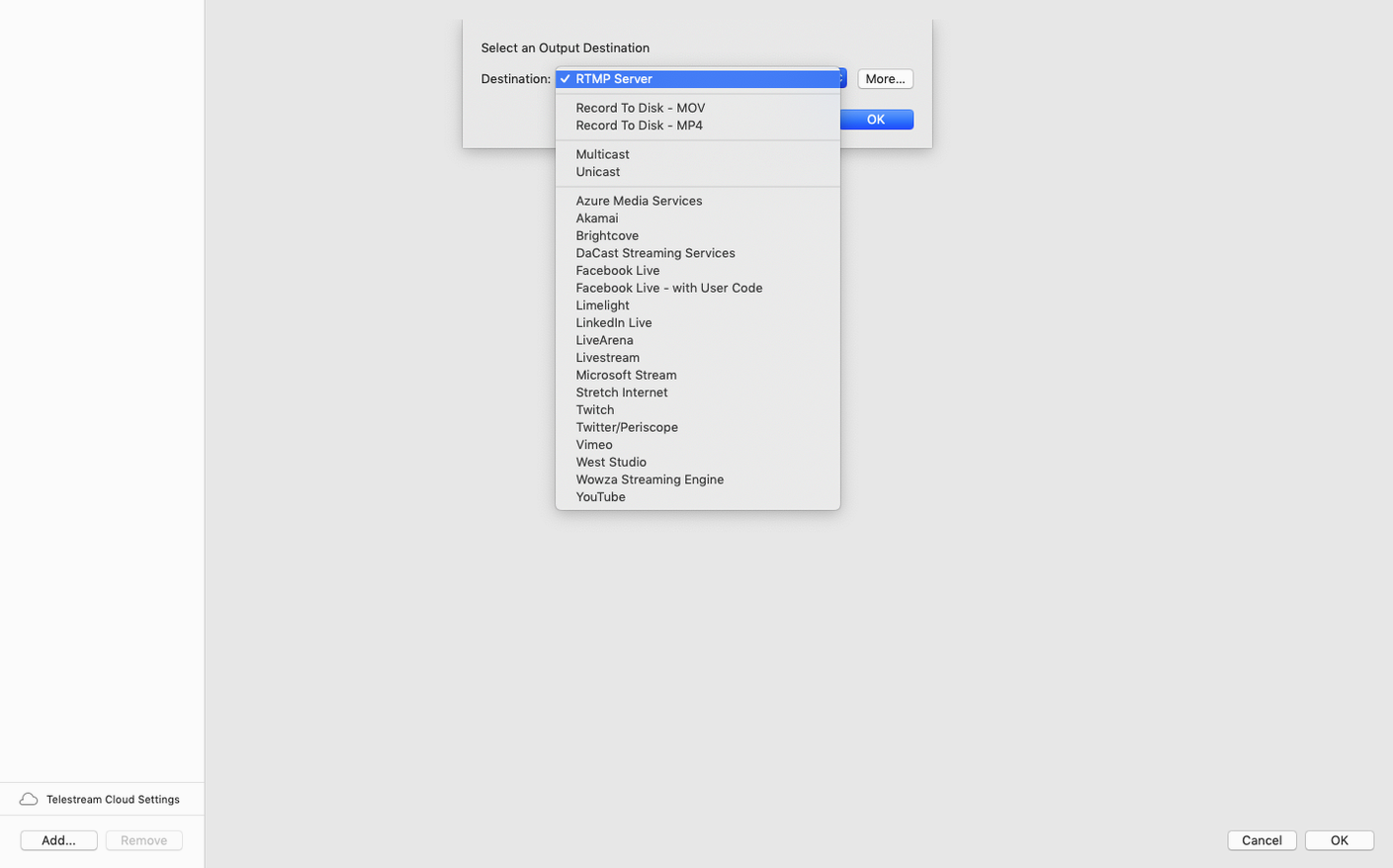
People also ask about recording locally while streaming. Wirecast Pro does both simultaneously, and the recording uses the same encoder settings as the stream, so what you see on the program monitor is exactly what lands on disk. No surprises when you pull the file into an editor later.
Build a Reusable Template Shot Before Going Live
Spend the first afternoon building a template shot rather than trying to go live immediately. Open a blank document, add a single camera source, then layer a logo and one of the 30 title styles on top. Save that as a starting-point document. When a real event lands in your lap, you open the template instead of a blank canvas and you are already halfway there.
Map the keyboard shortcuts for switching between shots early. The default bindings are sensible, but picking three or four keys you can hit without looking down — one for your wide camera, one for the close‑up, one for a graphic overlay — makes a difference when the action speeds up. Muscle memory beats mouse clicks every time during a live basketball game.
Test the audio routing before you invite anyone to watch. Wirecast Pro sees system audio devices and external interfaces separately, and it is easy to accidentally leave the built‑in microphone live while you are tapping on the keyboard. Mute sources you are not using and give each audio input a clear label. Your headphones will thank you during the first real broadcast.
Building a conference stream from scratch
Picture a half‑day industry conference with two presenters, a slide deck, and a Q&A segment at the end. You have two cameras — one on the stage, one on the audience — and a laptop feeding presentation slides over NDI.
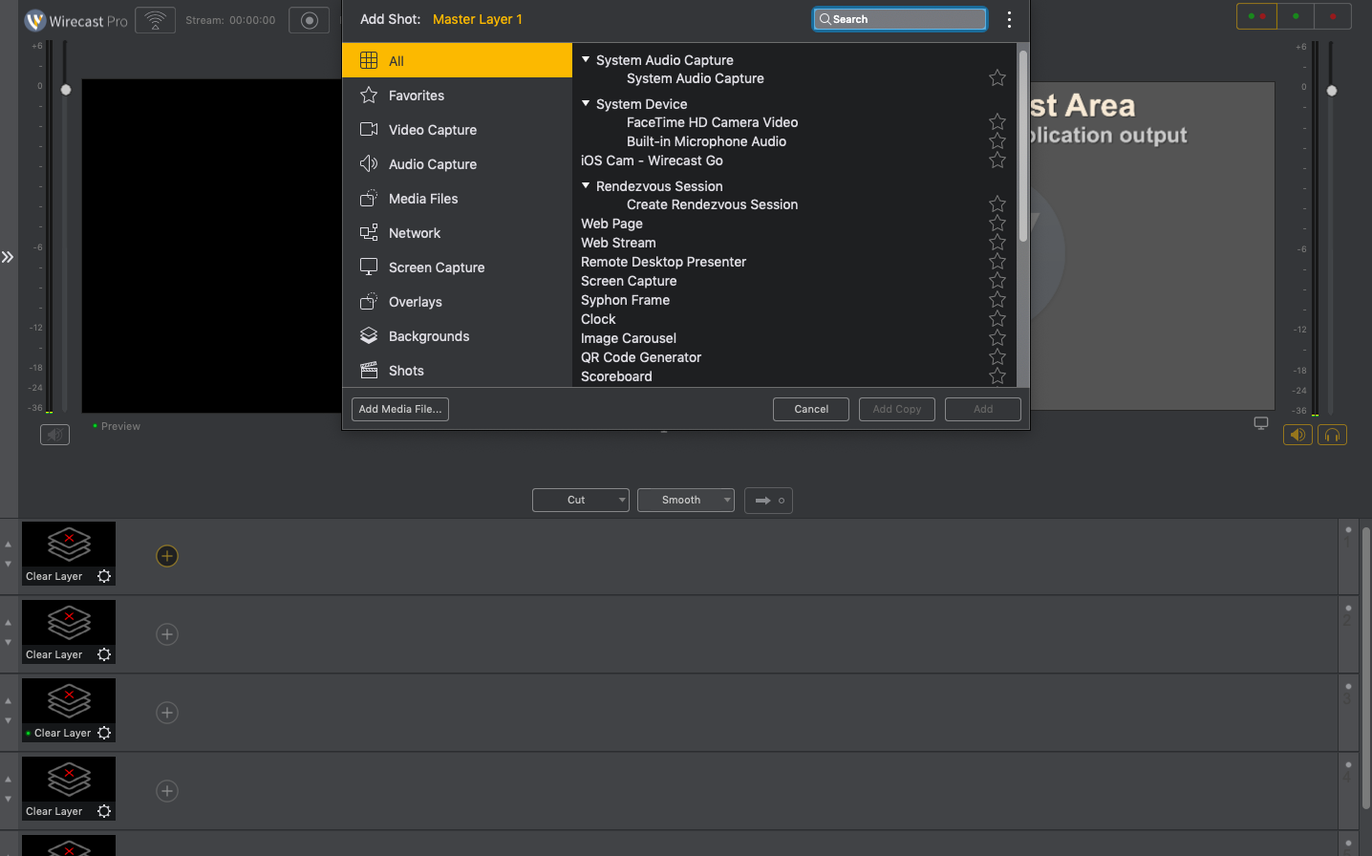
Start by setting up a Master Layer with the event logo pinned top‑right and a lower‑third graphic ready for speaker names. Add the stage camera as Shot 1, the audience camera as Shot 2, and the NDI laptop feed as Shot 3. Before the doors open, type placeholder names into the lower‑third text field so you can update them live with one click.
During the opening remarks you stay on Shot 1 with the lower‑third active. When the first presenter starts their slides, cut to Shot 3 and keep the lower‑third visible for the first ten seconds, then fade the title out so the deck stays clean. The audience shot comes in during the Q&A; a quick keyboard hit switches to Shot 2 while the moderator hands over the microphone. The whole sequence runs from a single MacBook Pro and looks like a crew of four put it together.
Recording runs throughout. Afterwards you have a clean program file ready to upload, no extra rendering step needed. The same document saves as a template for next quarter's event.
When a Camera Won’t Appear, Check Your Build First
Camera not showing up. Since version 16.5.4 fixed detection for certain PTZ NDI models, the first move is to confirm you are on the current build. If a USB or HDMI capture device still refuses to appear, unplug it, open Wirecast > Preferences > Sources, and refresh the device list before reconnecting. macOS sometimes grabs the camera for FaceTime first; closing any app that might be claiming the feed usually frees it up.
Stream drops frames on a fast connection. Check the encoding preset. The default is often set higher than your uplink can sustain. Lower the bitrate in Output Settings by 10–15% and watch the dropped‑frame counter. Also confirm you are not accidentally encoding on the CPU while the GPU sits idle — the preferences pane lets you pick the hardware encoder explicitly.
Virtual camera stays black in other apps. The 16.5.4 update patched the microphone driver block, but some video conferencing tools need a restart after Wirecast Pro launches. If the virtual cam feed still shows a black screen, quit the receiving app, toggle the virtual camera off and on inside Wirecast, then relaunch the other app. That handshake sorts it out almost every time.
Audio echo in the headphones. This usually means the program output is being monitored twice — once through Wirecast Pro and once through the system audio. Go to Output > Audio Monitor and set it to a device you are not already using for playback. Keep your monitoring chain simple and the echo disappears.
A search for wirecast pro download often surfaces alongside queries about NDI reliability and GPU support, and the 16.5.4 release answers a good chunk of those concerns. If you have been sitting on an earlier build, the fixes in this version make the swap worthwhile, especially for anyone juggling PTZ cameras and virtual cam workflows.
- macOS 11 or later
- Apple Silicon or Intel 64-bit Mac
Questions I actually get
What kind of graphic elements can I add to a stream?
You can add titles, overlays, sports score templates, and a station logo directly to the outgoing video signal, with 30 built-in title styles to start from.
Can I edit text while I'm live?
Yes. Wirecast Pro allows quick text changes during a live broadcast, so you can correct names or update captions without stopping the stream.
What production scenarios is this built for?
It is commonly used for sports events, ceremonies, conferences, and concerts, and serves as part of small TV and production studios.
Porch talk 0
Come in or pull up a chair to leave a comment.
Nobody has pulled up a chair yet. If you used it on a real Saturday, say what the hour was.
More for the same hour
Everything in Mac Apps
 Wipr
2.38 Mac Apps
7 MB
Wipr
2.38 Mac Apps
7 MB

 WinZip Mac Pro
12.0.7282 Mac Apps
36 MB
WinZip Mac Pro
12.0.7282 Mac Apps
36 MB

 Wondershare Filmora
14.8.17 Mac Apps
924 MB
Wondershare Filmora
14.8.17 Mac Apps
924 MB

 Wondershare Recoverit
14.0.20.6 Mac Apps
212 MB
Wondershare Recoverit
14.0.20.6 Mac Apps
212 MB

 Wing Pro
11.1.0.0 Mac Apps
149 MB
Wing Pro
11.1.0.0 Mac Apps
149 MB

 Wondershare UniConverter
15.7.3.564 Mac Apps
324 MB
Wondershare UniConverter
15.7.3.564 Mac Apps
324 MB

 Winclone Pro
10.5 Mac Apps
21 MB
Winclone Pro
10.5 Mac Apps
21 MB

 WidgetWall
3.15.2 Mac Apps
396 MB
WidgetWall
3.15.2 Mac Apps
396 MB