
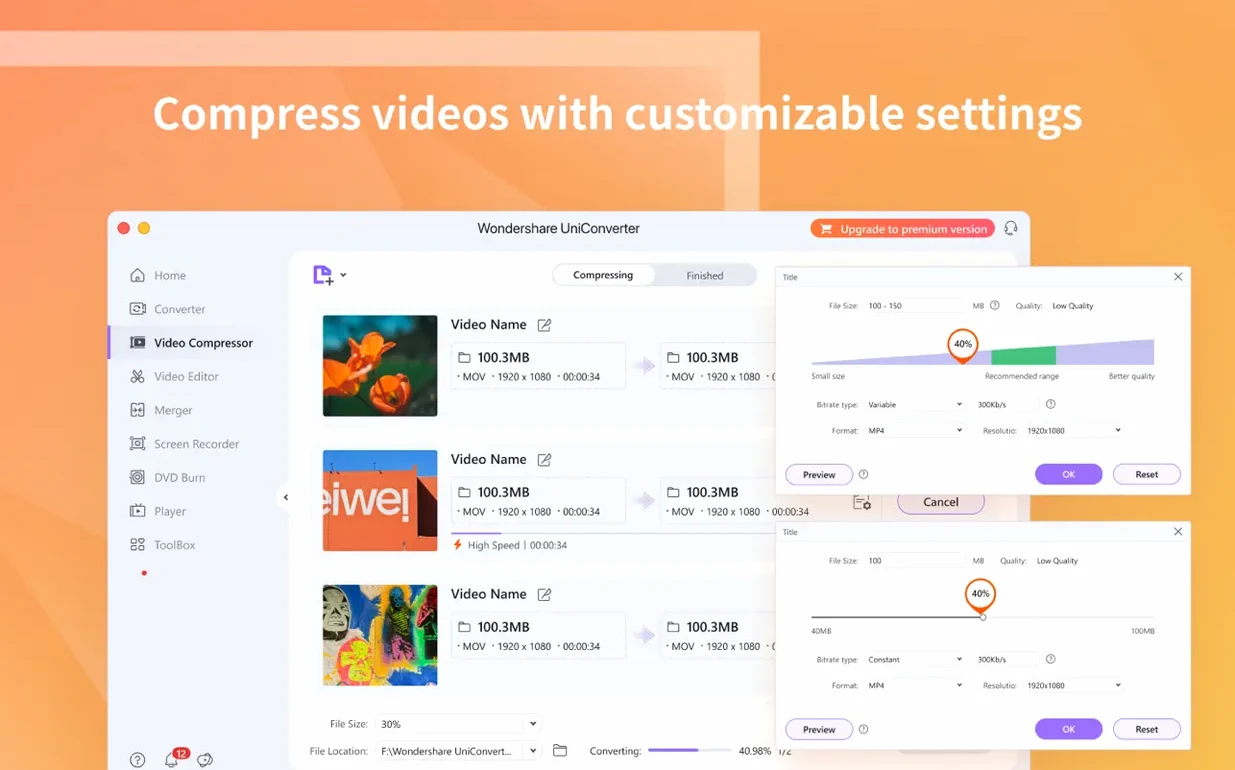
A friend sends over a clip from an old camcorder and Final Cut Pro won't touch it. You have a stack of family DVDs you want to watch on an iPad. These moments where your usual apps shrug are exactly where Wondershare UniConverter 15 fits in. It's a media toolkit that quietly handles the conversion chores so your main editing setup doesn't have to.
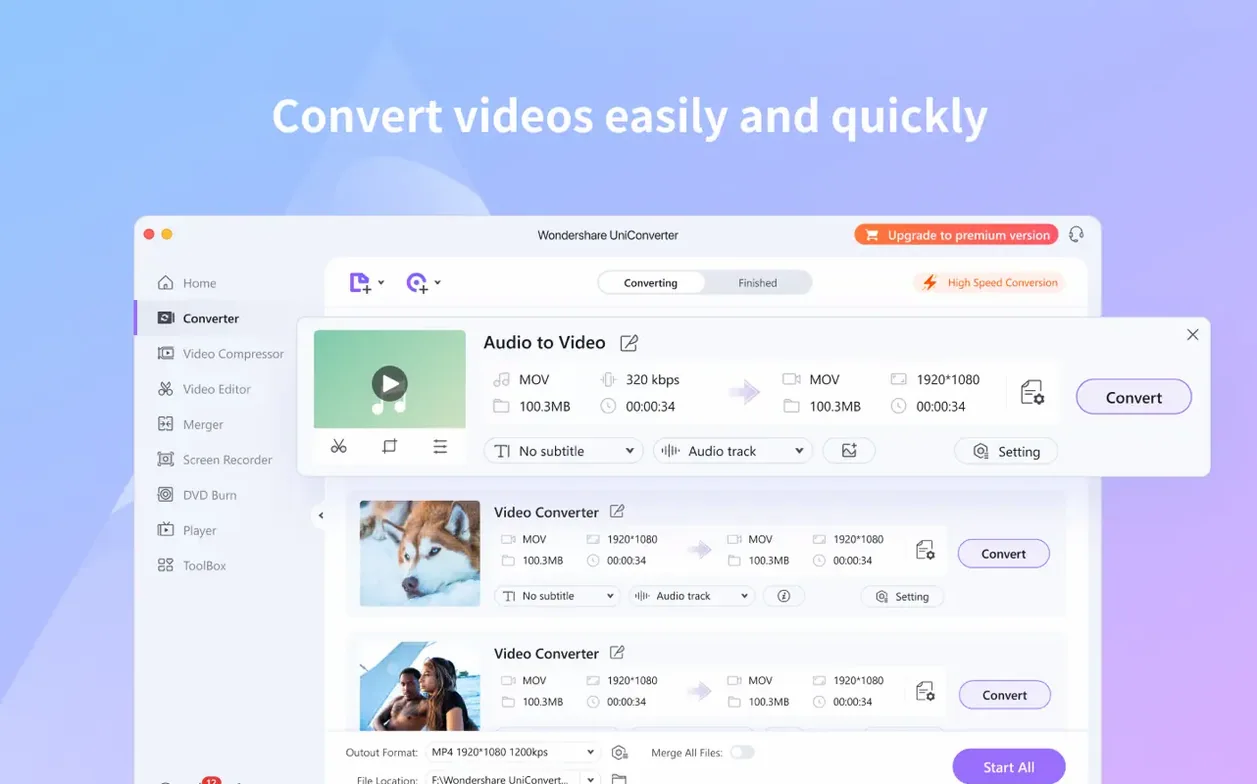
- Get the file in. Drag in just about anything — UniConverter supports over 159 formats. Whether it's an oddball AVI from a decade ago or a 4K clip from a modern drone, it lands on the timeline without fuss.
- Pick your output. The codec library includes presets tuned for Apple workflows. Need native ProRes or AVC-Intra for iMovie and Final Cut? That's covered. Grabbing just the audio from a video file or a DVD is one click away.
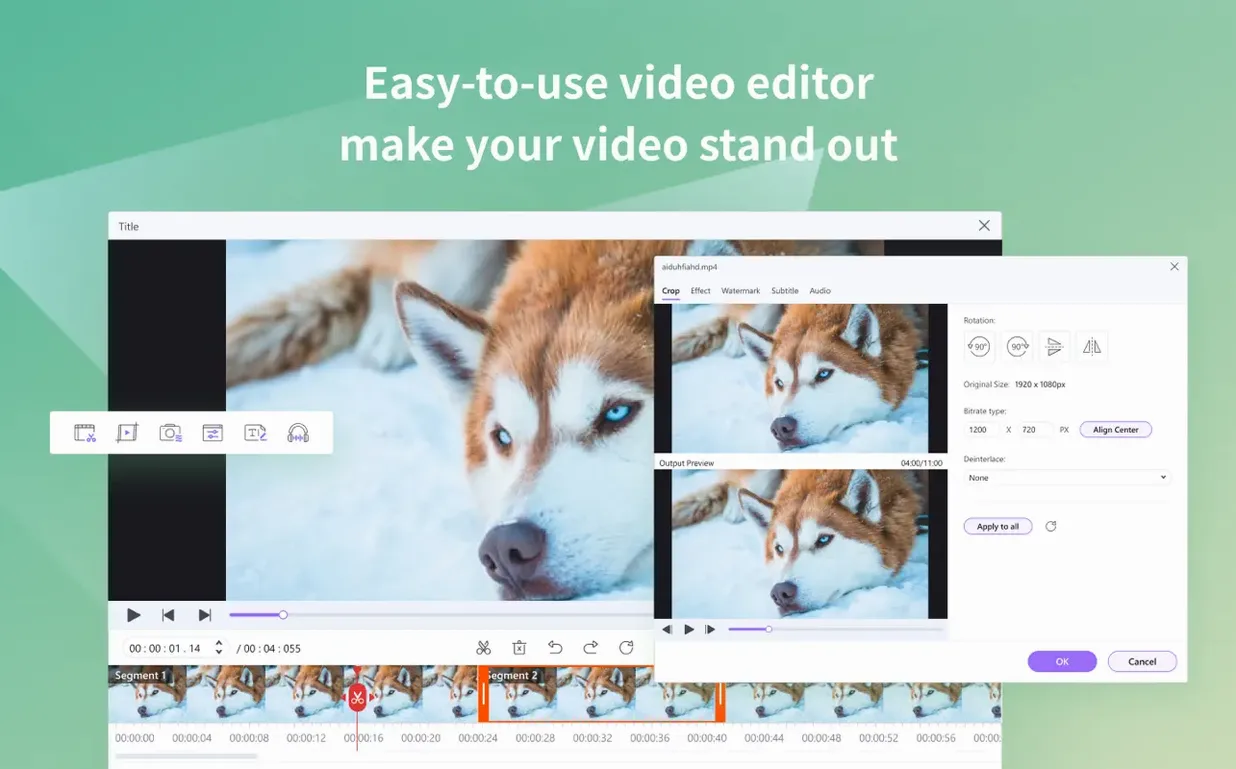
- Tidy up if needed. A built-in video editor lets you trim, crop, or add a watermark before converting. You can also split a long file into segments or merge several clips without opening a separate app.
- Send it off. Convert directly to watchable formats or burn a disc. The wireless transfer feature pushes the finished file to an iPhone or Android device over Wi-Fi, skipping the cable hunt.
The Mac version runs on both Apple Silicon and Intel machines, so it feels at home on any recent Mac. If you often find yourself explaining to QuickTime that a file really should play, this is a gentle utility to keep around.
How UniConverter Stacks Up Against Other Mac Converters
Mac users tend to land on one of three names when video conversion comes up: HandBrake, Permute, and Wondershare UniConverter. They overlap in places but each pulls in a different direction, and knowing the difference saves you from installing three apps when one will do.
HandBrake is the open-source workhorse. It is brilliant at compressing video and transcoding DVDs you have already ripped, but it stops there. No downloading from YouTube, no burning discs, no built-in trimming tools. If your only job is turning a video file into a smaller video file, HandBrake is enough. The moment you need to grab an online clip or crop out black bars, you are opening something else. UniConverter brings those extras under one roof — conversion is the center, not the whole picture.
Permute takes the opposite approach. It is a lightweight drag-and-drop converter that feels very Mac-like and does one thing elegantly. Permute supports far fewer input formats than UniConverter, ignores DVDs entirely, and has no editing panel. For a quick flip from MKV to MP4, it is lovely. For a morning where you need to download a tutorial from Vimeo, extract the Italian audio track, and burn a DVD for a client, Permute would stare at you blankly. UniConverter handles that whole chain.
Wondershare UniConverter sits in between as a Swiss Army knife. It converts as competently as HandBrake, covers more formats than Permute, and adds download, burn, transfer, and editing features neither rival touches. The trade-off is that it feels fuller — more menus, more tool panels — but that is the point. One app instead of three.
A Typical Session: Cleaning Up Old Vacation Footage
Picture a Saturday afternoon. You have a folder of clips from a trip to Kyoto — some from a Sony mirrorless camera, a couple of phone videos, and a few songs a friend sent as FLAC files that you want as ringtones. Here is how the next hour plays out inside UniConverter.
You open the app and the main converter window greets you with a large drop zone. Dragging six clips in takes two seconds. The file list shows thumbnails, codec details, and resolution for each — the phone videos are HEVC, the camera clips are XAVC-S, and one file is a 1080p MP4 you already trimmed months ago. No errors, no pop-ups asking for extra codecs.
Before converting, you notice one camera clip has a dark border along the bottom edge, leftover from a lens hood. You highlight it, click the crop icon in the toolbar, and drag the frame guide until the border disappears. Another clip runs too long at the end — a full minute of lens-cap footage. You open the trim panel, set the out-point to the moment you turned the camera off, and save the edit. No need to launch a separate editor.
Now the output. You want everything as 4K MP4 for archiving, with the audio tracks retained. You select the H.264 preset from the device-agnostic list, check that audio passthrough is on, and hit Convert. The batch processes in about twelve minutes on an M1 Mac, fans barely spinning. While that runs, you switch to the Audio tab, drag in the FLAC files, and tell UniConverter to spit out M4R ringtones. It finishes before the video queue does.
A Vlogger Who Posts Three Times a Week
Imagine someone running a small travel channel on YouTube. She films on a Canon EOS R6, edits in Final Cut, and posts 4K episodes every Tuesday and Friday. Her raw footage is 10-bit H.265, which Final Cut can handle, but her B-roll library has grown messy — old clips from a GoPro, a DJI drone, and even a borrowed Panasonic camcorder that recorded in AVCHD.
Her recurring headache is prepping that B-roll for quick access. She wants everything in ProRes 422 for smooth timeline scrubbing, and she wants inconsistent frame rates conformed to 23.976 fps. She opens UniConverter on a Friday, points it at a folder of fifty mixed clips, and sets the output to ProRes 422 with a forced frame rate. The batch conversion runs while she scripts the next episode. By the time she finishes her notes, the B-roll library is uniform, color-graded proxies are ready, and she has not opened Final Cut once. The built-in codec pack means iMovie and Final Cut recognize every converted file natively, no relinking or transcoding inside the editor.
From Downloaded Tutorial to Airplane-Ready iPad File
You find a ninety-minute Blender tutorial on YouTube the night before a long flight. The plane has no Wi-Fi, and your iPad only has VLC installed. UniConverter can bridge that gap in a clear sequence.
First, switch to the Downloader module and paste the YouTube URL. The app fetches the 1080p stream; you pick that resolution and save it to the desktop. The download takes four minutes on a decent connection. Next, drop the downloaded MP4 into the Converter panel. You know the iPad screen is smaller, so you set the output to iPad-compatible 1080p H.264 with a slightly reduced bitrate — smaller file, same visual quality at tablet distance. Before hitting Convert, you trim the first thirty seconds of intro graphics and the last minute of channel plugs. The trim tool moves frame-by-frame with arrow keys, so hitting the exact cut point is easy. Convert, wait five minutes, then open the Transfer tab. With the iPad on the same Wi-Fi network, UniConverter pushes the file directly to VLC's folder on the device. You board the plane, open VLC, and the tutorial is waiting.
The same workflow works for music playlists pulled from SoundCloud before a road trip, or a batch of cooking videos from Vimeo saved for a kitchen tablet. If someone is searching for a wondershare uniconverter 15 full setup to handle exactly this grab-convert-transfer pipeline, the pieces all live inside the same application.
For those who occasionally work with physical discs, the DVD module reads straight from a disc and writes to MP4, MOV, or a handful of audio formats. It respects chapter markers and lets you extract individual titles — handy when you only need the bonus interview from a concert DVD, not the whole two-hour show. The burning side works in the other direction: collect a folder of converted clips, arrange them in the DVD builder, and write a disc that plays in any living-room player. It is a niche feature in 2025, but if a client still asks for a physical copy, UniConverter does not leave you searching for a separate burning utility.
- OS X 10.11 or later
- Supports both Apple Silicon and Intel Macs
Questions I actually get
Can Wondershare UniConverter handle DVDs?
Yes, it can extract audio tracks from DVDs, convert DVD video directly to common digital formats, and burn video files or DVD folders back to disc.
Does it work on newer Apple Silicon Macs?
It does. The current version offers native support for both ARM-based Apple Silicon Macs and 64-bit Intel machines running OS X 10.11 or later.
Porch talk 0
Come in or pull up a chair to leave a comment.
Nobody has pulled up a chair yet. If you used it on a real Saturday, say what the hour was.
More for the same hour
Everything in Mac Apps
 Wondershare Recoverit
14.0.20.6 Mac Apps
212 MB
Wondershare Recoverit
14.0.20.6 Mac Apps
212 MB

 Wondershare Filmora
14.8.17 Mac Apps
924 MB
Wondershare Filmora
14.8.17 Mac Apps
924 MB

 Wirecast Pro
16.5.5 Mac Apps
Updated 820 MB
Wirecast Pro
16.5.5 Mac Apps
Updated 820 MB

 YT Saver
10.15.0 Mac Apps
115 MB
YT Saver
10.15.0 Mac Apps
115 MB

 Wipr
2.38 Mac Apps
7 MB
Wipr
2.38 Mac Apps
7 MB

 YTD Video Downloader PRO
7.8.0 Mac Apps
93 MB
YTD Video Downloader PRO
7.8.0 Mac Apps
93 MB
 WinZip Mac Pro
12.0.7282 Mac Apps
36 MB
WinZip Mac Pro
12.0.7282 Mac Apps
36 MB

 Wing Pro
11.1.0.0 Mac Apps
149 MB
Wing Pro
11.1.0.0 Mac Apps
149 MB