
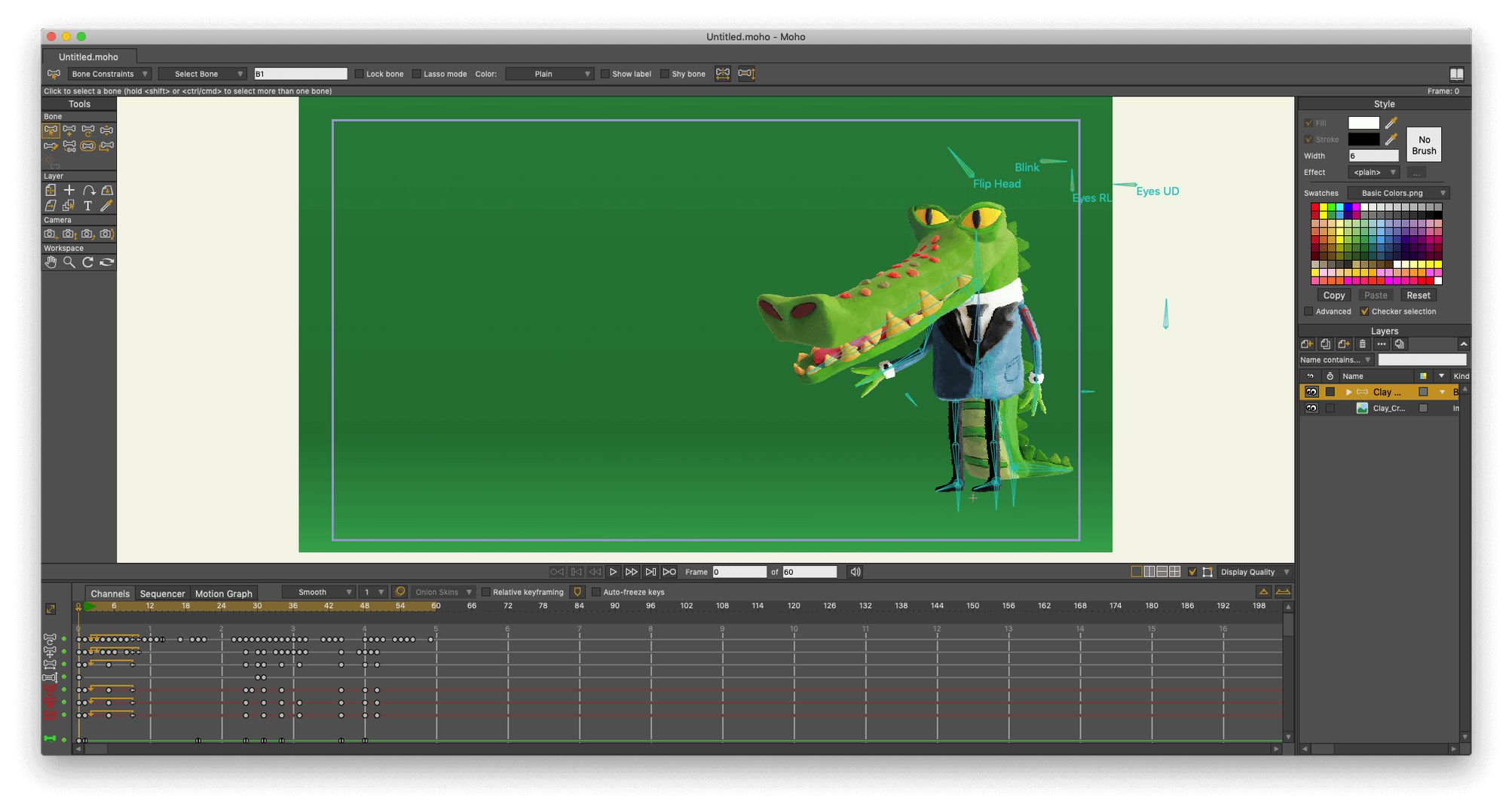
Moho has over 15 interface languages, and that range hints at who it's built for: animators everywhere who want a deep, dedicated 2D rigging and animation workspace. If you're opening it for the first time, skip the blank canvas jitters and head straight for a bone rig. The bone-binding system—where you pin vector art to a skeleton—is the heart of Moho, and a quick test with a simple character teaches you more in ten minutes than an hour of menu browsing.
Smart bones and built-in physics for fluid cut-out
- Cut-out animation that stays fluid, thanks to smart bone dynamics and mesh deformation
- Experimenting with motion physics—you can dial in density, gravity, friction, and elasticity per object and watch them collide naturally
- Bringing in layered Photoshop files to jumpstart a scene without redrawing assets
- Game developers who want direct export to Unity, Unreal, or Godot, plus the new glTF/GLB export for 3D pipelines
- Mixing 3D and 2D by importing Poser scenes as reference or background plates
A deep interface that rewards scripting patience
- The interface is deep rather than minimal—expect to spend time with the manual and the Lua 5.4.4 scripting layer if you want custom tools
- Full HD video import and export is here, but real-time playback depends on a graphics card with OpenGL 4.1 support
- Moho was formerly named Anime Studio Pro, so older tutorials may use that name
A character turn-around, from pencil to playhead
Let's walk through a common Moho task: building a four-view character turn-around for a game prototype. You've got front, three-quarter, and profile sketches scanned or drawn in another app. The goal is a rigged character that switches views smoothly when the game engine calls for it.
Start by importing each sketch as a reference layer. Drag them into the project, set opacity to about 40%, and lock them. On a fresh vector layer, trace the front view using the Add Point tool — fewer points now means cleaner deformations later. Once the front torso, head, and limbs are blocked in, group them inside a bone layer and build a skeleton that mirrors the character's actual joints. Name every bone. A bone called "Bone 1" tells you nothing six weeks from now; "upper_arm_L" does.
With the front rig tied down, duplicate the bone layer for the three-quarter view. Adjust the vector shapes to match the new angle — the shoulder narrows, one eye compresses, the hip rotates slightly. Repeat for the profile. Now you have three bone layers, each with its own vector art and skeleton. Drop them all inside a Switch layer, and Moho will let you flip between views with a single keyframe on the switch channel. For a game export, you'd bake each view into a spritesheet or export as a glTF file from Moho 14.4 — game engines pick up the bone hierarchy and switch animations without extra fuss.
Where Moho fits in a bigger toolset
Moho doesn't try to be a paint program or a video editor, and that's a quiet strength. A common setup around here pairs it with a bitmap app for texture work, a sound editor for scratch dialogue, and a compositor for final lighting passes.
On the Mac side, dropping a Photoshop file into Moho preserves layers as separate elements — great when a background painter hands you a layered .PSD of a forest set. Moho reads the layer names and stacking order, so a "tree_back" layer sits behind the character automatically. For sound, export a rough animation as an HD video file, pull it into your audio editor to sync lip shapes, then bring the timing notes back into Moho's sequencer. The built-in sequencer handles audio tracks directly, but splitting the work often feels more natural.
macOS's Quick Look integration is a small but handy piece of the puzzle. Moho project files show a thumbnail preview in Finder, so hunting through a folder of test rigs stops being a guessing game. And because Moho supports scripting through Lua 5.4.4, you can write a short script that exports layer comps to a watched folder, where a game engine build script picks them up automatically. It's the kind of quiet pipeline connection that saves an hour every sprint.
For anyone pulling down a moho for mac build to try out, the tip is to test the glTF export early, even with a simple bouncing ball rig. Drop the .glb into a Godot or Unity test scene and confirm the skeleton comes through before you build a thirty-layer character. Catching a bone naming mismatch late in production stings.
Binding bones without checking point influence first
The first three mistakes are practically tradition at this point, and they all circle back to bones and points.
Binding without checking the influence. Beginners often bind all vector layers to the bone layer with a single click and wonder why the eyebrow moves with the foot. Moho's flexi-binding is powerful, but it guesses based on proximity. After binding, grab the Manipulate Bones tool and wiggle each joint. If a stray point follows the wrong bone, open the Bone menu, choose "Release Points," and reassign. It's tedious the first time and fast the fiftieth.
Too many points on a single curve. The Add Point tool is generous, but a character arm traced with 80 points will deform into a crumpled sock when you rotate the elbow. Aim for the minimum points that hold the silhouette, then let Moho's curve handles do the smoothing. You can always add a few back where you need a sharp crease.
Ignoring the Z-depth of bones in a rig. Moho's 2D workspace has a third axis for bone ordering, and it matters. If the character's far arm bone sits above the torso bone in the hierarchy, it'll render in front during a turn. Shift the bone order in the timeline, or use animated bone depth, to keep the far arm behind the body when the character turns away from camera.
One more: newcomers who grab a Moho Pro torrent often miss that the scripting interface changed with version 14. Old Lua 5.1 snippets floating around forums won't run on the Lua 5.4.4 engine without tweaks. The syntax differences are small — mostly module loading and integer handling — but hunting for a "tools" folder that no longer exists is a Friday afternoon you won't get back. Stick to scripts tagged for Moho 14 or newer, or test with a print statement before trusting a ten-year-old forum post.
Moho 14.4 brings a few targeted updates for game developers and technical artists.
- New glTF/GLB export for moving rigged animations into game engines and 3D software
- Fixes and improvements to the particle system and layer handling
- The scripting interface now runs on Lua 5.4.4, which brings performance and library updates for custom tool builders
- macOS 10.15 or newer on a 64-bit system
- Intel or Apple Silicon Mac
- 2.0 GHz Intel Core i3 or higher
- 4 GB RAM or higher
- 1.6 GB free hard drive space
- Graphics card with OpenGL 4.1 support
- Online connection for product activation
Questions I actually get
What should I try first in Moho Pro?
Build a simple bone rig on a vector shape. The pin bones and manipulate bones tools will give you the quickest feel for how Moho animates.
Can Moho simulate real-world physics?
Yes. Moho includes physics simulation controls where you can set properties like density, gravity, friction, and elasticity on objects and let them interact automatically.
Does Moho work with game engines?
It integrates with Unity, Unreal, and Godot. Moho 14 also added glTF/GLB export for use with a wider range of 3D software and game engines.
Porch talk 0
Come in or pull up a chair to leave a comment.
Nobody has pulled up a chair yet. If you used it on a real Saturday, say what the hour was.