
Millumin V5 arrived spring 2025 and the 5.14.j update keeps it running on macOS Tahoe 26 and Golden Gate 27. The timeline-driven workspace remains the heart of the app — a clean place to build theater cues, videomapping sequences and interactive installations without piling up separate utilities.
- Start a new project and set your canvas to match the projector or LED wall resolution you'll use on site.
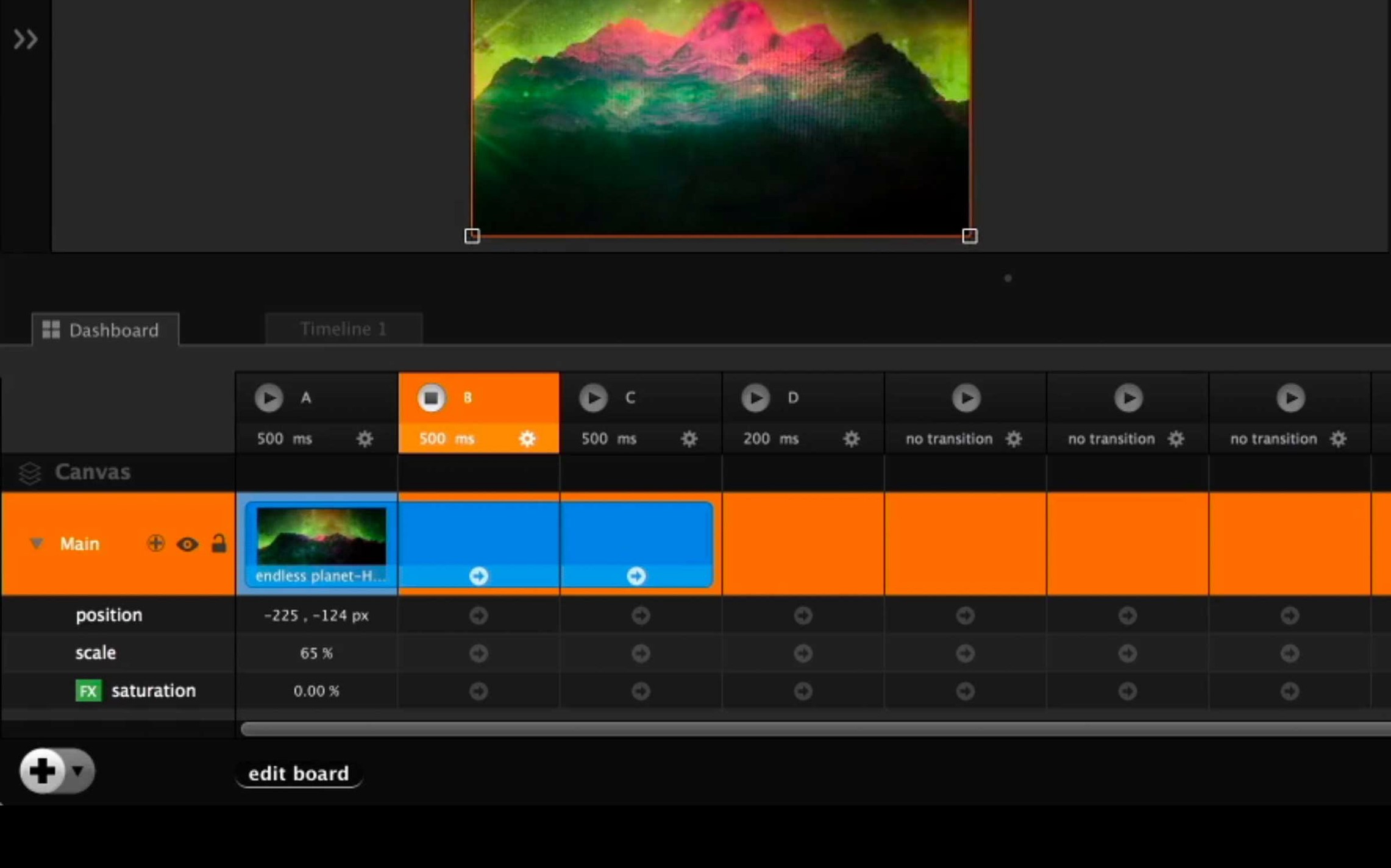
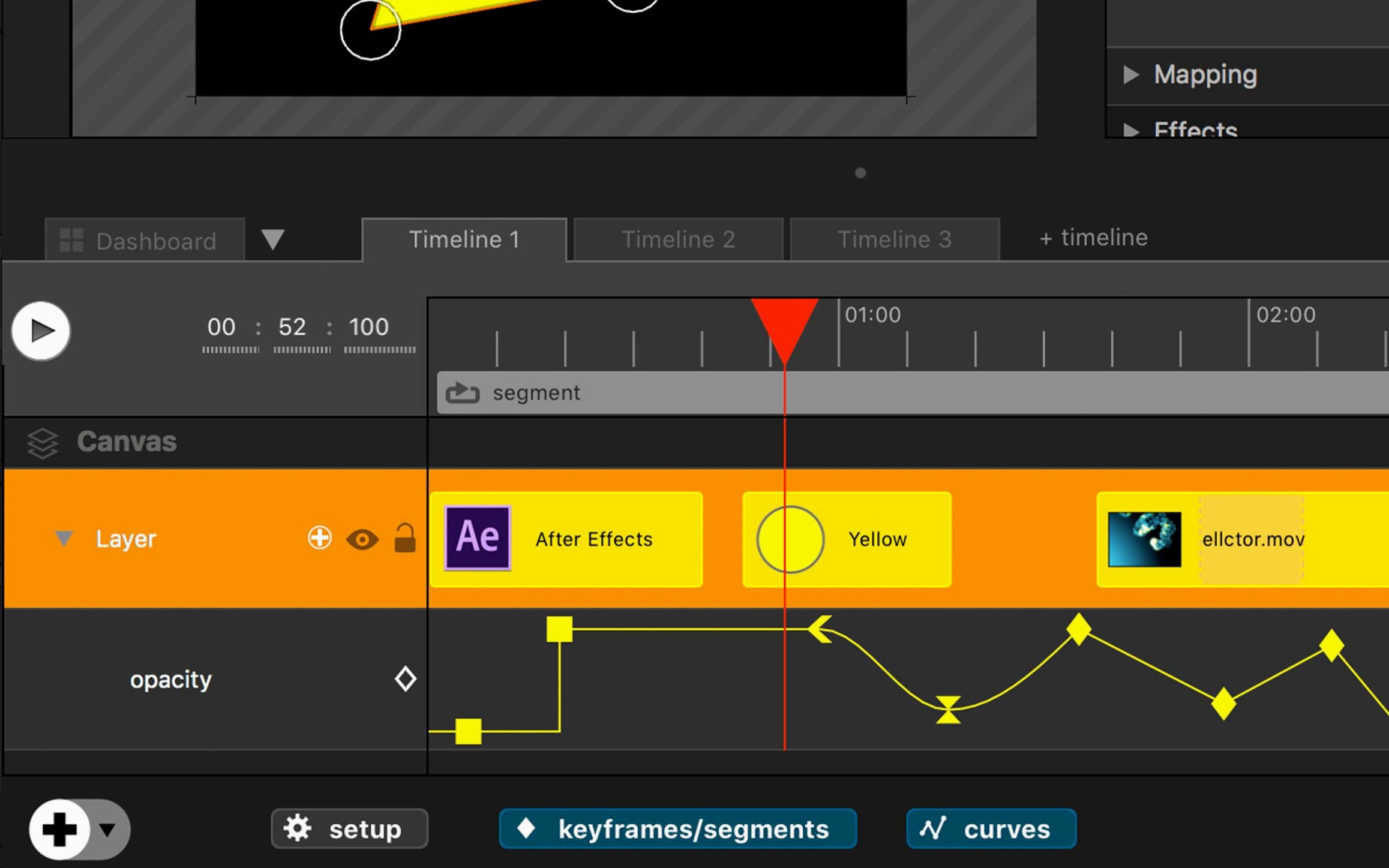
- Drag video clips, stills and live camera feeds onto the timeline, then split and trim them right on the track.
- Add a Syphon or NDI source from another Mac on the network — Millumin sees it as just another layer you can fade, mask or key.
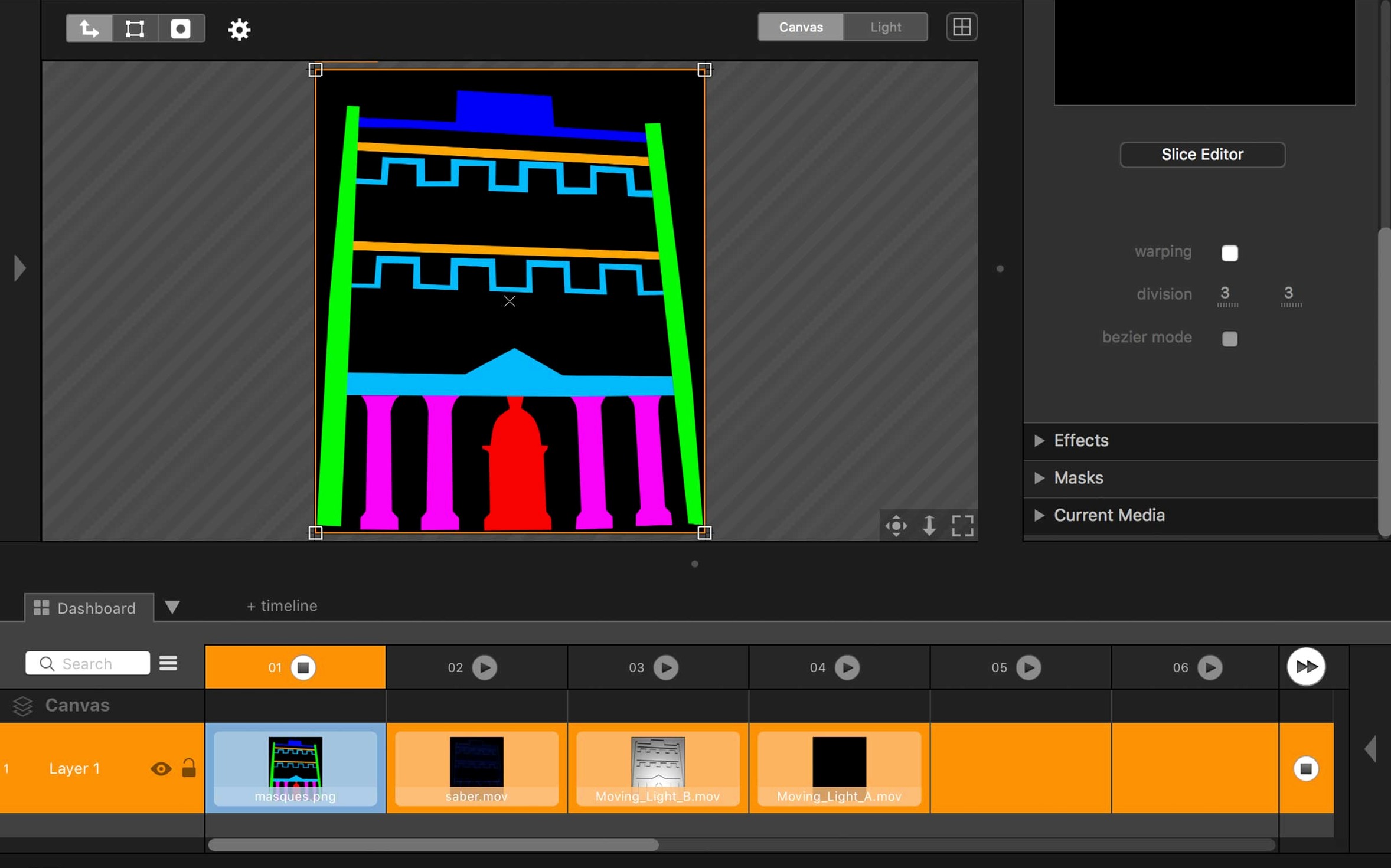
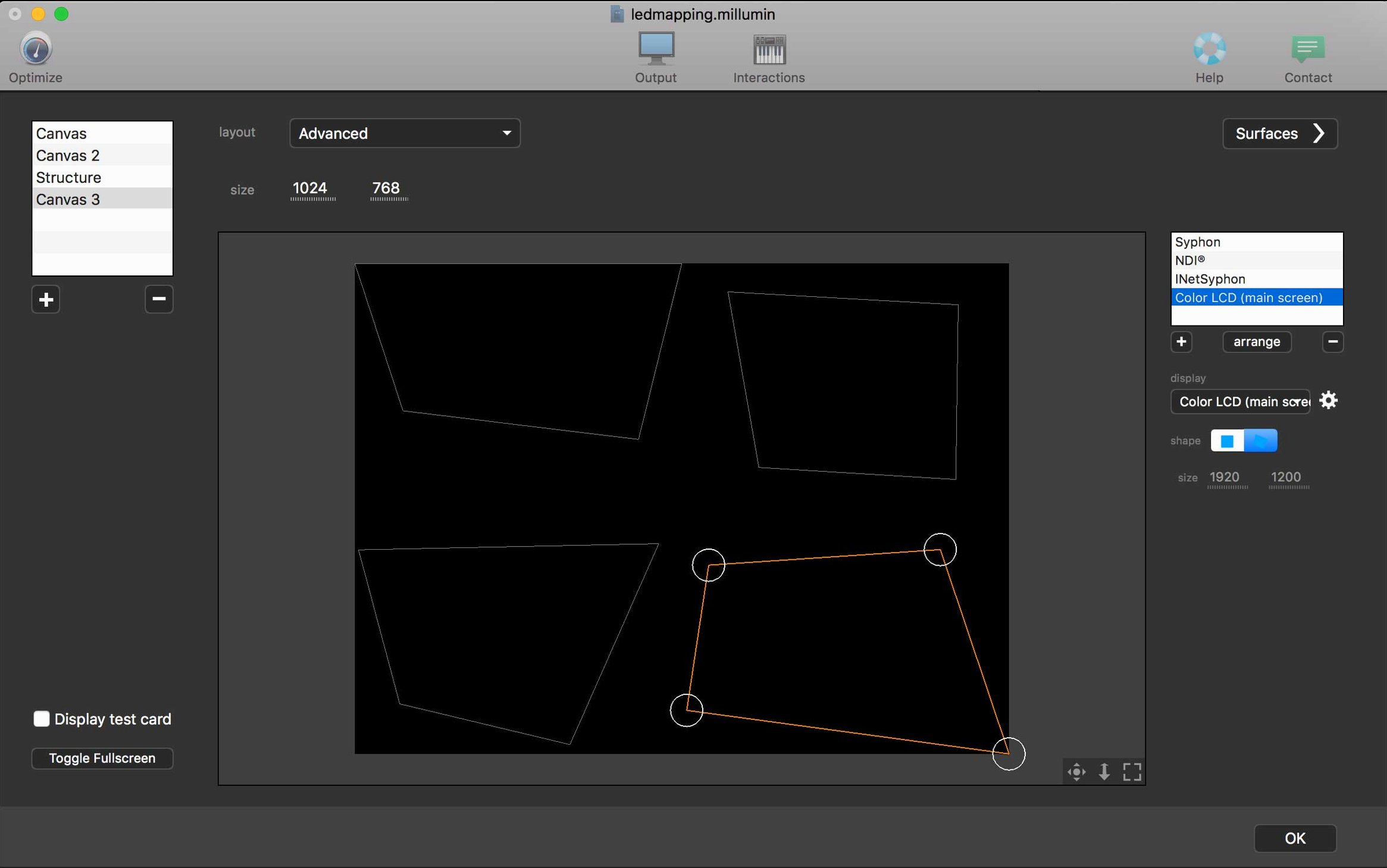
- Draw a few mask shapes on a layer to rough out a building facade map, then fine-tune the corners while the clip plays underneath.
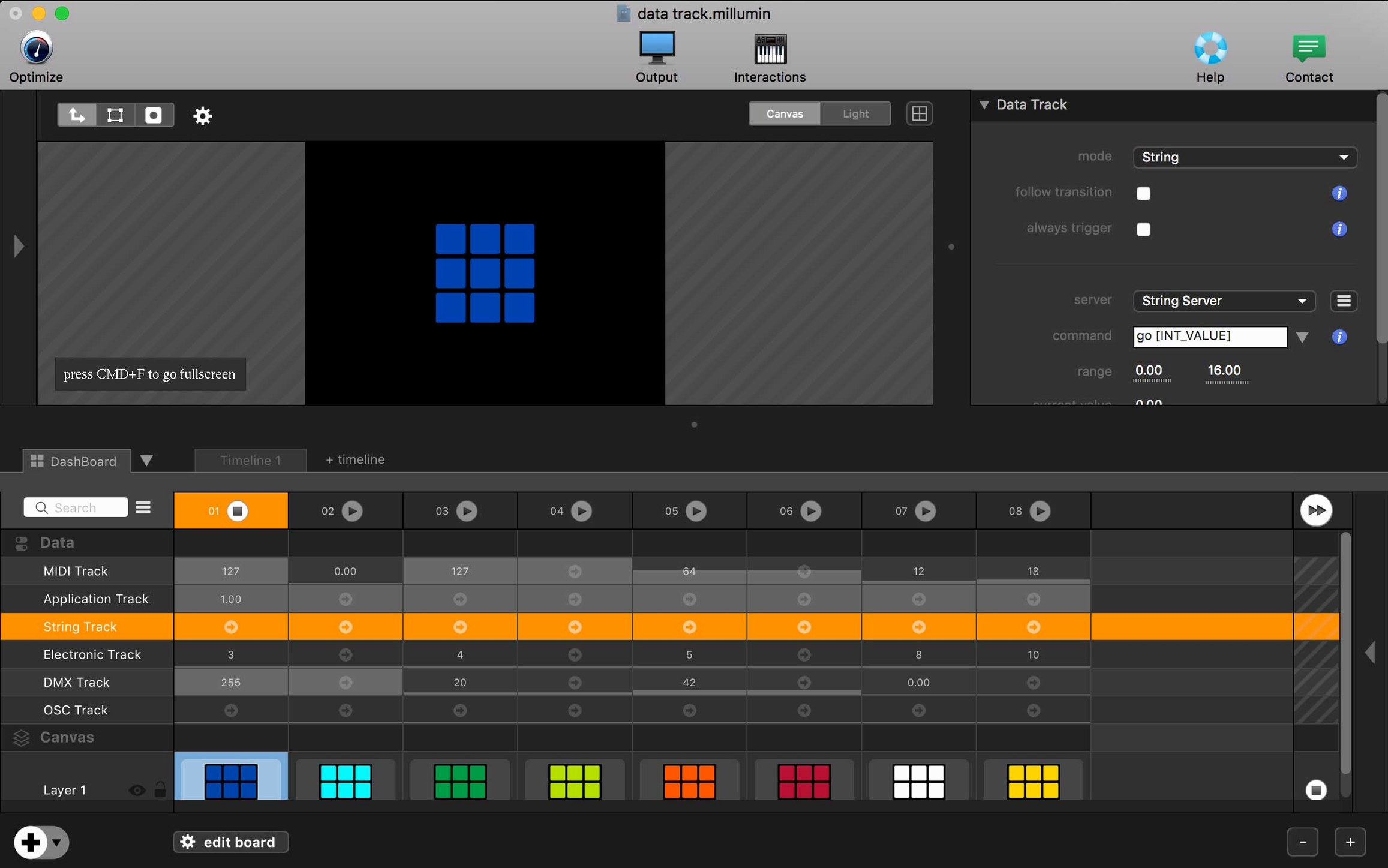
- Drop an OSC or MIDI cue marker on the timeline so a lighting board or sensor triggers the next scene change at the right moment.
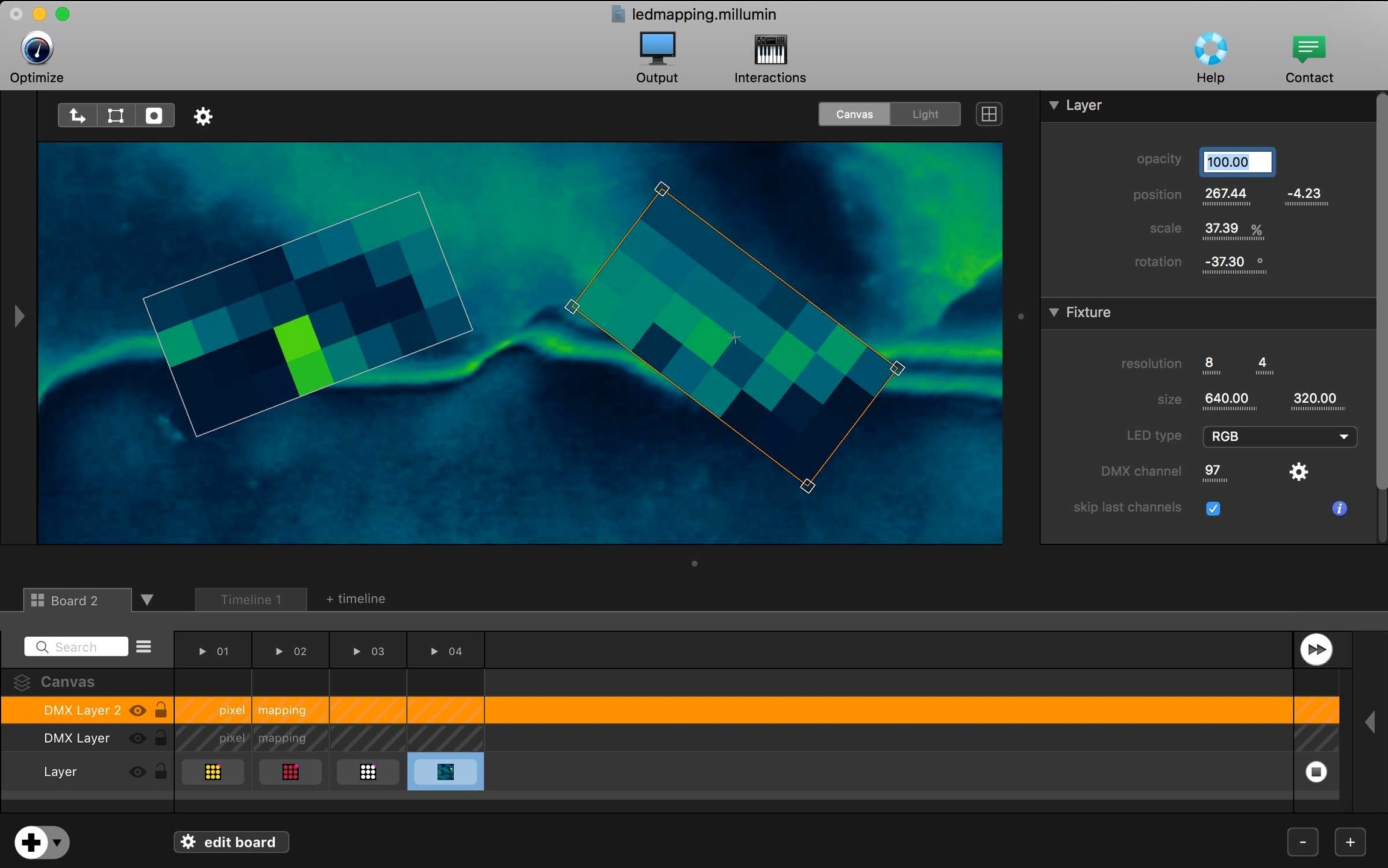
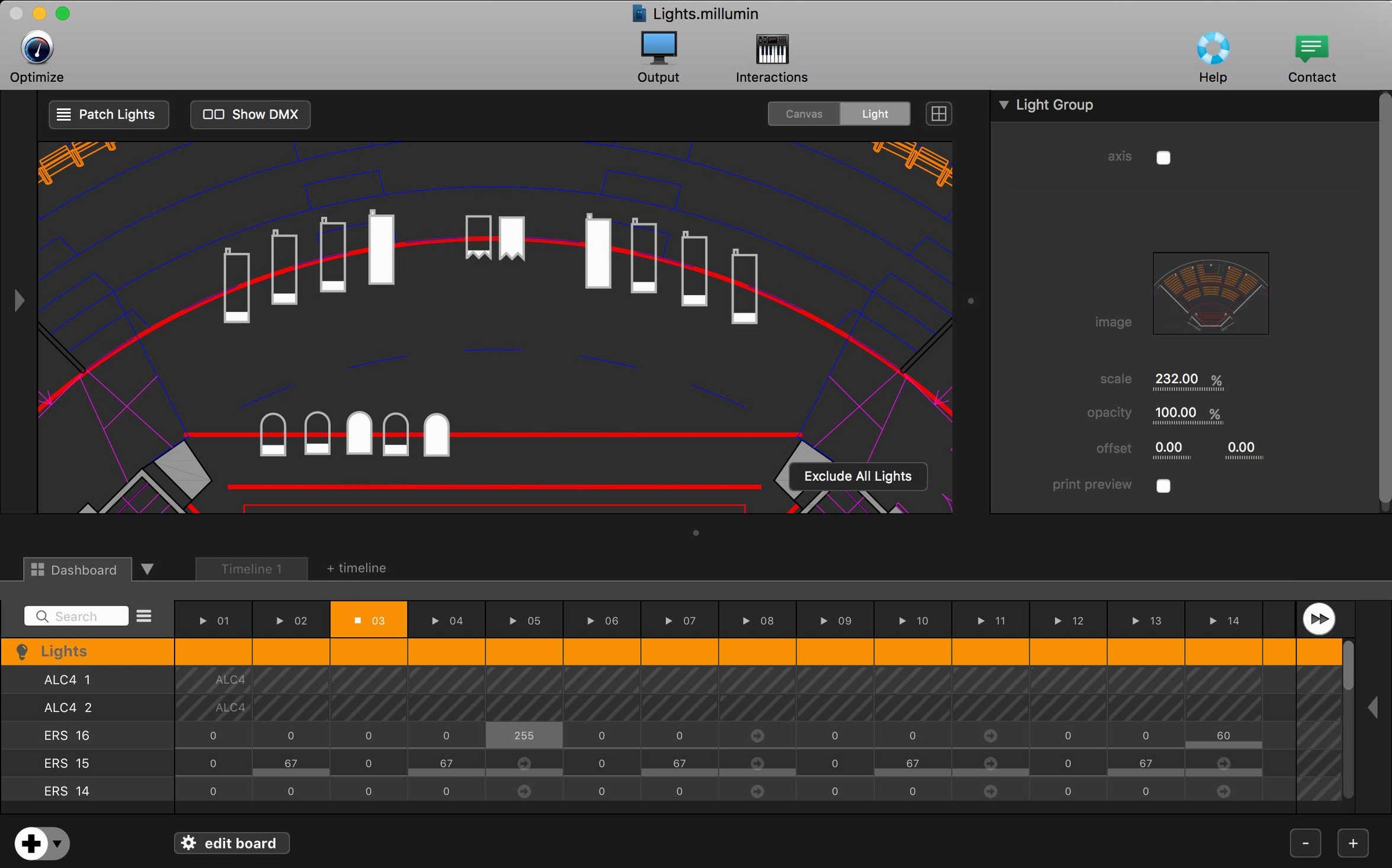
- Patch a DMX universe to a color board and let a video clip drive moving-head colors in step with the soundtrack.
If your work sits at the intersection of video, light and live input, the timeline approach in Millumin 5 turns a sprawling tech setup into something you can shape and rehearse on one Mac.
Millumin alongside Isadora, QLab and MadMapper
Three names surface regularly in conversations about Mac-based show control, and each carves out its own territory. Isadora leans hard into the node‑and‑patch approach — you connect processing actors with virtual cables, which suits generative installations and experimental dance pieces where the logic changes every season. Millumin thinks in a timeline; you lay out scenes left to right, drop in cues, and watch the whole arc play through. If your brain tracks a show as a sequence of minutes and seconds, the timeline feels more direct than a canvas full of nodes.
QLab dominates straight‑ahead theatre cueing — audio, lighting and projection triggered from a single go button. Its video engine handles multi‑screen outputs cleanly, but Millumin pushes further when you need to map onto irregular surfaces, feed live cameras through effects, or talk to DMX lights without a separate console. Many designers run QLab for the audio stack and route MIDI commands into Millumin for the visual and lighting side; the two get along that way.
MadMapper is the specialist for projection mapping and light‑show programming. It can turn a stack of flat shapes into a cathedral facade faster than most tools, and its material editor rewards tinkerers. Millumin moves mapping inside a broader timeline workflow — you shape masks on the same board where you sequence cues, so a mapped scene shares real estate with video playback, DMX patches and OSC triggers. For a single‑projector setup or a modest three‑projector blend, Millumin handles mapping without needing a separate application. If the gig demands a dozen projectors across curved surfaces, MadMapper still has the edge, but a lot of shows fall well inside Millumin’s comfort zone.
Taming network‑feed stutter from venue switches
Network‑fed sources cause the most early headaches. A Syphon or NDI stream that works flawlessly on a test bench can stutter when the venue’s switch pushes multicast traffic to every port. Lock the source Mac and the Millumin machine to the same VLAN, or bring a small dedicated switch that you control. The millumin 5 download page includes tutorial links for setting NDI discovery properly — worth five minutes before you leave the workshop.
DMX patching trips up newcomers who expect Art‑Net to behave like a physical dimmer rack. Millumin’s DMX output defaults to a universe‑per‑interface layout; if your fixture profile expects universe 1 but the app sends on universe 0, nothing lights up. Open the DMX workspace, check the universe numbering, and match it to what the node or visualizer expects. A cheap DMX tester app on a phone can verify the signal reaches the cable before you blame the software.
Older Intel Macs with integrated graphics can bog down when three 4K layers run through blend modes and masks simultaneously. Reduce the canvas resolution during rehearsals, set the timeline preview to half quality, and bounce back to full resolution only for the tech run. Millumin leans on the GPU for compositing, so closing other graphics‑heavy apps — browser windows full of animated ads, for example — frees headroom.
Some users search for a millumin crack because they want to test mapping features on‑site without a full setup. The 5.14.j build activates cleanly with the TNT team method, so you get a stable environment with full codec support right from the start. If a video layer refuses to play a specific H.264 file, try converting it to ProRes LT — Millumin handles that format with far less CPU overhead and frame‑accurate seeking on every Intel Mac back to the Big Sur era.
First‑day moves after installing
The first launch feels quiet — a blank canvas and a timeline waiting. Don’t jump straight into a show file. Create a sandbox project instead. Drop a short video loop and a still image onto separate columns, then add a third column with a live Syphon feed if you have a capture app handy. This three‑layer stack teaches you layer ordering, opacity fades and column triggers in ten minutes without risking a real cue list.
Next, open the mapping workspace and draw three simple quads on the preview. Assign each to a different layer. The muscle memory of switching between timeline view and mapping view matters more than the actual shapes; you’ll toggle between them constantly in a real show. While you’re there, test the corner‑pin handles — hold Option while dragging to scale from the center, a shortcut that saves frustration when lining up a quick throw on a tilted screen.
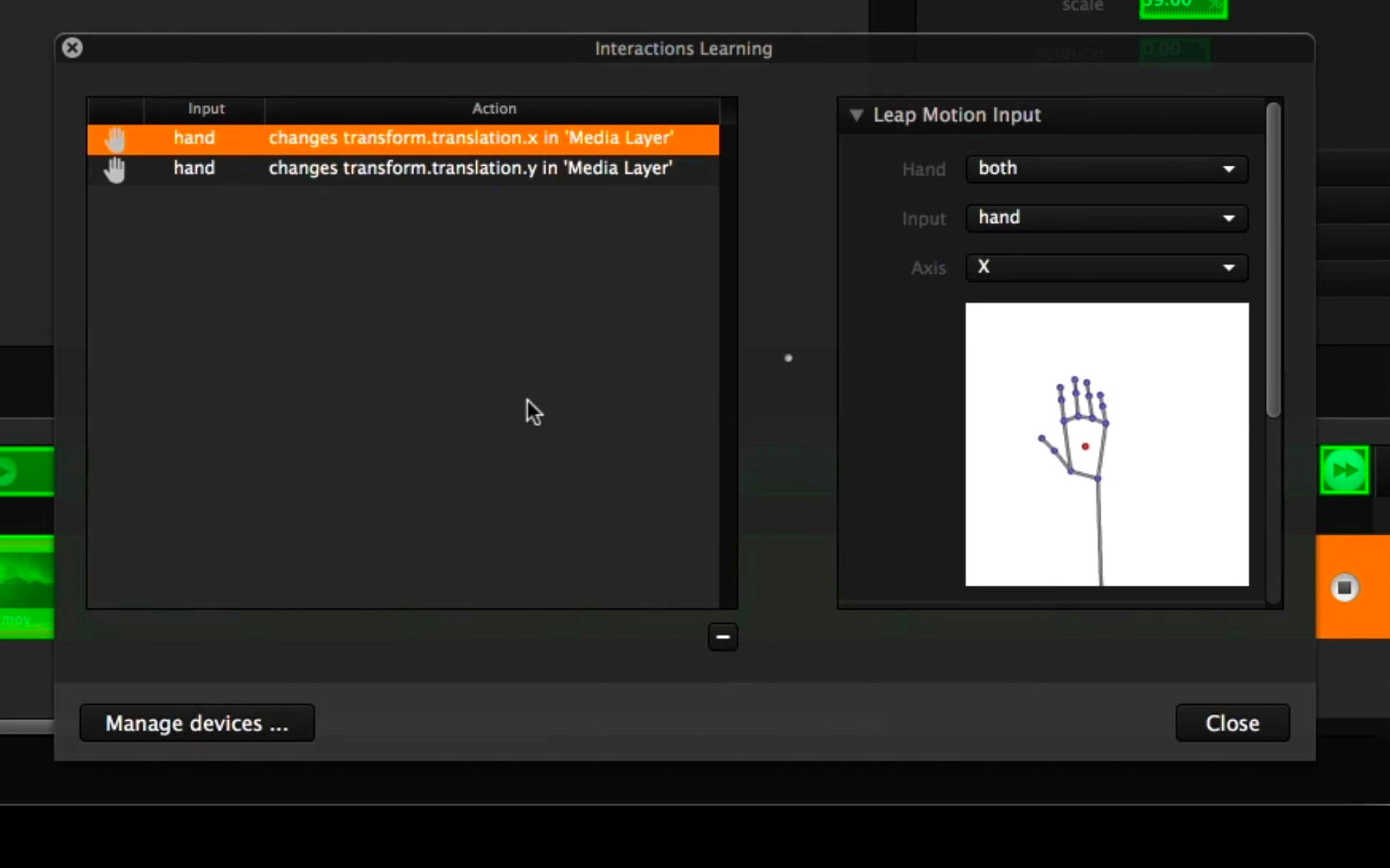
Before you close the sandbox, open the cue inspector and assign a MIDI note to one column trigger. Tap it from a controller or a MIDI keyboard. The green flash on the column confirms the link works. If you’re planning an interactive installation, search “millumin 5” in your browser — the developer’s tutorial section includes quick recipes for connecting Arduino‑fed OSC messages that turn sensors into timeline commands.
Finally, spend twenty minutes with the contextual help panel. Click the question‑mark icon inside any inspector, and Millumin drops you into the relevant section of the online guide. The documentation covers DMX profiles, OSC address patterns and multi‑screen setups with practical examples rather than dry reference lists. Even a quick skim of the “Time & Cues” chapter will surface a few workflow shortcuts that most people only discover months in. A millumin 4 download might still work for older macOS setups, but the V5 help center assumes the current timeline engine, so staying inside version 5 keeps the advice accurate.
- macOS 11 Big Sur or later
- Intel 64-bit processor
- English interface
Questions I actually get
What macOS version does Millumin 5 require?
Millumin V5 needs macOS 11 Big Sur or later and runs on Intel 64-bit Macs, including recent releases up to Tahoe 26 and Golden Gate 27.
What kinds of shows can I build with Millumin?
It is built for theater productions, dance performances, videomapping and interactive installations where video, audio and lighting cues need to run together.
Porch talk 0
Come in or pull up a chair to leave a comment.
Nobody has pulled up a chair yet. If you used it on a real Saturday, say what the hour was.