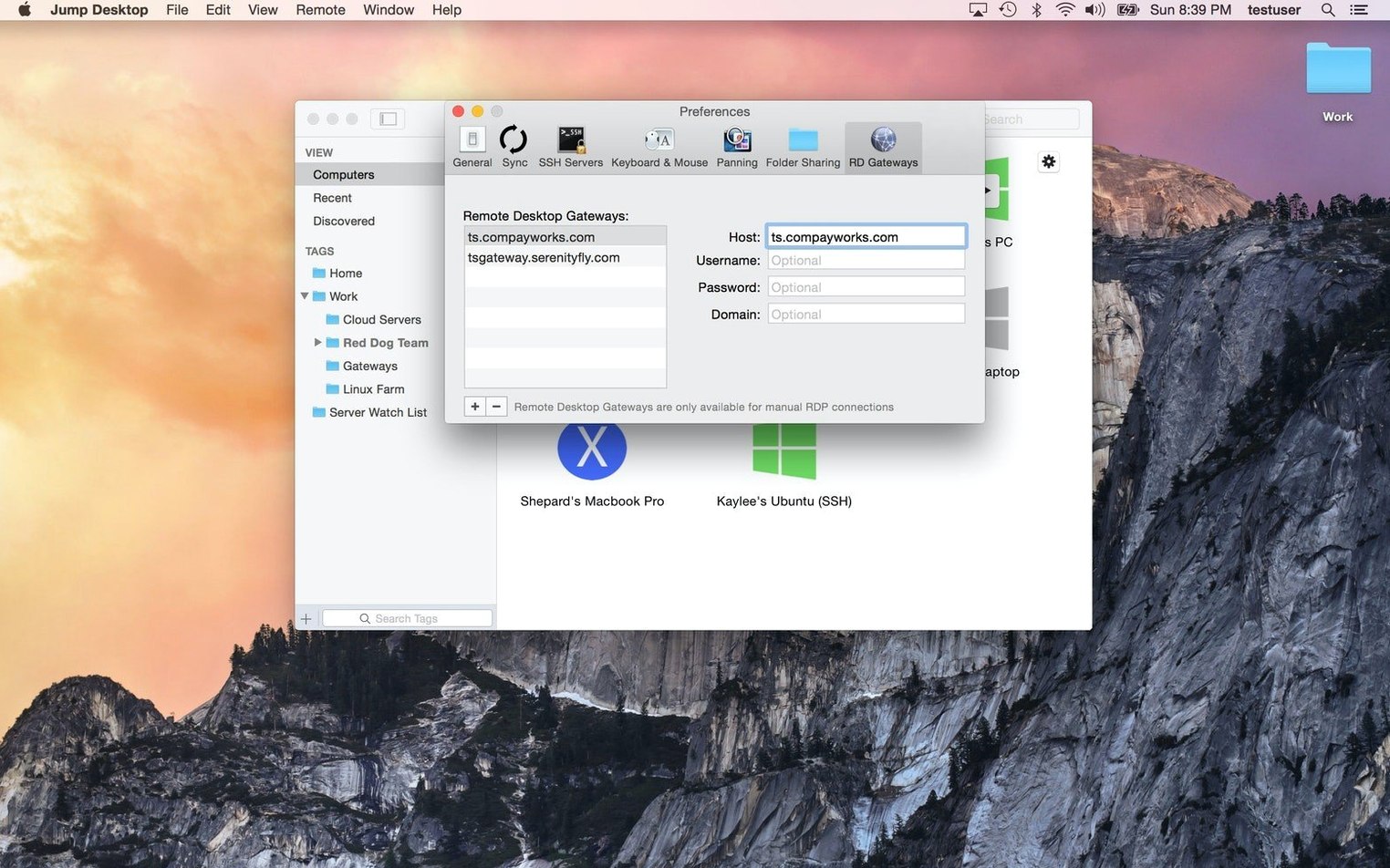
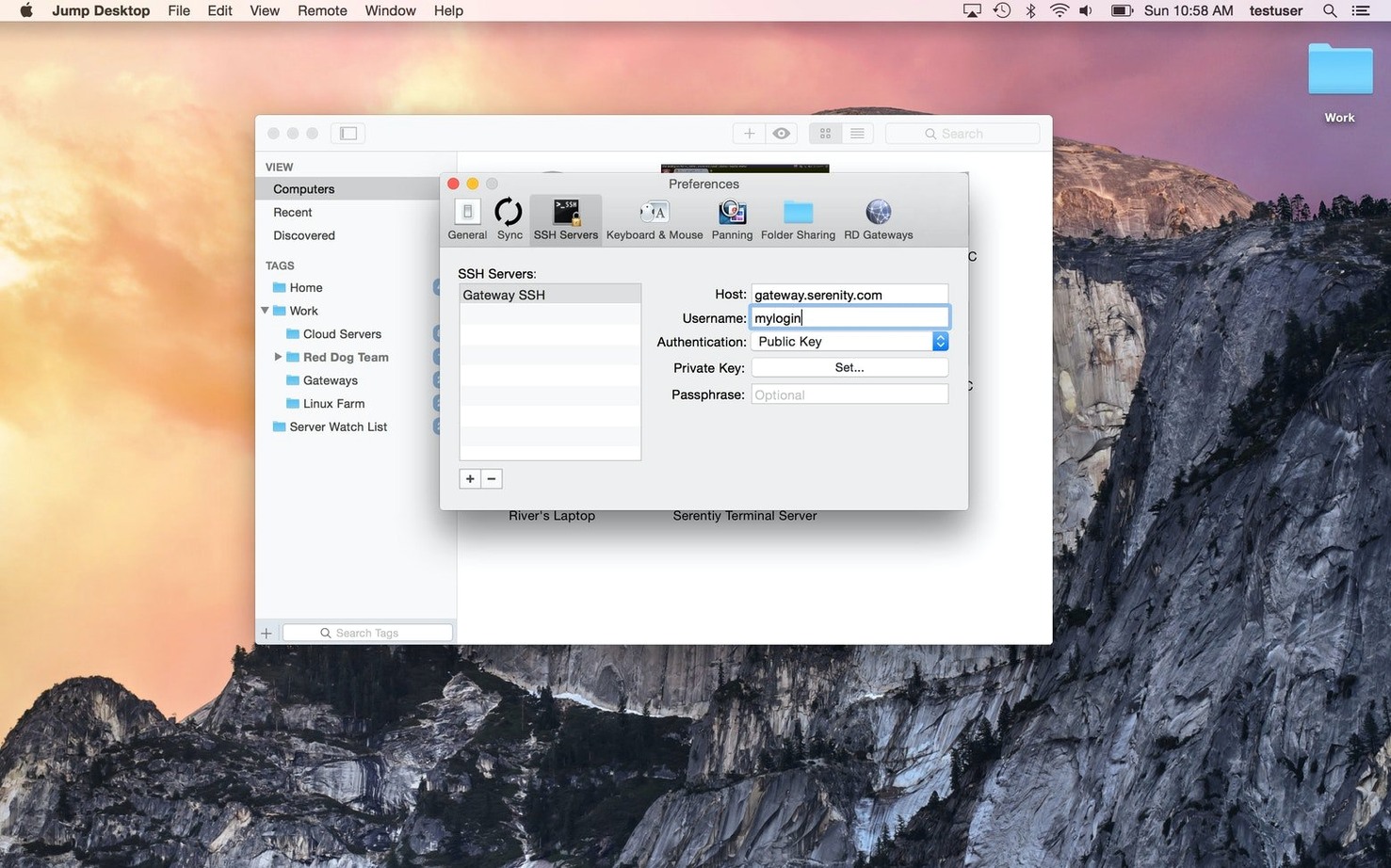
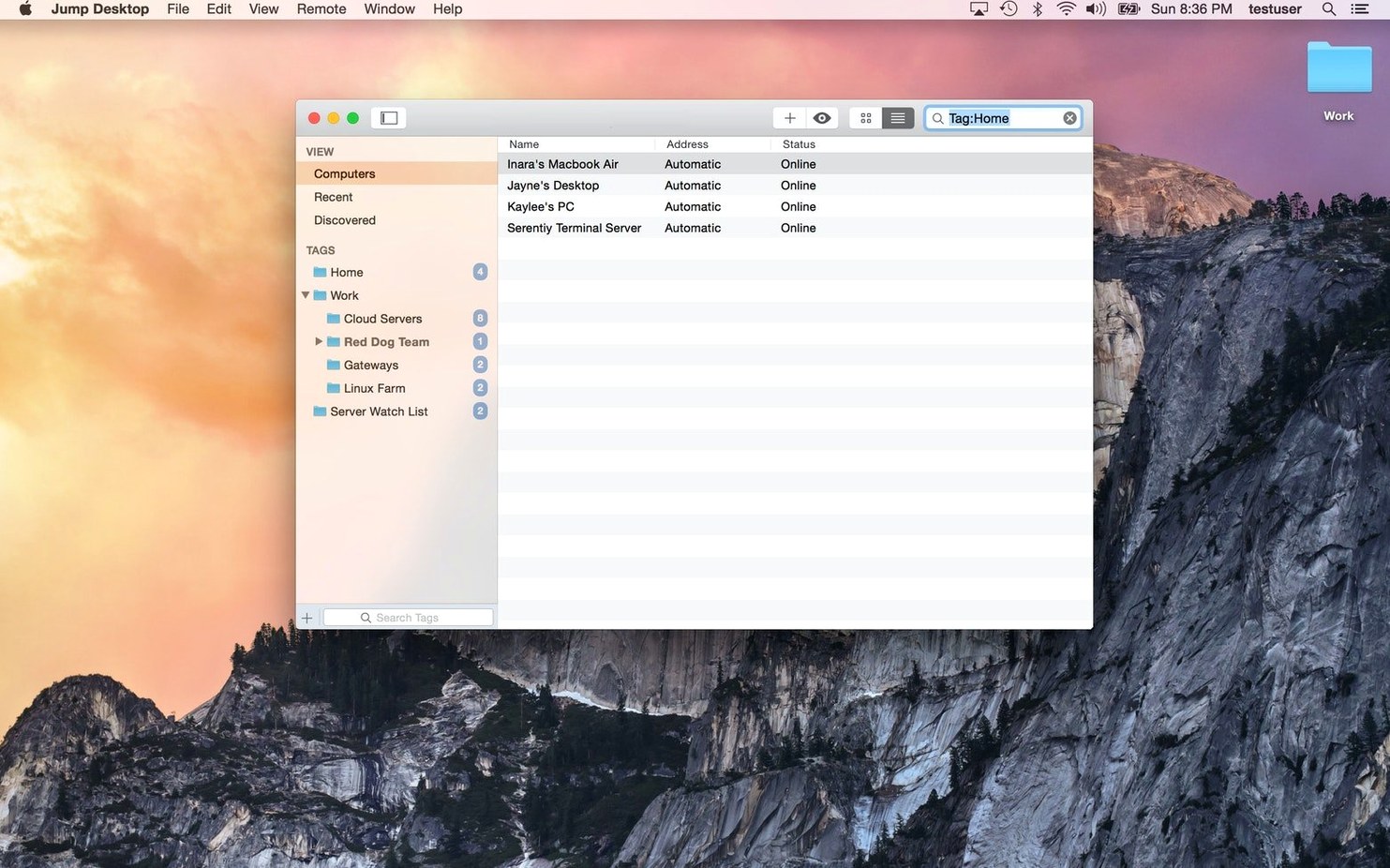
If you've ever used Screen Sharing on a local network and wished it could reach further, Jump Desktop feels like that same direct connection without the fence. It's a straightforward client for reaching Macs, PCs, and standard VNC hosts, built around the idea that you shouldn't need a networking degree to grab a file from your office iMac while sitting on the couch.
- Sign in with any email or a Google account to link your devices—no port forwarding required when you install the free Jump Desktop Connect companion on the target computer.
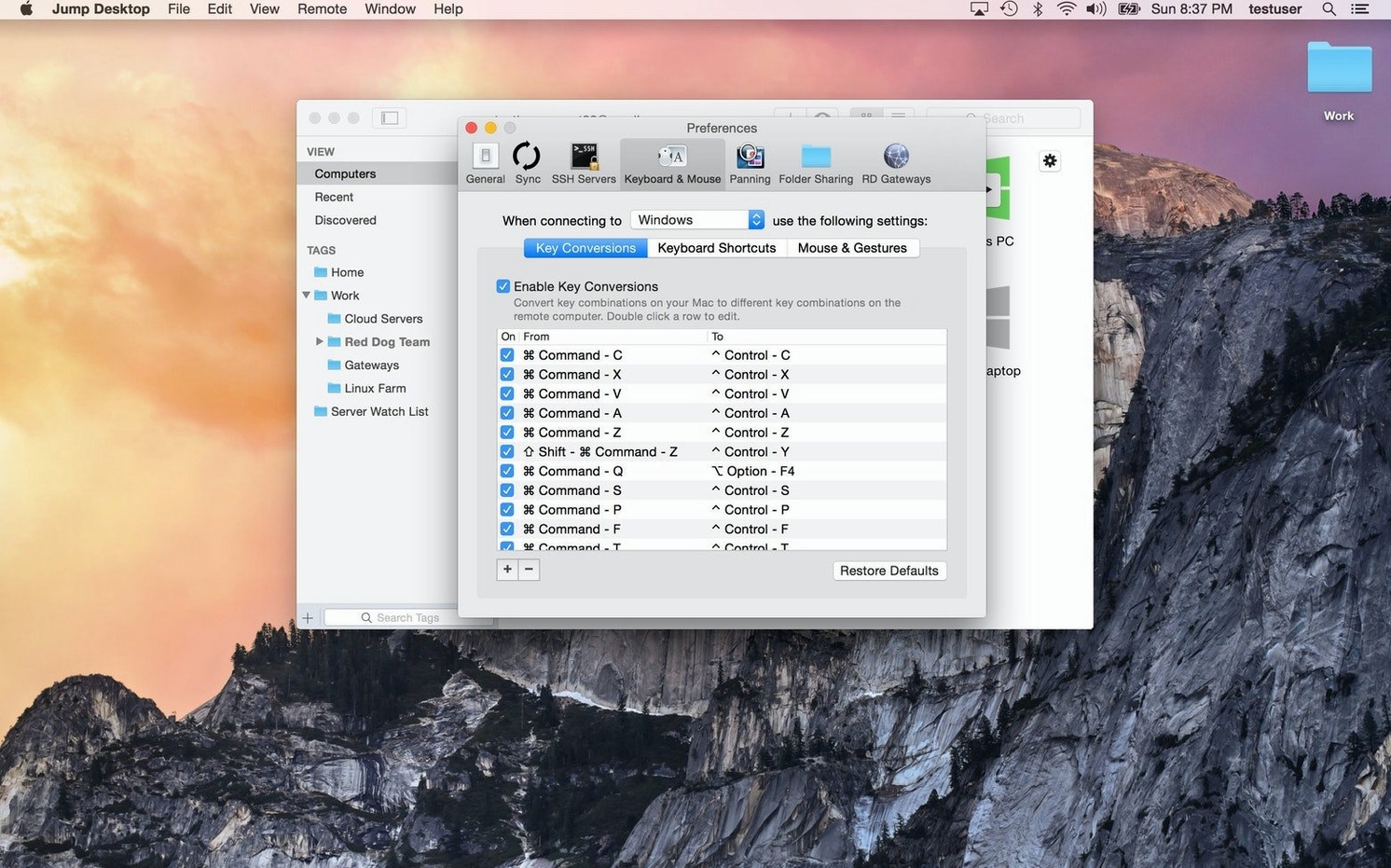
- Control Windows and Mac machines side by side, with keyboard shortcuts that automatically remap so Command+C stays Command+C, not Alt+C.
- Drag and drop files between your local desktop and the remote machine without opening a separate transfer tool.
- Tap into any standard VNC or RDP server if you're connecting to a machine that already has a server running.
- Scale the remote display to fit your screen or pixel-match it for precision work with graphics tools.
The setup path worth trying: install the Connect helper on the Mac or PC you want to reach, sign in on both ends, and it appears in your list. From there, clipboard sharing and file transfers just work. If you split time between a desktop workstation and a laptop, or help family with tech support from across town, this one clicks into place without ceremony.
Remoting into a Mac Studio from a Coffee Shop MacBook Air
It's a Tuesday morning and I'm at a coffee shop with a MacBook Air, but the Photoshop file I need lives on the Mac Studio back at the apartment. I open Jump Desktop and there it is in my machine list—the Connect helper has kept the link alive overnight. Double-click, and within three seconds the Studio's desktop fills my screen, dual-monitor layout and all.
I switch to a single-window view because the 13-inch display gets cramped with two virtual screens. The resolution scales smoothly, and I can read the layer names without squinting. I open Finder, grab the PSD, and drag it straight to a folder on my local desktop. The transfer bar flickers briefly—about 200 MB—and then it's done. No cloud service, no upload, just a direct tunnel from one machine to the other.
Next I need to tweak a setting in Windows on the Intel NUC I use for testing. I select it from the sidebar, and Jump Desktop swaps the keyboard layout on the fly. Ctrl becomes Command, the Windows key turns into Option, and muscle memory doesn't stumble. After a quick restart of a service, I disconnect and close the lid. The whole session took maybe eight minutes, and I never thought about IP addresses once.
Resurrecting the Connect Helper When It Won’t Connect
Remote desktop software can be smooth until one piece shifts, and then you're staring at a connection error. Here are a few bumps that show up with Jump Desktop and what I do when they appear.
The Connect helper isn't showing the target machine. This usually means the helper isn't running or it lost its sign-in. On the remote Mac, look for the Jump Desktop Connect icon in the menu bar. If it's missing, launch it from the Applications folder. If it's grayed out, sign out and back in with the same email you use on the client. Firewall prompts can silently block it, so check System Settings > Network > Firewall and make sure incoming connections are allowed for the helper.
RDP connections feel sluggish on a fast network. By default, Jump Desktop sometimes picks a color depth and resolution that lean toward quality over speed. Open the connection settings for that machine, switch the display mode from "Automatic" to "Smooth" or "Fluid," and drop the color quality a notch. The difference on a 5K iMac connection over Wi-Fi can be night and day.
Clipboard sharing works one way or not at all. On the target Mac, open System Settings > Privacy & Security > Accessibility and confirm that Jump Desktop Connect has permission. Without it, the app can't read the clipboard on that end. On Windows, the same fix lives under the RDP session's local resources tab—make sure clipboard is checked there, not just in the Jump Desktop preferences.
Fixing Carla’s Printer on Her Dell Without Leaving Home
My friend Carla runs a small bookkeeping practice from her home office. She uses a Dell laptop for QuickBooks and a Mac mini for everything else. When her printer stops talking to Windows, I don't drive across town—I connect through Jump Desktop.
She texts me, I open my Mac, and her Dell appears in the sidebar because I set up the Connect helper during a visit months ago. The screen wakes up, and I'm inside her Windows session in seconds. I right-click the printer queue, clear a stuck job, and test a page. She watches the cursor move on her end, learns what I clicked, and next time she'll fix it herself. The whole call takes under five minutes, and I never left my desk.
For anyone balancing a few machines across different locations—whether you're the family tech person or a freelancer who hops between a desktop and a laptop—Jump Desktop earns its spot on the dock. The companion helper does the heavy lifting, and the client stays out of your way until you need it.
A big one here — Jump Desktop 10 really stretches its legs. The headliner is the framerate: you can now push up to 480 frames per second to keep games, scrolling and fast motion butter-smooth on high-refresh-rate screens. Leave the setting on Auto and it follows your display's pace on its own.
Under the hood, hardware encoding is now an option. Choose Codec > Hardware and you get sharper detail at the same bandwidth, plus the host sips less CPU and your Mac runs longer on battery. On the display side, virtual displays got a serious overhaul — save and switch presets, dial in an exact resolution, scale and refresh rate, and use the new Keep After Disconnect toggle to leave those displays on the host between visits.
For anyone who works with their hands, USB device redirection lets you plug in the gear on your desk and have a Windows or Mac host see it natively. Game controller support means the controller in your hands plays the game running on a remote machine. Creative folks get two thoughtful touches: Input Trail shows stylus and mouse strokes right away even on high-latency connections, and Color Passthrough hands the host's colors straight through to your calibrated display without processing.
Everyday work gets some polish too — back and forward mouse buttons, pinch-to-zoom on a trackpad, and more reliable text composition for Chinese, Japanese and Korean.
A handful of fixes round things out. The macOS input-source shortcut (Control+Space) now switches your local keyboard instead of getting eaten by the host in Fluid sessions; if you turn that shortcut off in macOS, the keys go to the host like before. Wake-on-LAN sends fewer wake packets, and the app no longer auto-reconnects to a host you deliberately put to sleep or shut down. Crashes on quit, crashes on launch when a saved computer had no name, and a jumpy mouse-wheel notch that would send a video-editing timeline flying off the rails — all fixed. Virtual display presets now apply properly, USB redirection works with finicky devices like color grading panels, RDP sessions respect custom resolutions, full-screen RDP on stacked displays no longer swaps the taskbar to the wrong screen, and Japanese Eisu and Kana keys behave in Fluid sessions. Security updates are baked in too.
- macOS 11 or later
- Apple Silicon or Intel 64-bit
Questions I actually get
Do I need to install something on the computer I want to reach?
For easy setup without manual network configuration, you install the free Jump Desktop Connect companion app on the target Mac or PC and sign in with the same account.
Porch talk 0
Come in or pull up a chair to leave a comment.
Nobody has pulled up a chair yet. If you used it on a real Saturday, say what the hour was.