

Dragging a finished timeline out of Final Cut Pro is satisfying until you realize it needs to live in six different places—a broadcast master, a client review clip, a YouTube version, and something small enough to text. That's where Compressor steps in.
Does it handle modern formats like HDR and 360° video?
Yes. Compressor includes custom output settings for HDR, HEVC, 360° video, and MXF. The current version also adds support for 180° Apple Projected Media Profile output and an anaglyph preview option for stereoscopic video, so niche delivery formats aren't an afterthought.
Runs on Apple Silicon and Intel Macs
It runs on both Apple silicon and 64-bit Intel Macs, as long as you're on macOS 15.6 or later. You'll want 8 GB of memory and about 1.2 GB of free disk space.
Can it do anything after the encode finishes?
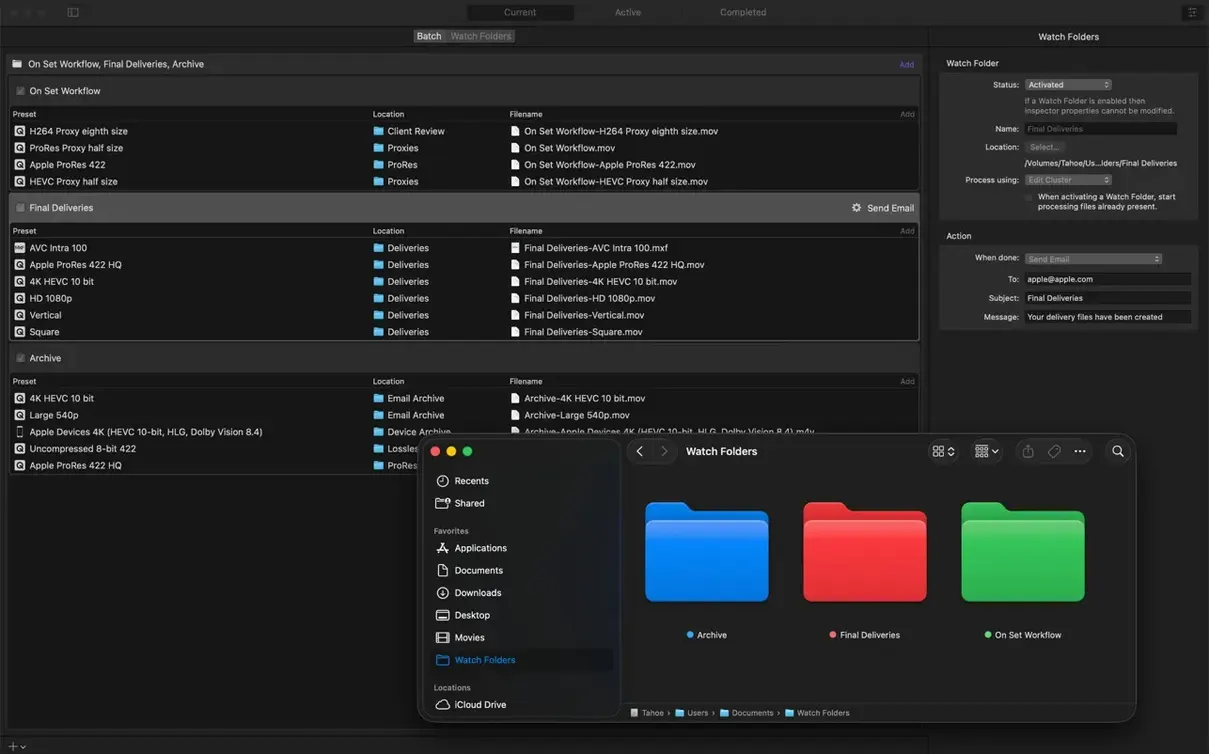
It can. You can set up post-encode actions like emailing the file, copying or moving it to a watched folder, or running a custom script—handy when you're building a transcoding station that needs to notify someone downstream.
What if I use Motion too?
Compressor works alongside Motion as part of Apple's pro video workflow. If you're sending Motion projects out for specific delivery specs, Compressor slots right into that chain without extra round-tripping.
First days with Compressor: three things that pay off early
You don't need to master every panel on day one. A few habits set up in the first afternoon make the rest of the week smoother.
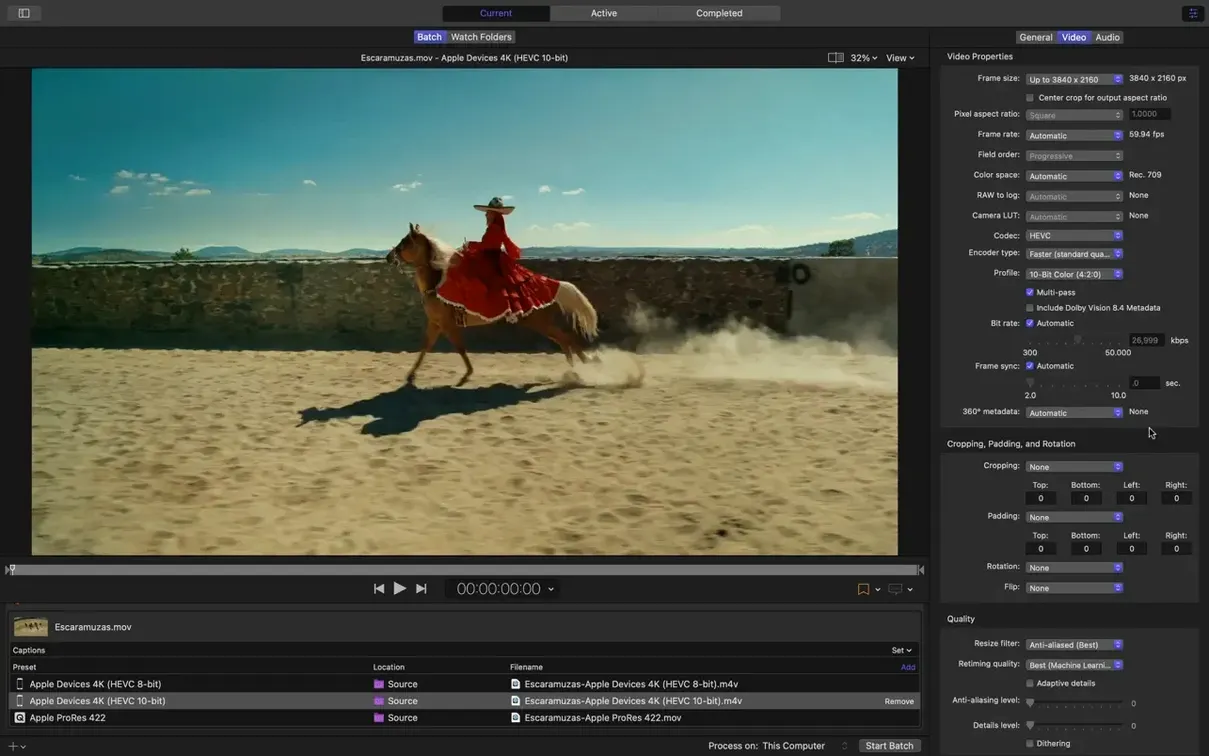
- Save a custom setting group. Open the Settings panel, duplicate the built-in "Apple Devices 4K" preset, tweak the video properties to match your most common deliverable, and save it with a name you'll recognize at a glance. Drag it into a new group called "Daily Drivers." You'll reach for it constantly.
- Turn on the shared computer list. Even if you only have one Mac right now, enable shared computers in Compressor's preferences. The moment a second machine joins your network, distributed encoding becomes available without reconfiguring anything.
- Set a default destination. Under Compressor > Settings > Locations, point the default output to a folder you actually check. The desktop is fine for a week, but a dedicated "Encodes" folder in your user directory keeps things tidy once batch jobs pile up.
Training videos from three time zones
Picture someone cutting internal training videos for a company with offices spread across three time zones. The footage arrives as a mix of iPhone clips, screen recordings, and a few interview shots from a Sony mirrorless. The editor finishes the cut in Final Cut Pro, then sends the project to Compressor straight from the Share menu.
One job creates three outputs: an H.264 master for the LMS platform, a compact HEVC version for the team Slack, and an audio-only AAC file for employees who listen during their commute. While those encode, the editor drags a folder of raw b-roll into Compressor, applies a custom watermark preset, and sets a post-encode action that copies the finished files to a shared company drive. By the time lunch rolls around, everything is where it needs to be and the editor hasn't touched a command line or babysat a progress bar.
Questions before installing
Will Compressor slow down my Mac while it works?
It leans on hardware encoders for H.264 and HEVC, so the heavy lifting stays off the main CPU cores. On Apple silicon Macs, HEVC data rate limits keep the chip from running wide open when it doesn't need to. You can still check email, browse, or even keep Final Cut Pro open without feeling like the machine is wading through molasses.
Do I need Final Cut Pro to use it?
No. Compressor opens as a standalone app and accepts files dropped straight onto its batch window. The integration with Final Cut Pro and Motion is a convenience, not a requirement. If you're coming from a different NLE and just want a reliable transcoding engine, Compressor works on its own terms.
What if I'm working with immersive video and don't have separate WAV files?
The latest version added support for transcoding immersive sources without WAV files straight to Apple Immersive outputs. Drop your footage in, pick the Immersive setting, and Compressor handles the audio mapping internally.
Can I preview 3D or stereoscopic content before committing to a long encode?
Yes. The anaglyph preview option lets you check stereoscopic alignment on a standard monitor without exporting a test file. It's a small thing that saves a surprising amount of time when you're dialing in 3D framing.
Snags and their fixes
The batch window says "Waiting" and nothing moves
Almost always a permissions hiccup. Check the destination folder under Compressor's Locations pane—if the path points to an external drive that isn't mounted, or a network share that requires authentication, the queue stalls until it sees a valid write location. Re-point it to a local folder, resubmit the job, and it should start within seconds.
Distributed encoding isn't seeing the other Mac
Both machines need Compressor open and the "Allow other computers to perform batches" checkbox ticked in preferences. They also need to be on the same local network subnet. If one Mac is on a guest Wi-Fi network and the other is on the main office network, they won't discover each other. Fire up the Compressor Shared Computers list and give it thirty seconds to populate before assuming something's broken.
An HEVC file exports with a data rate much higher than expected
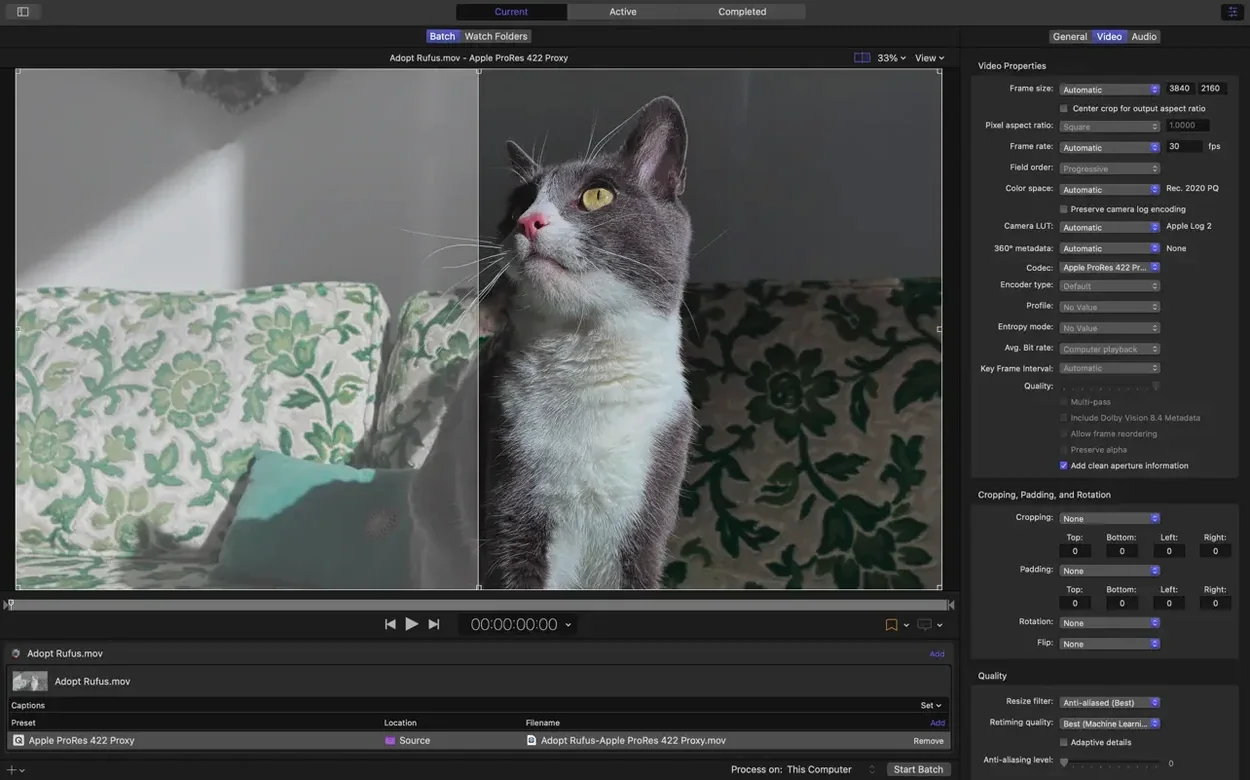
On Apple silicon machines, Compressor respects the HEVC data rate limit setting, but the default can be generous. Open the video properties for your HEVC preset, look for the data rate slider under the Video tab, and pull it down until the estimated file size matches what you actually need. The hardware encoder will stay within that ceiling.
The immersive metadata viewer shows nothing
This is new in version 5.3, and it requires source files that carry immersive metadata to begin with. Regular flat video clips won't populate the viewer. If you know your footage was shot on an immersive rig, verify that the metadata survived any prior transcoding step—some third-party tools strip it. Re-import the camera originals and the viewer should light up.
Version 5.3 brings a handful of additions for immersive and stereoscopic workflows, plus some quality-of-life updates on Apple silicon:
- Immersive metadata viewer you can check before encoding
- Support for 180° Apple Projected Media Profile output
- Anaglyph preview option for stereoscopic video
- 5.1 AAC option added to Apple Device export settings
- HEVC data rate limits now supported on Apple silicon devices
- Transcoding immersive sources without WAV files to Apple Immersive outputs
- macOS 15.6 or later
- Apple silicon or 64-bit Intel processor
- 8 GB memory
- 1.2 GB available disk space
Questions I actually get
Does Compressor use hardware acceleration?
It does—it taps into hardware encoders for H.264 and HEVC, and on Apple silicon devices it also supports HEVC data rate limits for tighter control over file size.
What's the workflow for immersive video?
Version 5.3 can transcode immersive sources without separate WAV files to Apple Immersive outputs, and it includes a metadata viewer so you can inspect the immersive metadata before encoding.
Porch talk 0
Come in or pull up a chair to leave a comment.
Nobody has pulled up a chair yet. If you used it on a real Saturday, say what the hour was.
More for the same hour
Everything in Mac Apps
 Cookie
8.6.5 Mac Apps
Updated 8 MB
Cookie
8.6.5 Mac Apps
Updated 8 MB

 Commander One PRO
3.18.0 Mac Apps
53 MB
Commander One PRO
3.18.0 Mac Apps
53 MB

 CorelCAD
2022.5 Build 22.3.1.4090 Mac Apps
293 MB
CorelCAD
2022.5 Build 22.3.1.4090 Mac Apps
293 MB

 Command-Tab Plus
2.9.9 Mac Apps
8 MB
Command-Tab Plus
2.9.9 Mac Apps
8 MB

 CorelDRAW
27.2.0.135 Mac Apps
2.1 GB
CorelDRAW
27.2.0.135 Mac Apps
2.1 GB

 Color Folder Pro
5.5 Mac Apps
23 MB
Color Folder Pro
5.5 Mac Apps
23 MB

 CrossOver
26.3.0 Mac Apps
285 MB
CrossOver
26.3.0 Mac Apps
285 MB

 Color Finale
2.2.8 Mac Apps
35 MB
Color Finale
2.2.8 Mac Apps
35 MB