


You’ve kicked off a render, a long file transfer, or a server process that needs to finish while you step away. macOS, left to its own devices, will dim the display and eventually sleep right in the middle of it.
What the menu bar coffee cup can do
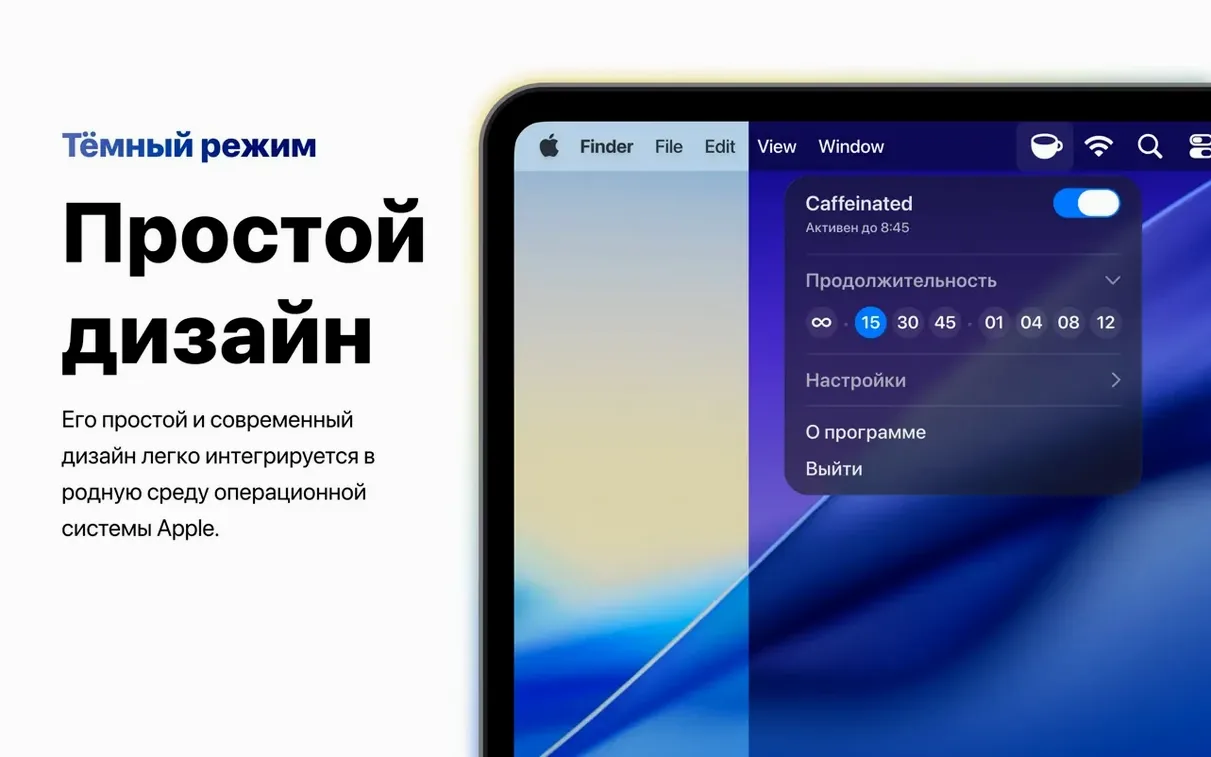
The core of Caffeinated is simple: click the coffee cup icon in your menu bar and your Mac stays awake. But the tools an experienced user will reach for go further. A built-in timer lets you set a specific duration for wakefulness, with an optional notification when time’s up. The app respects Dark Mode and system accent colors, so it settles into your setup without looking out of place. It’s optimized for Apple Silicon and Retina displays, and it works whether your MacBook is plugged in or running on battery.
Lid closed, system awake
Version 3.2.0 adds a setting that changes how you use a MacBook with an external display. You can now keep the system awake with the lid closed, which previously required macOS to detect power and a connected screen before it would cooperate. For anyone who docks a laptop and wants a clean desk without the built-in display lighting up, this is the feature that makes the utility feel complete. It turns a simple menu bar app into a dependable part of a workstation routine.
When the slides cannot dim
A conference presenter has their MacBook feeding a projector. They glance at notes on the built-in screen between slides, only to watch the display fade to half brightness right before a live demo. That moment of scrambling to wiggle the cursor is what pushes someone toward a caffeinated mac setup. With a single right-click on the menu bar icon, the screen stays at full brightness and the screensaver stays buried. No energy-saver prefs to dig through, no “turn off after” sliders to reset afterward. When the talk ends, another click returns everything to normal and the laptop resumes its regular sleep schedule.
First-day habits that stick
After dragging the app to Applications and launching it, a few small adjustments make the first week smoother.
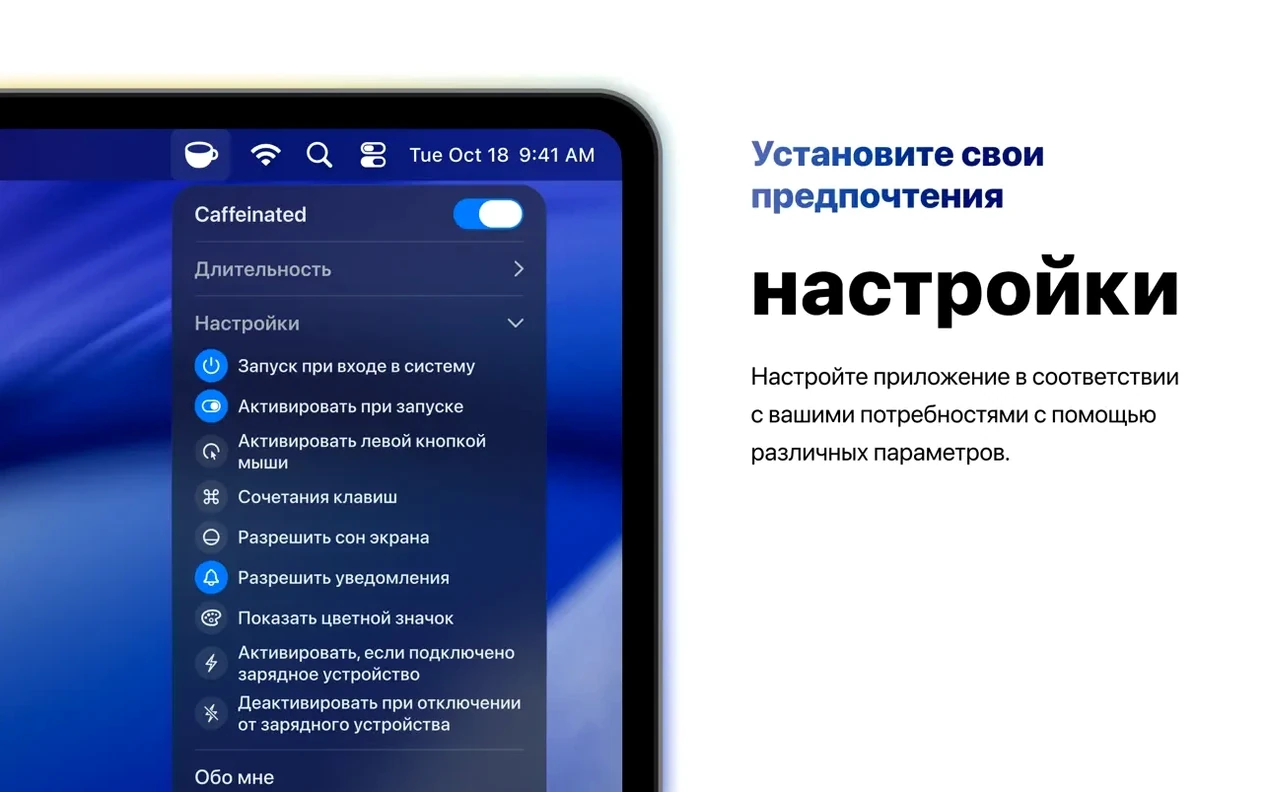
- Pick your click. By default, left click opens the menu and right click toggles activation. If you prefer a single left click to wake the Mac instantly, flip that in preferences. It sounds minor, but muscle memory sets in fast.
- Set a safety timer. Before you leave a long export running overnight, use the timer to schedule sleep after, say, three hours. The optional notification gives you a ping when time’s up, so you don’t wake up to a Mac that’s been awake all night for no reason.
- Check the lid-closed setting. If you dock to an external monitor, enable the new lid-closed wake option and test it once with a quick file copy. Knowing it works before you rely on it for a caffeinated -d mac session saves a surprise later.
- Watch the icon, not the Dock. Caffeinated lives entirely in the menu bar. If you instinctively scan the Dock for it, give yourself a day to retrain that habit. Hold Command and drag the coffee cup to reposition it where your eyes naturally land.
The app doesn’t demand constant attention. But spending ten minutes with these tweaks early on means you’ll reach for the caffeinated app mac shortcut without thinking, exactly when a dimming screen is the last thing you need.
Version 3.3.0 is a quiet one — the kind of update that smooths out the rough edges you might have been living with. If you had the duration menu open and wondered why it kept collapsing on you, it now remembers its expanded state between uses. On the stability side, the global shortcut recorder has been firmed up for macOS 27, and the duration slider no longer shows those tick marks that snuck into the same system version.
- macOS 15 or later
- Apple Silicon or Intel 64-bit Mac
Questions I actually get
Does Caffeinated work when my MacBook isn't connected to power?
Yes, a MacBook does not need to be plugged in for Caffeinated to keep the system awake.
Porch talk 0
Come in or pull up a chair to leave a comment.
Nobody has pulled up a chair yet. If you used it on a real Saturday, say what the hour was.