Bootstrap Studio runs on any Mac with macOS 10.13 or later, Intel or Apple Silicon, so you can build responsive sites without worrying about compatibility.
Drag-in headers, linked navs, synced edits
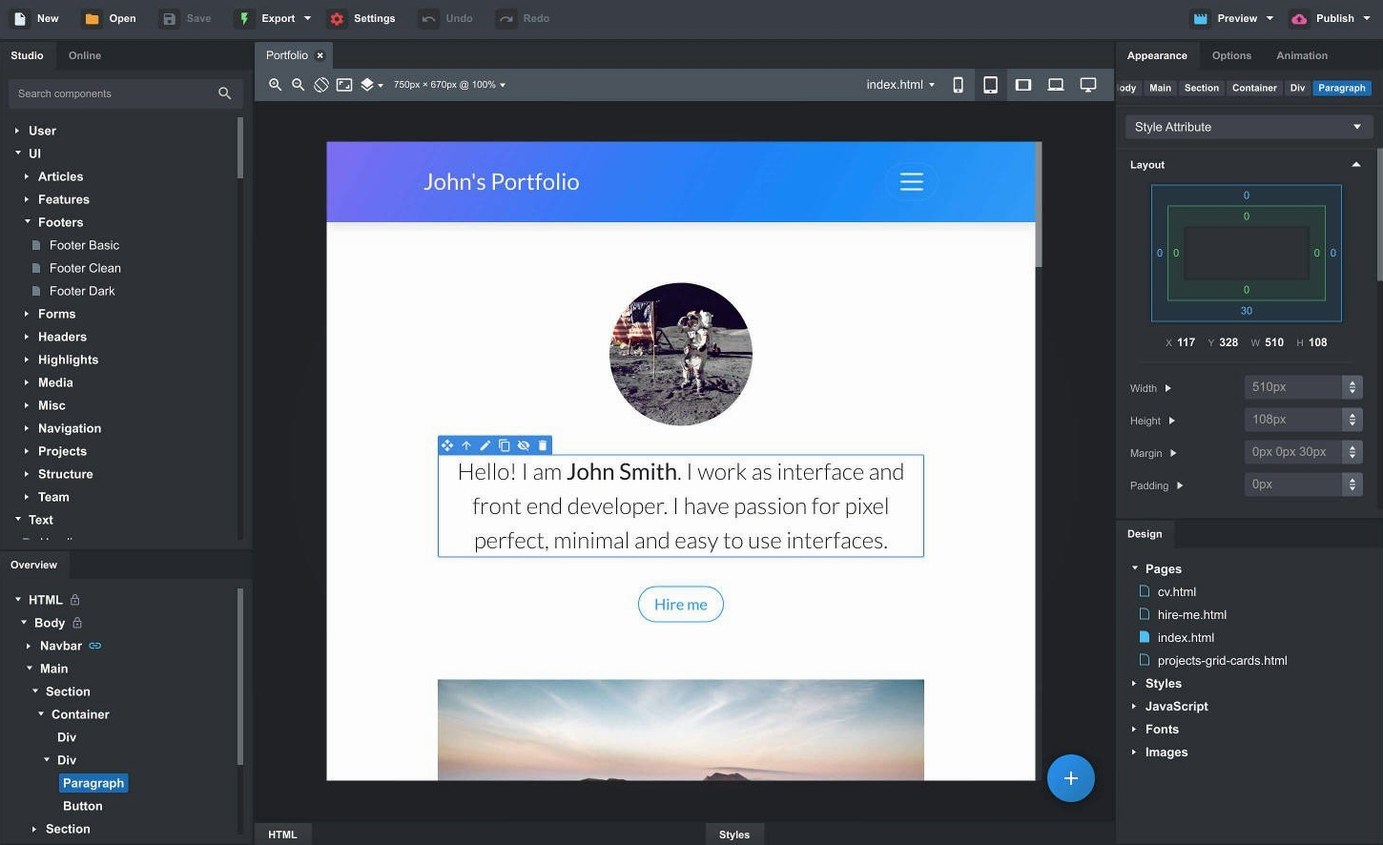
Components — ready-made page pieces. Headers, footers, galleries, slideshows, spacers, and divs are built in. Drag one in, tweak it, move on.
Linked components — update once, fix everywhere. A footer or nav used on five pages stays synchronized when you edit it in one place.
Import — bring in an existing site. Drag HTML, CSS, JS, and image files into the app and it recreates the structure for you.
Bootstrap versions — pick your framework. Work with Bootstrap 3.4, 4.6, or 5.3 depending on what your project needs.
Export — clean code out. The app writes semantic HTML you can hand to a developer or host anywhere.
A lot of folks wonder whether Bootstrap Studio locks you into some proprietary file format you can’t escape. It doesn’t. The export panel writes standard HTML, CSS, and JavaScript into a folder you can open in any code editor. No weird database, no locked-in project file that only one app can read. You can start a page here and finish it in VS Code, Nova, or even a plain text editor without breaking anything.
Another common question is about the component library—whether it’s just a handful of starter blocks and you’re on your own after that. The built-in set covers the basics well, but the online library is where things get interesting. Community members upload nav bars, hero sections, pricing tables, contact forms, and full page layouts. You drag them into your workspace, pull them apart, and remix them. It cuts down on the blank-canvas paralysis that hits when you’re staring at an empty page.
Live CSS panels versus drag-and-drop speed
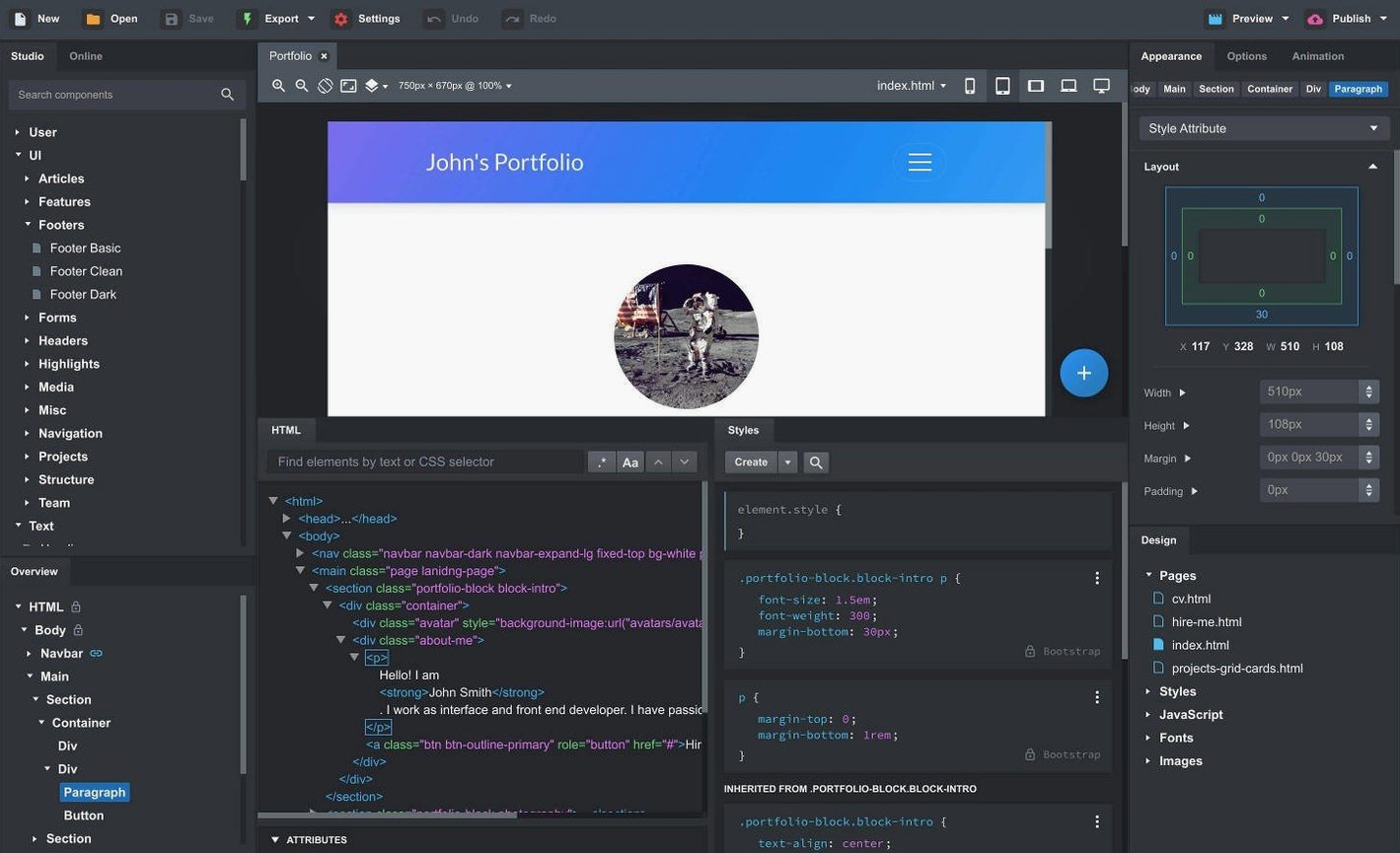
People coming from Pinegrow often notice the difference in editing style right away. Pinegrow treats the page as a live web view you edit with CSS and HTML panels always visible—it’s more of a power tool for hand-coders who want a visual assist. Bootstrap Studio leans harder into the drag-and-drop workflow. You build by stacking and nesting components in a tree, then adjust properties in a sidebar. If you prefer a structured builder over a code-first environment, Bootstrap Studio feels more approachable out of the box.
Compared to RapidWeaver, the scope is different. RapidWeaver is a full-site manager with themes, blogging, and publishing built in. Bootstrap Studio doesn’t try to manage your entire site or publish it for you—it focuses on the page design and the Bootstrap framework underneath. You export the files and handle hosting however you like. For a developer who already has a workflow for deployment and just wants a faster way to produce Bootstrap layouts, that’s a clean fit.
Then there’s the Webflow comparison. Webflow lives in the browser and ties design to its own hosting and CMS. Bootstrap Studio is a desktop app—you work offline, your files are local, and there’s no platform lock-in. If you’ve ever been frustrated waiting for a browser-based builder to catch up with your clicks, the desktop responsiveness is a quiet relief. The trade-off is you don’t get Webflow’s CMS or e-commerce features, but for straight-up Bootstrap page building, the local approach wins on speed.
Skipping rows and columns breaks your grid
Dragging everything onto one page without nesting. New users sometimes place components side by side in the workspace and then fight with alignment. Bootstrap’s grid depends on containers, rows, and columns. If you just drop a button next to an image without wrapping them properly, the layout breaks on smaller screens. The fix is simple: start with a container, add a row, drop your columns, then place components inside those. The app’s drag-and-drop is smart enough to suggest valid drop zones—watch for the blue highlight and trust it.
Editing CSS in the Styles panel instead of using SCSS. The visual style editor is handy for quick tweaks, but if you build a multi-page project entirely with inline overrides, you end up with scattered styles that are hard to maintain. Bootstrap Studio has full SCSS support—you can create partials, set variables, and write clean, reusable stylesheets. Beginners who skip that early often regret it when the client asks for a color change across forty pages.
Importing a messy site and expecting miracles. The import feature is useful, but it works best with reasonably structured HTML. If you drag in a page full of inline styles, deeply nested tables, and JavaScript spaghetti, the app will do its best, but you’ll still spend time cleaning up. For a smooth import, tidy the source files beforehand, or use the import as a starting point and rebuild messy sections with fresh components.
If you build sites for clients or just want a faster way to prototype Bootstrap layouts, this is worth a look.
Version 6.7.3 brings a handful of small but useful changes.
- The OpenAI API key dialog now accepts keys it previously rejected.
- Sticky navbars have a new Sticky On option.
- Bootstrap modals can close when you click outside them.
- The AI Assistant supports gpt-4o-mini and gpt-4o.
- The Icon Dialog shows icon counts and types for each set.
- macOS 10.13 or later
- Intel or Apple Silicon
Questions I actually get
Can I import an existing website into Bootstrap Studio?
Yes. Drag in HTML, CSS, JS, and image files and the app rebuilds the site structure for you.
Porch talk 0
Come in or pull up a chair to leave a comment.
Nobody has pulled up a chair yet. If you used it on a real Saturday, say what the hour was.