You have a dozen browser tabs open just to chat with different AI models, and every one of them feels like it's watching. That friction is exactly what a native Mac client can dissolve.
Here's a typical workflow in the current version:
- Set up a project. Open BoltAI and make a new project. You can drag files and folders right into the new-project window — no file-picker dance. Redesigned project settings let you assign a default agent to each project, so the assistant already knows the context when you start typing.
- Pick your provider. The model picker keeps things tidy. Disable any providers you don't use, and they simply disappear from the list. The app sends requests directly to OpenAI, and it stores your data securely without any in-app analytics phoning home.
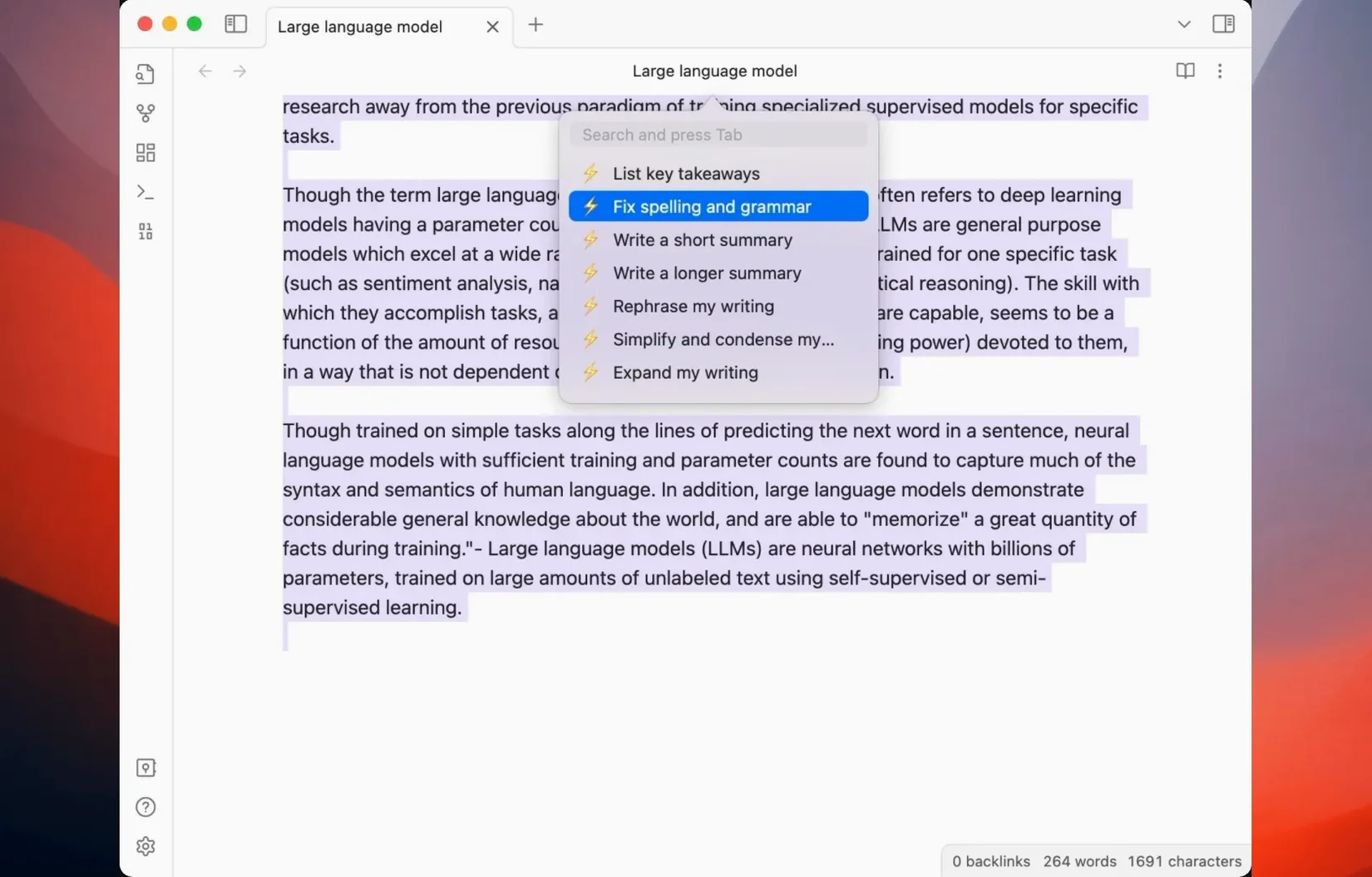
- Reach for a prompt. A built-in prompt library means you aren't starting from a blank box every time. Pull up a saved prompt, tweak it, and go.
What stayed the same is the quiet confidence of a tool that stays out of your way. If you're juggling multiple models and want them tucked into a single Mac-native window, BoltAI fits that spot comfortably.
Disable Unused AI Providers Right Away
Out of the box, BoltAI is ready to go, but a few quick adjustments make it feel like yours. Head to the settings panel right after that first launch.
- Disable unused providers early. If you only work with OpenAI, turn off everything else in the model picker. It cleans up the interface and removes the mental weight of scrolling past things you never touch.
- Set a default agent per project. This one pays off fast. A writing project gets a proofreading agent; a coding project gets a debugging assistant. The agent loads automatically when you switch projects, so you skip the setup step every time.
- Pin your top prompts. The prompt library is useful, but the real speed comes from marking three or four as favorites. They surface at the top and become a single click instead of a search.
- Check the Keychain integration. BoltAI stores your API key in Apple Keychain by default. Open Keychain Access once to confirm it landed there — it is a small thing, but knowing the key never sits in a plaintext config file is reassuring.
A Developer's Afternoon With BoltAI
Imagine a freelance iOS developer wrapping up a client project on a Thursday. She has a SwiftUI view that needs a fresh accessibility pass, a pull request description to write, and a handful of app icons she wants to rough out before the weekend.
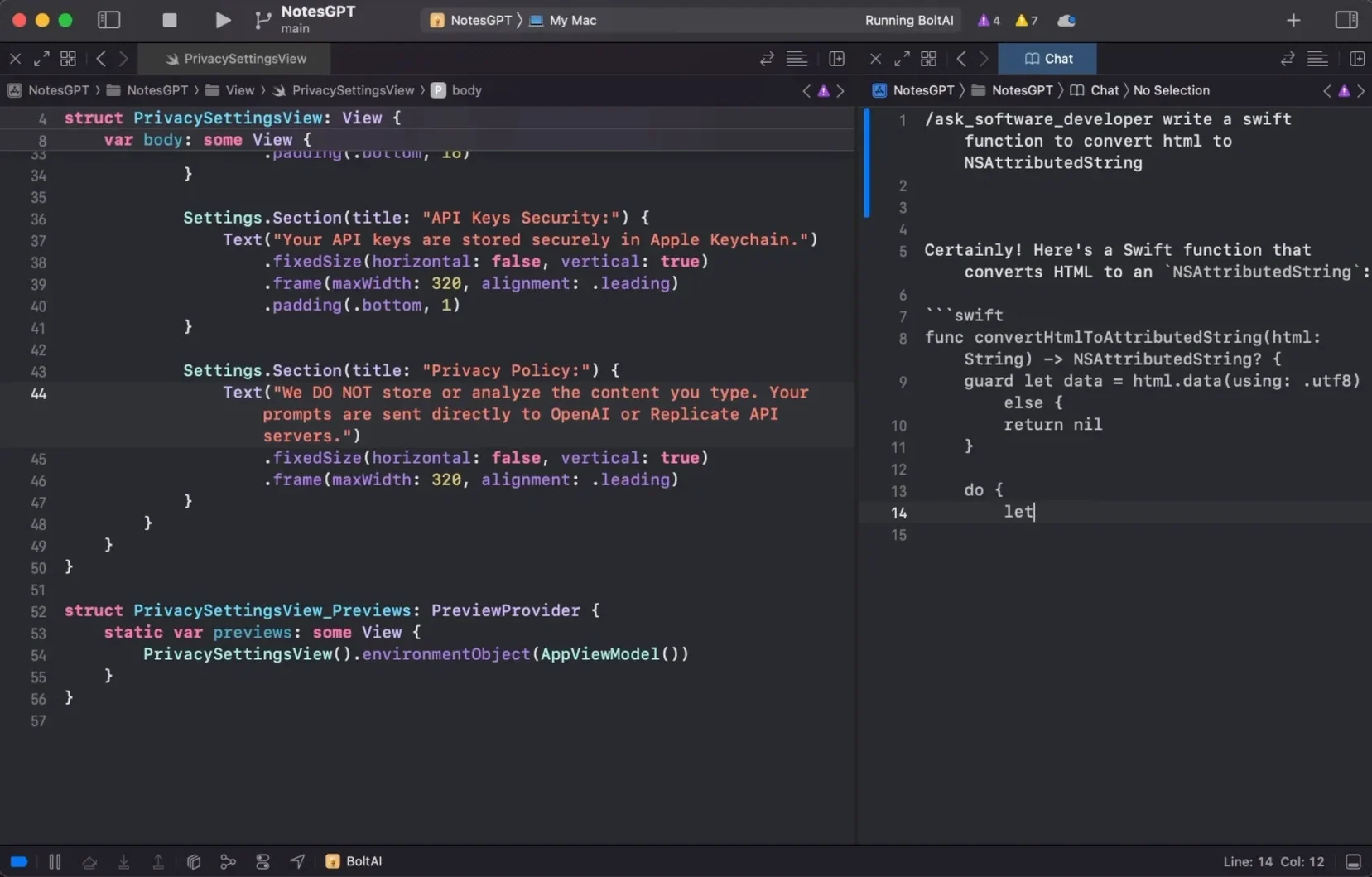
She opens BoltAI and switches to her client project, where the default agent is already set to a custom Swift reviewer. She drops the problematic view file into the chat and asks for VoiceOver labels and contrast suggestions — the agent scans the code and returns line-level notes she can copy straight into Xcode. No browser, no pasting into a web form, just a quick drag.
For the pull request, she reaches into the prompt library and grabs a saved "PR summary from git diff" template. A couple of keystrokes later, the description is drafted in the tone the team prefers. Before closing the app, she switches providers and pings a Stable Diffusion model with a prompt for app icon thumbnails — rough concepts to share with the designer on Monday. Three tasks, one window, and no tabs fighting for RAM. That is the rhythm the boltai mac app was built for: quick context switches without leaving the desktop.
- macOS 13 or later
- Apple Silicon and Intel Macs
Porch talk 0
Come in or pull up a chair to leave a comment.
Nobody has pulled up a chair yet. If you used it on a real Saturday, say what the hour was.