
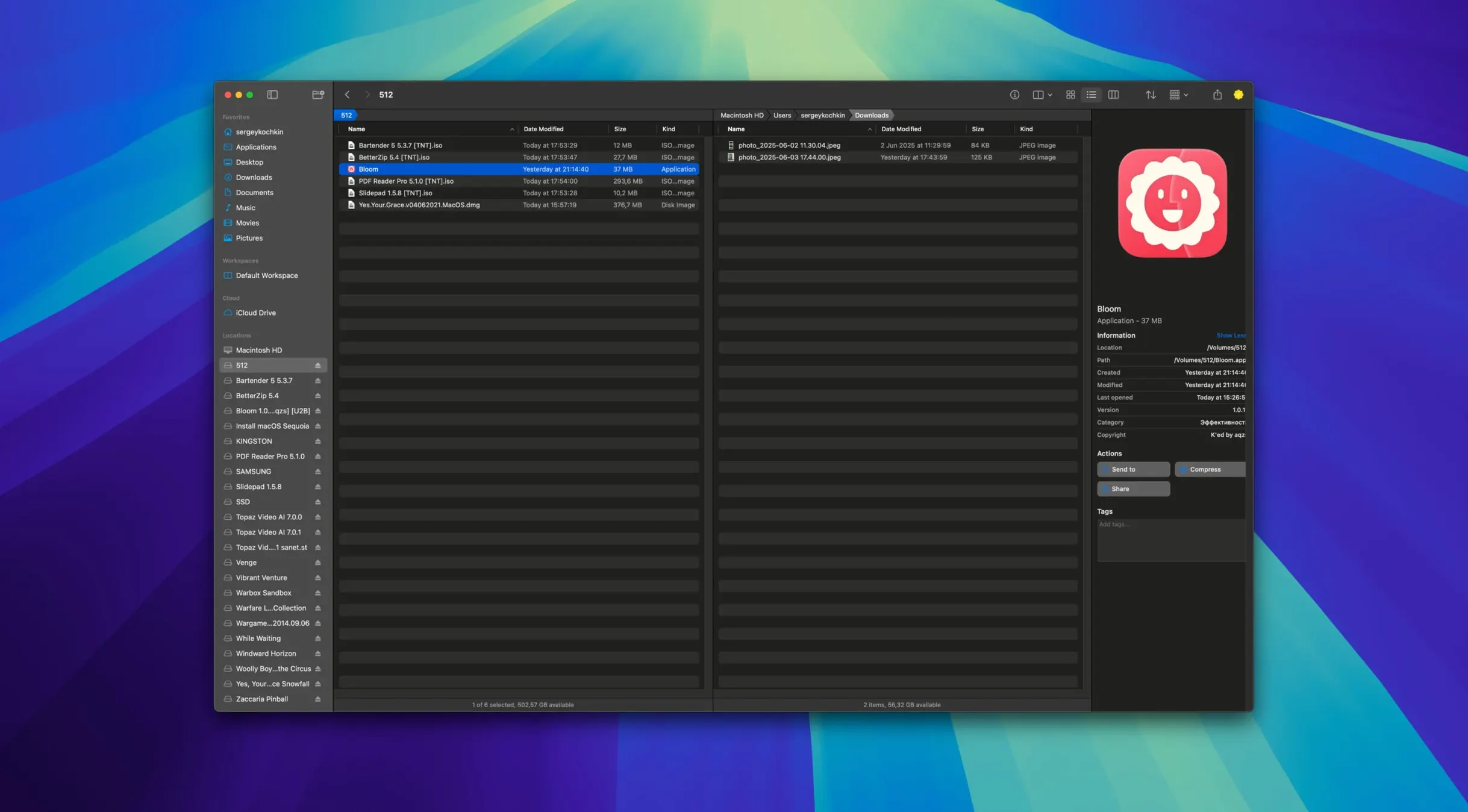
Bloom is a macOS file manager built from the ground up as a direct alternative to the Finder. It takes familiar file-management ideas and shapes them around a task scheduler, integrated previews, and a few window modes that adapt to how you like to work.
| Detail | Info |
|---|---|
| Current version | 1.5.42 |
| macOS requirement | macOS 14 or later |
| Apple Silicon / Intel | Both supported |
| Interface language | English |
Picture a folder of raw photos from a weekend shoot. You open Bloom and the built-in preview shows you each image, text file, or PDF under 10 MB without launching another app. You can organize everything by type or date with a couple of clicks. When you need to convert and optimize a batch of images for a shared album, you line up the steps in the task scheduler and let it run while you step away. Every action is recorded for undo, so a wrong move doesn't mean starting over. For a cleaner desktop, Portal mode shrinks the window down to the essentials—no sidebar, no preview pane. iCloud Drive shows up right alongside local volumes, and pressing ⌘R refreshes search results when a folder changes underneath you. If you want a file manager that remembers what you've done and lets you schedule the busy work, Bloom fits the rhythm.
You’ve just pulled a handful of project folders off an external drive and they’re a mess—scattered dates, duplicate names, a few archives you haven’t opened in months. Here’s how a session with Bloom tends to go.
A few minutes inside a session
You start by opening the main window and navigating to the drive. The column layout stretches automatically to show full filenames, so nothing stays clipped. You grab a folder you know is filled with old prints and tap ⌘F to search inside just that folder. A second later the results are live, and you spot three copies of the same TIFF. Instead of deleting one at a time, you queue a rename operation that tags them with a date prefix, then schedule the move to an archive folder for later.
Something about the folder structure still feels off, so you switch to the treemap view. It paints a quick picture of disk usage—one subfolder is holding almost 60 percent of the space, bloated with raw files you forgot about. You right-click the folder and pick “Launch Terminal” to run a quick script against those raws, all without leaving Bloom’s context. Meanwhile, the undo log has every step recorded; if the script renames things you don’t expect, you roll it back with a single command.
When you just need a fast drag-and-drop target, you toggle Portal mode. The window shrinks to a compact rectangle you pin above the other apps. You can dock it at the screen edge and keep a handful of working folders visible while you finish sorting in Lightroom. No sidebar, no preview—just a clean spot to drop files.
Cleaning up a sample library, step by step
Say you’ve gathered two hundred drum hits from an old sample pack, and the filenames are a mix of uppercase, spaces, and inconsistent numbering. You want them lowercase, hyphenated, and numbered sequentially before feeding them into a drum rack. Here’s a workflow that stays entirely in Bloom.
First, you navigate to the folder and hit ⌘F to filter by .wav. All the audio files appear in one flat list, ignoring subfolders. You select everything and open the advanced rename panel. A regular expression swaps uppercase to lowercase, replaces spaces with hyphens, and strips trailing digits. You watch the preview column update in real time. Satisfied, you apply the rename—the whole batch changes in under a second.
Next you want sequential numbering. You reopen the rename panel, prepend a counter with two digits, and apply it. The undo log now holds both operations separately, so you can revert just the numbering if the order feels wrong later. With the files still selected, you queue them for conversion in the task scheduler: 24-bit to 16-bit, 48 kHz to 44.1 kHz, saved to a new folder called “rack ready.” The scheduler runs in the background while you open the DAW. By the time your template loads, the folder is waiting.
Coexisting Peacefully with Finder
“Will this fight with Finder, or can I use both?” Bloom and Finder coexist without friction. You can keep Finder as your default and launch Bloom only when you need scheduled tasks, treemap scans, or the Portal window. Opening a folder in one doesn’t lock it in the other. If you download something like kshmr bloom torrent or oeksound bloom torrent, you can manage the archive and extracted files entirely inside Bloom while Finder sits quietly in the background. The app doesn’t change file associations or system-level handlers unless you explicitly tell it to.
“Does it handle archives without extra tools?” Yes. You can preview the contents of a zip, rar, or 7z file right in the column view—no extraction needed. That’s handy when you grab a bloom torrent that bundles presets, samples, and documentation into one archive. You peek inside, drag out only what you need, and leave the rest intact. For larger archives that exceed the preview threshold, the task scheduler can handle extraction as a scheduled step.
“What’s the learning curve if I’m used to Finder?” Most keyboard shortcuts map to muscle memory that Finder users already have. ⌘C, ⌘V, ⌘Delete, and Space for Quick Look work the way you expect. The additions—like ⌘⇧⏎ to jump to a system location or ⌘R to refresh search results—sit on top of that foundation. You can ignore the task scheduler and treemap for weeks and still get value from the column resizing and in-folder search. When you do decide to try something like Bloom KSHMR Mac torrent management or batch image conversion, the extra layers are there but they don’t push themselves on you.
Version 1.5.46 is out with the developer's latest fixes and improvements.
- macOS 14 or later
- Apple Silicon or Intel 64‑bit Mac
Porch talk 0
Come in or pull up a chair to leave a comment.
Nobody has pulled up a chair yet. If you used it on a real Saturday, say what the hour was.