
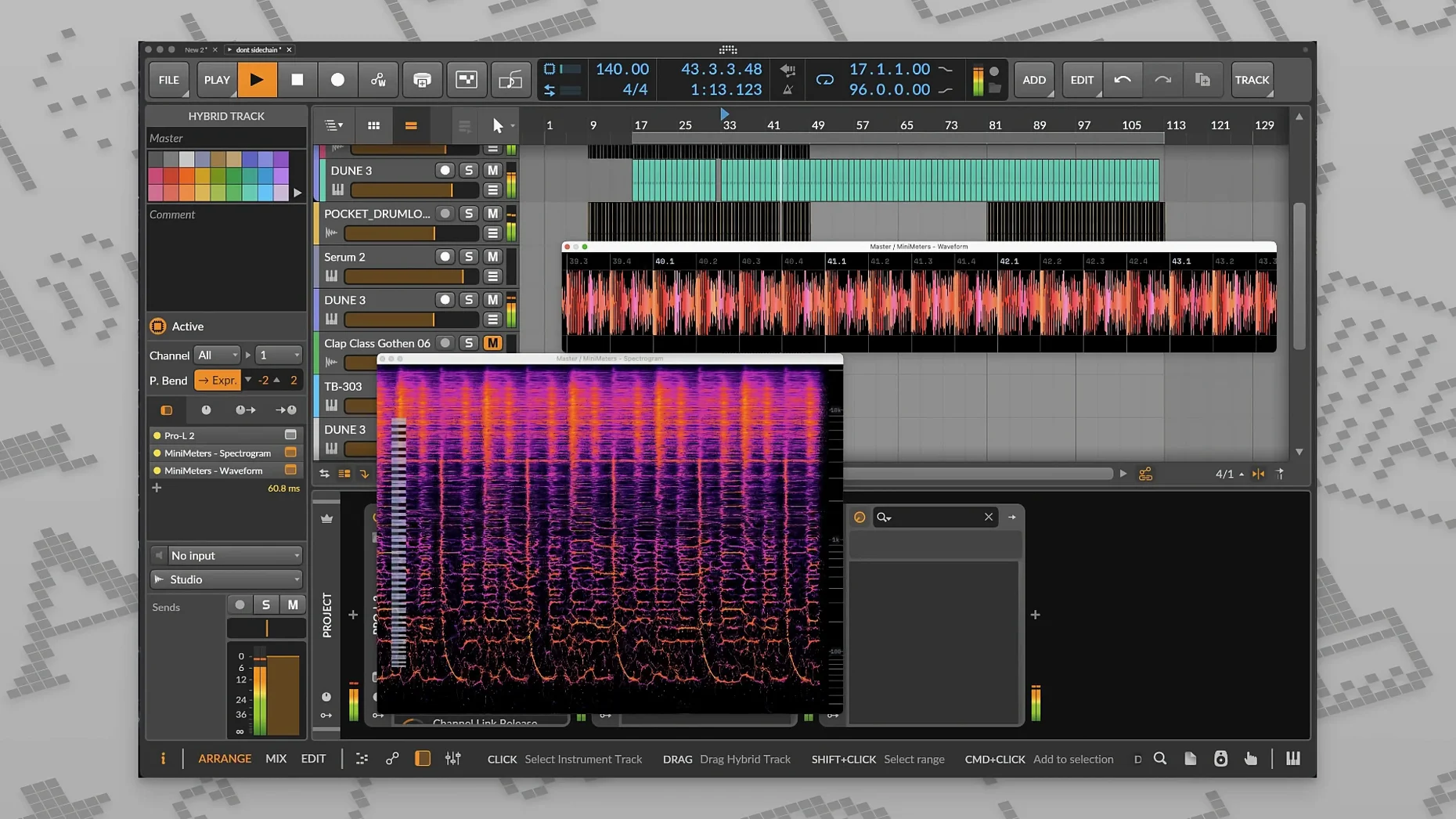
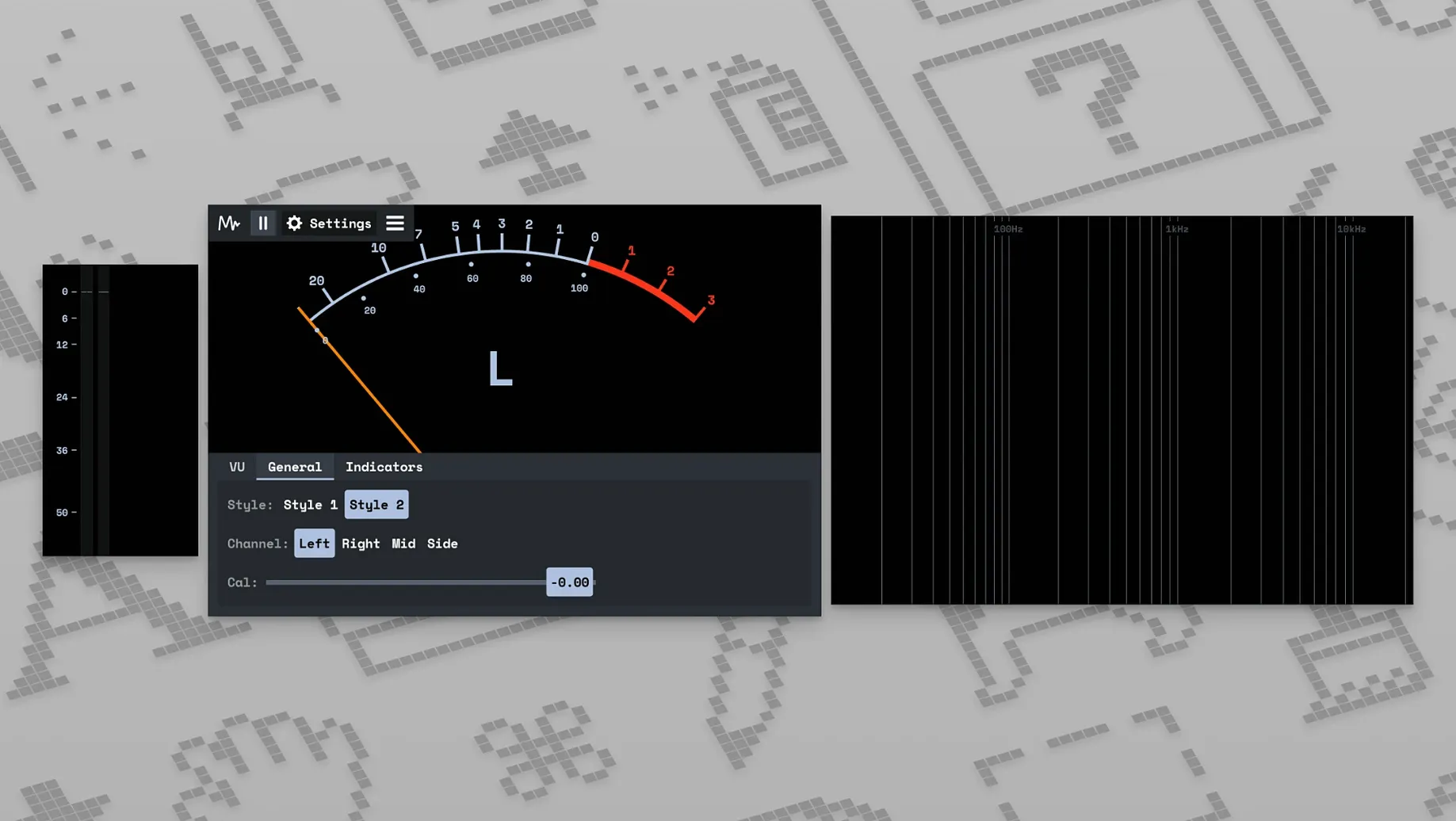
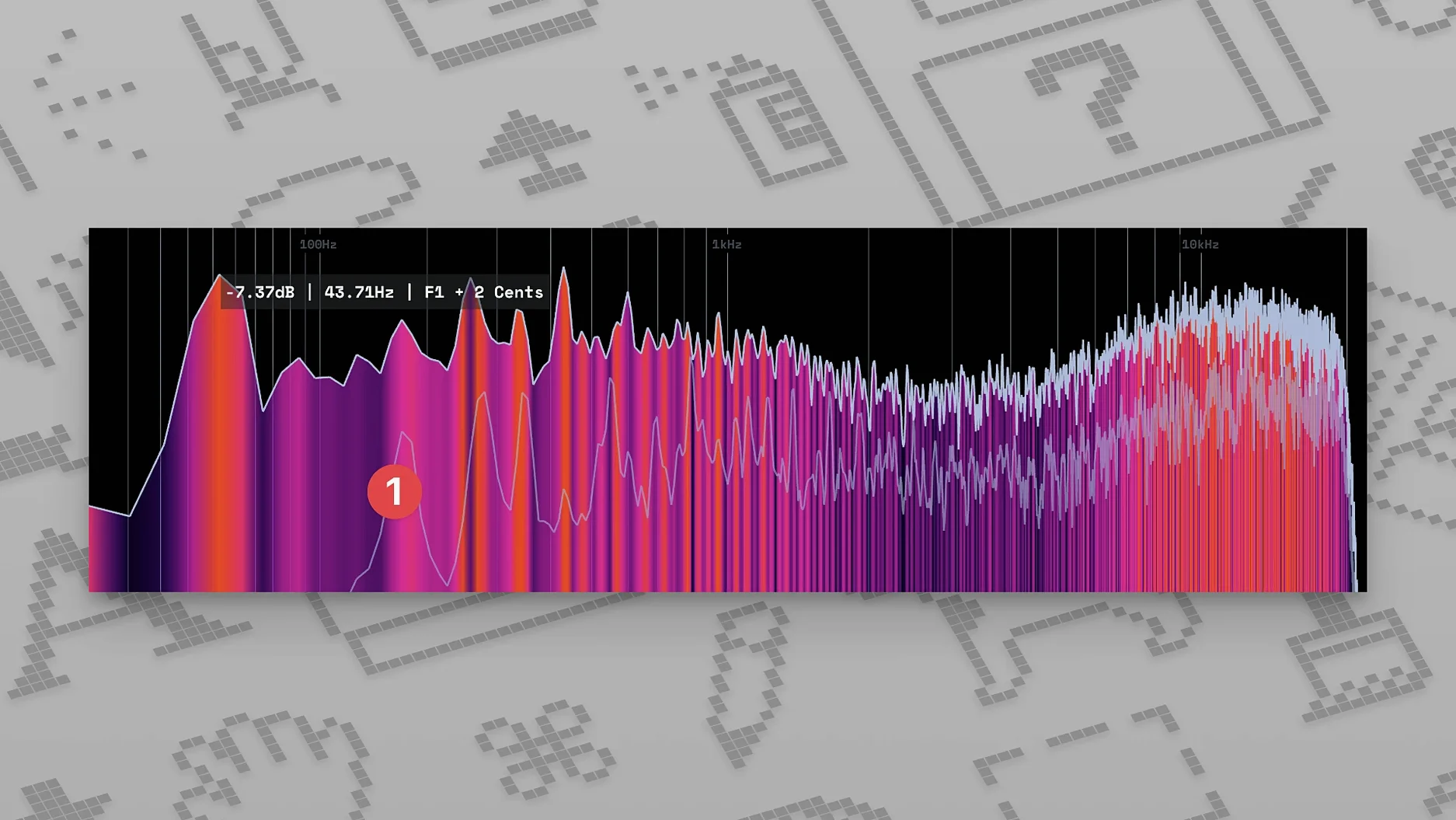
Producers and mix engineers who want a dedicated, always-visible meter window outside their main DAW will feel right at home. MiniMeters is a simple audio metering application and plug-in suite for macOS, Windows, and Linux, built for real-time visual monitoring.
Here's a quick look at how it fits into a modern Mac studio:
Hosts and compatibility — Works with any DAW that can route audio to the included MiniMetersServer. The server grabs audio from your session and sends it to the compact meter display.
Format — A standalone application, not a traditional VST or AU plug-in you insert on a track. The connection happens through a dedicated signal-transfer server, keeping the metering window independent from your DAW's layout.
Architecture — Supports both Intel and Apple Silicon Macs natively, so it runs smoothly whether you're on an older machine or a recent M-series laptop.
The visual toolkit — The main window packs several real-time displays. A stereo meter lets you check channel balance at a glance. A frequency spectrum display shows you exactly what's happening across the frequency range, helping you spot buildup or missing energy without squinting at a small plug-in window.
The whole idea is to give your ears a reliable visual companion that stays out of the way. If you spend long hours mixing and want a clean, dedicated meter view that doesn't compete for screen space inside your DAW, this one's worth a look.
It's the little things that turn a handy utility into something you genuinely look forward to opening. MiniMeters has a few of those — shortcuts and behaviors that aren't shouted about in the feature list but make daily use smoother.
Drag titles to restack with snap-back
Grab any module by its title bar and drag it to reorder the stack. No menu diving, no preferences window — just grab and move. The layout snaps back to a clean vertical arrangement every time, so you never end up with modules floating off into awkward positions.
Double-clicking the LUFS readout resets the integrated measurement without touching the short-term or momentary displays. This is especially useful during a long session where you're checking a chorus against a verse and want a fresh average without restarting the whole meter.
The waveform display isn't just eye candy. Hover near the right edge and you'll notice a subtle scrub handle — click and drag left or right to freeze the waveform at a specific moment, which can help when you're trying to visually match a transient across two reference tracks.
Color themes respond instantly. Open the settings, pick a palette, and every module updates together. If you're running a dark room at night, the high-contrast theme keeps things legible without adding screen glow. During daylight hours, a lighter scheme can make the spectrum analyzer easier to read at a distance.
Frozen meters? Launch the server app
The most frequent head-scratcher comes right after installation: MiniMeters opens, but the meters sit frozen. Nine times out of ten, the MiniMetersServer hasn't been launched or isn't receiving audio. Open the server from your Applications folder, confirm it shows up in the menu bar, then check your DAW's audio routing. The server appears as a selectable output device or a dedicated send, depending on how your DAW handles external routing.
On Apple Silicon Macs running older DAW versions, the server occasionally fails to appear as an audio destination. The fix is straightforward: launch your DAW in native Apple Silicon mode rather than under Rosetta, or update the DAW to a build that fully supports Core Audio routing on ARM. MiniMeters itself runs natively on both architectures, but the server needs a clean audio pipeline from the host.
If the LUFS meter seems slow to respond, check that you haven't accidentally enabled peak-hold on the wrong scale. The integrated LUFS reading updates on a longer time window by design — that's the spec — but short-term LUFS should move quickly. If it doesn't, a quick restart of the server usually clears any buffer quirks.
Don't insert it on a track
Treating MiniMeters like a track insert plug-in is the classic stumble. It's not meant to sit on a channel strip. The server grabs audio outside your session's processing chain, so placing it after heavy bus compression or limiting will show you the post-processing picture — which is exactly what you want for mastering checks, but not for gain-staging individual tracks.
Another common mistake: running the standalone app and the server at the same time without realizing they're two separate processes. You don't need to open the app first if you're only using the server to feed a DAW session. The app is for system audio monitoring — Spotify references, YouTube comparisons, playing back a bounced WAV from Finder. The server is for your DAW. Keeping them separate in your head saves a lot of confusion.
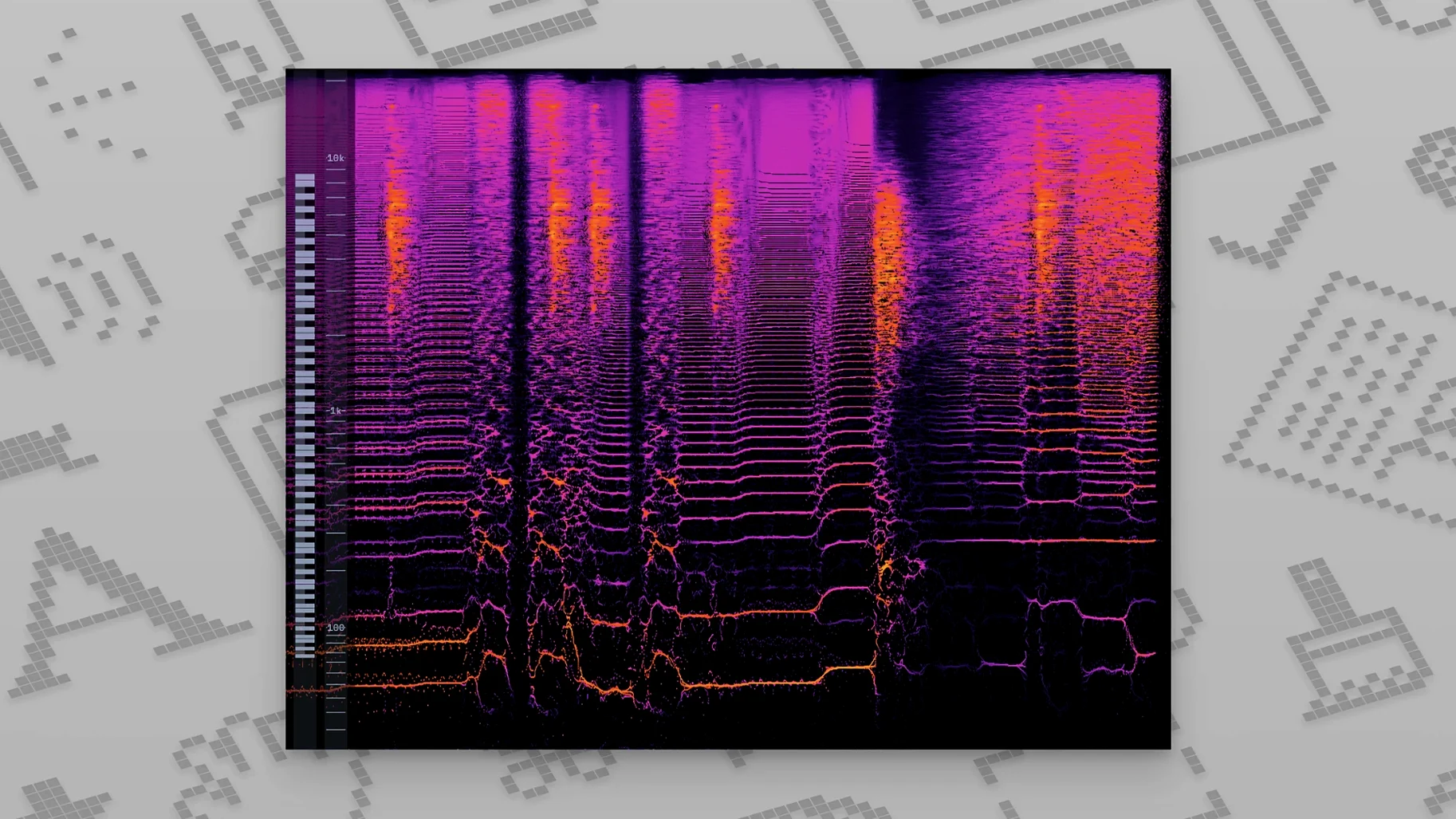
Ignoring the spectrogram view entirely is also a missed opportunity. Beginners tend to stare at the real-time spectrum and call it done, but the spectrogram (added back in v0.8.0) shows frequency content over time in a waterfall-style display. It's invaluable for spotting intermittent hum, low-end rumble on a vocal take, or a hi-hat pattern that only rings out on certain hits.
Set window to floating straight away
Open preferences and set the window level to "floating" immediately. This keeps MiniMeters visible above your DAW, Finder windows, and even full-screen apps. If you're working on a single monitor, this one toggle changes everything.
LUFS target level defaults to -14 LUFS for integrated measurements, matching common streaming platform norms. If you're mastering for a different destination — say, a club system or a CD master — adjust this to your target before you start referencing. The meter's color indicators shift accordingly, so you'll see green, yellow, or red in the right places for your loudness goal, not someone else's.
Spectrum slope is subtle but powerful. The default tilt leans toward a flat representation, which can make high-frequency content look quieter than it sounds. Bump the slope to 3 dB/octave or 4.5 dB/octave and the display will more closely match how your ears perceive tonal balance. If you've ever wondered why a mix looks bright on the analyzer but sounds dull, this setting bridges that gap.
Lastly, enable peak memory on the stereo meter. It adds a small hold indicator at the highest peak position, which fades after a few seconds. For catching stray transients or a snare that occasionally clips, this tiny visual cue saves you from staring at the meter nonstop throughout a five-minute track.
Version 1.0.30 tidies up a handful of bugs and polishes a few small interface details that had been lingering since the initial release.
- macOS 10.15 or later
- Intel or Apple Silicon Mac
Porch talk 0
Come in or pull up a chair to leave a comment.
Nobody has pulled up a chair yet. If you used it on a real Saturday, say what the hour was.
More for the same hour
Everything in VST Plugins Minuit Solstice
1.2.0 VST Plugins
117 MB
Minuit Solstice
1.2.0 VST Plugins
117 MB
 MixWave Manuel Gardner Fernandes
1.0.0 VST Plugins
238 MB
MixWave Manuel Gardner Fernandes
1.0.0 VST Plugins
238 MB
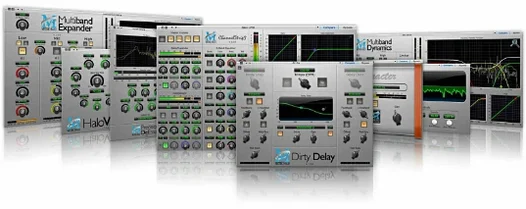 Metric Halo Production Bundle
2025.05 VST Plugins
318 MB
Metric Halo Production Bundle
2025.05 VST Plugins
318 MB
 Melodyne
5.4.2.006 VST Plugins
97 MB
Melodyne
5.4.2.006 VST Plugins
97 MB
 MeldaProduction MCompleteBundle
2026.07 VST Plugins
1.2 GB
MeldaProduction MCompleteBundle
2026.07 VST Plugins
1.2 GB
 Native Instruments Massive X
1.7.1 VST Plugins
1.6 GB
Native Instruments Massive X
1.7.1 VST Plugins
1.6 GB
 Neural DSP Archetype Petrucci
1.0.0 VST Plugins
745 MB
Neural DSP Archetype Petrucci
1.0.0 VST Plugins
745 MB
 Neural DSP Archetype Rabea X
1.0.1 VST Plugins
742 MB
Neural DSP Archetype Rabea X
1.0.1 VST Plugins
742 MB