

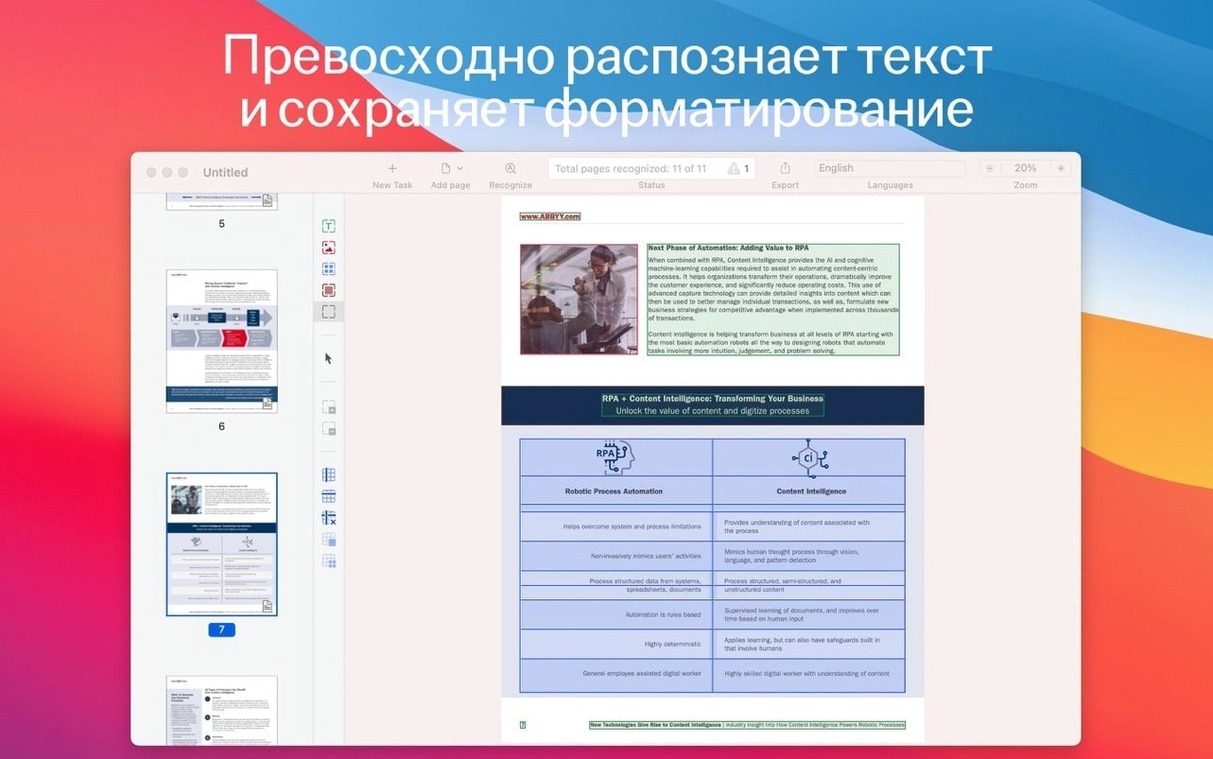
You have a printed contract that needs a quick edit, or maybe a scanned chapter from a library book you want to quote. The text is locked in an image. ABBYY FineReader for Mac is built for exactly that—pulling usable text out of PDFs and paper documents so you can get back to work.
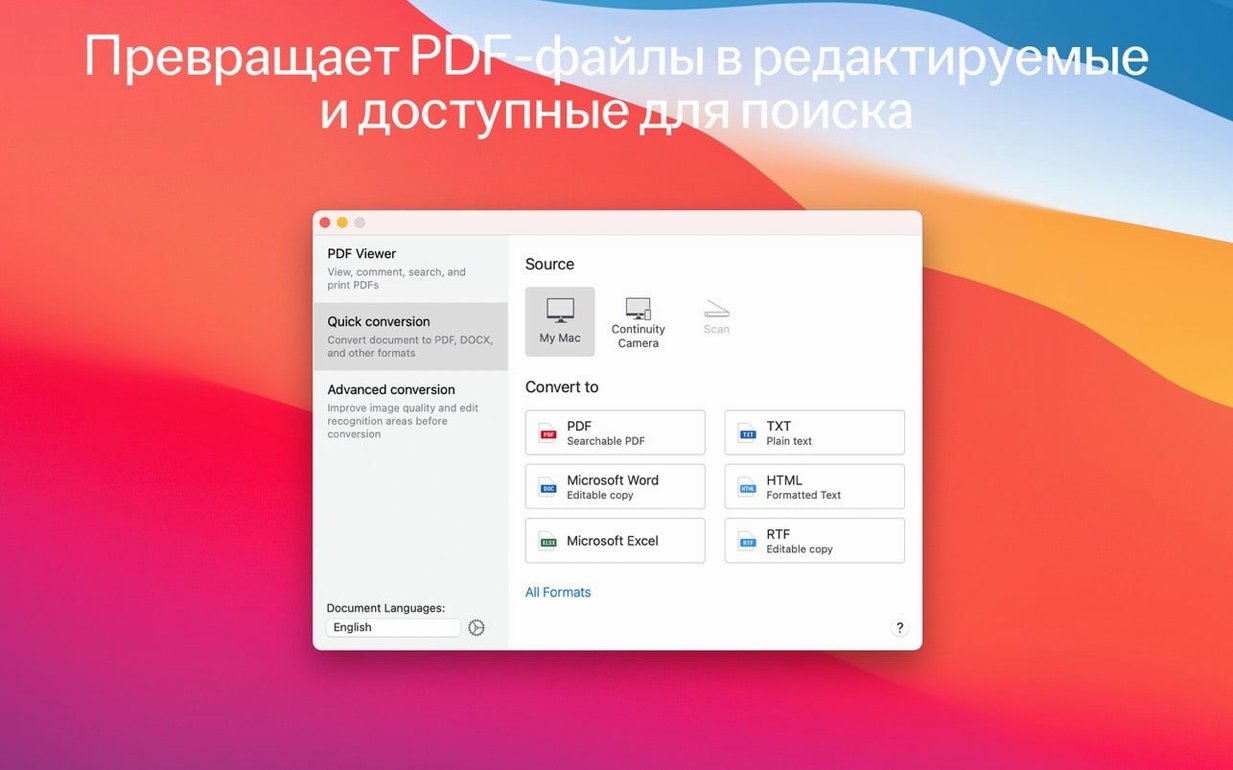
The current version, 15.2.14, continues as an Intel app that runs under Rosetta 2 on Apple Silicon Macs. It hasn't changed its core toolkit: accurate OCR, a built-in PDF viewer, and straightforward conversion to formats like searchable PDF or editable Word files. You can also create PDF/A files for long-term archiving and add password protection to sensitive documents.
A handy touch is Continuity Camera support, which lets you import a document straight from your iPhone or iPad. The interface talks to you in Russian, English, German, Italian, Simplified Chinese, or French.
Pull clean text for citations or translation
You can copy text fragments for citation, paste passages into a translation tool, or edit the content directly. It's less about flash and more about pulling out exactly what you need.
What document types does it handle?
It converts PDFs, paper documents, and scanned images. The result can be an editable document or a searchable PDF that keeps the original look.
Is this a native Apple Silicon app?
No, it's an x86 64-bit app. It requires macOS 11 or later and runs on Intel Macs natively, or on Apple Silicon through Rosetta 2.
Does it have any archiving features?
First Days with FineReader: A Practical Start
You installed it, opened it, and the interface is sitting there quietly. Now what? The first thing I tell friends is to feed it a deliberately messy scan — a creased receipt, a faxed form, anything with crooked text. This is not busywork. It teaches you how the app thinks. Drop the file in, watch the recognition layer snap over the image, and click around a few uncertain characters. You will quickly learn which documents need a manual tweak of the recognition language and which ones sail through untouched.
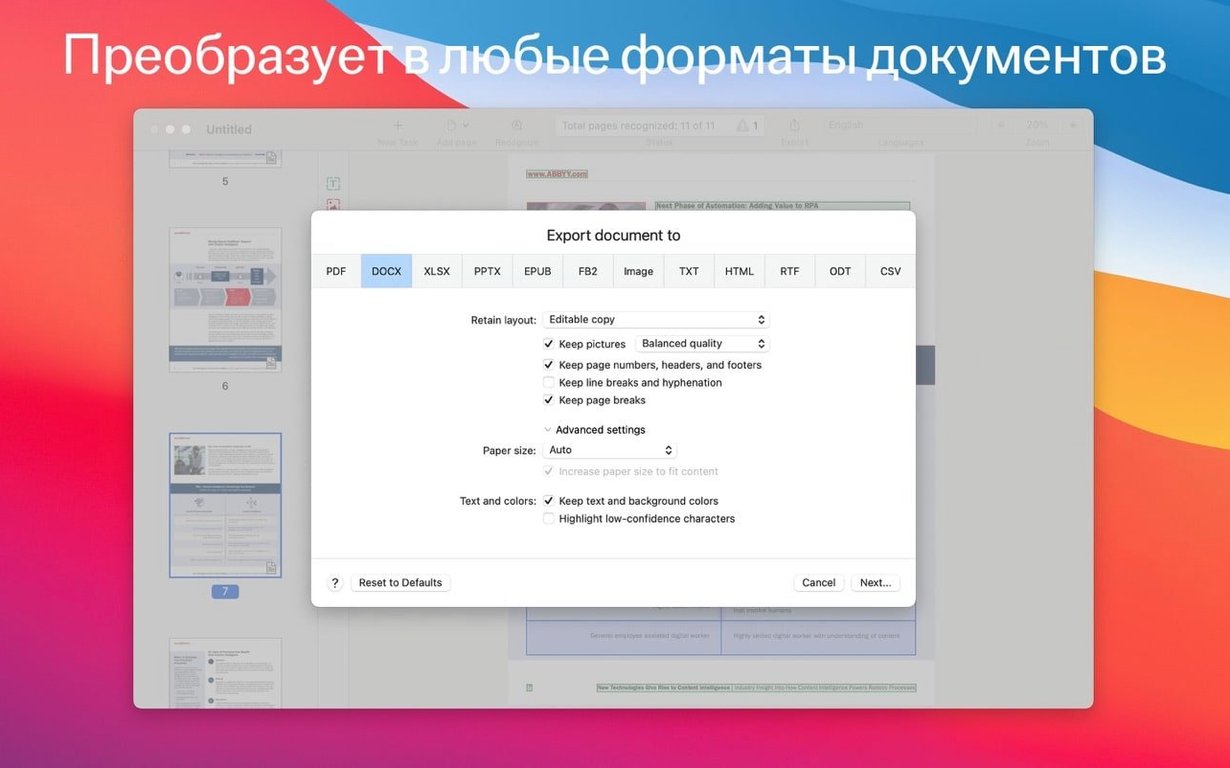
Set up your default export format on day one. Head into preferences and pick DOCX or searchable PDF as the standard. It saves a dozen tiny decisions every session. If you work with multi-language documents — say, a French contract with English clauses — add both languages to the recognition profile now so you are not hunting for that setting later. Also worth doing early: point the app to a dedicated output folder. FineReader will happily scatter converted files across your desktop otherwise.
One more thing. Open a scanned book page and try the text selection tool before you need it for real. The click-and-drag behavior for columns can feel different from Preview or Adobe Reader. Spending five minutes getting the hang of it now means you will not accidentally grab the wrong paragraph when you are in a hurry.
Adobe Acrobat handles PDFs; FineReader targets editable documents
Three names come up when people ask about document conversion on a Mac, and they each pull in a different direction.
Adobe Acrobat Pro. Acrobat is the obvious heavyweight, and its OCR engine is solid. The difference is focus. Acrobat wants to be your entire PDF universe — editing, signing, commenting, form-building. FineReader is narrower. It cares about recognition accuracy and clean export, and in side-by-side tests with dense, multilingual documents it often edges ahead on preserving layout. If your work is mostly about extracting text and tables without reformatting everything afterward, FineReader gives you less to clean up. Acrobat is broader; FineReader is sharper at the extraction itself.
OwlOCR. This is the lightweight native option that lives in your menu bar. OwlOCR is fast, free for personal use, and feels like a macOS feature Apple forgot to ship. It is wonderful for grabbing a phone number from a screenshot or copying a paragraph from a photo. But it does not touch PDF editing, does not produce searchable PDFs with the original page image, and does not handle a 200-page bound document with the same structural awareness. Think of OwlOCR as a sticky note; FineReader is the filing cabinet.
Readiris. Readiris sits closest to FineReader in ambition — it converts, it recognizes, it exports. Historically, Readiris has been more aggressive about cloud features and batch compression. FineReader is more conservative, and I mean that as a compliment. It does not push you toward an account or an online service. The recognition happens locally, and the export options feel built for people who care about document standards like PDF/A and PDF/UA. If you need to hand off files to an archivist or a government office, that matters.
Convert scans to DOCX before polishing in Word
FineReader works best when it is not the only tool in the chain. The pattern I see most often: a document arrives as a scan or an image-heavy PDF, FineReader converts it to DOCX, and then Word or Pages takes over for serious editing. The app does not try to replace a word processor; it just makes sure the text arrives clean and the tables stay intact.
On the inbound side, Continuity Camera connects it to your iPhone. You can snap a page and have it appear in FineReader without saving a photo to the camera roll first. For previously captured images, the import option pulls directly from your photo library. Combine this with macOS Quick Actions: once you settle on a regular export format, you can build a habit of right-clicking a scanned PDF in Finder and opening it straight into FineReader instead of Preview.
The PDF/A export slots into long-term storage workflows. If you archive client files or keep research materials for years, saving as PDF/A means the fonts and layout are embedded in a way future operating systems should still read. PDF/UA is the accessibility counterpart — it adds tagging for screen readers. If your documents need to meet accessibility standards, this saves a separate remediation step in another application.
Let auto-detection switch between English and German
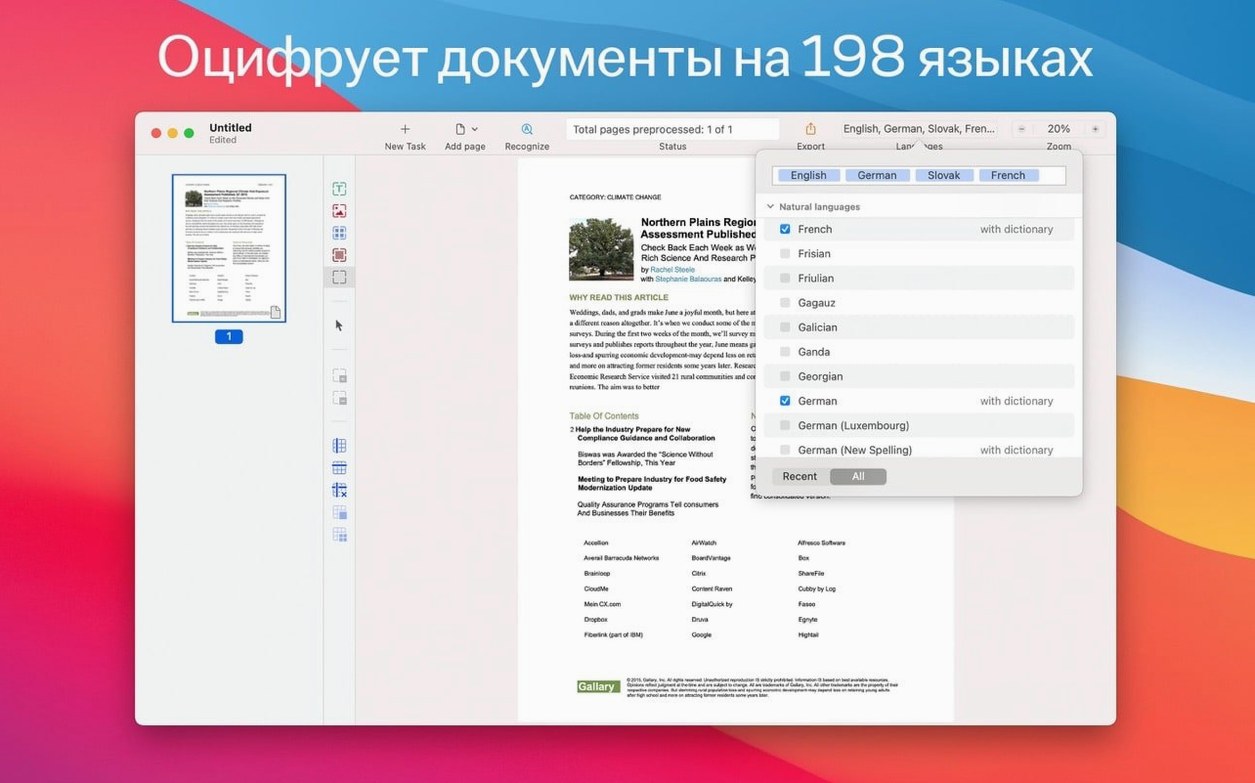
A few things hide in plain sight. The recognition language list holds 198 options, but you can set a default pair — say, English and German — and the app will auto-detect which pages need which language without switching manually. For mixed documents, this is the kind of quiet automation that prevents a lot of garbled output.
The built-in PDF viewer has a dark mode toggle that follows your system setting. It is a small thing, but if you spend an afternoon reviewing scanned contracts, a dark background behind the page image is easier on the eyes than Preview's bright white.
When you copy text fragments for citation, the app preserves the line-break behavior of the original. That sounds minor until you paste a paragraph into a note and realize you do not have to strip out hard returns manually. For anyone pulling quotes into a research tool or a translation environment, this saves real time.
Keyboard shortcuts are sparse but useful. Cmd-O opens a file, Cmd-S saves the current document, and the spacebar toggles between the image view and the recognized text layer. That last one is the shortcut I use most — a quick tap shows me what the OCR saw versus what was originally printed, and it makes spotting recognition errors almost instant.
Finally, the registration step during setup accepts any data, which keeps the installation straightforward on a fresh Mac. Drag the app into Applications, start it up, and you are inside the tool without jumping through hoops. That simplicity means you can install it on a machine you are setting up for document-heavy work and get straight to converting files.
Yes. You can save files as PDF/A, a format designed for long-term preservation. It also lets you password-protect a PDF right inside the app.
- macOS 11 or later
- Intel architecture (runs via Rosetta 2 on Apple Silicon)
Questions I actually get
Which languages does the interface support?
The app's interface is available in Russian, English, German, Italian, Simplified Chinese, and French.
Porch talk 0
Come in or pull up a chair to leave a comment.
Nobody has pulled up a chair yet. If you used it on a real Saturday, say what the hour was.
More for the same hour
Everything in Office
 Adobe Acrobat Pro
26.002.21901 Office
3.1 GB
Adobe Acrobat Pro
26.002.21901 Office
3.1 GB
 Be Focused Pro
2.6 Office
27 MB
Be Focused Pro
2.6 Office
27 MB
 Cardhop
2.4.8 Office
32 MB
Cardhop
2.4.8 Office
32 MB
 ClickClack - Typing Trainer
5.2.0 Office
Updated 12 MB
ClickClack - Typing Trainer
5.2.0 Office
Updated 12 MB
 Complete Anatomy
12.6.0 Office
Updated 867 MB
Complete Anatomy
12.6.0 Office
Updated 867 MB
 DjVu Reader Pro
2.7.2 Office
26 MB
DjVu Reader Pro
2.7.2 Office
26 MB
 EndNote
2025.4 Office
Updated 112 MB
EndNote
2025.4 Office
Updated 112 MB

 Final Draft
13.5.0 Office
Updated 111 MB
Final Draft
13.5.0 Office
Updated 111 MB