

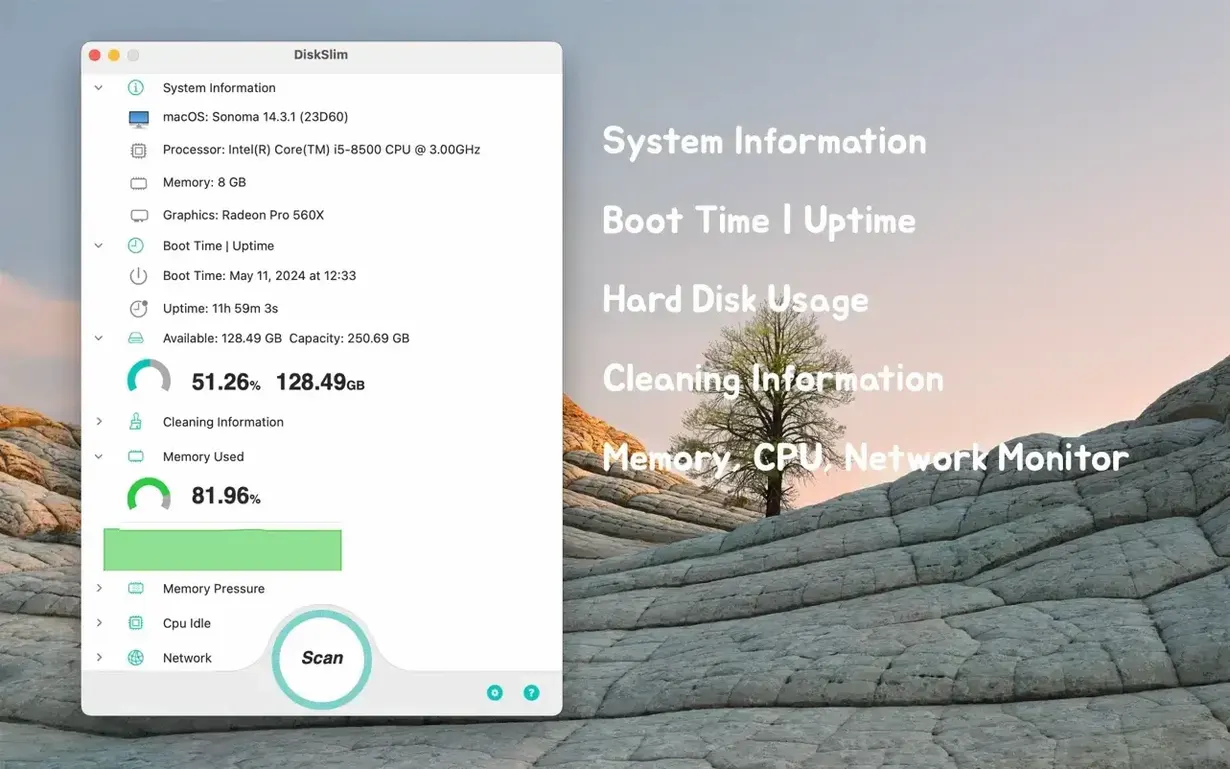
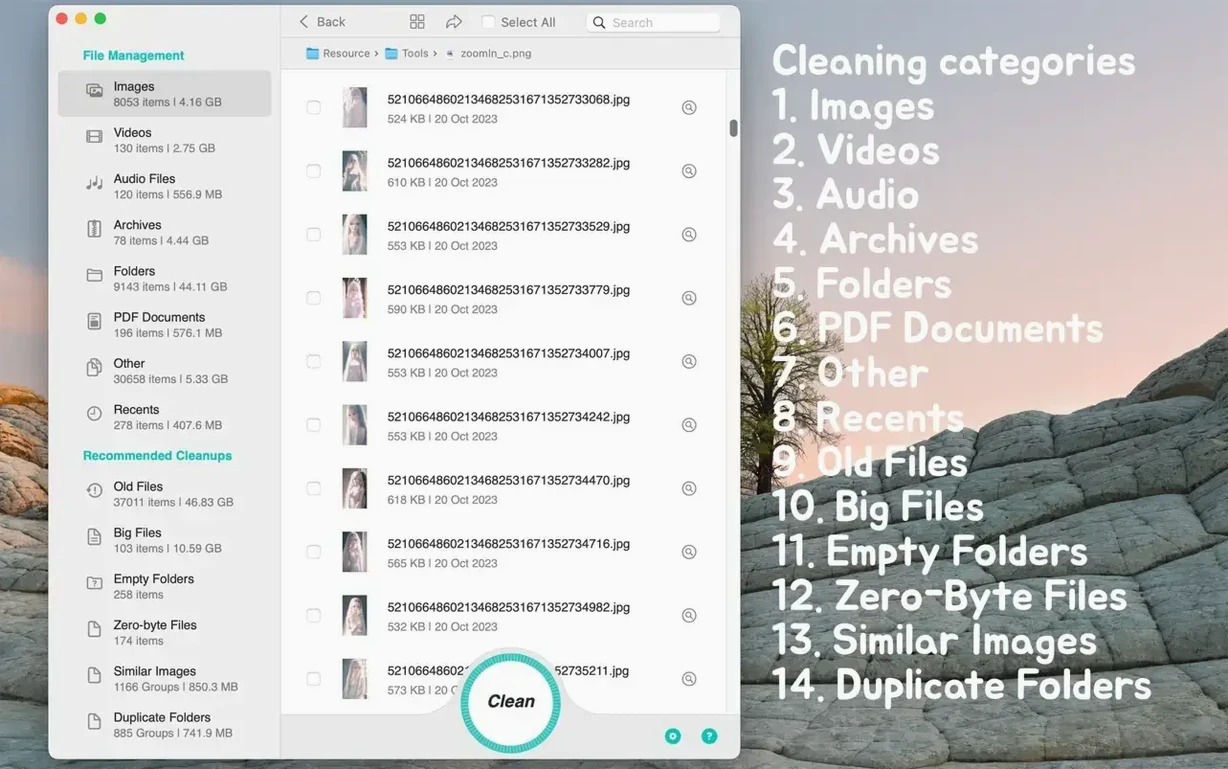
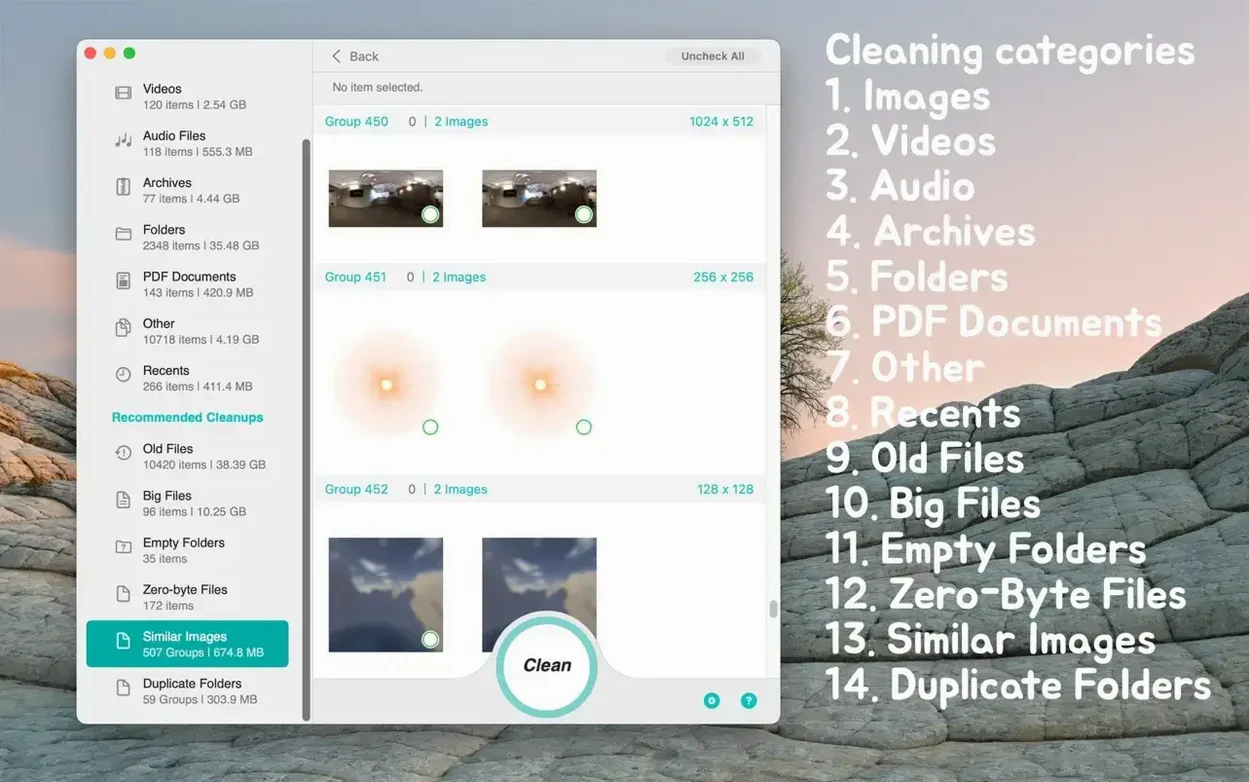
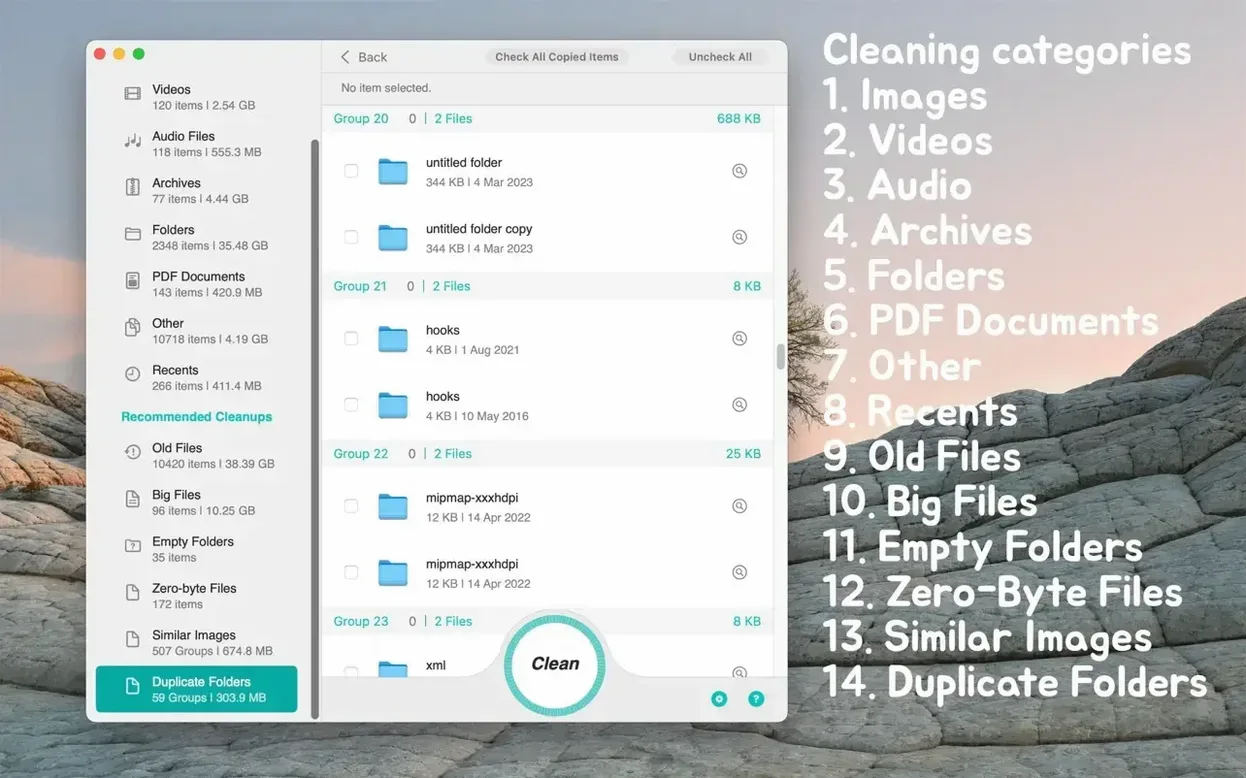
You know how the Downloads folder becomes a catch-all for forgotten installers, old PDFs, and files you swore you'd need again. DiskSlim is a Mac app that fits right alongside that habit. It scans for old files, large files, zero-byte files, empty folders, duplicate folders, and similar images. Use it as a regular sweep to keep things tidy without second-guessing what's safe to remove.
What DiskSlim Targets
- Old files you haven't touched in months
- Large files eating up space
- Zero-byte files and empty folders
- Duplicate folders and similar images
Built-in Purchases and What That Means
For everyday work on the Downloads folder, the free scan shows you what's there. You decide what goes.
For Frequent Downloaders and Project Hoarders
DiskSlim works best for anyone who treats their Mac like a working desk—things pile up, and every few weeks you need to clear the stack. If you download a lot of files for projects, keep reference PDFs around, or store photos you shot years ago and haven't looked at since, this is the app that makes the sorting less painful.
People who juggle multiple hard drives or external SSDs will find it useful too. It doesn't care where the files live; point it at a drive and it scans the same way. That matters when you're trying to reclaim space on a backup disk or a shared external drive that's suddenly full. The similar-images feature is especially handy for photographers who shoot bursts of the same scene and never delete the extras.
If you're the type who installs a macOS clean-up tool every few months and forgets about it, DiskSlim sits quietly until you open it again. No background daemons, no scheduled scans you didn't ask for. You run it when you remember to, and that's fine.
Works Alongside Finder and macOS Tools
DiskSlim works alongside the usual macOS tools without stepping on them. The Finder's search can find large files, but it won't group similar images for you or flag empty folders inside a project directory. That's where DiskSlim picks up. It also complements something like GrandPerspective or DaisyDisk if you use those—those apps show you what's using space visually, while DiskSlim lets you act on specific file types and ages.
It respects macOS permissions, so anything protected by system settings stays hidden. You won't accidentally delete system files or app data. The app integrates with the standard Open dialog and drag-and-drop, so you can drop a folder from Finder right onto the DiskSlim window to start a scan.
For the diskslim disk cleanup mac torrent crowd, it's worth knowing that DiskSlim handles leftover files from download managers and temporary folders that BitTorrent clients sometimes leave behind. It won't touch active torrent data unless you specifically include those folders.
No Automatic Deletion—You Choose What to Trash
Will it delete something important by accident? No. DiskSlim shows you what it finds and you choose what to move to Trash. Nothing gets removed automatically. The app marks files with their size, last accessed date, and location, so you can check before deciding.
Does it slow the Mac down while scanning? A large scan uses CPU and disk I/O, same as any utility. On a modern Mac with an SSD, a full drive scan takes a minute or two. The app doesn't run in the background after you close it.
Can I use it on an external drive? Yes. Connect the drive, open DiskSlim, and select it as the target. The scan works the same way. Just remember that files on external drives may take longer to list depending on the connection speed.
Some bulk-select or batch-delete options are part of the paid side. If you want to scan multiple drives or use the duplicate-folder and similar-images features regularly, you'll see the prompts.
Narrow Scans by Turning Off File Types You Skip
Before your first real cleanup, open DiskSlim's preferences. The default scan includes everything, but you can narrow it down from the start. Toggle off file types you don't care about—if you never clean up audio files, uncheck that category. It keeps the results list shorter.
Set the age threshold. The default for "old files" is usually six months, but you can lower it to 30 days for regular Downloads folder sweeps. That way you see only the files you just downloaded and forgot, not the year-old installer you kept intentionally.
Turn on the option to show hidden system folders if you're comfortable checking those. Most people don't need to, but advanced users who want to clear out leftover caches might find it useful. Just be careful—those folders often contain app settings you may still need.
One more thing: the preview pane. Enable it so you can see similar images side by side before you delete. It saves you from guessing which of those ten nearly identical screenshots is the one you actually wanted to keep.
- macOS 11 or later
- Intel or Apple Silicon Mac
Questions I actually get
Can I regularly clean the Downloads folder with DiskSlim?
Yes. DiskSlim is designed to target old files, large files, and duplicates, making it a solid tool for routine Downloads folder cleanups.
What file types does DiskSlim find?
It finds old files, large files, zero-byte files, empty folders, duplicate folders, and similar images.
Porch talk 0
Come in or pull up a chair to leave a comment.
Nobody has pulled up a chair yet. If you used it on a real Saturday, say what the hour was.
More for the same hour
Everything in Mac Cleaners
 Disk Doctor
4.6 Mac Cleaners
8 MB

 Mole
1.20.1 Mac Cleaners
Updated 68 MB
 Magic Disk Cleaner
6.1.1 Mac Cleaners
Updated 7 MB
 MacCleaner Pro
4.0.4 Mac Cleaners
132 MB

 MacBooster
8.3.0 Mac Cleaners
38 MB

 Ghost Buster Pro
7.1.1 Mac Cleaners
Updated 11 MB

 CleanMyMac
5.7.0 Mac Cleaners
180 MB

 CCleaner Pro
1.18.30 Mac Cleaners
6 MB