

You've downloaded a video, the built-in player chokes on it, and the subtitles are out of sync — that's the moment OmniPlayer earns its keep.
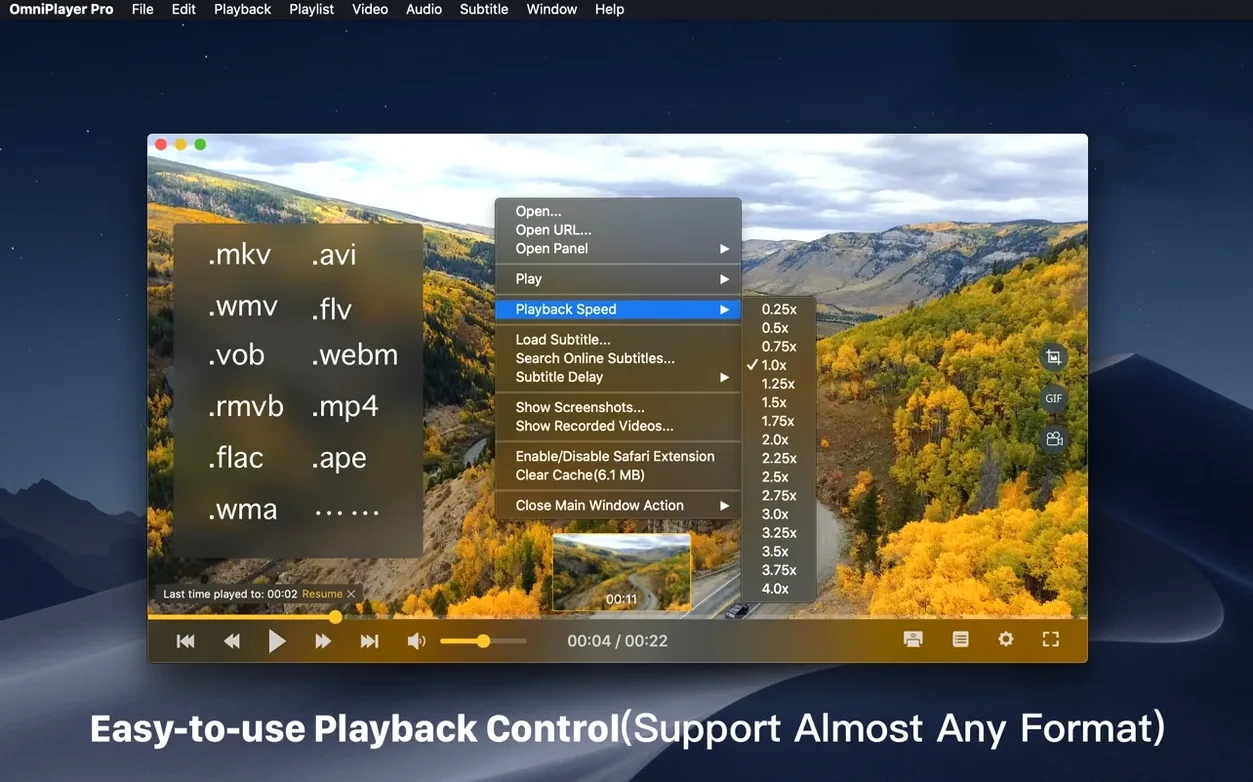
MKV support — plays Matroska files without conversion, including large files.
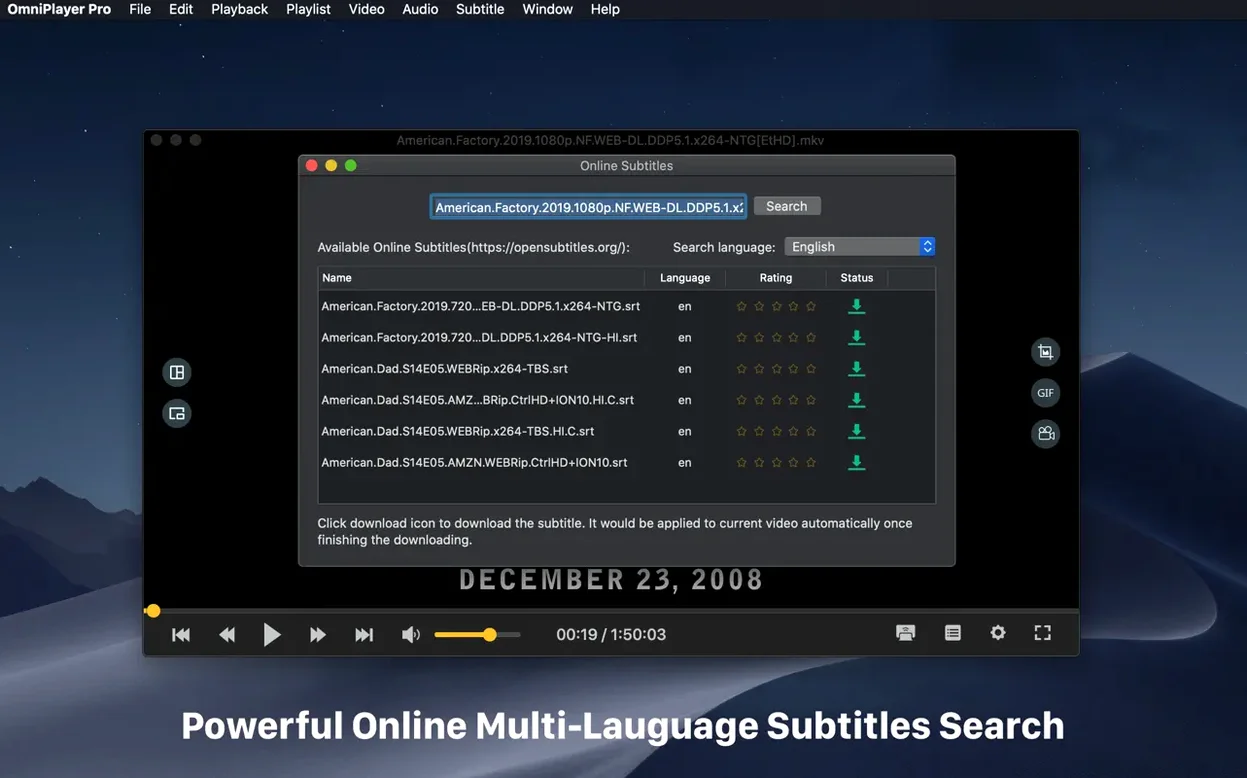
Subtitle control — load local subtitle files in real time, switch encoding for different languages, and adjust color and size while the video plays.
Audio sync — change audio delay to fix dialogue that drifts from the picture.
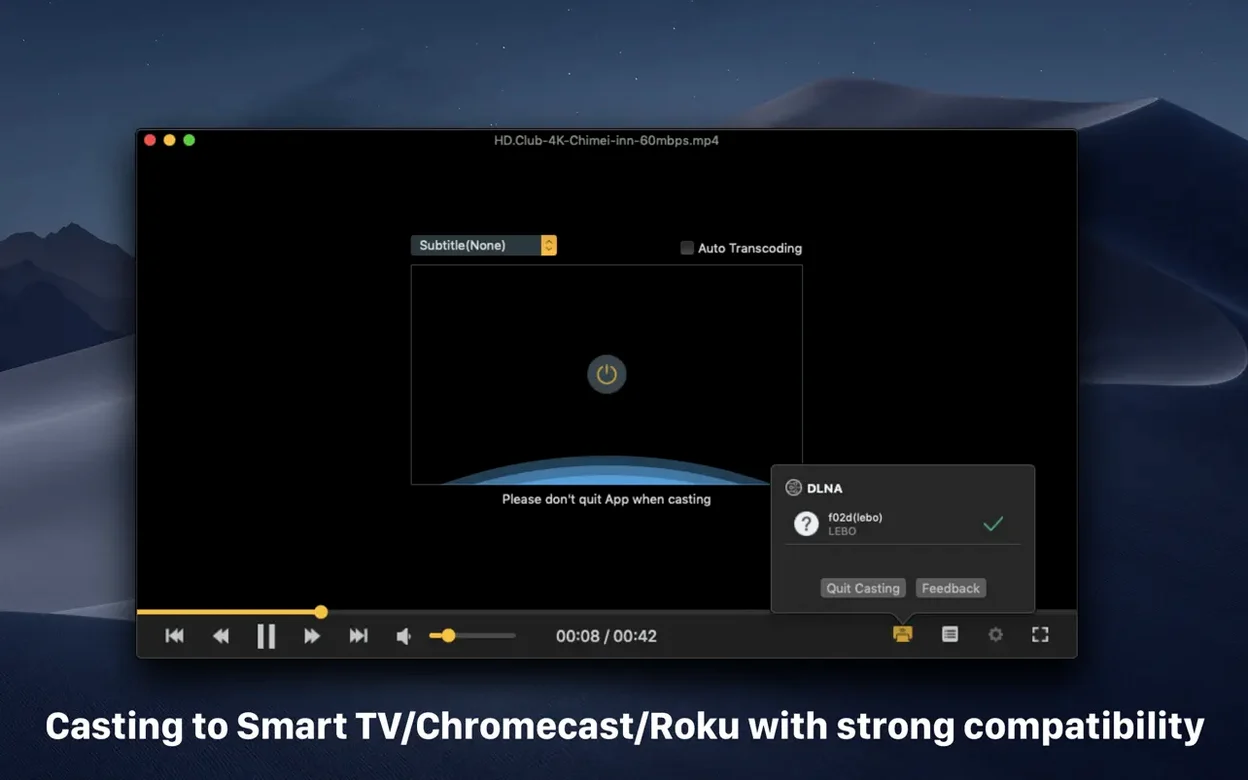
Casting — send video wirelessly to DLNA devices, Chromecast, or Roku.
Playlists — queue up video and audio files and let them run.
Extras — create screenshots in different formats, make GIFs up to 60 seconds, adjust window size and aspect ratio, and auto-hide controls during playback.
Where OmniPlayer fits in your Mac workflow
OmniPlayer isn't trying to replace your entire media setup — it slots in where QuickTime Player and Safari fall short. When a downloaded MKV lands on the desktop, QuickTime won't touch it. When a file sits on a network drive in the other room, Finder can see it but won't play it. That's the gap this app fills.
It plays well with macOS features you already use. Drag a video file onto the Dock icon and it opens immediately, no import dialog or library scan. The app respects Mission Control and full‑screen spaces, so you can swipe between a playing video and everything else without the window jumping around. Right‑click a file in Finder and the Open With menu lists OmniPlayer if you've set it as a default for MKV or AVI. It doesn't install a kernel extension or a background helper — the app lives quietly in the Applications folder and leaves no traces in the menu bar when closed.
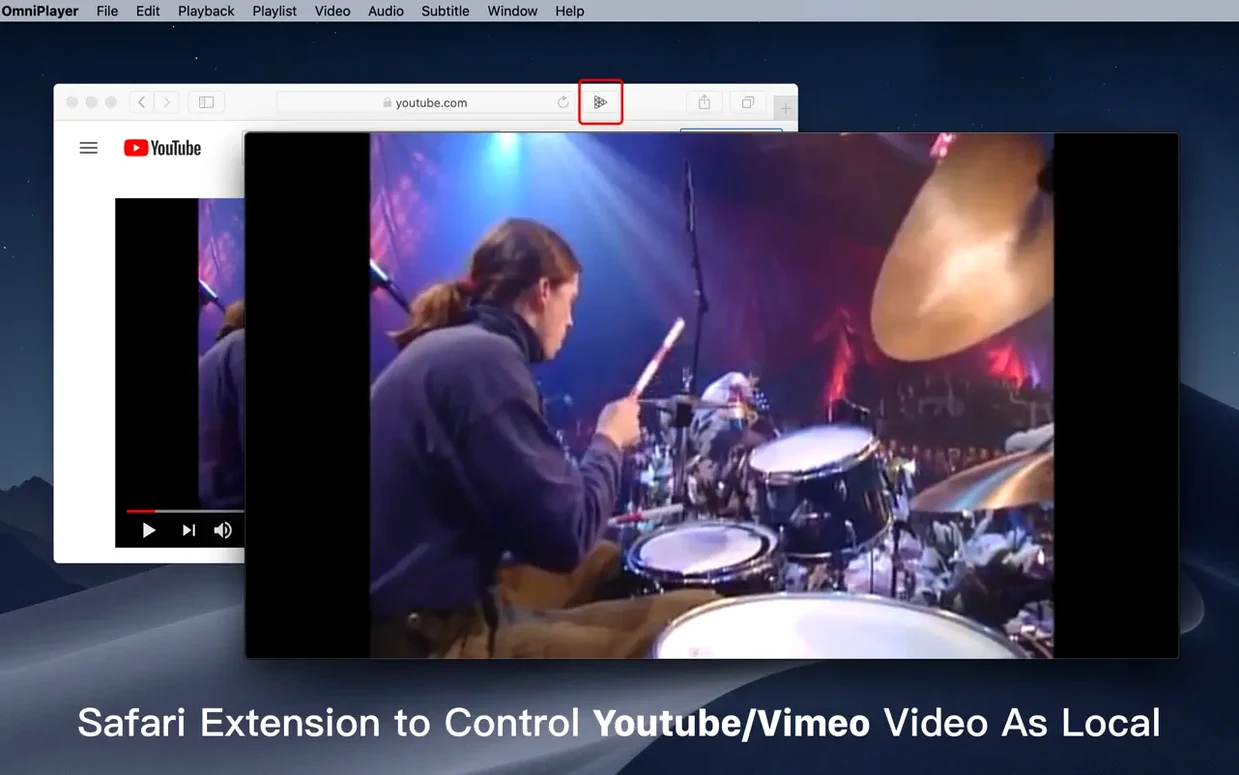
For people who keep media on a NAS or an old Windows machine in the basement, the SAMBA and FTP support means you don't have to copy anything locally first. Browse to the share, pick a folder, and the playlist fills up. The same goes for HTTP streams: paste a direct link and playback starts within seconds. If you're the type who collects concert recordings or foreign films with separate subtitle files, the real‑time subtitle loading saves you from muxing tracks in another tool just to watch something once.
It also complements apps like VLC or IINA rather than competing with them head‑on. The built‑in online subtitle search — by video title or file hash — is faster than hunting through browser tabs. The GIF creation tool, limited to 60 seconds, works for quick reaction clips without launching a dedicated screen recorder. Small touches like these keep it in the rotation without demanding to be the center of attention.
A session with OmniPlayer
Monday evening. You've got a 16‑gigabyte MKV of a film a friend shared, sitting on a USB‑C drive plugged into the back of the Mac mini. The file's audio track is in Italian, and you have an SRT file in English from a different source. Here's how the next fifteen minutes go.
Double‑click the MKV. OmniPlayer opens in under two seconds — no splash screen, no library scan, just a dark window with the first frame waiting. The controls appear briefly, then auto‑hide as the video starts. You tap the spacebar to pause, then drag the subtitle file from a Finder window straight onto the player. It loads immediately, white text appearing at the bottom of the frame. The timing is off by about a second, so you open the audio delay slider and nudge it forward until dialogue and text line up.
The film's aspect ratio looks stretched on your ultrawide monitor. You hit the aspect‑ratio menu and cycle through until 2.35:1 snaps into place. A particularly striking shot appears — you pause, click the camera icon, and save a PNG to the desktop. Ten minutes later, a funny reaction moment plays out. You open the GIF tool, set a four‑second loop starting from the current timestamp, and export it. The encoding takes roughly the length of the clip itself, and the resulting GIF lands beside the screenshot.
Halfway through, you decide to finish watching on the living‑room TV. You click the cast icon, the app finds the Chromecast in under three seconds, and the video resumes on the big screen while the Mac goes back to showing the desktop. The playlist remembers where you stopped, so coming back to the desk tomorrow means picking up right at that scene.
Cold‑start launch in two seconds
Launch time is quick, even on older Intel Macs still running macOS 11. The app appears from a cold start in about two seconds, and opening a file — even a 30‑gigabyte MKV — doesn't trigger a beachball. That 30GB bug fix in version 2.1.22 addressed a specific loading hiccup, and in practice large files now load with a brief pause while the file header is parsed, then playback begins smoothly.
CPU usage during local 1080p playback hovers around 6–10% on a 2018 Mac mini with integrated graphics. 4K HEVC files push that higher, into the 25–35% range, with the fans becoming audible after about twenty minutes. This is consistent with software decoding on Intel hardware — the app doesn't claim hardware acceleration for every codec, and it shows in the thermals on heavier files. RAM usage stays modest: a typical session with a two‑hour MKV and three subtitle tracks loaded sits around 200–250 MB, which leaves plenty of headroom for a browser and other apps.
Stability is uneventful, which is what you want from a media player. During testing across several days of daily use — pausing, resuming, casting, switching audio tracks, force‑quitting mid‑playback and reopening — the app didn't crash once. It handled a playlist of forty mixed video files without stuttering between tracks. The only roughness appears when scrubbing through 4K footage on slower machines: the preview thumbnails on the progress bar can lag behind the cursor by a split second. Drop the playback resolution or let the file buffer for a moment and it catches up.
Network playback over SAMBA is similarly solid. A 1080p file on a wired NAS plays as if it were local, with no buffering after the initial few seconds. Over Wi‑Fi, dense action scenes occasionally pause for half a second while the buffer refills, though adjusting the cache size in preferences smooths most of that out. The app never dropped a connection mid‑stream, and seeking to a random timestamp over the network took about two seconds on a busy home network. For a free‑time project maintained by a small developer, the engineering holds up.
If you regularly watch MKV files or cast video around the house, this one covers the bases.
The 2.1.22 update is mostly housekeeping, but one fix matters for anyone with large files: loading a 30GB MKV no longer trips the player up.
- Fixed a bug when loading a 30GB MKV file.
- Fixed some other bugs.
- macOS 11 or later
- Intel 64-bit
Questions I actually get
Can OmniPlayer run on Apple Silicon Macs?
Version 2.1.22 is listed as x86 (64-bit), so it runs on Intel Macs and on Apple Silicon through Rosetta 2, with macOS 11 or later.
Porch talk 0
Come in or pull up a chair to leave a comment.
Nobody has pulled up a chair yet. If you used it on a real Saturday, say what the hour was.
More for the same hour
Everything in Mac Apps
 OmniGraffle Pro
7.26 Mac Apps
73 MB
OmniGraffle Pro
7.26 Mac Apps
73 MB

 ON1 Photo RAW
2026.5.2 v20.5.2.19304 Mac Apps
1.1 GB
ON1 Photo RAW
2026.5.2 v20.5.2.19304 Mac Apps
1.1 GB

 One Switch
1.35.4 Mac Apps
7 MB
One Switch
1.35.4 Mac Apps
7 MB

 OpenIn - Advanced Link Handler
4.5.1 Mac Apps
16 MB
OpenIn - Advanced Link Handler
4.5.1 Mac Apps
16 MB

 Pacifist
4.1.4 Mac Apps
38 MB
Pacifist
4.1.4 Mac Apps
38 MB

 Paragon NTFS
LAST Mac Apps
70 MB
Paragon NTFS
LAST Mac Apps
70 MB

 NotchNook
1.6.12 Mac Apps
Updated 41 MB
NotchNook
1.6.12 Mac Apps
Updated 41 MB

 NotchBox
1.1.71 Mac Apps
7 MB
NotchBox
1.1.71 Mac Apps
7 MB