


You remember the first time you used the menu bar calendar widget—a tiny click that saved you opening the full app. NotchBox operates in that same spirit of instant access, but it stakes its claim on the space around your MacBook’s camera cutout, turning it into a responsive command post for the things you reach for most during the day.
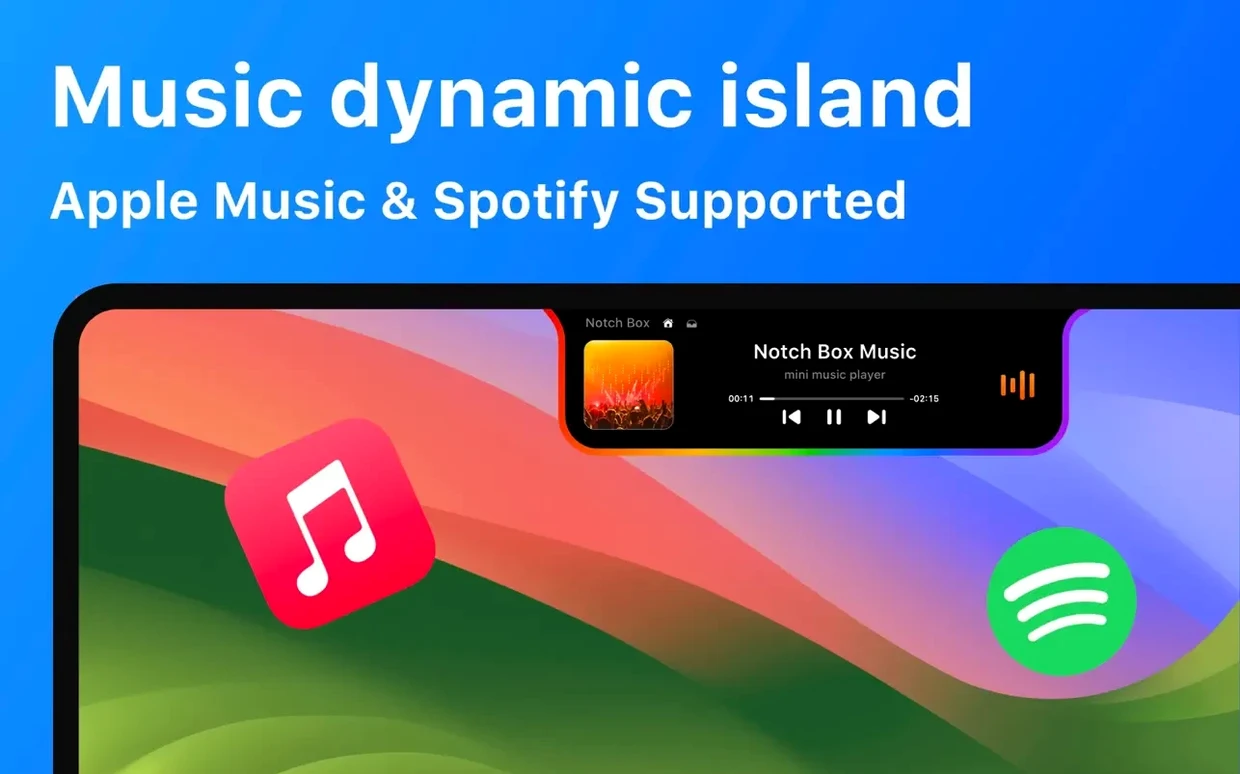
Can it control my music?
Yes, and it plays especially well with Spotify. The widget gives you playback controls and track info without switching windows, so you can skip a track or pause from the notch while you stay in your work.
What’s that about a camera mirror?
It puts a small live camera view right near the lens, which is genuinely handy for a quick appearance check before a video call. No more opening Photo Booth just to see if your collar is sitting right.
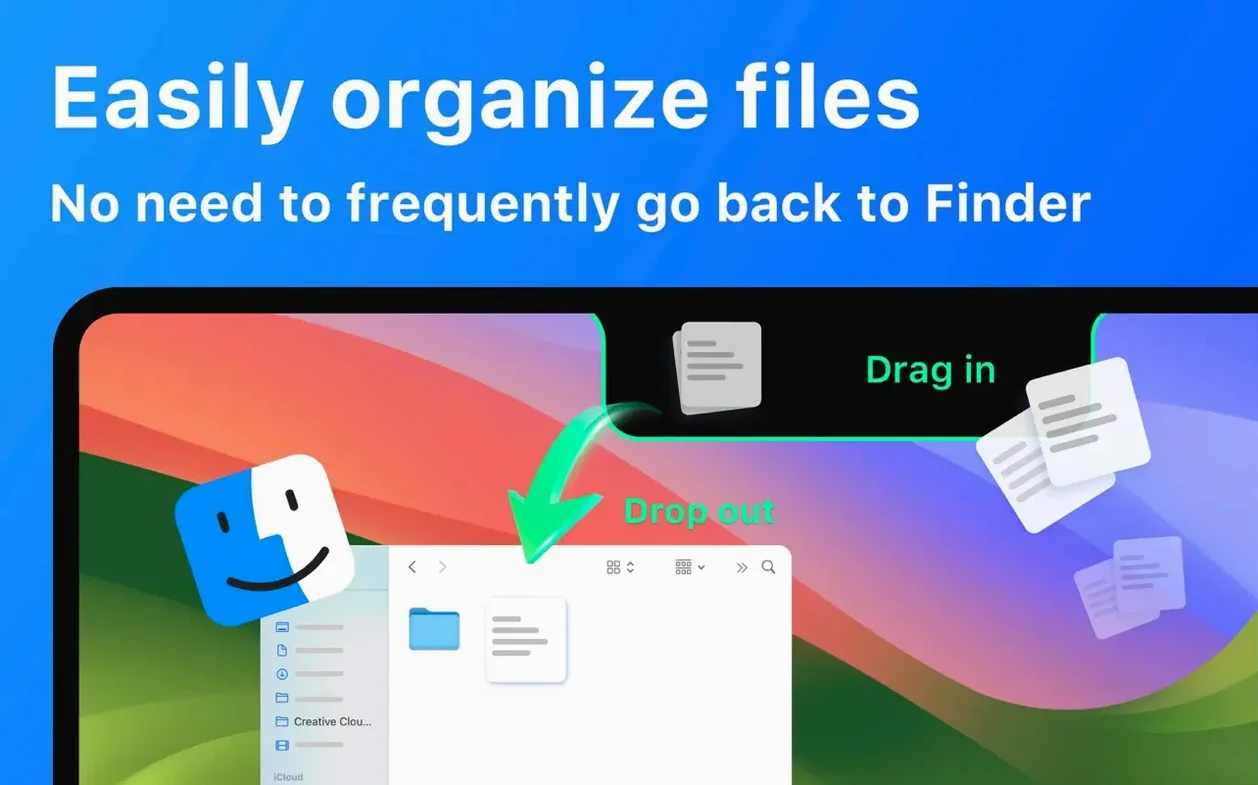
Drag a File Straight into AirDrop
There’s a clipboard history list for your recent copies, and a clever AirDrop zone where you can drag a file to share it without digging through Finder menus. Both features keep your hands near the keyboard and your attention on the task.
Will I see my upcoming meetings?
Yes. The hub surfaces your next calendar events at a glance, so the notch becomes a quiet reminder of what’s coming up without a full-screen notification.
A quick file hand-off, start to finish
Say you’re reviewing a batch of photos and you spot the one your colleague needs right now. Instead of opening Messages or fumbling with the AirDrop keyboard shortcut, you grab the image from Finder and drop it right onto the notch. NotchBox catches it as temporary storage, and from there you drag again to the AirDrop target that appears. A couple of seconds, no windows opened, no conversation broken. For folks who do this kind of hand-off several times an afternoon, the speed difference is real—especially when the hub already has your frequent contacts ready to go from earlier transfers.
The Hub Clears Out—It’s Not a Shelf
The most common stumble is treating the notch hub like a permanent shelf. It isn’t a Finder folder, and the file storage is meant for short-term staging—grab, move, forget. People who stash a dozen items there get surprised when the session clears, so think of it as a pocket, not a filing cabinet. Another early mistake is missing the clipboard depth: the history list shows more than your last copy, but new users often tap the notch once, see the current item, and assume that’s all. A longer press or a deliberate hover reveals the scrollable log, and once you know it’s there, you start using it for code snippets, addresses, or anything you’d otherwise paste into a scratchpad.
Meeting Reminders That Float Above Full-Screen
NotchBox doesn’t try to replace Stage Manager or your dock—it fills the gap between them. When you have a calendar event approaching, the hub’s meeting reminder sits above your full-screen app without stealing focus the way a notification banner does. That pairs well with Focus modes: you keep the meeting glance but suppress the ping. With Spotify, the notch widget works as a companion to the streaming app rather than a substitute—handy for skipping a track while you’re in Lightroom or Xcode, and far less disruptive than pulling up the full player. Even the Wi‑Fi speed readout plays a supporting role; if a file transfer feels sluggish, a glance at the signal strength tells you whether to blame the network or the file size. The countdown timer, meanwhile, slots into breaks between tasks without forcing you to hunt down a clock, which is especially nice when you’re running a pomodoro routine and already have your hands full. Together, these pieces feel less like a standalone app and more like a thin layer of muscle memory that sits on top of the operating system you already know.
- macOS 13 or later
- Apple Silicon or Intel 64-bit Mac
Porch talk 0
Come in or pull up a chair to leave a comment.
Nobody has pulled up a chair yet. If you used it on a real Saturday, say what the hour was.
More for the same hour
Everything in Mac Apps
 Nook X
2026.10.24 Mac Apps
Updated 36 MB
Nook X
2026.10.24 Mac Apps
Updated 36 MB

 NotchNook
1.6.12 Mac Apps
Updated 41 MB
NotchNook
1.6.12 Mac Apps
Updated 41 MB

 OmniGraffle Pro
7.26 Mac Apps
73 MB
OmniGraffle Pro
7.26 Mac Apps
73 MB
 OmniPlayer: MKV Video Player Pro
2.1.22 Mac Apps
78 MB
OmniPlayer: MKV Video Player Pro
2.1.22 Mac Apps
78 MB

 Navicat Premium
17.3.12 Mac Apps
333 MB
Navicat Premium
17.3.12 Mac Apps
333 MB

 ON1 Photo RAW
2026.5.2 v20.5.2.19304 Mac Apps
1.1 GB
ON1 Photo RAW
2026.5.2 v20.5.2.19304 Mac Apps
1.1 GB

 One Switch
1.35.4 Mac Apps
7 MB
One Switch
1.35.4 Mac Apps
7 MB

 OpenIn - Advanced Link Handler
4.5.1 Mac Apps
16 MB
OpenIn - Advanced Link Handler
4.5.1 Mac Apps
16 MB