Version 4.18 landed June 18 with smoother large-file uploads and tidier MEGA connections under the hood. If you have been watching the updates, those two fixes alone make the daily grind feel less brittle. Here is how a single realistic task plays out with the app, start to finish.
How do you add a cloud drive to Finder?
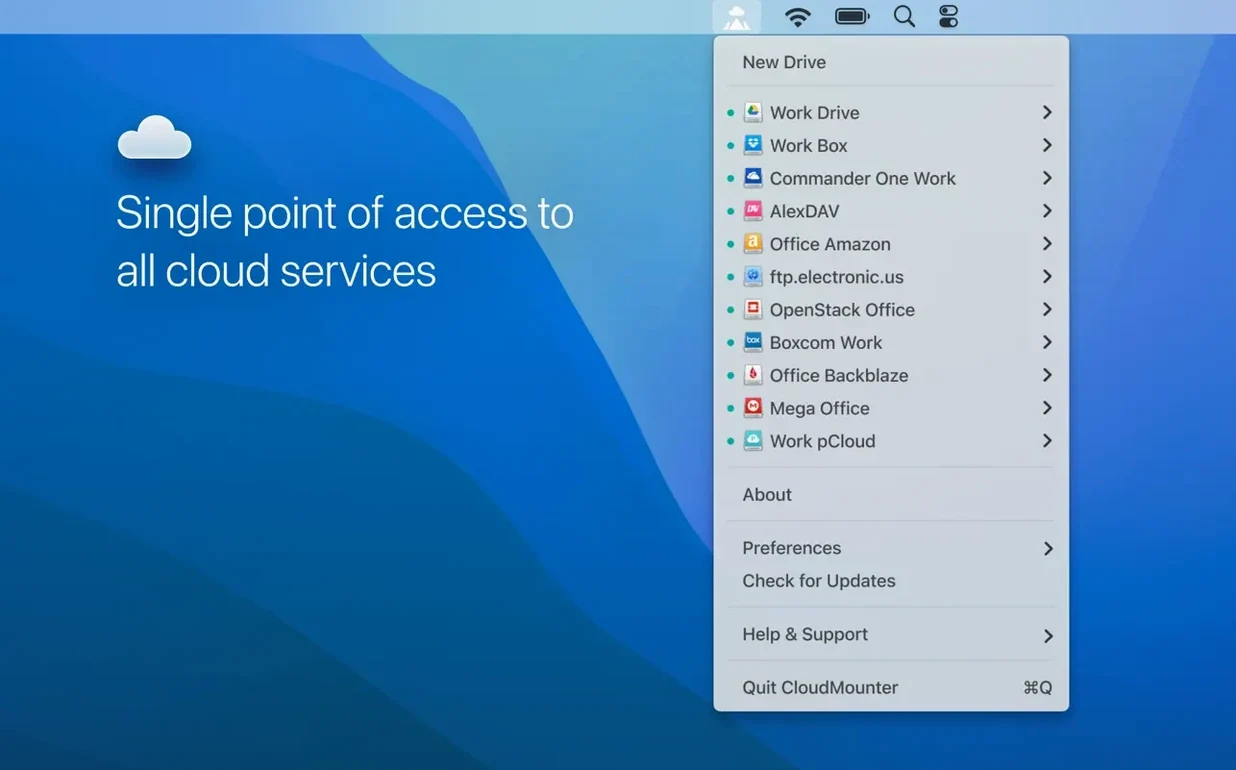
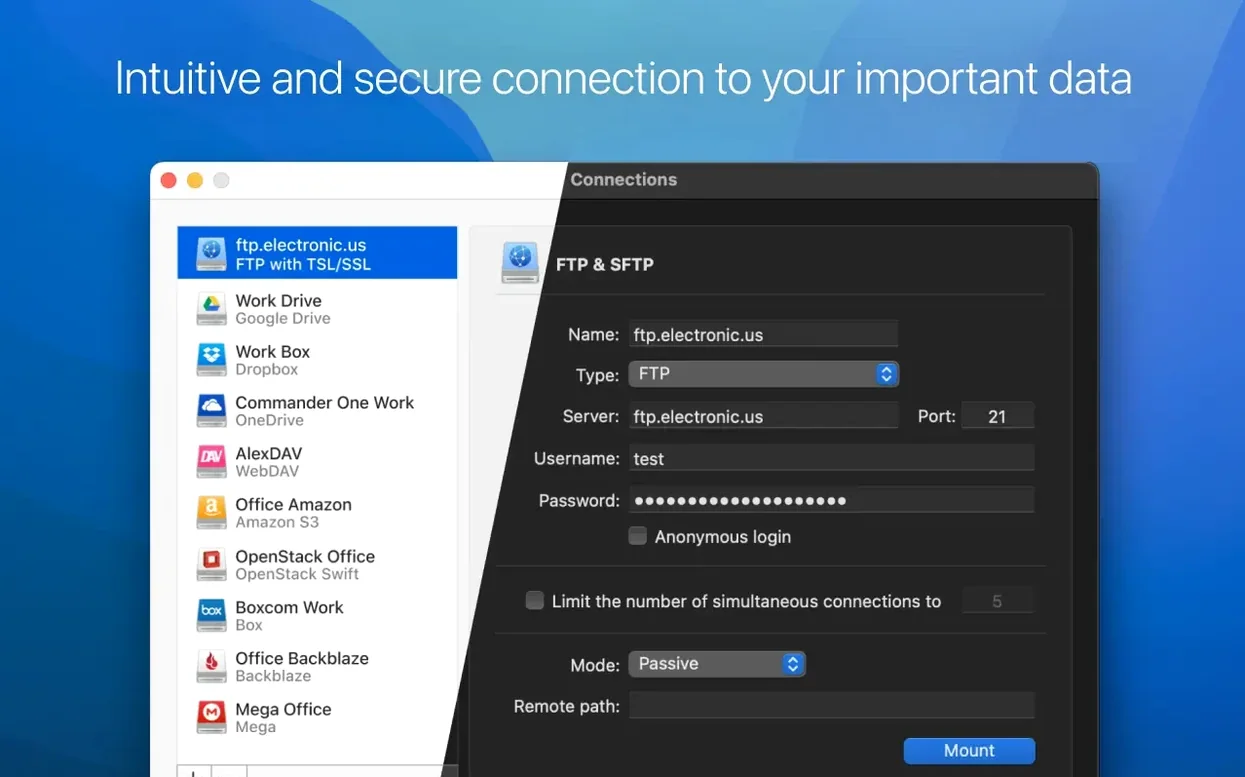
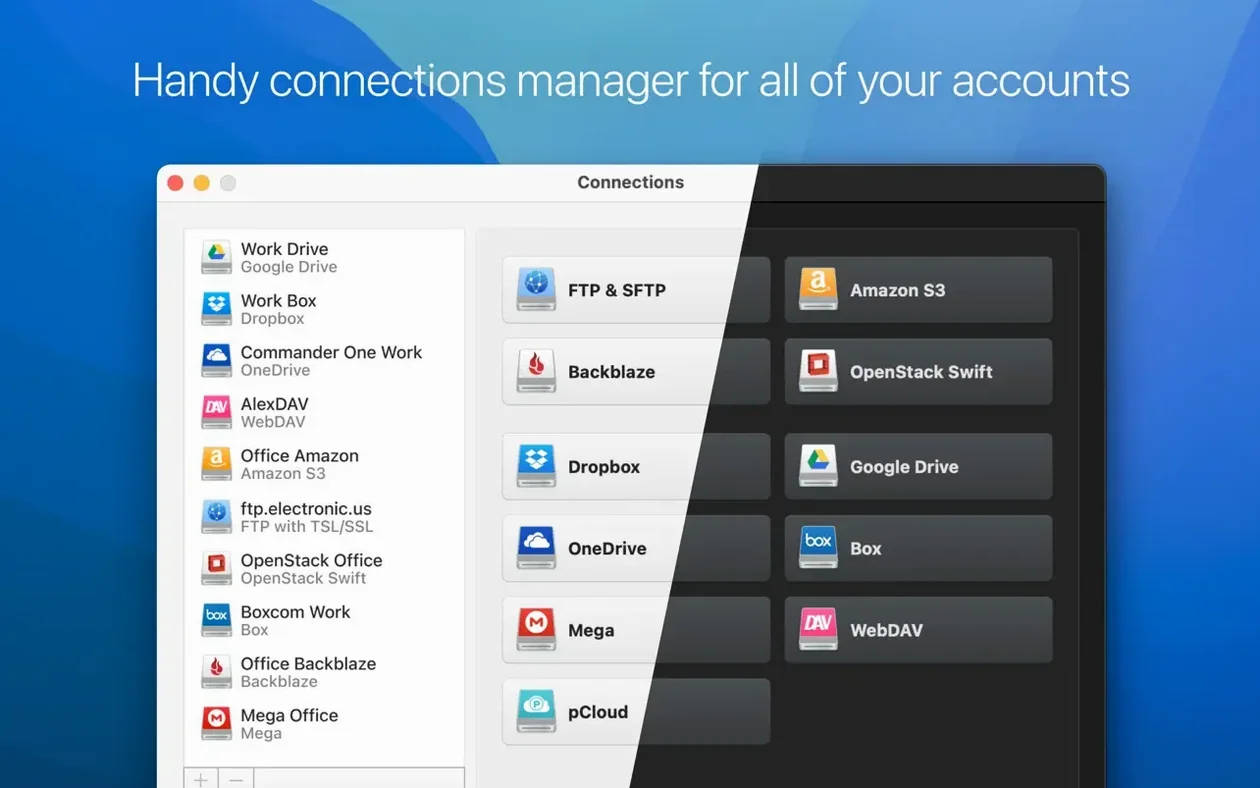
Open the connection manager from the menu bar, pick your service, and sign in. CloudMounter shows the account as a regular volume in Finder almost instantly, no extra windows needed.
Drag, Drop, and a Spinner That Won’t Stall
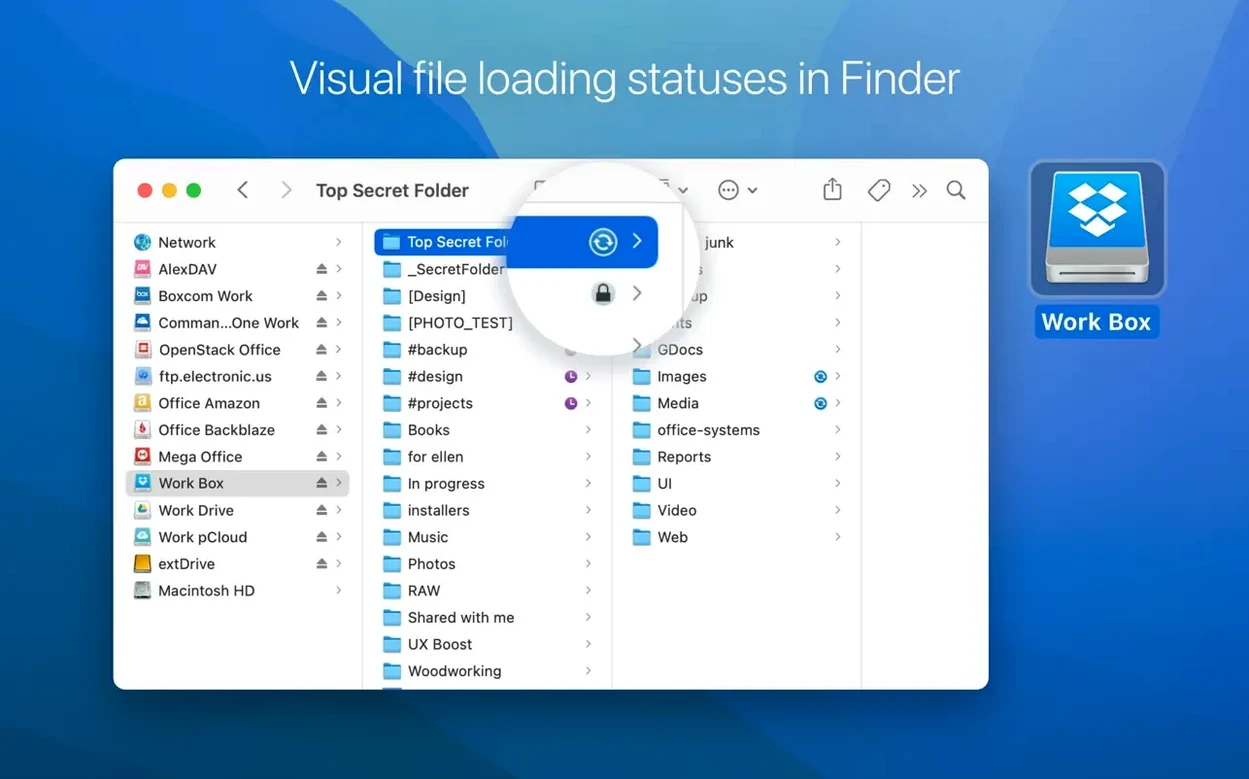
You drag it across in Finder like any local folder. A small status icon spins beside the file name while the upload runs, and the improved large-file handling in 4.18 keeps the progress indicator steady instead of stalling.
Does the folder eat up space on your Mac?
No. CloudMounter does not auto-sync files to your local disk; it streams data on demand. The mounted drive behaves like local storage, but the bulk of the data stays in the cloud.
Can you keep prying eyes out of that folder?
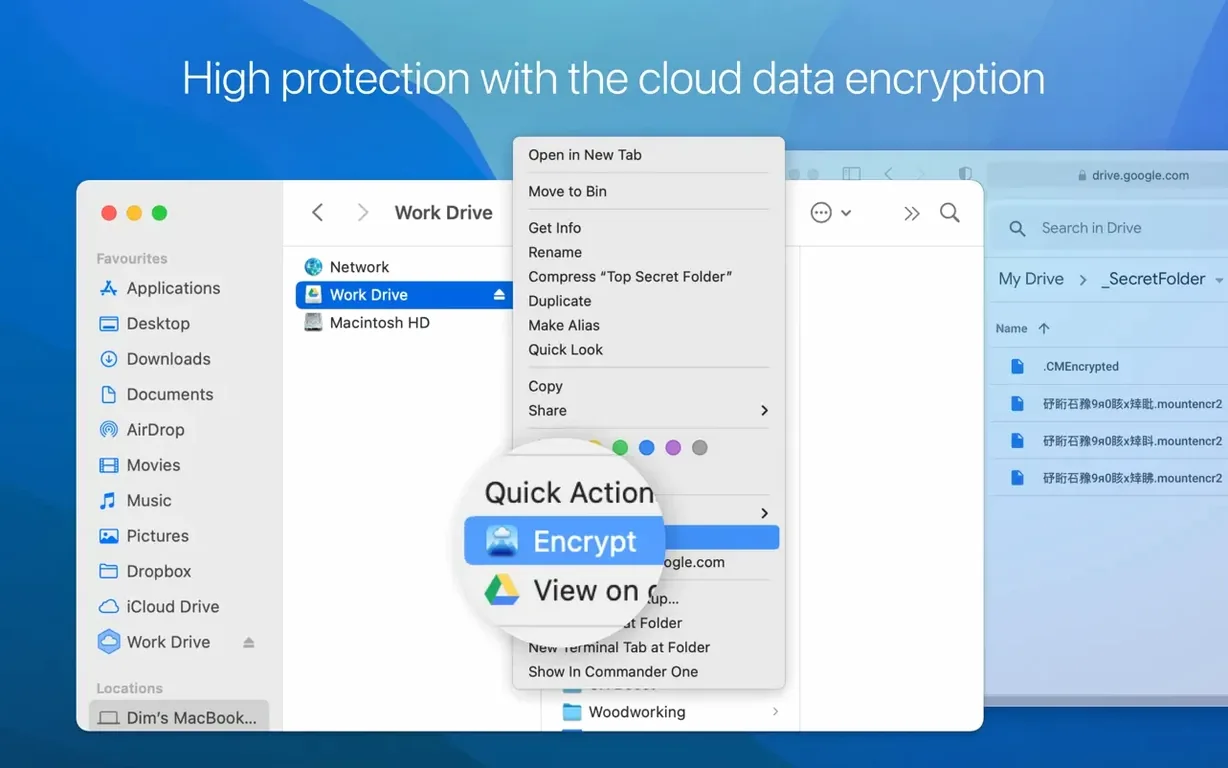
Yes. Before the first upload you can turn on AES-256 encryption for the connection. From that point on, every file you drop into the drive is encrypted before it leaves your Mac.
Freeing Mac Space Before the Five O’Clock Deadline
It is a Tuesday afternoon and you have a folder of raw footage from Saturday's shoot sitting on the desktop. The client wants it in their Dropbox by five, but your Mac's internal drive is already nudging the red. You also need to grab a few reference stills from the studio's SFTP server while you wait.
You click the CloudMounter icon in the menu bar and the connection manager slides open. Dropbox is already listed because you set it up last month. One click, and a volume called Dropbox pops onto the desktop like a freshly plugged-in external drive. The SFTP connection is listed right below it; you click that too, and now Finder shows a second volume named after the studio server.
Dragging the footage folder into the Dropbox volume feels exactly like copying to a USB stick. A tiny spinning indicator appears next to the folder name in Finder. You open the CloudMounter transfer window to watch the queue — the progress bar moves in tight, steady chunks, no hiccups. That is the improved large-file handling from 4.18 doing its quiet work. While the footage uploads, you open the SFTP volume in a separate Finder tab, browse to the stills folder, and drag three PNGs to your local drive. The downloads overlap with the ongoing upload; neither stream chokes the other.
Twenty minutes later the client emails back to say the link works. You unmount both volumes from the menu bar, and not a megabyte of that footage ever touched your internal drive. The whole session ran inside Finder, with no browser tabs, no sync clients eating background cycles, and no temporary cache piling up where you did not ask for it.
How CloudMounter sits alongside similar Mac apps
Three other tools tend to come up when people ask about cloudmounter macos comparisons: Mountain Duck, ExpanDrive, and the free Google Drive for Desktop utility. They all put remote storage into Finder, but the feel of each one is different.
Mountain Duck takes a bare-bones approach. It mounts servers as volumes and gets out of the way. Where CloudMounter wraps the experience in a connection manager with encryption toggles and a transfer queue window, Mountain Duck leans on plain Finder copy dialogs and expects you to handle encryption elsewhere. If you want a lightweight SFTP mounter and nothing else, it works. CloudMounter adds the convenience of switching between a dozen cloud services and FTP in the same panel, plus built-in AES-256 for any connection.
ExpanDrive feels closer to CloudMounter in ambition. It supports a wide range of services and also appears as a volume in Finder. The difference is that ExpanDrive pushes background sync more aggressively; it wants to keep a local cache updated. CloudMounter is the deliberate opposite — it streams only what you open and never syncs unless you drag a file somewhere. For anyone actively avoiding local storage bloat, that streaming approach is the whole point. Some users looking for a CloudMounter crack or CloudMounter activation code are drawn to this streaming model as a way to keep their drives lean and responsive.
Google Drive for Desktop is the obvious free option, but it only handles Google accounts and forces a local cache. CloudMounter can mount a Google Drive alongside a Backblaze B2 bucket and a WebDAV share, all visible in the same Finder sidebar. The multi-account trick is where the app earns its keep.
Fitting CloudMounter into a broader Mac workflow
The app sits neatly between Finder, Spotlight, and your existing file tools. Because mounted volumes look like local drives, Spotlight indexes them while they are connected. Type a file name and it surfaces results from your SFTP server right next to local documents. No separate search window needed.
Time Machine does not back up mounted cloud volumes — a sensible omission — but you can pull files from a remote server into a local folder that is backed up, all with plain drag-and-drop. If you use a duplicate finder or a disk space analyzer like DaisyDisk, those tools will see the mounted volumes too. CloudMounter does not hide behind a custom file browser; it hands the data straight to macOS's VFS layer and trusts the system to do the rest.
For anyone juggling CloudMounter torrent downloads of large media libraries, the streaming model is particularly useful. You can mount a remote server, open a video file directly in VLC, and never download the whole thing. Close the player, unmount the volume, and your local drive stays as clean as it was before. The encryption layer also means that if you are pulling files from a shared server, you can keep a private folder encrypted with a passphrase only you hold, while leaving the rest of the connection unencrypted for speed.
If you regularly move between a Mac at home and one at a coworking space, CloudMounter saves you from installing half a dozen sync clients on each machine. Mount what you need, when you need it, and unmount when you are done. It is a lean addition to the menu bar that quietly extends Finder without trying to become the center of your digital life.
Version 4.18 quietly fixes the rough edges that slow you down.
- Improved uploading of large files
- Improved work with MEGA connections
- Fixed download cancellation for files on SFTP connections
- Fixed file downloading issues when cache volume is changed
- Fixed displaying of storage usage information for online connections
- macOS 10.14 or later
- Intel processor
Questions I actually get
Which cloud services work with CloudMounter 4.18?
It covers popular cloud storage and remote connections including Google Drive, Dropbox, OneDrive, Amazon S3, Backblaze B2, MEGA, and SFTP, among others.
Does the app require macOS 10.14 or newer?
Yes, CloudMounter runs on macOS 10.14 and later, and the current build supports Intel-based Macs.
Is file transfer progress visible?
Absolutely. Status icons show upload, download, move, and update progress right inside Finder as you work.
Porch talk 0
Come in or pull up a chair to leave a comment.
Nobody has pulled up a chair yet. If you used it on a real Saturday, say what the hour was.