
Radio Silence runs on pretty much any Mac you're sitting in front of — Apple Silicon and x86 64-bit Intel machines are both supported, as long as you're on macOS 10.15 or newer.
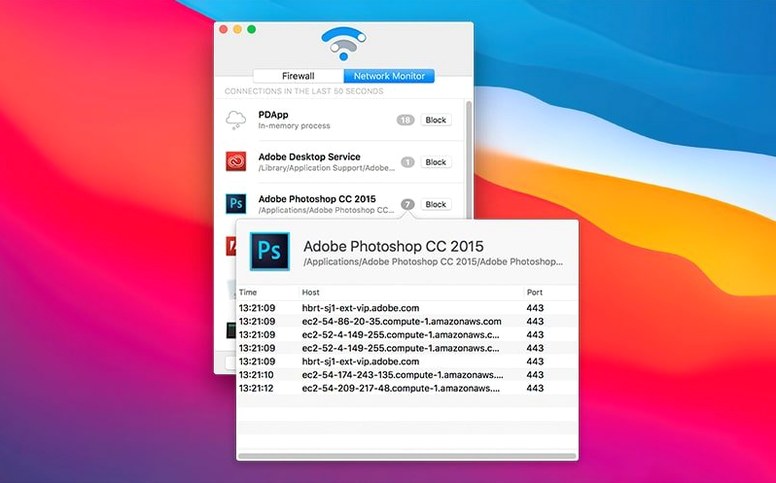
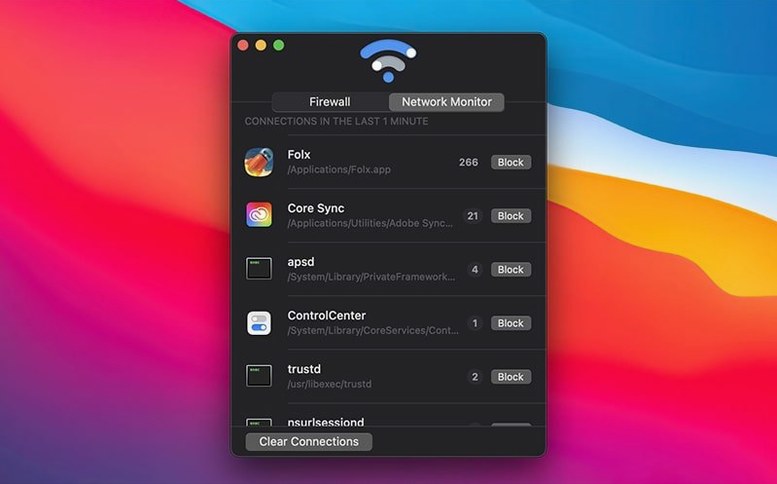
The app does two things and keeps both of them visible. It acts as a network monitor, showing you a real-time list of connections started by your applications. That alone is often eye-opening — you can sit back and watch which utilities, helpers and creative tools are quietly phoning home.
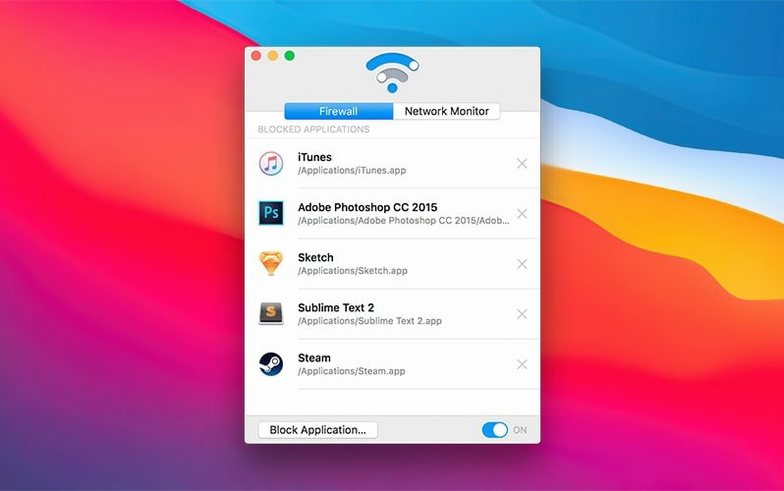
When you see something you don't want talking, the firewall half of the app steps in. You block an app, and Radio Silence stops it from reaching its servers. No digging through system config files. The block list sticks around, and you can remove any app from it later or pause the whole firewall temporarily if you're troubleshooting a connection.
The latest version, 3.4, is built for macOS Tahoe and includes a help view that surfaces troubleshooting information if the app ever fails to launch — a thoughtful touch that makes it feel ready for the kind of everyday hiccups a real desktop runs into.
Three Firewalls, Three Philosophies
When you start shopping for a Mac network firewall that works at the application level, three other names come up quickly: Little Snitch, LuLu, and TripMode. They each approach the same problem from a different angle, and knowing the differences helps you land on the right one for your setup.
Little Snitch is the heavyweight. It offers rules-based filtering, detailed connection logs, a map view, and the kind of granularity where you can decide whether an app may connect to a specific port on a specific server at a specific time of day. That power comes with a dense preferences window and a constant stream of permission dialogs when it's first learning your habits. Radio Silence takes the opposite path — its block list is deliberately simple. You see an app, you block it. That's the whole interaction model. If you want a set-it-and-forget-it firewall that doesn't ask you questions every ten minutes, Radio Silence fits better.
LuLu, an open-source firewall from Patrick Wardle, sits closer to Radio Silence in spirit. It monitors outgoing connections and alerts you to new ones, giving you a chance to allow or block them. The difference is that LuLu wants to be in the conversation regularly, while Radio Silence assumes you'd rather review the list at your own pace and act only on what bothers you. LuLu also lives in the menu bar with a visible icon; Radio Silence chooses to stay completely out of sight unless you open the window. For people who find persistent menu bar icons distracting, that's a meaningful design choice.
TripMode is the road warrior of the group. It's built around data caps and mobile hotspots, letting you throttle or block apps to save bandwidth. Radio Silence doesn't profile your data usage or care whether you're on Wi‑Fi or Ethernet — it simply stops selected apps from talking. If you're mainly on a desktop with an unlimited connection and your concern is privacy rather than data conservation, TripMode adds a dimension you may never need.
Bumps You Might Hit and How to Smooth Them Out
A few things tend to trip people up in the first couple of days, and most of them are easy to fix once you know what to look for.
The firewall isn't blocking an app you added. Radio Silence relies on a system extension, and macOS is protective about those. If you rushed through the security approval during installation, the extension may not have been allowed. Open System Settings, navigate to Privacy & Security, and look for a prompt about network filtering. Version 3.4 includes a help view that surfaces exactly this kind of troubleshooting, so if the app detects a permissions gap on launch, it will walk you through it.
An app you blocked still shows connections in the monitor. The monitor tab reflects what's happening at the network level — it reports attempts regardless of the firewall state. A blocked app might still try to connect, and you'll see those attempts listed. The firewall is quietly dropping them. The real test is whether the blocked app's functionality breaks; if a photo editor can't check for updates or a utility can't reach its analytics server, the block is working.
You blocked something system-level and Wi‑Fi started acting strange. Blocking a process like mDNSResponder or a network daemon will cause broader connectivity issues because those aren't just one app's helper — they serve the whole system. Stick to blocking applications you recognize from your Applications folder or that appear under clearly labeled process names. If things go sideways, pause the firewall from the Firewall tab and remove the culprit from the block list.
Don’t Block Anything Yet
Radio Silence rewards a light touch at first. Here's how to get comfortable without overcommitting.
Day one — watch, don't touch. Open the app, switch to the monitor tab, and just let it run in the background while you work. Check in after an hour or two. You'll spot updater processes, cloud sync helpers, and analytics calls you didn't know existed. Make a mental note of anything that surprises you, but don't block anything yet. The goal is to build a mental map of what your machine normally does.
Day two — block one app and live with it. Pick something low-stakes: a creative tool that phones home for usage stats, or a utility that checks for new versions more often than you care about. Block it. Use your Mac normally for the rest of the day and see if anything breaks. If the app complains about a missing connection, you can decide whether to unblock it or live without that feature. The pause button in the Firewall tab is your safety net — one click and everything is temporarily open again.
Day three — build your permanent block list. Once you've confirmed that a block doesn't disrupt your workflow, leave it in place. Over the next few days, repeat the process with other apps that you'd rather keep offline. A handful of well-chosen blocks — an updater here, a telemetry reporter there — adds up to a quieter machine without the maintenance overhead of a complex rules engine. Keep the list short and intentional; Radio Silence is at its best when you can glance at the Firewall tab and instantly see every app you've chosen to silence.
Trial‑Run a New App Without the Risk
Say it's a Wednesday evening and you've just installed a new screen capture utility from a small developer you like but don't know well. You want to use the tool, but you're not ready to let it chat with the internet unattended.
You launch the utility, take a couple of test screenshots, then switch over to Radio Silence. The monitor tab already shows a few entries under the utility's name — a version check ping to the developer's domain, and what looks like an analytics endpoint. Nothing sinister, but also nothing you asked for.
You click the Block Application button, find the screen capture tool in the list, and add it. The entry moves to the Firewall tab immediately. Back in the utility, you try the "Check for Updates" menu item. It spins for a moment and then reports that it can't reach the server. Good. The block is real.
You spend the next twenty minutes using the utility normally — capturing, annotating, saving files. No crashes, no stalled interface, no mysterious error messages beyond the expected update failure. Satisfied, you leave the block in place and close Radio Silence's window. There's no menu bar icon to remind you it's there. The firewall keeps working silently in the background, and the screen capture tool does its job without a single packet leaving your Mac.
Version 3.4 is ready for macOS Tahoe with clearer installation guidance, smoother handling of permissions and errors, and a built-in troubleshooting view for those rare times the app can't start up.
- macOS 10.15 or newer
- Apple Silicon or Intel Mac
Questions I actually get
Can I temporarily turn off blocking for a few minutes?
Yes, the firewall can be paused whenever you need it, then turned back on without losing your block list.
Porch talk 0
Come in or pull up a chair to leave a comment.
Nobody has pulled up a chair yet. If you used it on a real Saturday, say what the hour was.