

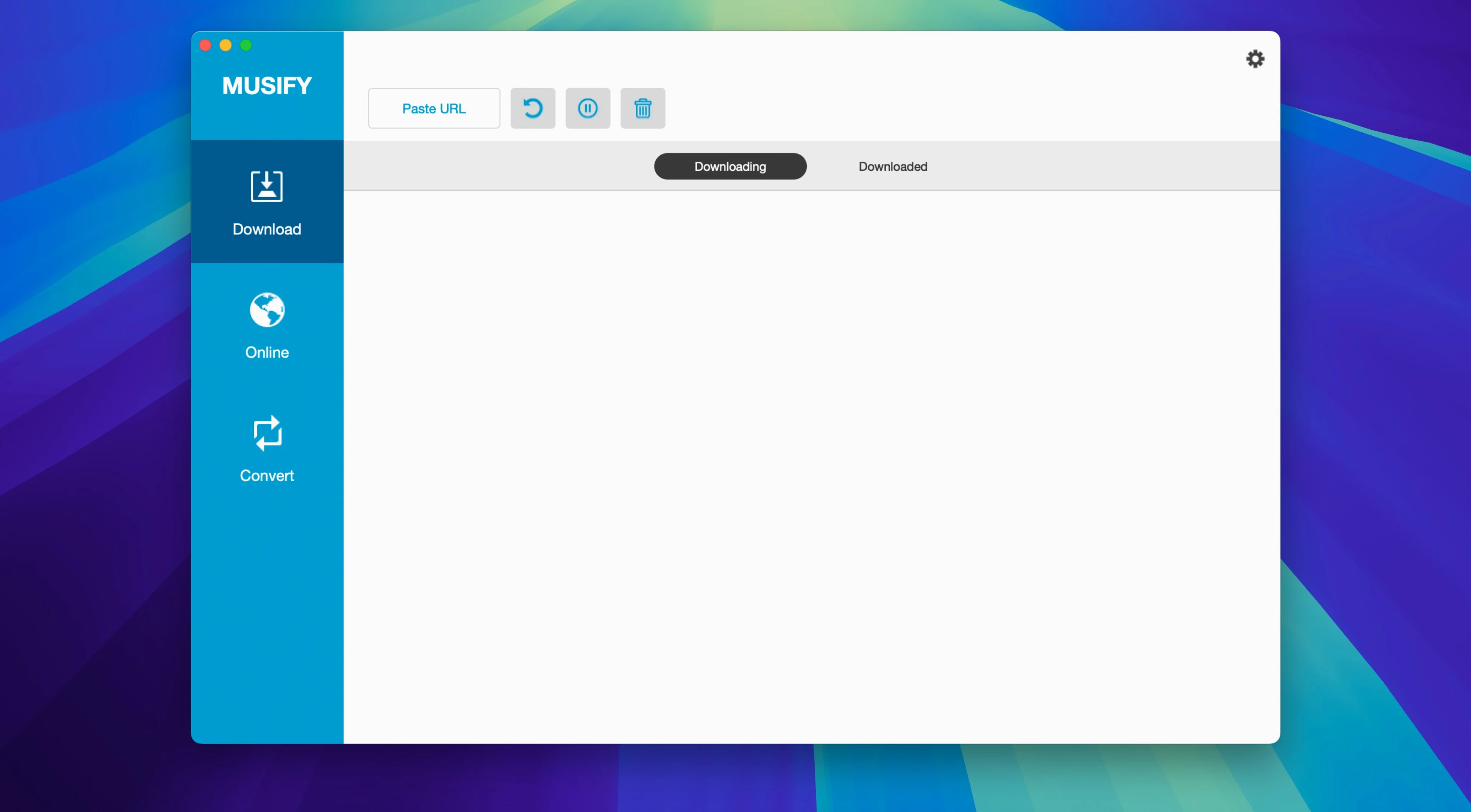
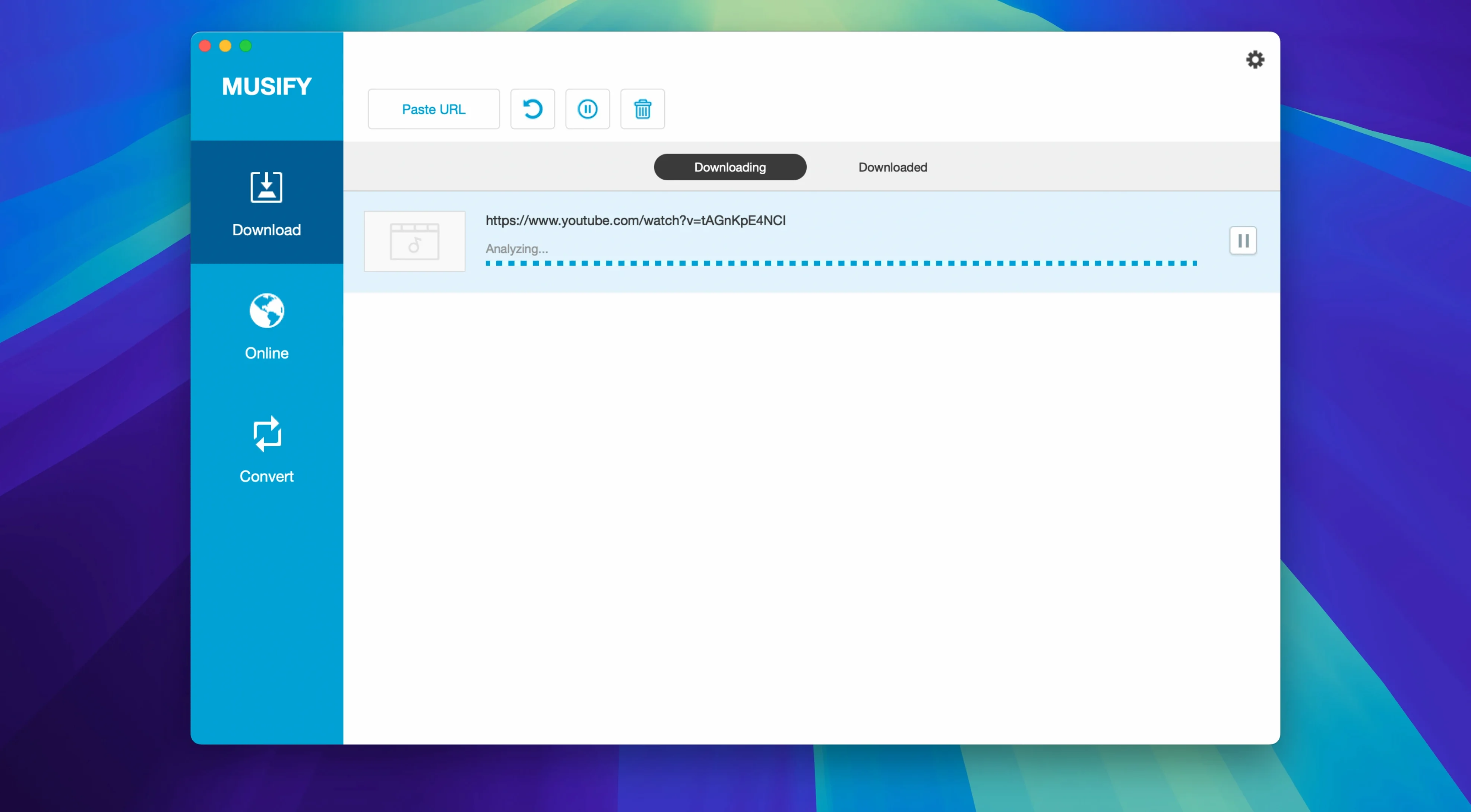
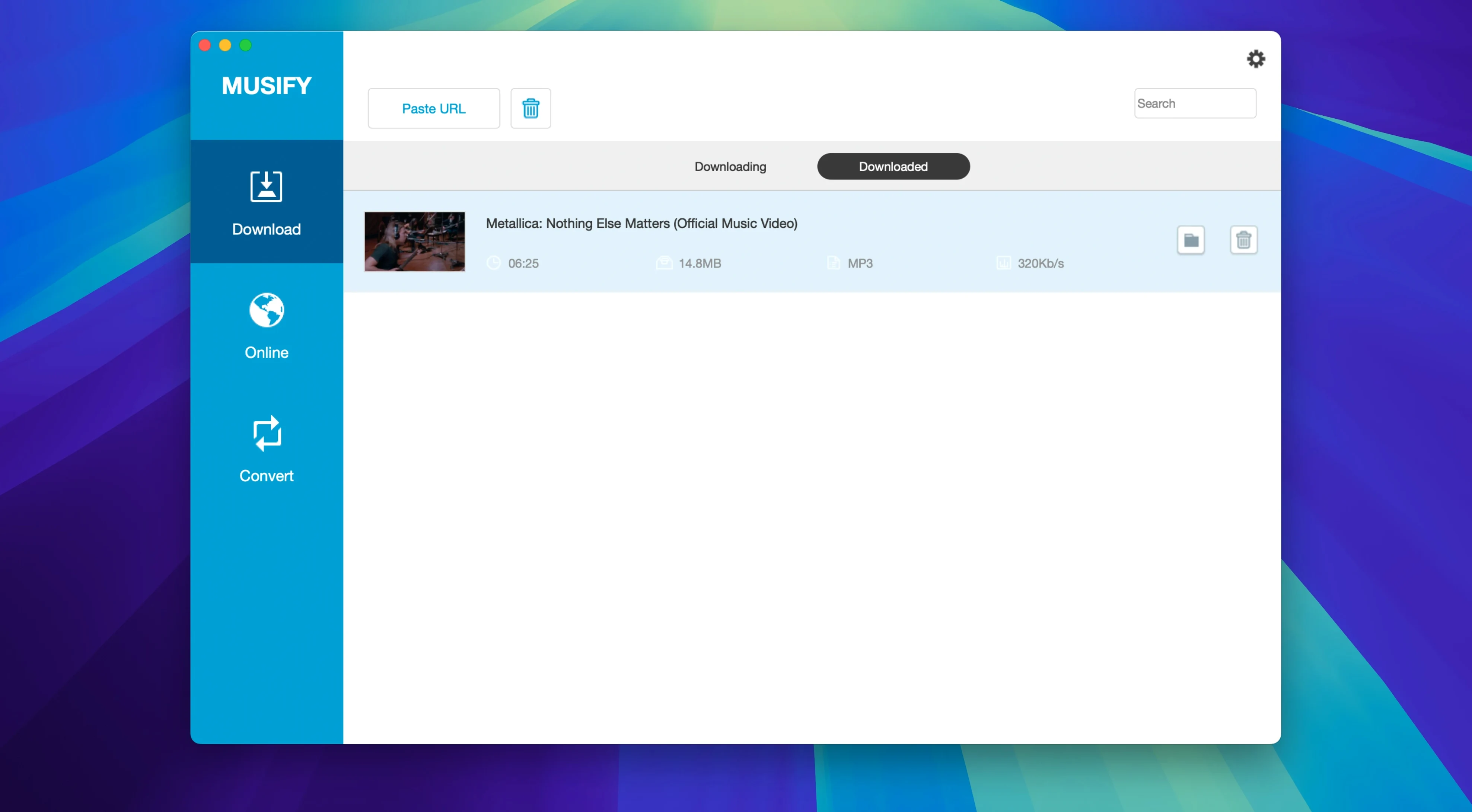
If you’ve ever used a YouTube downloader just to grab a single song and thought “there has to be a cleaner way,” Musify is essentially that idea expanded into a proper audio workstation. It’s built by iTubeGo, so the download engine comes from a familiar place, but here the whole interface is tuned for sound.
What’s new in Musify 5.3.0?
This release arrived quietly without published change notes. The core experience feels steady — downloads are still snappy, the batch converter hums along, and the list of supported sites remains enormous. Think of it as a maintenance refresh that keeps the engine running smooth on Intel Macs.
Where can it pull audio from?
The app reaches into over 1,000 music and video websites. Heavy hitters like YouTube, Spotify, SoundCloud, and Bandcamp are right up front, but it also handles Facebook, Instagram, MixCloud, Freesound, Audioboom, and Veojam without breaking stride.
Batch-convert while keeping your tags intact
Musify converts files to MP3, M4A, or WAV and preserves whatever metadata came along for the ride. You can queue up a batch of MP3s and convert them all in one go, then send the finished tracks straight to an iPhone or Android device.
Downloading a full Spotify playlist and waking up to a folder of files named track_01.mp3 is a particular kind of disappointment. Musify can pull metadata, but it’s not a mind reader — if the source stream doesn’t carry clean tags, neither will your file. The fix is usually quick: before you hit download, check that the track title and artist show up in the app’s queue preview. If they’re blank or garbled there, they’ll stay that way. Canceling and re-pasting the link often jolts the metadata fetch back to life.
Another snag that trips people up is the output folder filling with duplicates because they didn’t spot the “skip existing files” toggle. It lives in the preferences panel, tucked under the General tab, and switching it on saves you from manually weeding out three copies of the same Bandcamp demo.
Flip the default output from MP3 before you convert a single track
Out of the box, Musify 5.3.0 makes a few assumptions you’ll probably want to override. Head into Preferences the moment the app finishes copying to your Applications folder.
- Output format. The default is MP3 at 320 kbps, which is solid, but if you’re archiving live recordings from Freesound or Audioboom, switch to WAV so you’re not compressing already compressed audio. For phone transfers, M4A keeps file sizes small and plays nice with iOS.
- Download location. Musify dumps everything into a folder inside your Music directory. If you keep a dedicated “Incoming” folder for unprocessed audio, point it there now. It’ll save you the drag-and-drop shuffle later.
- Concurrent downloads. The default is two at a time. Bumping it to four or five works fine on broadband, but going higher can trigger rate limiting on YouTube. If downloads suddenly stall, dial it back to three and restart the queue.
- Clipboard monitoring. It’s on by default and can be jumpy — you’ll copy a Bandcamp URL to show a friend and Musify will grab it before you’ve finished your sentence. I turn it off and paste links manually. Less noise.
Mistakes that new users keep making
The most common one is treating Musify like a streaming ripper that works on anything. It’s not going to pull audio from a password-protected Vimeo link or a private Facebook group, and it won’t crack DRM on subscription tracks you haven’t unlocked. The download engine needs a publicly accessible URL, plain and simple. If you paste something and the progress bar stays dead, check whether you’re logged into that service in a browser — sometimes just opening the page there first unblocks the fetch.
Another beginner habit: converting already-lossy files back and forth between formats. Someone downloads a YouTube video as MP3, then runs it through the converter again to make a WAV, then back to MP3 for a phone transfer. Each pass sands off a little more detail. Musify’s batch converter is meant for source files that actually need a format change — uncompressed masters, M4A tracks heading to an old MP3 player, that sort of thing. For anything pulled from YouTube or SoundCloud, stick with the format you chose at download and leave it alone.
Playlist downloads throw people too. The app can handle a full YouTube playlist or a SoundCloud set, but if the playlist contains a mix of public and private tracks, Musify will silently skip the ones it can’t reach. You’ll end up with 11 files instead of 14 and wonder what went wrong. Glance at the log after a big pull — any skipped items get noted there with a brief reason.
Finally, a small thing that causes big confusion: the iOS transfer feature expects you to have your device connected and trusted before you open the transfer panel. Plug in your iPhone, unlock it, tap “Trust This Computer,” then launch Musify. Doing it in the other order makes the device invisible to the app, and no amount of cable jiggling fixes it until you restart.
- macOS 10.12 or later
- 64‑bit Intel processor
Porch talk 0
Come in or pull up a chair to leave a comment.
Nobody has pulled up a chair yet. If you used it on a real Saturday, say what the hour was.
More for the same hour
Everything in Mac Apps
 MuMu Player Pro
1.9.9 Mac Apps
Updated 801 MB
MuMu Player Pro
1.9.9 Mac Apps
Updated 801 MB
 m’s HalfTone
1.5.3 Mac Apps
6 MB
m’s HalfTone
1.5.3 Mac Apps
6 MB

 Mp3tag
1.14.1 Mac Apps
13 MB
Mp3tag
1.14.1 Mac Apps
13 MB

 Movist Pro
2.21.0 Mac Apps
Updated 60 MB
Movist Pro
2.21.0 Mac Apps
Updated 60 MB

 Navicat Premium
17.3.12 Mac Apps
333 MB
Navicat Premium
17.3.12 Mac Apps
333 MB

 Movavi Video Suite
22.4.1 Mac Apps
294 MB
Movavi Video Suite
22.4.1 Mac Apps
294 MB

 Movavi Video Editor
22.4.1 Mac Apps
126 MB
Movavi Video Editor
22.4.1 Mac Apps
126 MB

 Movavi Video Converter
22.5.0 Mac Apps
79 MB
Movavi Video Converter
22.5.0 Mac Apps
79 MB