

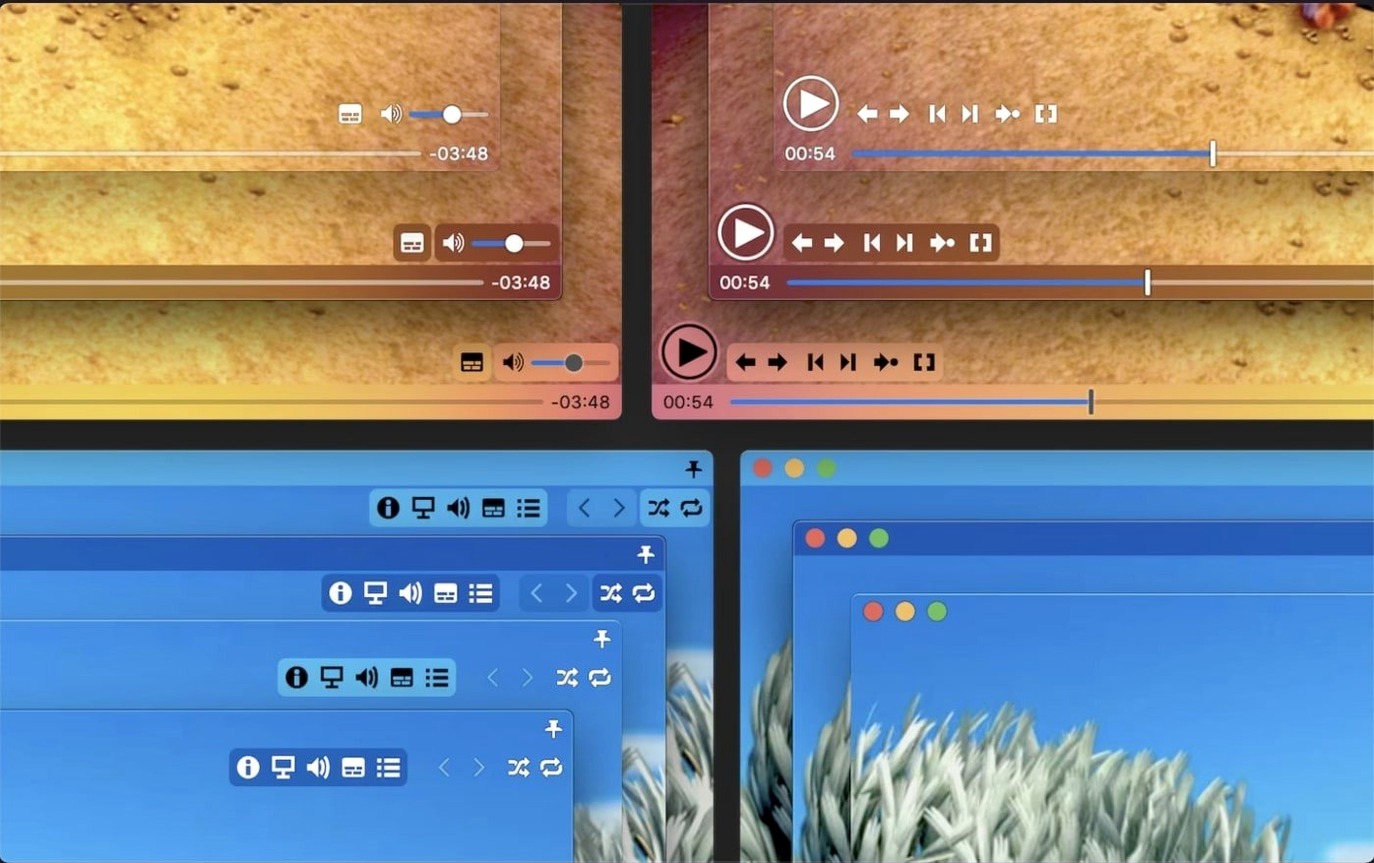
You have a folder full of video files from a dozen different sources, and the default Mac player chokes on half of them. That’s the exact headache Movist Pro was made for. It pairs the familiarity of QuickTime with the format-slaying power of FFmpeg, so you can double-click just about anything and have it actually play.
Plays Archival Oddities and Styled Subtitles
- Playing a broad mix of video files without hunting for codecs
- Fans of carefully styled subtitles, including 3D and letterbox display
- Loading compressed subtitles directly from .zip or .rar files
- Building and saving playlists for a long viewing session
- Choosing between a clean single-window mode or multiple open documents
S/PDIF Passthrough and One-Click Screenshots
- Subtitle text encoding detection is automatic, so you rarely need to fix garbled characters
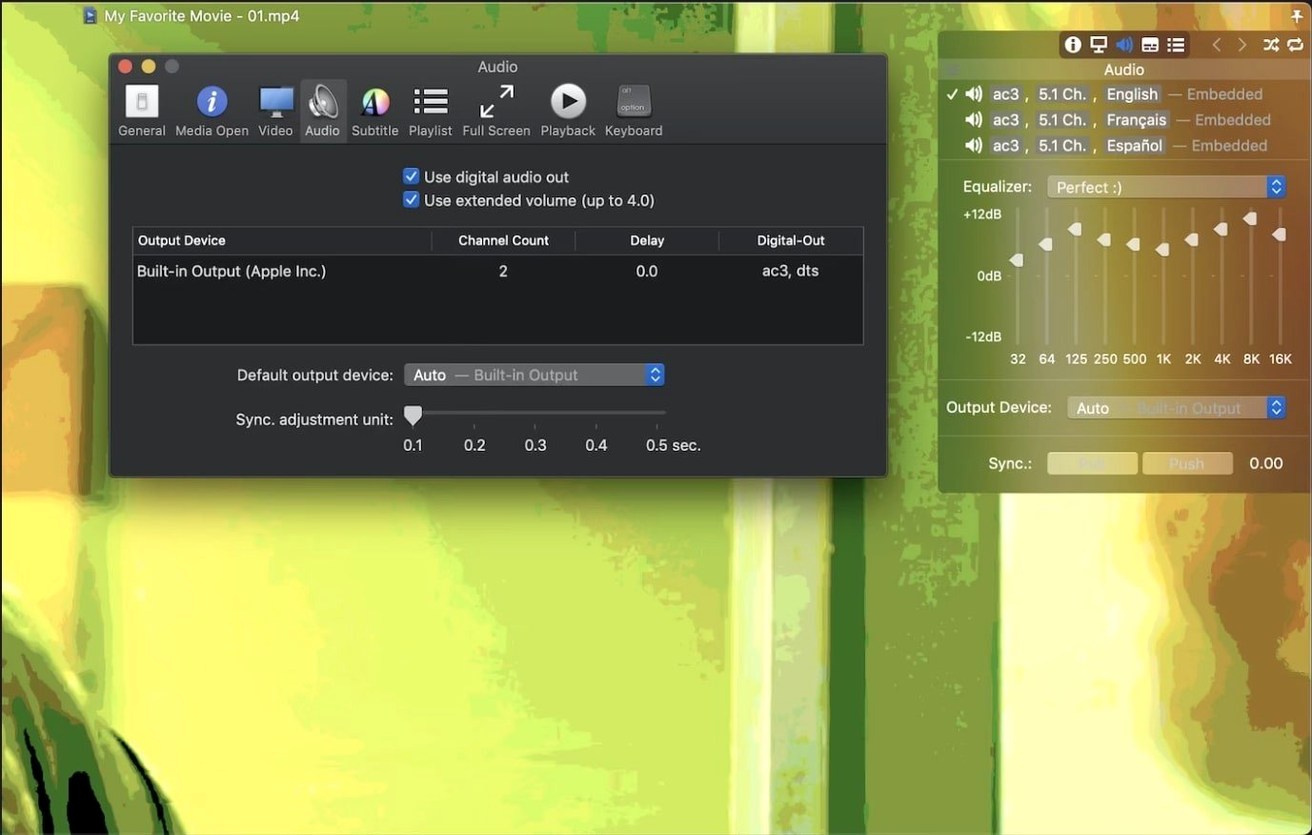
- You can route audio through an S/PDIF digital output to an external receiver
- Screenshot capture is built right in when you want to grab a frame
- The latest update patches a crash tied to disabled System Integrity Protection and fixes playback for certain TS videos
You’ve just installed Movist Pro and thrown a batch of MKV files at it. Everything plays, subtitles pop up, and you think you’re done. A few weeks later, you wonder why some settings feel off or why a perfectly good file stutters. That’s when the little missteps matter.
Switch Engines When Frames Stutter or Glitch
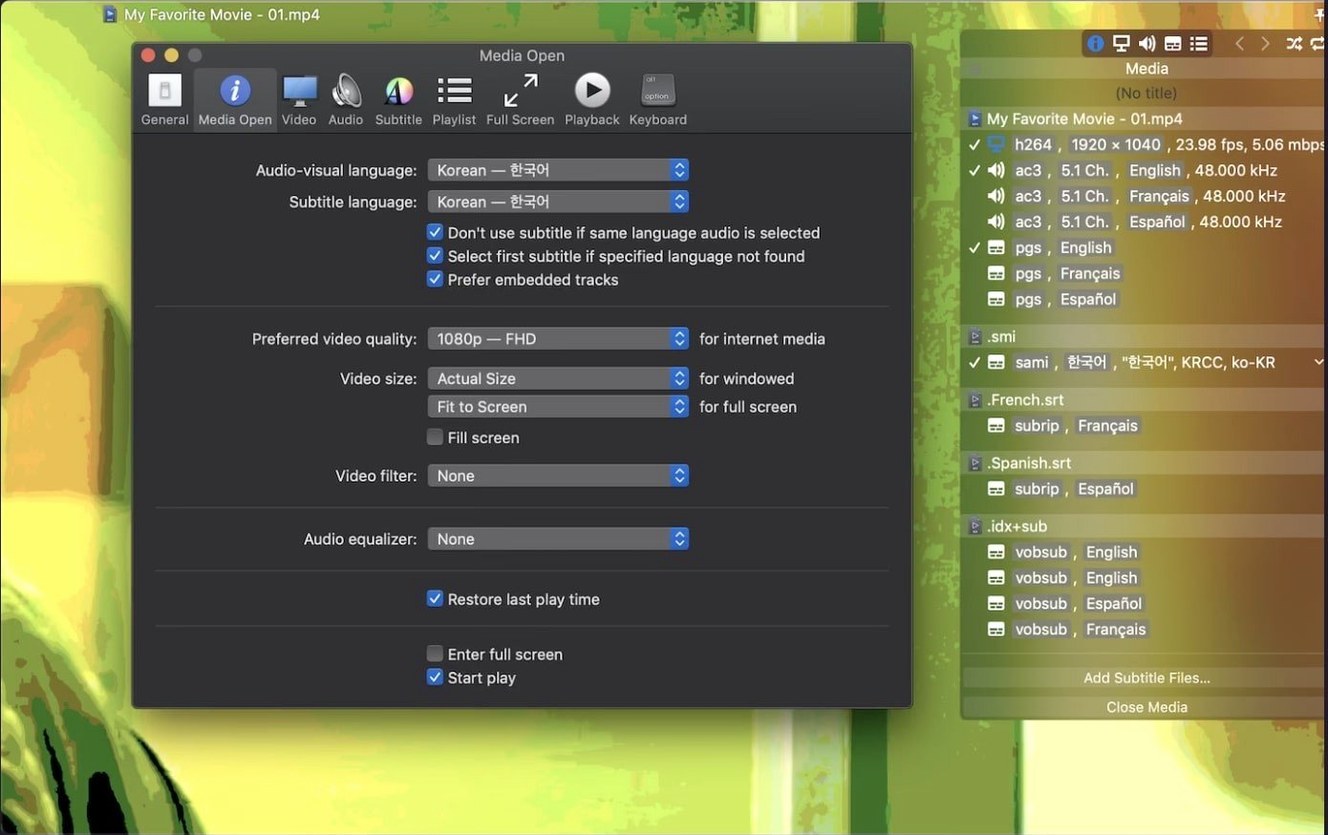
One of the first things people overlook is the dual playback engine. Movist Pro can use QuickTime or FFmpeg for each codec, and it doesn’t always guess right for hybrid files. If a video plays with glitchy frames or no audio track, a beginner will quit and blame the file rather than switching the decoder in preferences. The toggle is right there, but it’s easy to ignore when you’re used to players that hide the engine entirely.
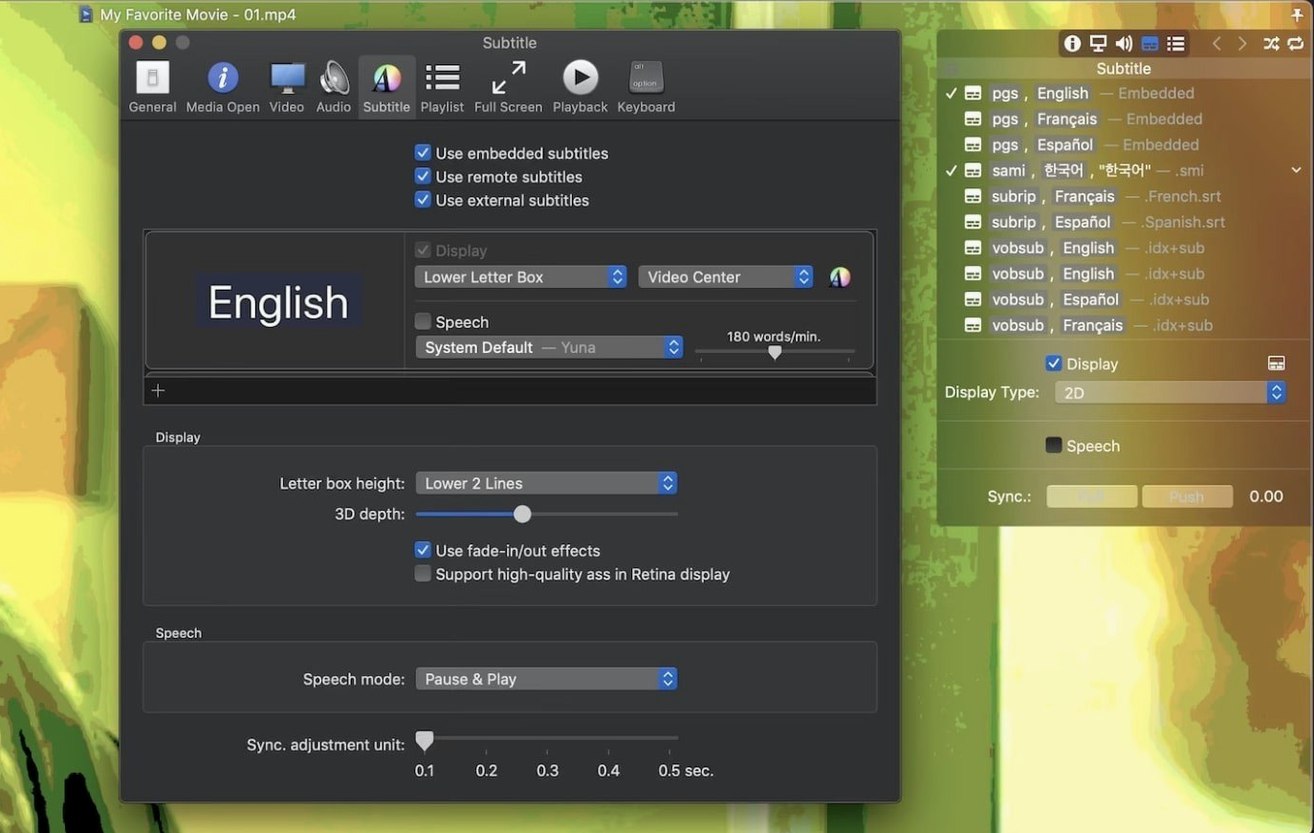
Another common slip involves subtitle clutter. The app lets you stack multiple subtitle tracks simultaneously — an unusual feature — and a newcomer will accidentally leave two or three active. Suddenly the screen is a wall of text, and it looks like the player is broken. Clearing the extra tracks from the subtitle menu restores sanity in seconds.
Beginners also forget that playlist autocompletion works best when files follow a predictable naming pattern. Dumping a folder of renamed, oddly tagged episodes into the playlist window and expecting the app to magically find the next season rarely pans out. A little consistency in file names goes a long way, and Movist Pro rewards it by pulling in subtitle files from the same directory without any fuss.
Then there’s the sandboxed mode. Some users enable it thinking it adds a layer of security, then wonder why the player can’t see their external drive. Sandboxing restricts file access, which is the point, but it catches people off guard who just want to plug in a USB stick and hit play.
Drag a Whole K-Drama Folder and Play
Imagine a quiet Friday evening. You’ve grabbed a season of a Korean drama, complete with compressed subtitle archives someone packed in .rar files alongside the episodes. You open Movist Pro and drop the entire folder into the playlist area. The app scans the directory, finds the video files, and notices the .rar files tucked beside them. A moment later, the subtitle tracks appear — extracted and matched to the correct episodes without you touching an unarchiver.
You hit play on the first episode. The dialogue is in Korean, and the subtitles render in a crisp, white font with a thin outline that stays readable even against a bright sky background. You open the subtitle settings and nudge the sync forward by half a second because the timing feels slightly early. The adjustment takes effect immediately while the video keeps rolling, so you land on the right offset without pausing.
About twenty minutes in, you decide the letterbox bars are wasted space. You switch subtitle display to Letter Box mode, and the text drops neatly into the black bar below the frame, clearing the image entirely. You lean back, and the playlist shuffles into the next episode when the first one ends. A quick tap of the screenshot shortcut grabs a frame you want to share, saved straight to the desktop.
Granular Subtitle Control vs. IINA’s Minimalism
Set Movist Pro next to IINA, and the differences are immediate. IINA leans hard into a modern, minimalist interface built on mpv, while Movist Pro gives you more granular control over subtitle rendering and playback engines. Where IINA keeps things streamlined, Movist Pro lets you fine-tune letterbox placement, stack multiple subtitle tracks, and choose between QuickTime and FFmpeg per codec. The trade-off is that IINA feels lighter and more approachable for casual viewing, while Movist Pro rewards tinkerers who want options visible, not buried.
Compared to VLC, the story shifts. VLC plays nearly everything and has for decades, but its interface on macOS has always felt like a visitor from another platform. Movist Pro integrates more naturally with Mac conventions: the menus, the window behaviors, the sandboxed mode. VLC handles streaming and network sources more readily, but if your library sits on local drives and you care about how subtitles look — not just whether they appear — Movist Pro pulls ahead. VLC’s subtitle styling works, but Movist Pro’s feels like a dedicated typesetting tool snuck into a video player.
Elmedia Player occupies a similar niche, with strong format support and a polished Mac interface. Where Movist Pro distinguishes itself is in the dual-engine architecture and the obsessive subtitle features. Elmedia handles embedded and external subtitles capably, but it doesn’t match the compressed archive support, the unlimited simultaneous tracks, or the 3D subtitle option. If subtitles are a checklist item for you, Elmedia is fine. If they’re a priority, Movist Pro is the one with the deeper toolkit.
Curated Local Libraries With Multilingual Subtitles
Mac users who keep a local media library — not just streaming everything — find their groove with Movist Pro quickly. If you’ve spent time curating files, naming seasons properly, and collecting subtitle tracks in different languages, the player meets you where you are rather than forcing you to adapt. The playlist autocompletion and compressed subtitle support turn a messy folder into a watchable queue without extra steps.
Language learners benefit more than most. Stacking two subtitle tracks — one in the original language and one in translation — turns any video into a study session. The ability to adjust sync on the fly means even poorly timed fan subtitles become usable. Combine that with the screenshot shortcut, and you have an effortless way to capture vocabulary in context.
Home theater enthusiasts who route audio through an S/PDIF receiver will appreciate the digital output support. It’s a small checkbox, but it keeps the signal path clean when you’re playing high-bitrate files through a proper sound system. HDR tone mapping also means you’re not stuck with washed-out colors when playing back HDR content on a non-HDR Mac display, which matters if you’ve started collecting 4K remuxes and want them to look right even on an older screen.
If you’re the kind of Mac user who has strong opinions about how subtitles should render — font, size, outline, position, letterbox placement — Movist Pro gives you the knobs. If you just double-click a video and hope for the best, it still works. But the people who stay with it are the ones who eventually open every preference pane, curious about what else the player can do.
- macOS 11 (Big Sur) or later
- Apple Silicon or Intel 64-bit Mac
Questions I actually get
What subtitle adjustments can I make?
You get fully customizable subtitle display, support for multiple formats, letterbox positioning, and even 3D subtitles. It can also pull subtitles directly from compressed .zip and .rar archives.
Does Movist Pro handle digital audio passthrough?
Yes, it supports digital audio output via S/PDIF, which is handy if you're sending a signal to an AV receiver or DAC.
Porch talk 0
Come in or pull up a chair to leave a comment.
Nobody has pulled up a chair yet. If you used it on a real Saturday, say what the hour was.
More for the same hour
Everything in Mac Apps
 Movavi Video Suite
22.4.1 Mac Apps
294 MB
Movavi Video Suite
22.4.1 Mac Apps
294 MB

 Mp3tag
1.14.1 Mac Apps
13 MB
Mp3tag
1.14.1 Mac Apps
13 MB

 Movavi Video Editor
22.4.1 Mac Apps
126 MB
Movavi Video Editor
22.4.1 Mac Apps
126 MB

 Movavi Video Converter
22.5.0 Mac Apps
79 MB
Movavi Video Converter
22.5.0 Mac Apps
79 MB
 m’s HalfTone
1.5.3 Mac Apps
6 MB
m’s HalfTone
1.5.3 Mac Apps
6 MB

 Movavi Screen Recorder
23.1.1 Mac Apps
110 MB
Movavi Screen Recorder
23.1.1 Mac Apps
110 MB

 MuMu Player Pro
1.9.9 Mac Apps
Updated 801 MB
MuMu Player Pro
1.9.9 Mac Apps
Updated 801 MB

 MouseBoost Pro
5.3.0 Mac Apps
Updated 17 MB
MouseBoost Pro
5.3.0 Mac Apps
Updated 17 MB