

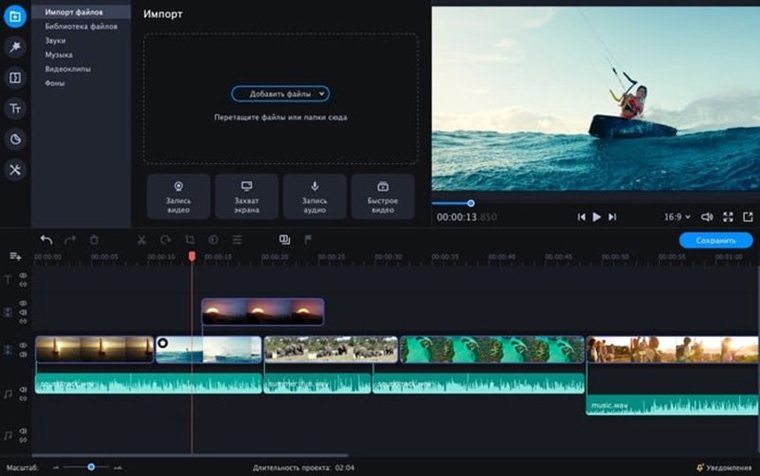
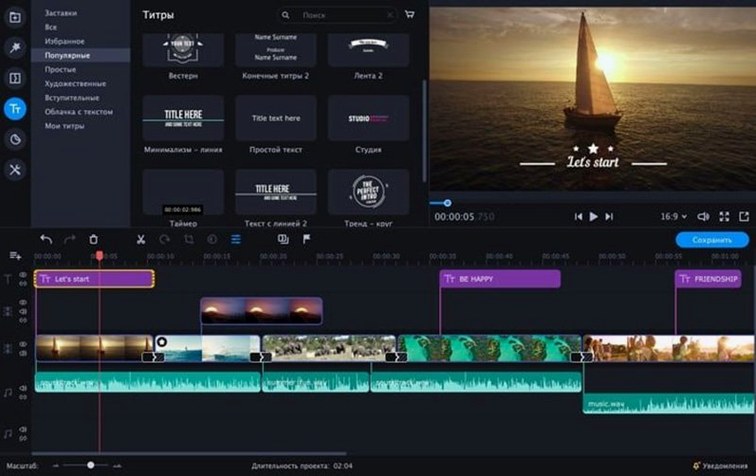
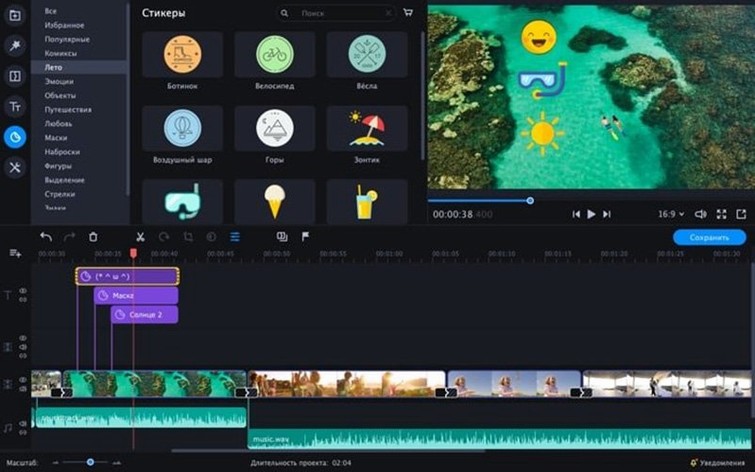
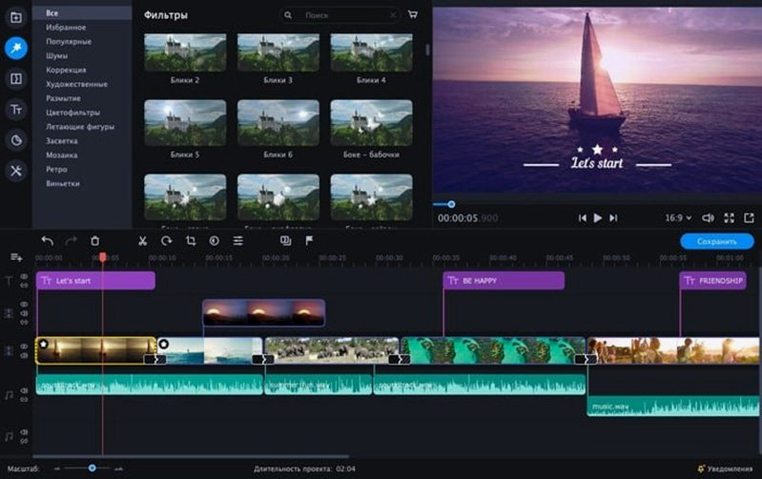
You have a folder of clips sitting on your desktop, but the built-in trimming tools feel a little too bare-bones for the social video you have in mind. Movavi Video Editor steps in as a straightforward Mac app that handles cutting, arranging, and adding a bit of polish without a steep learning curve. The interface keeps things simple and stylish, so you spend more time assembling your story than hunting through menus.
Before you jump in, the most important thing to check is compatibility. This version is built for 64-bit Intel architecture and requires macOS 10.13 or later. It is not a Universal binary, so if you are on an Apple Silicon Mac, it will run through Rosetta 2 translation. The app itself lands in a compact package and supports a broad swath of interface languages, including English, German, Spanish, French, Japanese, Korean, and both traditional and simplified Chinese.
Once you have it running, you get a toolkit geared toward quick, clean edits. Movavi includes a set of ready-made intros that help social clips, family movies, or business videos start with a polished look. Built-in effects and AI-powered tools handle tasks like background removal or motion tracking, cutting down the time you would spend keyframing manually. The whole thing is designed to move at the pace of a weekend project.
If you are on an older Intel Mac or a newer machine running Rosetta and want an editor that leans toward immediate, guided results rather than a blank timeline, this one fits the bill.
Timeline Tweaks That Prevent First-Edit Friction
The default setup works, but a few quick adjustments make the timeline feel a lot more comfortable. Open Preferences from the Movavi Video Editor menu before you drop your first clip onto the track.
Check the Timeline tab first. The default snap setting is on, which is useful, but you may want to dial down the grid size if you are cutting fast social clips where frame-accurate nudging matters more than magnetized alignment. Switch the preview quality to Full only when you are close to exporting; keeping it at Normal or lower while editing keeps playback smooth on older Intel machines.
Under the General tab, you will find the option to change the default project duration for still images. If you work with photo slideshows often, drop this from the default five seconds to three. It saves you from manually trimming every imported photo afterward. Also worth toggling: the Show tooltips checkbox. The interface is already approachable, so turning these off after your second or third session buys back a little screen real estate.
One more that is easy to miss: the Proxy files setting, tucked into the Performance section of Preferences. This creates lower-resolution working copies of your source clips. On an older MacBook Air or a machine with 8 GB of RAM, enabling it makes scrubbing through 4K footage noticeably less choppy.
Hidden Drag-and-Trim Moves in a Compact Toolbar
Movavi keeps its toolbar compact, so a few everyday moves hide behind right-clicks and keyboard chords that the welcome screen never mentions.
- Hold Option while dragging a clip edge to ripple-trim instead of leaving a gap. This is the single most useful shortcut when you are tightening cuts across a full timeline and do not want to manually close blank spaces.
- Right-click any clip on the track and choose Detect Silence before you start slicing manually. It scans the audio waveform and marks quiet sections, which saves a surprising amount of time on interview footage or voiceover-heavy projects.
- Press the Space bar twice quickly to pause and return the playhead to its last start position. It is a small detail, but it mimics the behavior many editors are used to from other tools and makes reviewing a short segment feel less fiddly.
- Drag a transition from the library and drop it between two clips without selecting either first. The timeline highlights the cut point automatically, so you can skip the step of setting an in-and-out range.
- Use Command-Shift-E to export a still frame from the preview window. Handy when you need a quick thumbnail for YouTube or want to grab a reference image without opening a separate screenshot tool.
The sticker and animated text overlays also respond to simple double-click edits that are never advertised. Double-click any text element on the preview canvas to type directly, and use the small rotation handle that appears at the top of the bounding box instead of searching the inspector panel for an angle slider.
Why Forum Users Ask About Movavi Torrents and Mac Cracks
A few concerns come up repeatedly in forums and message boards whenever someone considers a movavi torrent or looks into the movavi video editor mac crack route. The answers are straightforward once you know what the app actually expects from your system.
Does it require an internet connection to work? No, the editing features themselves run entirely offline. You only need a connection if you are browsing the built-in stock media libraries or downloading additional effect packs. Everything on your local timeline stays available without Wi‑Fi. If you grabbed a movavi video editor plus torrent, the core trimming, effects, and chroma key tools will open fine without the app phoning home.
Will it handle footage from my phone? Yes, and it does not care whether you shot on an iPhone, a Samsung, or a DJI Pocket. Movavi reads variable frame rate clips without the audio drift that trips up stricter NLEs. Drag the file straight from your camera roll onto the timeline and it syncs correctly.
Can I keep my current version and skip updates? You can, and some people who set up a movavi mac torrent prefer to stay on a known build. The trade-off is that official updates occasionally reset activation, so if the app is working the way you like on version 22.4.1, there is no forced upgrade path that locks you out of your projects.
How heavy is the Chroma Key tool? Lighter than you might expect. It is a single-click effect applied from the properties panel, with a color picker and three sliders for tolerance, edge thickness, and spill suppression. You can get a clean key on evenly lit green fabric in under a minute, though it is not meant for fine hair detail the way a dedicated compositing app would be.
Keyframe Jitter Fixes That Arrived Quietly in Later Builds
By the time 22.4.1 arrived, Movavi had quietly tightened a handful of things that matter in day-to-day use without rewriting the whole interface. The biggest practical shift was improved keyframe stability on longer clips. Earlier builds would occasionally jitter when animating scale or position over a clip longer than about two minutes, and that has been smoothed out here.
Export presets for social platforms were refined too. The Instagram Story and TikTok templates now embed the correct aspect ratios and bitrate ceilings so the final file looks sharp after compression, rather than getting mushy from a re-encode on the platform side. If you are curious enough to hunt down a movavi video editor torrent for this version, that preset accuracy is one of the quiet reasons people appreciate the newer build.
The audio polishing tools got a more noticeable makeover. Noise reduction now runs as a real-time preview instead of requiring a render pass first, and the equalizer includes a handful of one-click voice presets that boost clarity for spoken content without blowing out sibilants. For quick talking-head videos, you can apply the voice preset and a gentle compressor in about three clicks and have it sound presentable for YouTube or a client draft.
- macOS 10.13 or later
- 64-bit Intel architecture
Porch talk 0
Come in or pull up a chair to leave a comment.
Nobody has pulled up a chair yet. If you used it on a real Saturday, say what the hour was.
More for the same hour
Everything in Mac Apps
 Movavi Video Converter
22.5.0 Mac Apps
79 MB
Movavi Video Converter
22.5.0 Mac Apps
79 MB

 Movavi Video Suite
22.4.1 Mac Apps
294 MB
Movavi Video Suite
22.4.1 Mac Apps
294 MB
 Movavi Screen Recorder
23.1.1 Mac Apps
110 MB
Movavi Screen Recorder
23.1.1 Mac Apps
110 MB

 Movist Pro
2.21.0 Mac Apps
Updated 60 MB
Movist Pro
2.21.0 Mac Apps
Updated 60 MB

 Mp3tag
1.14.1 Mac Apps
13 MB
Mp3tag
1.14.1 Mac Apps
13 MB

 MouseBoost Pro
5.3.0 Mac Apps
Updated 17 MB
MouseBoost Pro
5.3.0 Mac Apps
Updated 17 MB

 Mountain Duck
5.3.2 Mac Apps
187 MB
Mountain Duck
5.3.2 Mac Apps
187 MB
 Motionvfx - mTitle Cinematic
Mac Apps
5 MB
Motionvfx - mTitle Cinematic
Mac Apps
5 MB