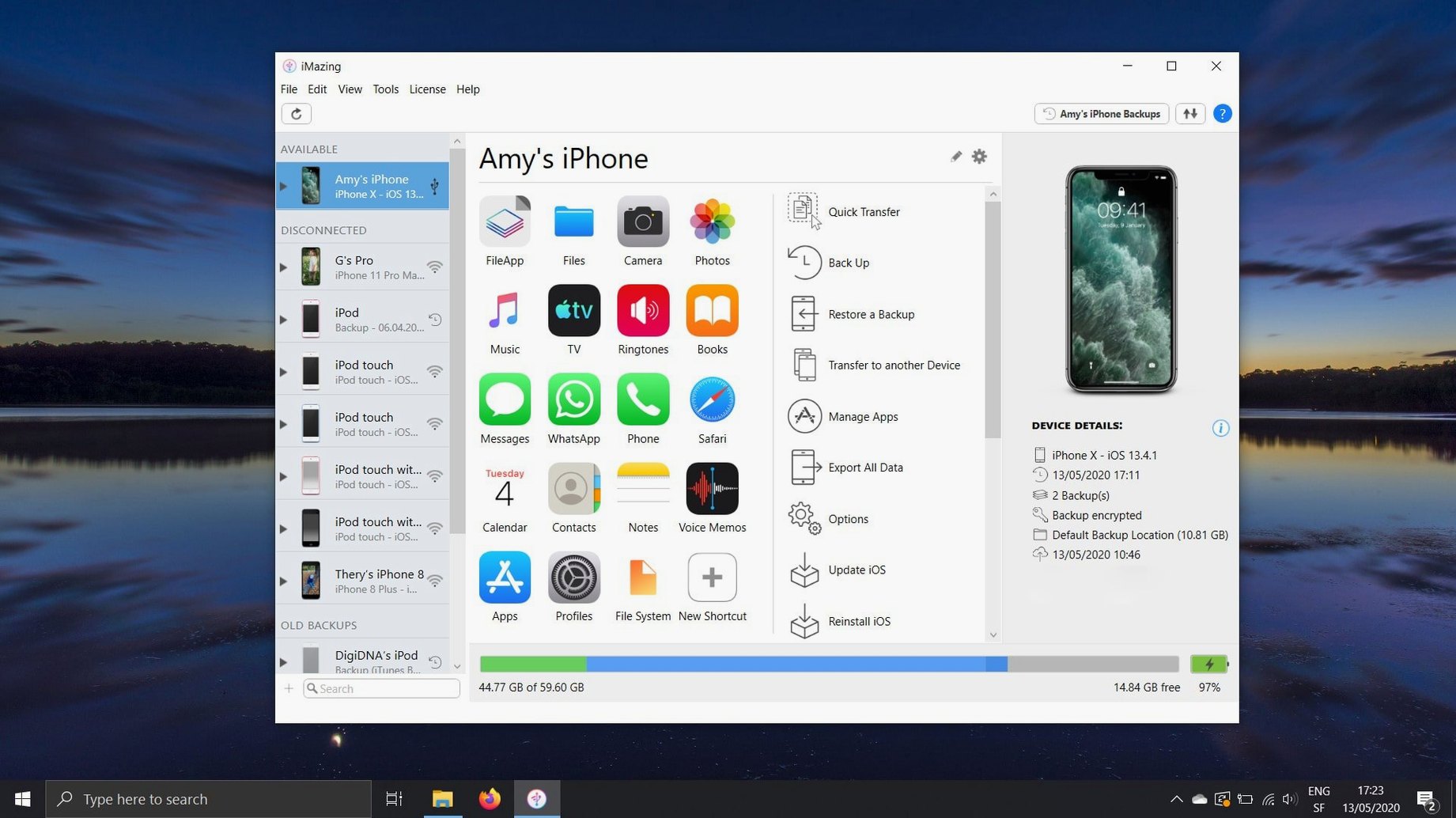
iMazing 3 is a Mac application that lets you move data between your computer and an iOS device without relying on iCloud or iTunes.
Can I move music to my iPhone without erasing the library?
Yes. The app copies music and media files in both directions, so you can add tracks from your Mac to an iPhone without syncing and wiping what is already there.
How do I save a record of my calls or calendar?
iMazing reads your call log and exports it as a CSV file. Calendars can be pulled from the device and saved as ICS or CSV files for archiving or use in another app.
Preserving game scores and app data when you switch phones
You can transfer apps, documents, settings, and even game scores to a new device. The 3.6.5 update ensures shared app group containers are preserved in .imazingapp files taken from backups.
Does it back up automatically?
First days with iMazing — a few moves worth making early
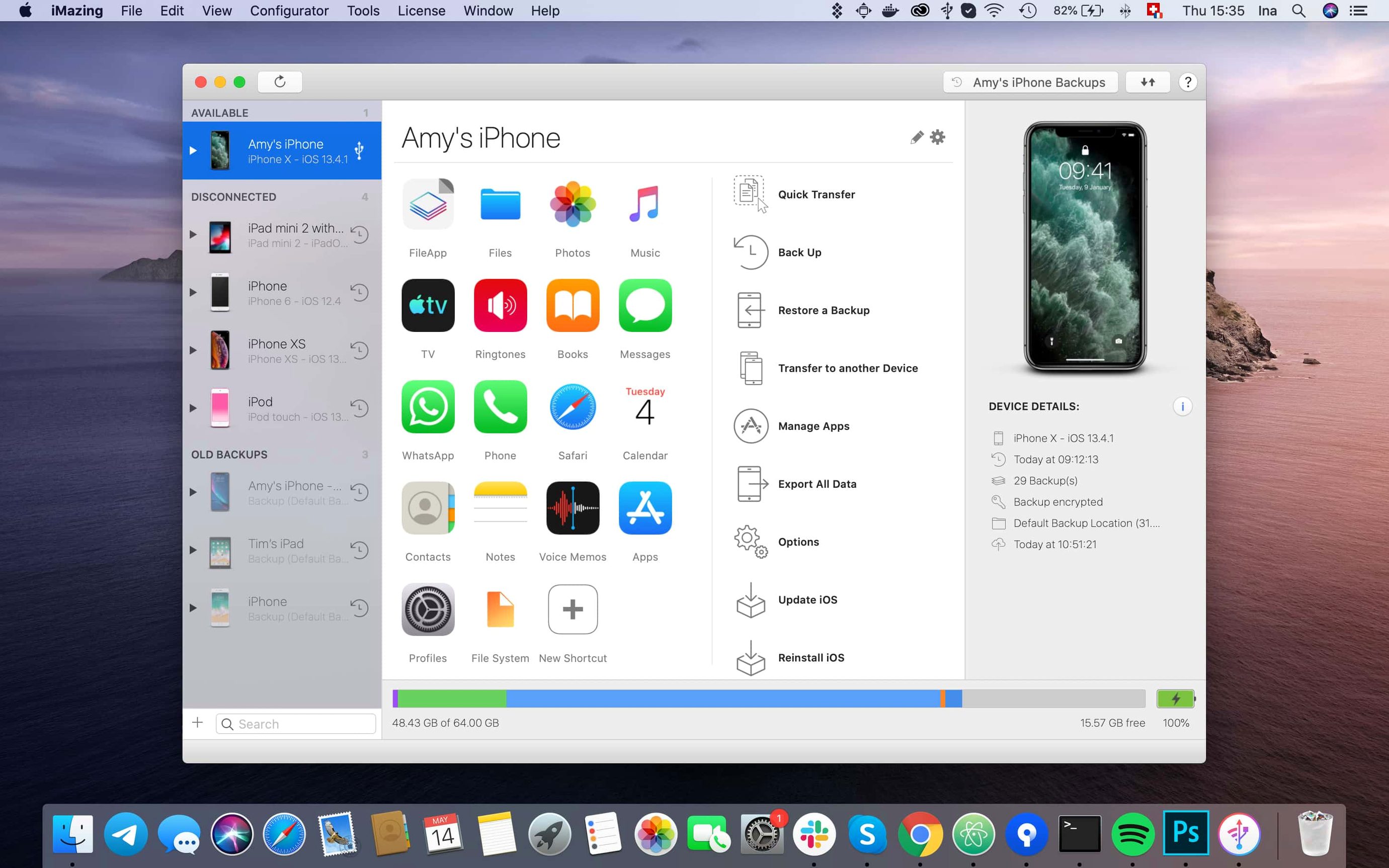
The window that opens after you drag the app into Applications looks deceptively simple. A device icon sits in the left rail, a grid of tool buttons fills the center, and nothing pushes you toward any one action. That freedom is part of the appeal, but it also means the first hour can feel aimless if you do not know what the app does best. Spend twenty minutes on these three things and the rest will click.
Run one manual backup and peek inside it. Plug in your iPhone, click Back Up, and let it finish. Then click the backup in the sidebar and browse. Seeing your messages, call history, and app folders listed as plain files rewires how you think about the device. You are not looking at a locked vault anymore — you are looking at a hard drive with a familiar shape.
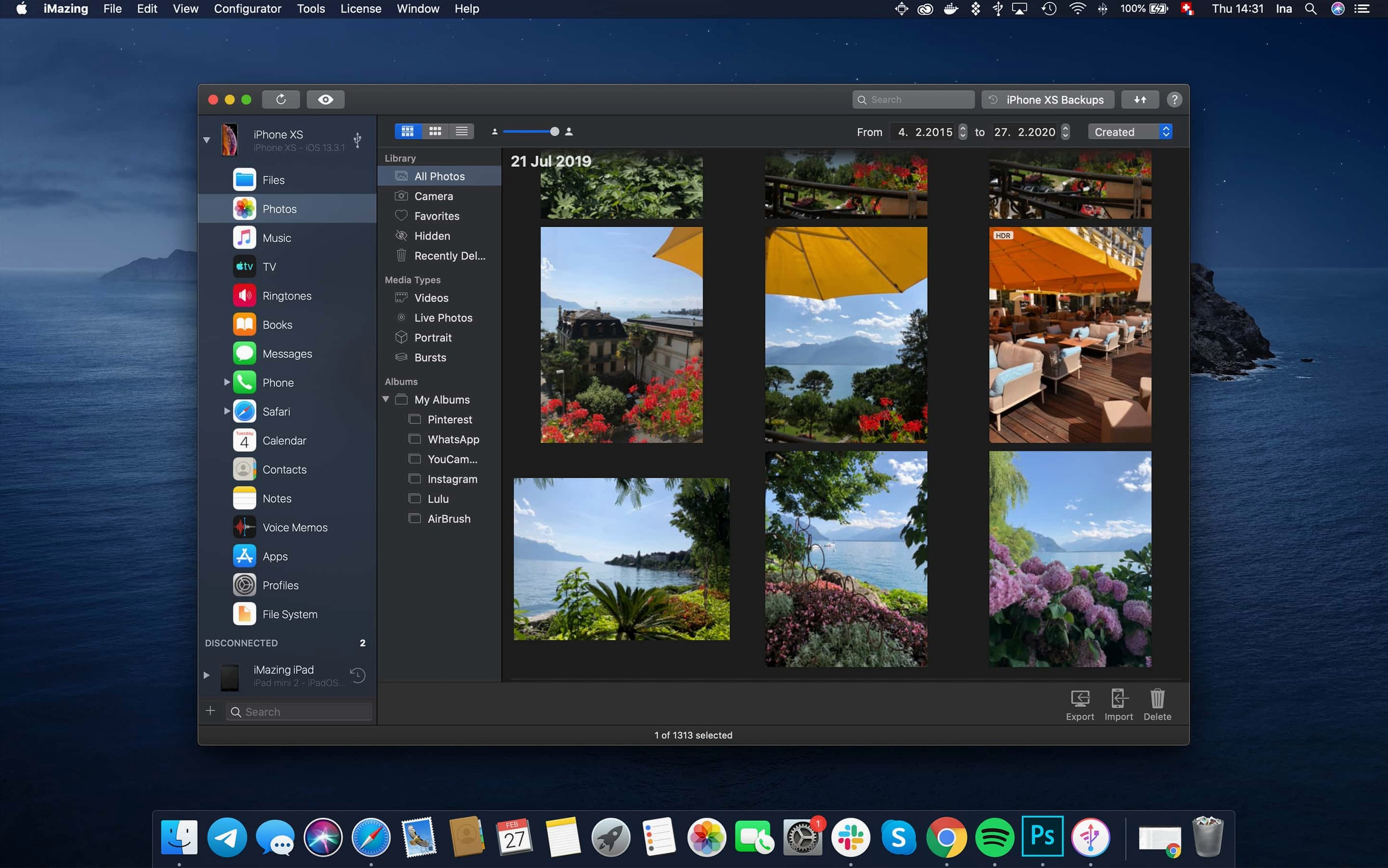
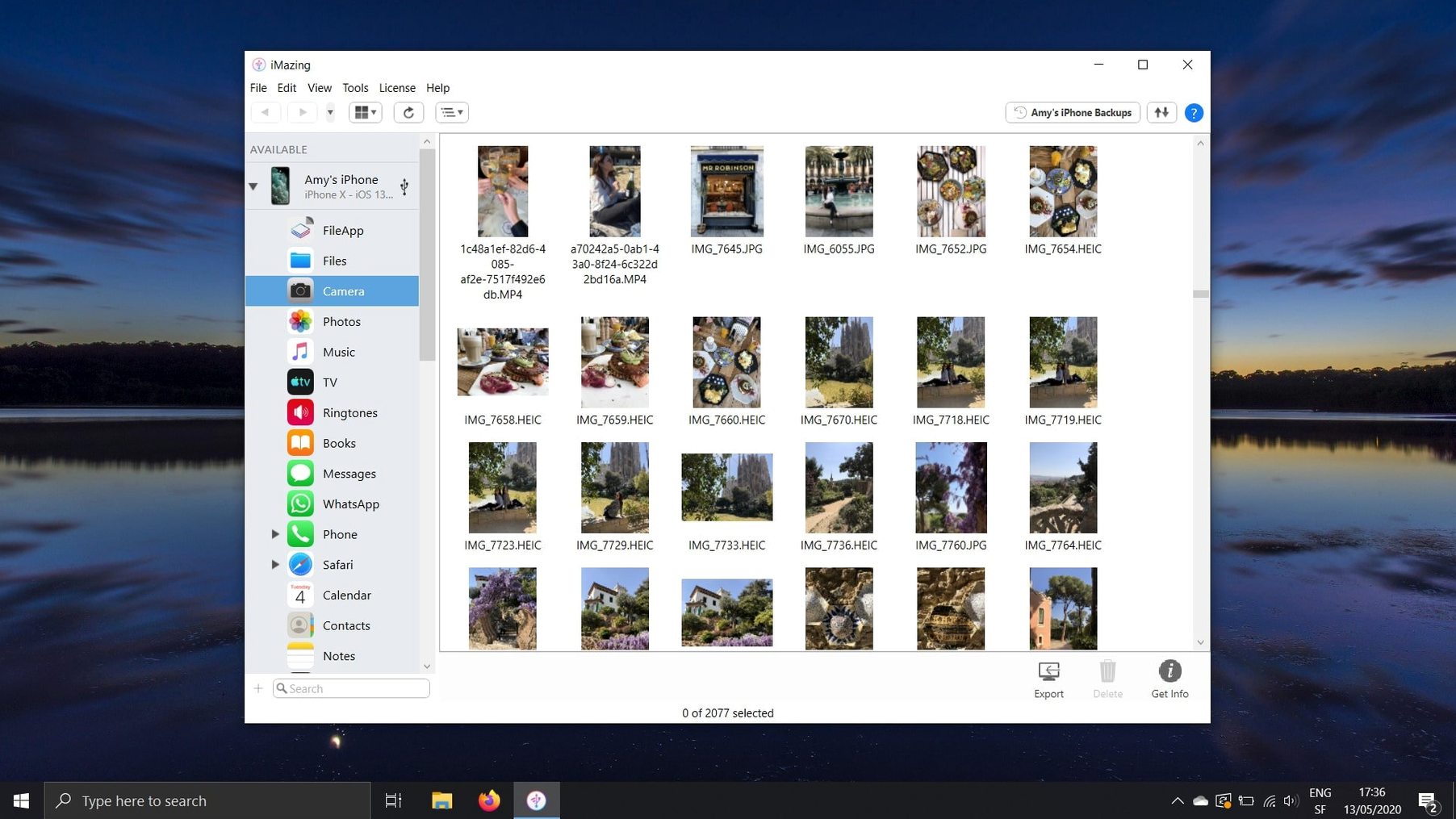
Export photos from a single album. Head to Photos in the device view, pick an album, select a handful of images, and click Export. The dialog gives you control over format and metadata. Doing this once teaches you where everything lives and how the export pipeline works, which pays off the first time a relative asks you to pull a hundred vacation shots off their phone.
Set up wireless backup before you forget. The option lives under the device settings cog. Turn it on, pick a schedule, and connect the phone to power overnight. You will wake up to a fresh backup without having plugged anything in. For people who only remember backups after dropping a phone in a sink, this is the feature that earns its keep.
Reassuringly boring answers before you install
A handful of concerns surface again and again when someone hears about iMazing for the first time. The answers are reassuringly boring — no gotchas, no elaborate setup rituals.
Does this replace iTunes or sit alongside it?
It sits alongside. You can keep iTunes installed and use both. iMazing reads the same device but handles media transfers, backups, and file access through its own engine. If you have music you bought elsewhere, iMazing copies it without touching the iTunes library on your Mac. People who want to keep a curated local music collection often run both apps and pick whichever fits the task.
Will Apple lock me out or flag my account?
No. The app communicates with iOS using the same protocols iTunes and Xcode use. It does not modify system files or require a jailbreak. Your Apple ID and device passcode stay local; the app never sends them off the machine. The activation routine is handled by the crack team and does not phone home.
Can I pull data from an old iPad that will not turn on?
If you have a backup of that iPad on your Mac, yes. iMazing reads backup archives — including encrypted ones — and lets you extract files, messages, photos, and app data. If no backup exists and the hardware is dead, the data is gone. The app cannot resurrect a device, but it can mine everything a backup holds.
What about the iMazing 3 full experience versus a stripped-down version?
The build floating around as an iMazing torrent or iMazing mac torrent often omits features or bundles older code. The 3.6.5 release covered here includes wireless backup, backup browsing, message export, app management, and the unified logs tool — essentially the complete feature set. If you grabbed an iMazing 3 torrent from a community source, you can check whether the chatbot link and shared container fix are present, and confirm app downloads flow smoothly without error 429. The clean disk image from a trusted spot lets you jump straight into all of that.
Passcode prompts and iOS security friction
Most friction points are not bugs; they are spots where iOS security butts up against user expectations. Knowing what to expect saves a lot of frustrated clicking.
The device asks for a passcode repeatedly. iOS requires explicit trust for every connection. If iMazing prompts you to unlock the phone three times in a row, that is the handshake completing. Tap Trust on the device screen and enter the passcode. Once the pairing sticks, the prompts stop until the next macOS or iOS update resets the trust relationship.
Backups stall at 90 percent. This usually means a single large app is slow to read. Instagram, WhatsApp, and games with gigabyte-sized caches are the usual culprits. Let it sit. If it hangs for more than thirty minutes, cancel, restart the Mac, and try again with the device in Airplane Mode. That stops background network activity from competing for the storage controller.
Music transfers claim to succeed but tracks do not appear. Check whether the tracks are in a format the iOS Music app can play. iMazing copies files as-is; it does not transcode. A folder full of FLAC files will land on the device but remain invisible to the stock player. Convert them to ALAC or AAC on the Mac first, then transfer.
The app says "download failed with error 429." The 3.6.5 update specifically patched this for app downloads. If you see it on an older build, that is your cue to update. If you still see it on 3.6.5, the server is rate-limiting you. Wait ten minutes and try again.
An iMazing crack mac variant refuses to launch after a macOS update. macOS sometimes revokes permissions for unsigned or ad-hoc signed apps after a system update. Drag the app to the Trash, reinstall from the disk image, and grant Full Disk Access in System Settings > Privacy & Security. The fresh install restores the entitlements.
How iMazing fits into a wider Mac workflow
The app becomes more useful when you treat it as one piece of a toolchain. It does not try to replace your photo library manager, your calendar client, or your messaging archive; it moves data into formats those apps can read.
With Finder and Preview. Exported photos land as standard JPEG, HEIC, or PNG files. Open them in Preview for quick crops, or drag them into a Finder folder that syncs with your backup drive. No proprietary database stands between you and the files.
With Numbers or Excel. Call logs and calendar exports come out as CSV or ICS. Open a call history CSV in Numbers, sort by duration, and you have a quick report of long conversations — useful for freelancers who bill phone time.
With the Books app. ePub and PDF files dragged into iMazing land in Apple Books on the iOS device. Going the other direction, you can pull books off an iPad and store them on the Mac. If you collect technical PDFs on an iPad, this is the cleanest way to archive them locally.
With Voice Memos and QuickTime. Voice memos exported as M4A files open natively in QuickTime Player and drop into GarageBand or Audacity without conversion. Podcasters who record field audio on an iPhone can pull raw memos straight into their editing timeline.
With Messages and Spotlight. Exported text conversations save as PDF or plain text. Store them in a folder indexed by Spotlight, and you can search years of chats by keyword. Legal professionals and journalists find this particularly handy.
With external drives and NAS. Point iMazing backups to an external SSD or a network share, and your iPhone backups live off the Mac's internal drive. The backup location setting is in Preferences > Backups. Combine this with wireless automatic backups, and you get a hands-off archival system that does not eat laptop storage.
Moving from an old iPhone to a new one — a full walkthrough
Apple's Quick Start works fine for most people, but it pulls everything across in one monolithic blob. iMazing lets you be choosy. Here is a real-world approach that takes about forty minutes and leaves you with a clean new phone carrying only the data you actually want.
Step one: back up the old device with a wired connection. Wi-Fi backups are convenient, but for a migration you want speed and reliability. Plug the old iPhone into the Mac, launch iMazing, and run a full backup. Go make coffee while it completes.
Step two: export the data you care about most. Before touching the new phone, pull out your messages, call history, and any app data you cannot afford to lose. Use the Messages tool to export conversations. Use the Call History tool to save a CSV. For individual apps, right-click the app in the device view and choose Extract App Data. Store these exports in a folder on your desktop named "Migration."
Step three: set up the new iPhone as a fresh device. Unbox the new phone and go through the setup assistant. When asked about transferring data, choose "Don't transfer anything." Sign in with your Apple ID, let the home screen appear, then plug it into the Mac.
Step four: transfer apps selectively. In iMazing, select the new device and click Manage Apps. Drag .ipa files from your library or use the App Transfer tool to move only the apps you actually use. Skip the games you have not opened since 2019.
Step five: restore key data from exports. Use the Import function for messages and call logs to push your exported data onto the new device. For app data, use the Restore App Data option and point it at the exports you saved earlier. This puts documents, settings, and game progress back without dragging over gigabytes of cached junk.
Step six: copy over music and photos. Drag albums from the Music section of the old device backup straight onto the new device. For photos, export the camera roll from the backup, cull what you do not need in Finder, and transfer the keepers. The new phone ends up with a curated photo library instead of a seven-year dump.
Step seven: run a fresh backup of the new device. Once everything looks right, back up the new phone. Turn on wireless automatic backups so you never have to think about it again.
The whole process gives you a phone that feels new — no clutter, no mystery cached files — but still carries the conversations, call logs, and app data that actually matter. If you have ever set up a new Mac from scratch instead of migrating, you know the feeling.
Wireless automatic backups run on your schedule. You can restore individual files from those backups, including data stored inside encrypted archives.
The 3.6.5 update adds support for iPhone 18 Pro, iPhone 18 Pro Max, iPhone Duo, Apple Watch Series 12, and Apple Watch Ultra 4. You can now export complete log archives straight from the unified logs view, and an iMazing Chatbot link sits in the main window toolbar.
- macOS 10.11 or later
- Works on Intel and Apple Silicon Macs
Porch talk 0
Come in or pull up a chair to leave a comment.
Nobody has pulled up a chair yet. If you used it on a real Saturday, say what the hour was.