

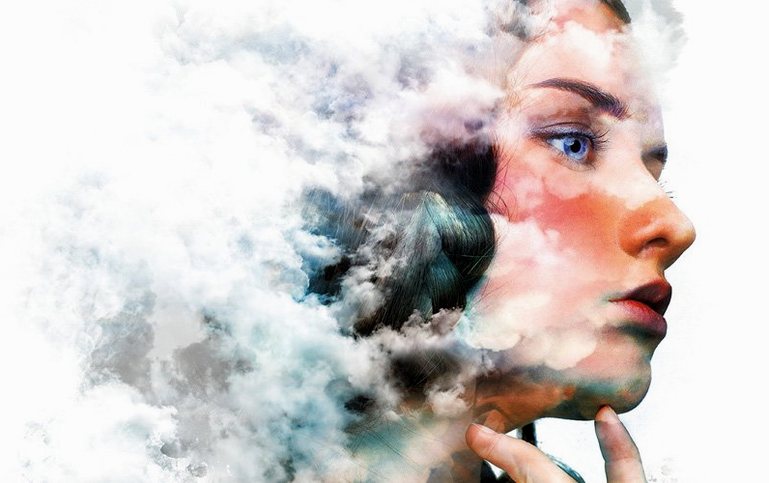


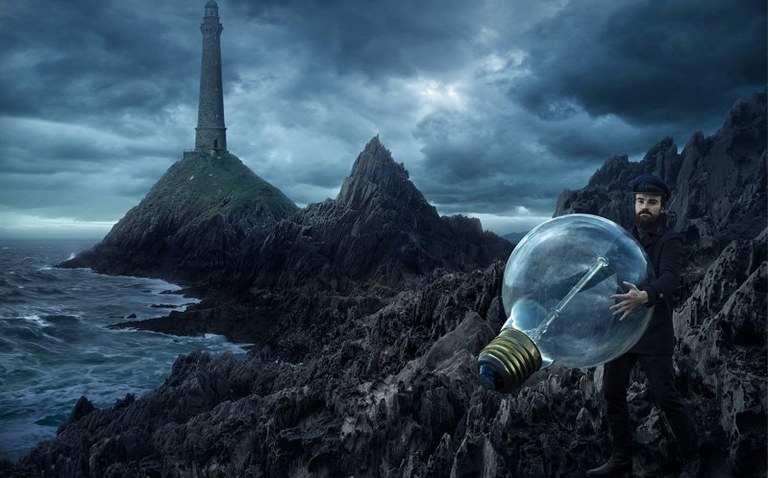
Photographers retouching a portrait, designers mocking up a poster, and illustrators painting a landscape all end up in the same app eventually. Photoshop remains the big tent for image work on a Mac, and version 27.10 adds a few new tools without upending the way people already use it.
The new Light adjustment layer is the kind of quiet addition that saves a trip into Camera Raw. You can brighten a backlit face or deepen a sky without flattening anything — it sits in the layer stack waiting for you to double-click and tweak. Meanwhile, the AI-assisted editor has graduated from a curiosity to something you reach for. Markup overlays let you circle an area and type what you want to change, which feels less like prompting and more like giving direction to a retoucher across the table.
Everything that anchored the app before is still here. Layers, masks, and selections give you granular control over where edits land, whether you are compositing three exposures or building a web banner from scratch. The brush collection is deep, custom brushes are easy to make, and Adobe Stock content is a click away when you need a texture or reference. Dynamic Text on shapes and paths keeps type layout flexible for packaging and posters.
Light Adjustment Layer Replaces Old Workarounds
Version 27.10 didn't rewrite the playbook, but it smoothed out a few friction points that show up in daily work. The Light adjustment layer landed quietly, and once it's in your muscle memory, you stop reaching for workarounds. Instead of duplicating a layer and running a brightness ramp that you have to mask later, you toss a Light layer above your image and pull the highlights up or the shadows down. It's non-destructive, fast, and the controls mirror what you already know from the Curves panel. For anyone who processes a batch of event photos or product shots, cutting out extra steps adds up by lunchtime.
The AI-assisted editor is where things get more interesting. It lives inside the app as a beta panel, and the pairing of Prompt to Edit with Markup changes how you approach corrections that used to require a careful lasso and a prayer. You sketch a rough oval around a watch on a wrist, type make the watch face silver, and the result lands on a new layer. If it's off, you tweak the mask or adjust the prompt. It's not a replacement for precision masking, but for exploring variations on a composition — maybe you want to see how a jacket looks in olive before committing to a reshoot — it keeps the flow moving without exporting to another tool.
Dynamic Text on paths also got polish. Working type around a curved label or along the arc of a logo doesn't require converting to outlines prematurely. You stay in edit mode longer, which is what you want when a client sits beside you and asks to see three type treatments in five minutes.
A Workflow for Replacing a Background with Controlled Lighting
Say you shot a portrait against a beige wall, but the final layout calls for a deep blue backdrop and a warmer key light on the subject's left side. Here's how that flows in version 27.10 without flattening anything you'll regret later.
Open the raw file in Photoshop. The first step is getting the subject isolated. The one-click selection tools handle hair surprisingly well in good contrast, but you can refine with the automatic masking brush along the edges. Spend thirty seconds tidying the mask; everything downstream depends on a clean edge.
With the subject on its own layer, drop in the blue background on a layer below. Now you have two separate worlds to light. The background feels flat, so add a Light adjustment layer clipped to it. Pull the exposure down slightly and deepen the shadows — blue reads better when it's a little moody. On the subject layer, add another Light adjustment layer, this time warming the highlights and lifting the exposure on the left side to mimic a window glow. Because both Light layers are independent, you can revisit the balance later without unstacking anything.
If the original catchlights in the eyes feel cold against the new warmth, use the Markup tool inside the AI-assisted editor. Circle each eye loosely and type warm highlight in the iris. The result lands on a separate layer, so you can dial the opacity back to taste. Finish by adding a subtle vignette with a masked Curves layer, and the composite holds together as if it were shot that way.
This entire edit stays live. Every adjustment is a layer you can double-click and revise next week when the brief changes. That's the part traditional darkroom tools never gave you.
High-Volume Commercial Photo Editors Benefit Most
Photoshop has always served multiple crowds, but version 27.10 sharpens the profile for a few specific groups.
Commercial photographers who deliver high-volume edits benefit from the Light adjustment layer more than anyone. When you're processing sixty headshots from a corporate session, saving two clicks per image means you clock out earlier. The ability to copy adjustment layers across documents keeps consistency across a set without scripting.
Graphic designers working in packaging, posters, and social media layouts lean on Dynamic Text and the flexible Save As preferences. Being able to control which file formats appear in the save dialog cuts the noise when you're bouncing between PSD, PNG, and TIFF all day. The AI-assisted editor also becomes a rapid prototyping tool — generating placeholder backgrounds or swapping product colors for a mood board happens in seconds rather than requiring a separate search for stock.
Digital painters and illustrators will find the brush engine as deep as ever, but the new AI tools serve a different purpose here. Markup and Prompt to Edit can generate texture references or lighting studies on separate layers, which you then paint over by hand. It's a conversation between the tool and your own brushwork, not a replacement for skill.
Mac users on Apple Silicon get native ARM performance, and the package runs on Intel machines through Rosetta 2 as well. The architecture support means you're not locked into one hardware path, which matters if you split time between a newer laptop and an older desktop.
Native Apple Silicon Performance on M1 and M2 Macs
Does Photoshop 27.10 run smoothly on an M1 or M2 Mac? Yes, it runs natively on Apple Silicon. The app feels responsive even with large layered files, and tasks like applying filters or transforming selections benefit from the architecture. If you're coming from an Intel Mac, the difference in launch time and brush responsiveness is noticeable.
What about the neural filters and AI features? The Neural Filters Pack is included as a separate extraction. Once placed in the correct Adobe UXP plugins folder, most filters activate without issue. Generative Fill is unavailable in version 27.10, which is worth knowing if that specific cloud-dependent feature is a priority. The Prompt to Edit and Markup tools function locally within the AI-assisted editor panel.
How does installation work on a newer macOS version? The package comes with instructions that walk you through the activation steps. If Rosetta isn't already on your system, install it first — the installer will flag it. Some users see an Adobe Genuine notification after setup; a blocking utility ships in the package and can be placed in your startup items to suppress it.
Will my older plug-ins break? Most plug-ins built for recent versions of Photoshop carry over. If you rely on niche third-party filters, test them on a single file first. The plug-in architecture hasn't shifted dramatically in this update, so the compatibility window is wide.
Can I work with files from other Adobe apps? Yes, PSD round-tripping with Illustrator and InDesign works as expected. The Save As and Save a Copy preferences let you streamline the format list, which helps when you're preparing assets for a layout application that only wants TIFFs.
Mara Compresses Covers for Thumbnail Legibility
Mara designs book covers for a small press in Portland. Her week involves pulling together photography, type, and illustration into compositions that need to read well at thumbnail size on an online store and full-size on a paperback. She's been using Photoshop since college, but the 27.10 update arrived just as she was starting a cover for a literary novel set in coastal Oregon.
The publisher sent a moody photo of a cliffside, shot in flat light. Mara started by opening the image and immediately dropping a Light adjustment layer above it. She drew the shadows down and pushed a little warmth into the highlights, giving the cliff the late-afternoon glow the brief described. Because the Light layer sits in the stack, she could revisit it once the type was in place and tweak the contrast to keep the title legible over a busy section of rock.
She needed a raven in the foreground. Rather than source stock or shoot one herself, she painted a rough silhouette in a new layer, used the Markup tool to circle it, and typed black raven perched on a branch, foggy background. The AI-assisted editor returned several variations on a fresh layer. She picked one, masked out the branch, and placed the bird where the composition needed weight. Then she painted over the feathers with a custom brush to blend the generated texture with the photograph's grain.
Type came last. She set the title along a gentle arc using Dynamic Text on a path, keeping the text layer editable until the proofing round was done. When the publisher asked for a different font weight at the last minute, it took thirty seconds.
For Mara, the update didn't change how she thinks about covers. It just gave her fewer reasons to leave the canvas. That's the kind of improvement that registers over a month of deadlines, not in a feature list.
If you split time between photo editing and graphic design, the current version strikes a balance worth sitting down with.
The 27.11 refresh arrives with Adobe’s current wave of under-the-hood repairs and low-key performance polishing.
- macOS 14 (Sonoma) or later
- Works on both Apple Silicon and 64‑bit Intel Macs
Questions I actually get
Does Photoshop 27.10 run on Apple Silicon Macs?
Yes. The app runs natively on both Intel and Apple Silicon Macs and requires macOS 14 or later.
What is the new Light adjustment layer?
It is a non-destructive adjustment layer for lighting edits, letting you brighten or darken parts of an image without altering the original pixels.
Can I use Adobe Stock content inside Photoshop?
Yes. You can browse and place Adobe Stock images, templates and textures directly within the app.
Porch talk 0
Come in or pull up a chair to leave a comment.
Nobody has pulled up a chair yet. If you used it on a real Saturday, say what the hour was.
More for the same hour
Everything in Mac Apps
 Adobe Media Encoder
26.5.0 Mac Apps
3.4 GB
Adobe Media Encoder
26.5.0 Mac Apps
3.4 GB
 Adobe Premiere Pro
26.5.2 Mac Apps
4.1 GB
Adobe Premiere Pro
26.5.2 Mac Apps
4.1 GB

 Adobe Lightroom Classic
15.6.0 Mac Apps
3.7 GB
Adobe Lightroom Classic
15.6.0 Mac Apps
3.7 GB
 Adobe Premiere Rush
1.5.62 Mac Apps
1.6 GB
Adobe Premiere Rush
1.5.62 Mac Apps
1.6 GB
 Adobe Substance 3D Painter
12.1.5 Mac Apps
3 GB
Adobe Substance 3D Painter
12.1.5 Mac Apps
3 GB
 Adobe InDesign
21.6.0 Mac Apps
1.5 GB
Adobe InDesign
21.6.0 Mac Apps
1.5 GB
 Adobe XD
59.0.12 Mac Apps
2.6 GB
Adobe XD
59.0.12 Mac Apps
2.6 GB
 Adobe Illustrator
30.8.2 Mac Apps
3.4 GB
Adobe Illustrator
30.8.2 Mac Apps
3.4 GB