



You shot some clips on your phone over the weekend and now they're just sitting there. You want to trim a few seconds, add a title, maybe layer in a song before sharing with a couple of friends. That's the kind of project AceMovi Video Editor is built for.
What exactly is AceMovi?
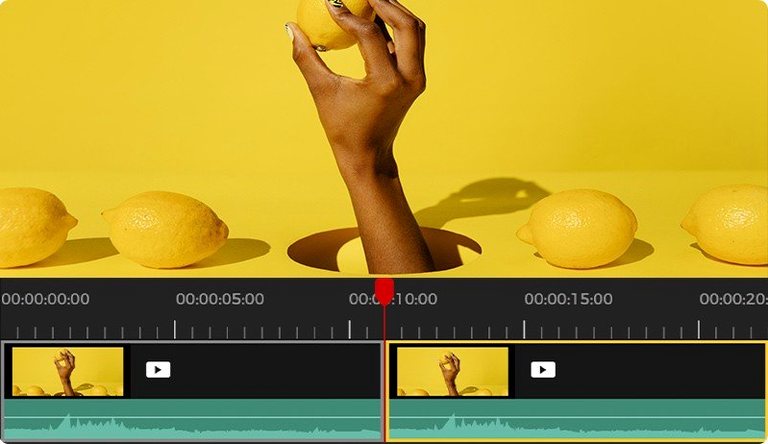
It's a non-linear video editor from TunesKit that runs on Mac. You arrange clips on a timeline, toss in transitions, and drop text or music wherever it fits. A built-in screen recorder is part of the package, too.
Who will feel at home with it?
Someone making a quick highlight reel, a tutorial, or a simple family video. If your editing needs rarely go beyond cuts, fades, and background music, you'll find your way around without much fuss.
Layer and share straight from the timeline
Import your media, then layer on text, music, and effects. Once it looks right, the app can share your finished video directly online.
Mac compatibility notes
You’ve lined up a few clips, picked a track, and everything looks fine in the preview, then the exported file stutters in the middle of a transition. It’s a common snag, and it usually comes down to one of two things: the project resolution doesn’t match your source footage, or a high-bitrate clip is sitting on a timeline set to a lower frame rate. Before you start re-editing, open the project settings and confirm the frame rate matches the majority of your clips—mixing 30 fps and 60 fps footage without conforming one to the other trips up a lot of first-time users.
Another hiccup people run into is the screen recorder capturing a black window instead of the app they wanted. That’s a macOS permissions issue. Head into System Preferences → Security & Privacy → Screen Recording and make sure AceMovi is checked. The same goes for microphone access if your voiceover disappears. Once those boxes are ticked, restart the app and you’ll get a proper recording on the next pass.
Media that won’t import usually has a codec AceMovi doesn’t recognize. The app handles MP4, M4V, MOV, MKV, MPG, 3GP, 3GP-2, and OGV, so anything outside that list—like an old AVI or a raw phone clip in HEVC on an older macOS build—needs a quick conversion beforehand. The timeline itself will flag a red clip if something went wrong during import.
Three settings worth changing first
Out of the box, the default export quality leans conservative to keep file sizes small. If you’re sending a video to a friend’s phone that’s fine, but for anything you’ll watch on a television, bump the export bitrate up a notch. The preset targets—iPhone, iPad, Galaxy series, Xbox, and others—are genuinely useful shortcuts; pick the one closest to your destination instead of guessing resolution and format.
Second, in the timeline preferences, switch the snapping behavior to “magnetic” if you plan to rearrange clips often. It keeps everything aligned when you drag a segment and prevents tiny gaps that show up as black frames. Third, while you’re in preferences, set your scratch disk location to an external drive if you’re working with long recordings. The internal drive fills up fast when you capture screen footage at full resolution.
Mixing screen recordings with phone clips
People ask whether it can handle projects that mix screen recordings with phone clips, and the answer is yes—that’s where the non-linear timeline earns its keep. You drop both types onto the same sequence, resize the phone footage if it’s vertical, and the app plays them back together without needing a separate converter. Another question that surfaces is whether it records system audio during screen capture. It does, but you need to select the correct audio input source before you hit record; on some Macs that means choosing the virtual driver rather than the built-in microphone. Folks also wonder about the Intel-only architecture, and on Apple Silicon machines it runs under Rosetta 2 without any extra steps. If you’ve been searching for a straightforward way to pull clips together without a steep learning curve, the acemovi video editor free download gets you the full app ready to run. Some users look for an acemovi video editor crack to skip activation, and the TNT release handles that smoothly—just mount the disk image, bypass Gatekeeper with a quick Terminal command, and drag the app into your Applications folder.
It's a 64-bit Intel application that asks for macOS 10.12 or later. It runs on Intel Macs, and under Rosetta 2 on Apple Silicon machines.
- macOS 10.12 or later
- 64-bit Intel processor
Porch talk 0
Come in or pull up a chair to leave a comment.
Nobody has pulled up a chair yet. If you used it on a real Saturday, say what the hour was.
More for the same hour
Everything in Mac Apps
 ACDSee Photo Studio
26.0.3 Mac Apps
441 MB
ACDSee Photo Studio
26.0.3 Mac Apps
441 MB

 Adguard
2.20.2.2629 Mac Apps
Updated 3 MB
Adguard
2.20.2.2629 Mac Apps
Updated 3 MB

 A Better Finder Attributes
7.53 Mac Apps
Updated 13 MB
A Better Finder Attributes
7.53 Mac Apps
Updated 13 MB

 Adobe After Effects
26.5.0 Mac Apps
8.8 GB
Adobe After Effects
26.5.0 Mac Apps
8.8 GB

 Adobe Animate
24.0.15 Mac Apps
6.5 GB
Adobe Animate
24.0.15 Mac Apps
6.5 GB

 4K YouTube to MP3
26.3.5 Mac Apps
218 MB
4K YouTube to MP3
26.3.5 Mac Apps
218 MB

 Adobe Bridge
16.0.8 Mac Apps
3.7 GB
Adobe Bridge
16.0.8 Mac Apps
3.7 GB

 4K Video Downloader
26.3.5 Mac Apps
247 MB
4K Video Downloader
26.3.5 Mac Apps
247 MB