
You pulled photos off a memory card and into a folder with a dozen other file types. The creation dates are scattered, a few JPEGs carry the wrong time, and the timeline in your photo library is a mess. Before you even open an organizer, you just want the underlying data to be correct.
Straightening Out EXIF Dates
A Better Finder Attributes 7 can adjust JPEG EXIF date and time data, synchronize a photo's modification date with its shooting date, and write shooting dates back into Photoshop files—a fix that returned in version 7.50.
Changing File and Folder Timestamps
For non-photo files, the utility changes creation and modification dates without touching the content inside. It also adjusts date and time data in ARF and CRW files, which helps when you are sorting footage or raw archives alongside edited exports.
Adding Location Context
The latest release accepts more GPS coordinate formats during a tag change action, so location-aware workflows feel less fussy when files arrive from different cameras and apps.
A Batch Workflow from Start to Finish
Say you just got back from a weekend shoot with two bodies, and one camera's clock was an hour fast. Images from the morning hike are mixed into the same folder as afternoon shots, and the timeline is pure fiction. Here is one path through it in A Better Finder Attributes.
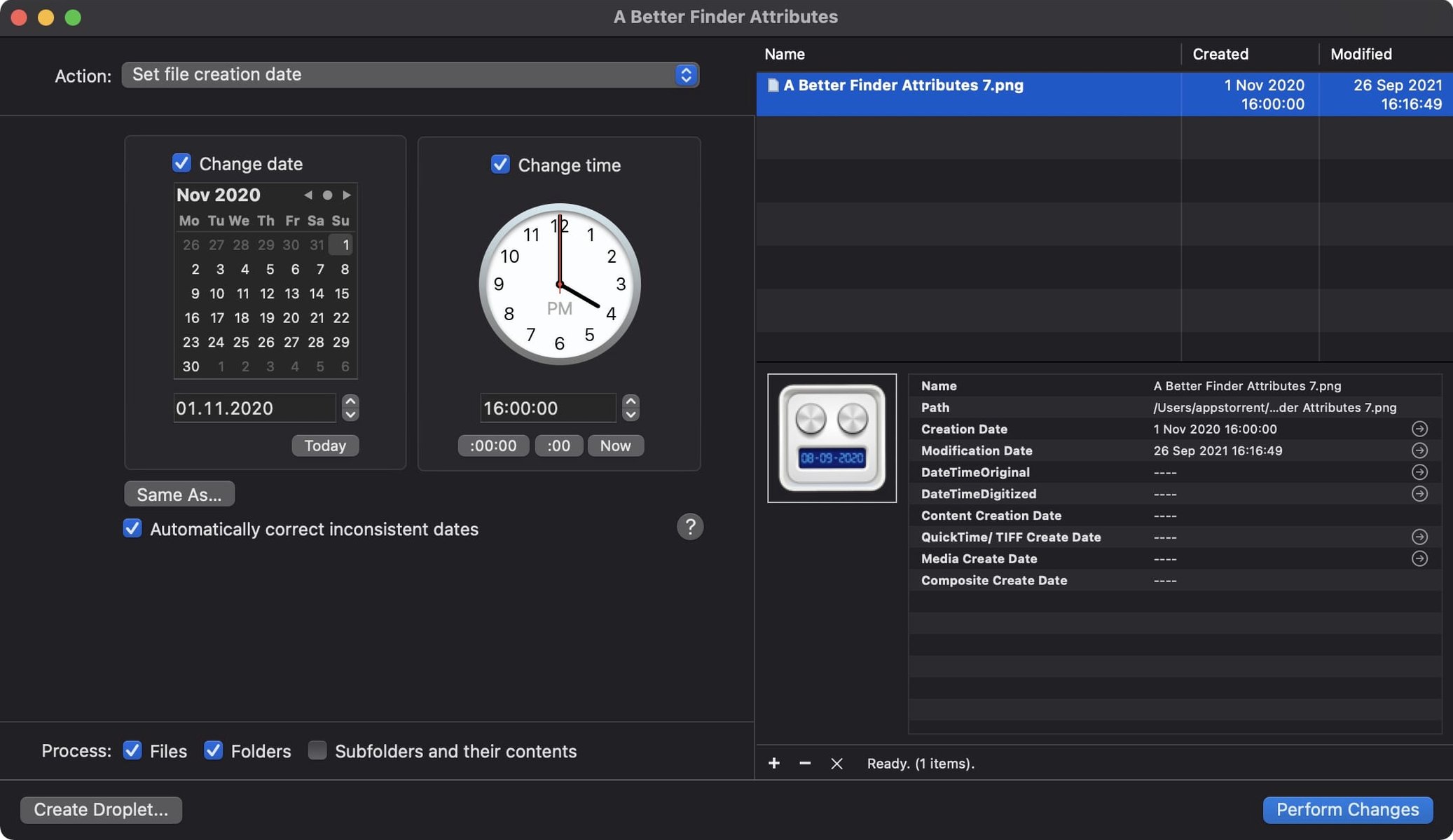
Open the app and drag the entire folder into the file list. Switch to the Adjust EXIF Timestamps action. You are looking at a grid of every JPEG and RAW file in the batch, with the current shooting date displayed next to the name. Select all the images from the camera that was off by an hour—you can Command-click or use the search bar to isolate a specific model in the EXIF metadata column. Add a one-hour offset, preview the result in the right-hand column, and apply it. Now the hiking photos sit in the correct light, chronologically, without touching the files from the other body.
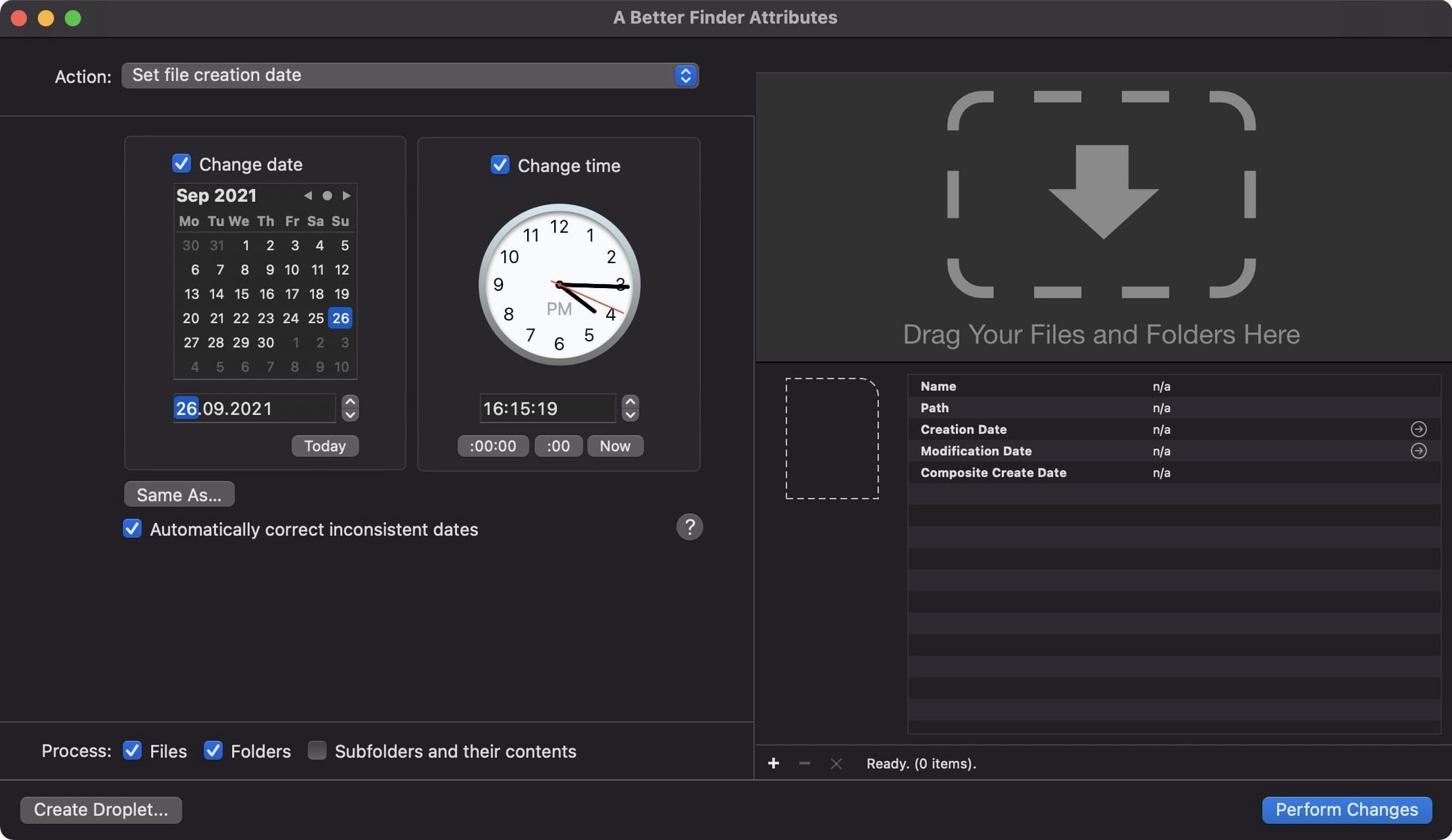
Next, turn to the modification dates. Some of these files were copied and re-exported, so the Finder shows yesterday's timestamp on photos taken three days ago. Switch the action to Synchronize Modification Date with Shooting Date. Select everything, preview the change, and commit. Finally, run the Set File Creation Date action to match creation dates to the corrected shooting dates, so Spotlight and smart folders reflect reality too. The whole sequence takes under a minute once you know the flow.
Skipping the Before-and-After Preview
The most common slip is applying a timestamp change to the wrong set of files because the preview column was overlooked. The app shows before-and-after values plainly, and skipping that glance can bake in a mistake you only notice days later when a client questions the metadata. Always scroll the preview.
Another classic stumble is confusing the Set File Creation Date action with the EXIF timestamp actions. Changing the Finder creation date will not fix a photo library's timeline if the shooting date inside the file is still wrong. They are two distinct layers—think of the file system date as a postmark and the EXIF date as the camera's stopwatch. Beginners sometimes run only the file system action and wonder why Lightroom still shows the old time.
With movie files, people occasionally forget that version 7.50 writes the Apple QuickTime creation date specifically so Photos and Final Cut Pro can read it. If you adjust a clip's file dates without using the QuickTime-aware action, those apps will ignore your correction. The info button in the title bar points this out, and it is worth clicking early in your first session.
Two Thousand RAW Files Without a Beachball
A Better Finder Attributes handles a folder of two thousand RAW files without beachballing. On an Apple Silicon Mac, processing a batch of mixed JPEGs and CR2 files—adjusting EXIF timestamps and synchronizing modification dates in one pass—feels brisk, with the progress bar moving in steady increments rather than fits and starts. Memory usage stays modest; the app does not preload image data into RAM the way a photo editor would, because it is working with metadata containers, not pixels. That keeps the rest of the system responsive even during a large batch run.
The 7.50 release fixed a nagging one-hour DST error when writing QuickTime dates, and that stability work shows. Over a week of daily use—tweaking timestamps on scans, correcting camera clock offsets, prepping files for archival—I have not seen a crash or a hung process. The app respects the file system politely, skipping locked files and flagging them in the log instead of stalling. If you are the type who queues up a big batch and then walks away, the log at the end tells you exactly what was changed and what was skipped.
Fixing a Scanner’s Wrong Date on Slide Scans
Consider a family archivist who inherited a crate of slides scanned to TIFF, plus a handful of digitized 8mm reels. The scanner stamped every TIFF with today's date, and the movie files carry no meaningful QuickTime creation date at all. She wants these to appear in Photos alongside her own digital shots from the 1990s, in the correct chronological order.
She drags the TIFFs into A Better Finder Attributes and sets the EXIF shooting date to the year printed on each slide mount, working in small batches per year. For the 8mm digitizations, she uses the QuickTime creation date action to embed a plausible date based on the reel labels. Then she synchronizes the file modification dates to match. When she imports the whole lot into Photos, the timeline finally reads like a family history instead of an IT glitch. The GPS coordinate format flexibility in 7.50 also lets her paste location data from an old travel journal into the tag change action, placing the slides on a map without retyping coordinates by hand. That is the kind of slow, satisfying cleanup where a better finder attributes mac workflow earns its keep—not flashy, but foundational. If you spend Saturdays rescuing old media, this is the tool you keep in the dock.
The developer's latest fixes and improvements are rolled into version 7.53, fresh from Public Space.
- macOS 14.6 or later
- Apple Silicon or Intel 64-bit Mac
Questions I actually get
Does A Better Finder Attributes only work with photos?
No, it changes creation and modification dates on any file, though it has specialized tools for photo EXIF and raw formats.
Can it match a file’s date to the date the photo was taken?
Yes, it can synchronize a file’s modification date with its EXIF shooting date so your Finder timeline matches the camera.
What macOS version do I need for version 7.50?
It requires macOS 14.6 or later and runs natively on both Intel and Apple Silicon Macs.
Porch talk 0
Come in or pull up a chair to leave a comment.
Nobody has pulled up a chair yet. If you used it on a real Saturday, say what the hour was.
More for the same hour
Everything in Mac Apps
 4K YouTube to MP3
26.3.5 Mac Apps
218 MB
4K YouTube to MP3
26.3.5 Mac Apps
218 MB

 4K Video Downloader
26.3.5 Mac Apps
247 MB
4K Video Downloader
26.3.5 Mac Apps
247 MB
 ACDSee Photo Studio
26.0.3 Mac Apps
441 MB
ACDSee Photo Studio
26.0.3 Mac Apps
441 MB

 1Password
7.9.4 Mac Apps
70 MB
1Password
7.9.4 Mac Apps
70 MB
 AceMovi Video Editor
5.8.0.34 Mac Apps
200 MB
AceMovi Video Editor
5.8.0.34 Mac Apps
200 MB

 Adguard
2.20.2.2629 Mac Apps
Updated 3 MB
Adguard
2.20.2.2629 Mac Apps
Updated 3 MB

 Adobe After Effects
26.5.0 Mac Apps
8.8 GB
Adobe After Effects
26.5.0 Mac Apps
8.8 GB

 Adobe Animate
24.0.15 Mac Apps
6.5 GB
Adobe Animate
24.0.15 Mac Apps
6.5 GB