


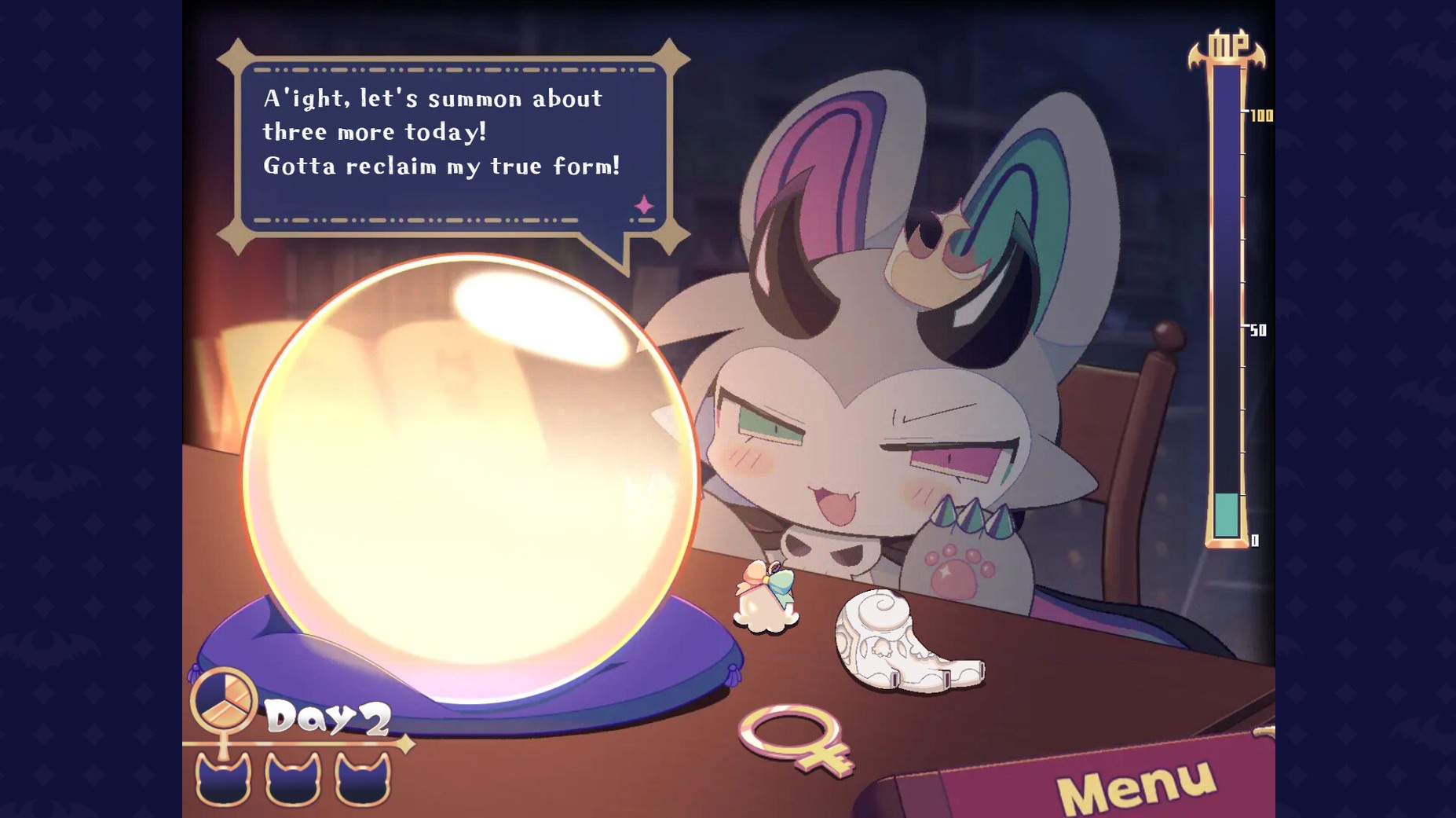


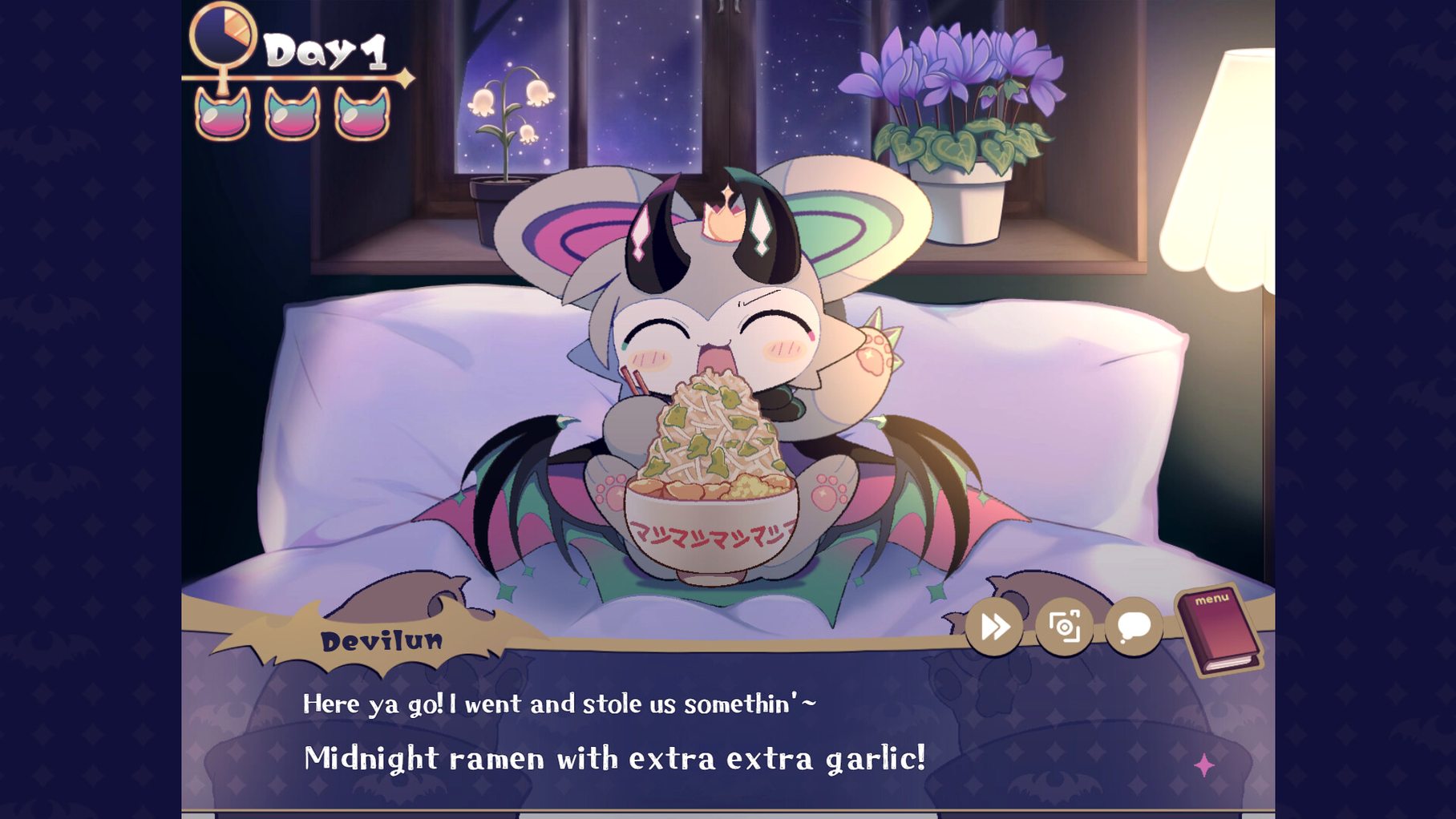
Devil Connections is a Mac adventure game about summoning characters and managing emotional energy.
Story-Driven with Multiple Endings
- Players who enjoy story-driven games with multiple endings — the choices you make shape the outcome.
- Anyone curious about summoning mechanics where you play a summoner who has summoned a demon, and the demon won’t reveal its own name.
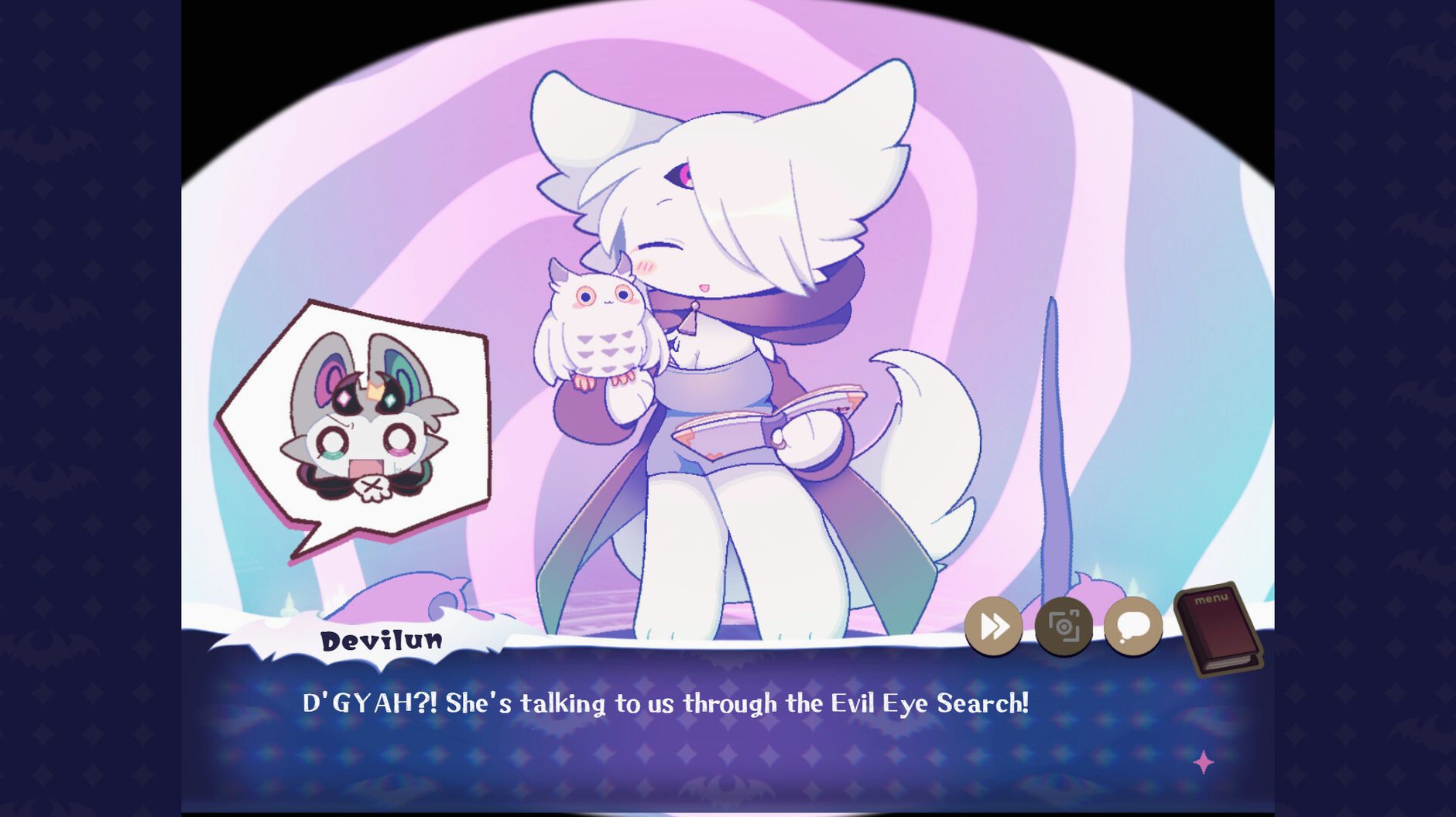
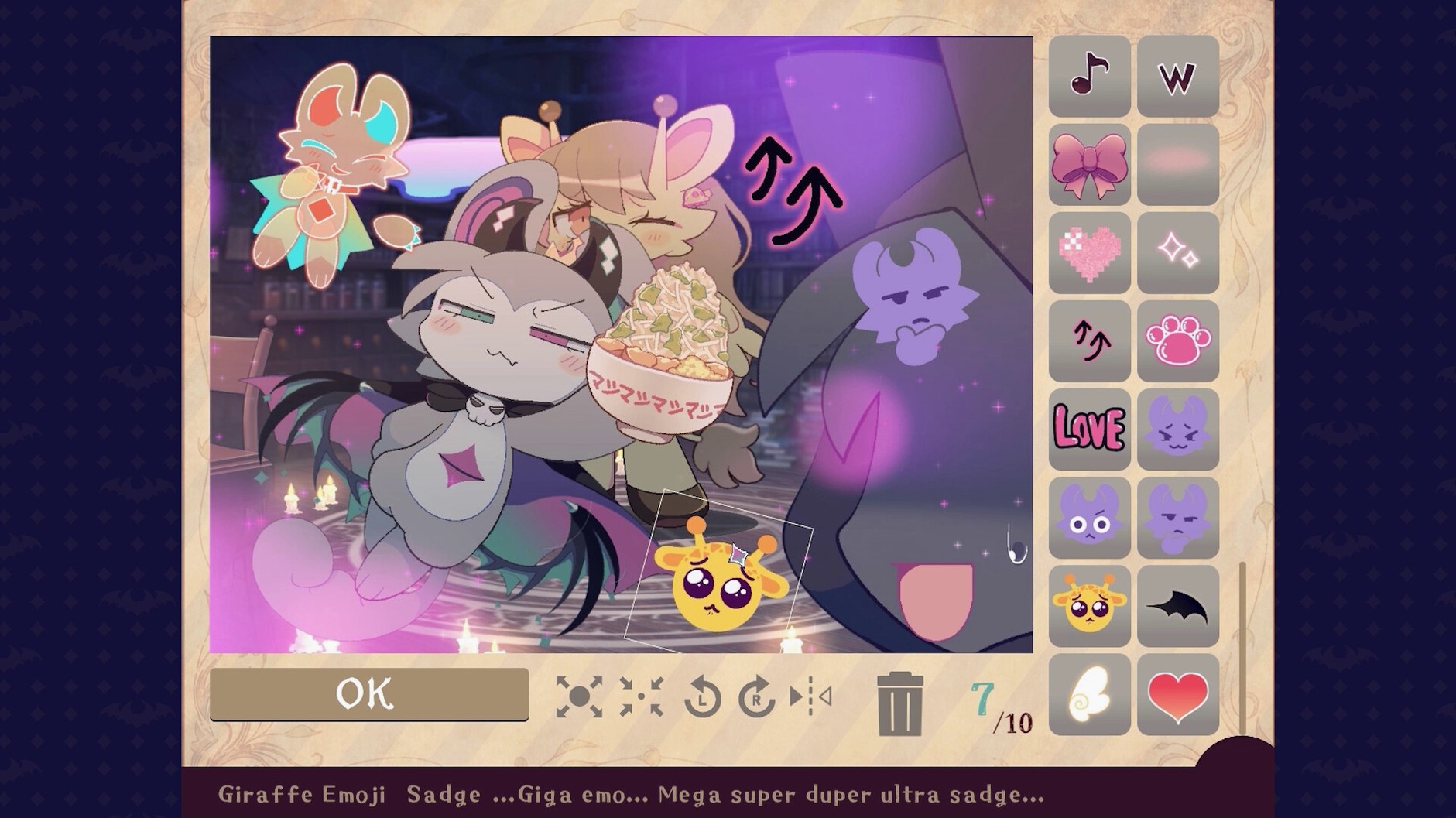
- Fans of visual novel–style exploration with extras: a camera for taking character photos, and a special Evil Eye Search ability to read another character’s thoughts.
- People who like dark, gothic fantasy music that sets an eerie mood.
Adult Content and Character Depth
- The game contains adult content — not a choice for younger or easily offended players.
- Over 30 summonable characters sounds like a lot, but many are variations on a theme; depth comes from story branches, not character variety alone.
- If you’re not into reading lots of dialogue or managing emotional energy as a resource, this might feel slow.
- Available in English, Traditional Chinese, Simplified Chinese, and Japanese — no other languages at launch.
Speed, Stability, and How It Behaves Day to Day
On a Mac mini 2024 M4 running macOS Golden Gate, Devil Connections loads chapters quickly — the kind of speed that makes you forget you’re waiting. Menu transitions are snappy, and the animated character expressions cycle without stutter. I didn’t see any frame drops during the heavier scenes where multiple summoned characters are on screen.
The game doesn’t fight for resources with other open apps; I kept a browser and a messenger running alongside it during a session and never noticed slowdown. The build is native for both Apple Silicon and Intel 64-bit, so you don’t need Rosetta or emulation. That alone makes a difference in how responsive the mouse and tap interactions feel.
Stability has been solid. No crashes during the dozen or so hours I’ve put in, and no corrupted saves. The only hiccup came when I tried to change the language while mid-scene — it required a restart of the game to take effect, which is normal for this kind of title. Save often, and you’ll be fine.
Frequently Asked Questions
Does it work on older Macs?
Yes, as long as you’re on a supported version of macOS. The official build supports both ARM and x86 64-bit architectures. I haven’t tested it on an Intel Mac from 2015, but there’s no indication it won’t run on anything that meets the requirements. The game isn’t graphically demanding.
Do I need an internet connection to play?
No. Activation is not required, and there’s no online check. You can play fully offline once it’s installed. This is refreshing for a game that deals with demon contracts and emotional energy — it’s yours to run when and where you want.
Is there a lot of reading?
Plenty. The story is text-heavy, with dialogue branches and thought-reading sequences. If you like visual novels or narrative adventures, you’ll feel at home. If you prefer action or puzzles, this might not be your pace.
Can I use a controller?
The game is designed for mouse and keyboard input, with tap support on touchscreens. No controller mapping is built in, though macOS lets you map a controller to keyboard inputs if you really want to.
A Workflow: Investigating a Suspicious Character
This is a typical three-step arc you’ll repeat throughout the story, with variations.
- Summon the character. You enter a new area in Magirisia and meet someone who seems off. Use the summoning command to bring them into your circle. The demon Debirun appears and pushes you to make a contract. You can resist or agree — your choice sets the emotional tone for the scene.
- Use Evil Eye Search. Once the character is summoned, tap the Evil Eye icon. The screen dims, and you see their surface thoughts as floating text. This reveals their real intentions — maybe they’re hiding fear, or planning betrayal. Reading thoughts costs emotional energy, so you can’t spam it.
- Choose your response. Based on what you learned, pick a dialogue option that either calms, provokes, or bonds with the character. Each choice strengthens or weakens their emotional state. A wrong choice can end the story then and there, sending you back to a previous save.
The camera and stamp editor come into play later, when you want to document your summoned roster or decorate a scene to remember a key moment. Not essential to the plot, but a nice way to personalize your playthrough.
A Typical Session: Step by Step
I open Devil Connections from Launchpad. The game loads to the main menu — gothic fantasy music starts low, building atmosphere. I have three save slots; I pick my current file.
The scene opens in a dusty courtyard. Debirun, the unnamed demon, stands beside me. A new character approaches — a nervous merchant. I decide to play it careful. I summon him, using a small amount of energy. His expression cycles from surprise to suspicion. I tap his shoulder to see his reaction; he flinches. That’s a clue he’s hiding something.
I activate Evil Eye Search. His thoughts are jumbled — “Can’t let her find the letter… must protect the shipment…” Interesting. I choose a gentle response: “You seem troubled. I only want to help.” His expression softens. The emotional energy bar ticks up slightly — a reward for a good choice.
Twenty minutes later, I’m deeper in. A wrong choice would have ended the story, but I saved right after the courtyard scene. I take a photo of the merchant with the in-game camera, then apply a stamp from the editor — a small red seal, just to mark the moment. I close the game. The whole session felt responsive, readable, and unhurried.
Set Language Before Playing
Before you start your first real playthrough, open Mac System Settings, go to Languages, and select the game. The language you pick here applies globally. It’s not something you can change mid-session without a restart, so set it early.
If the default window size feels cramped, resize the window to your liking — the game remembers the dimensions between launches. There’s no full-screen toggle in the game itself, but macOS lets you force full-screen from the green window button or by using the menu bar’s green dot.
Finally, adjust your save habits. The game autosaves at chapter starts, but manual saves are your safety net for the many one-wrong-choice endings. I save before every new character encounter and before using Evil Eye Search. That way, if a choice closes a branch, you’re back no more than a minute or two.
- macOS 10.13 or later
- Apple Silicon or Intel 64-bit
- No activation required
Porch talk 0
Come in or pull up a chair to leave a comment.
Nobody has pulled up a chair yet. If you used it on a real Saturday, say what the hour was.
More for the same hour
Everything in Games
 BloomTale
2026.11.05 Games
369 MB
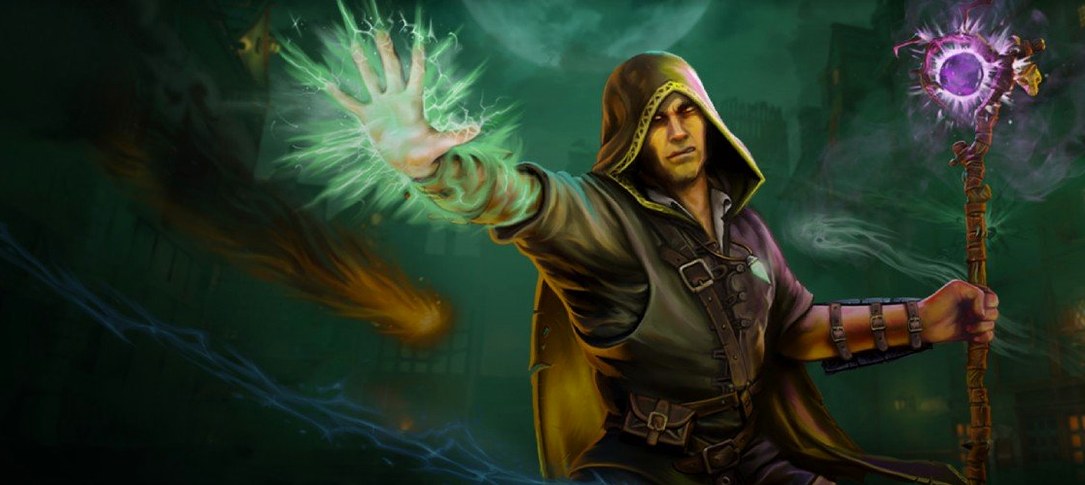
 Ziggurat 2
29.06.2026.13.30.27.98 Games
903 MB

 Workers & Resources: Soviet Republic
1.1.1.9 Wine Games
6.3 GB

 WolfQuest: Anniversary Edition
3.0.1o Native Games
7.5 GB

 Wingspan
282 Native Games
1.8 GB

 WHAT THE CAR?
6.2.1 Native Games
Updated 717 MB

 Victoria
1.15.0 Native Games
Updated 9 GB

 Vampire Therapist
1.214 Games
1.8 GB